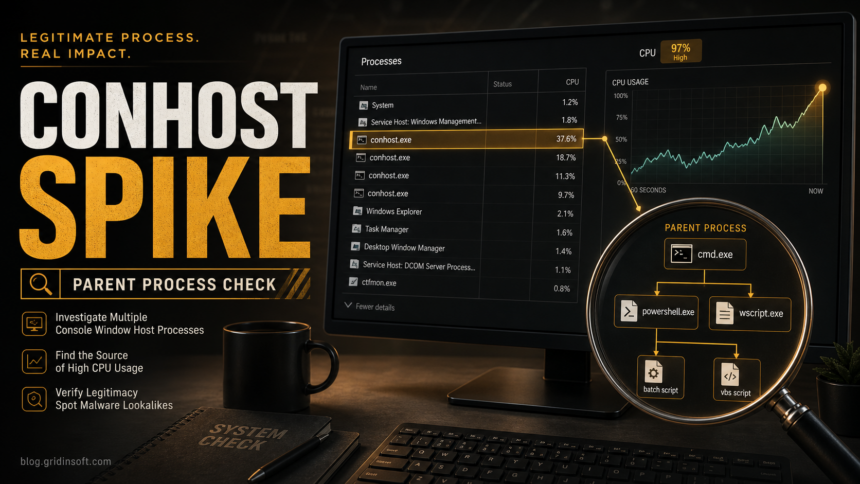
Conhost.exe high CPU usually means a command-line app, script, terminal session, installer, updater, or background tool is keeping Windows Console Host busy. The file itself is a normal Windows component when it runs from C:\Windows\System32\conhost.exe, but the parent process, command line, file path, and persistence behavior decide whether you are looking at a harmless console task or a malware lookalike.
Do not delete conhost.exe from System32. First identify which program started it. A high-CPU Console Window Host with cmd.exe, powershell.exe, wscript.exe, an unknown installer, or an AppData script behind it deserves a different response than one attached to Windows Terminal, Visual Studio Code, a backup tool, or a normal admin command prompt.
What Is Conhost.exe?
conhost.exe is Windows Console Host. Microsoft documents it as the host process for classic console APIs and the older console user interface used by command-line applications. In plain language, it helps Windows display and manage console programs such as Command Prompt, PowerShell, scripts, developer tools, installers, and some background utilities.
Seeing several Console Window Host entries is not automatically suspicious. Each console session or console-using background task can have its own conhost.exe. The question is whether that instance has a legitimate parent process and whether its CPU use stops when the parent task finishes.
OpenConsole.exe vs conhost.exe
OpenConsole.exe is built from Microsoft’s console-host project and is used by Windows Terminal to communicate with command-line applications. The roles are different: Terminal provides the window and tabs, the console host handles console input/output, and a shell such as PowerShell or Command Prompt runs your commands. An OpenConsole crash can therefore close a Terminal session without making PowerShell or the host a virus. [1] [4]
Identify the package that supplied the file before judging its location. A Store installation, an official portable distribution, and a developer build can use different paths. Check the owning app, expected publisher or build source, version, and what launched it; a name, folder, or signature alone does not authenticate the whole activity. Our EXE safety checks explain that comparison. Do not apply the System32 path check for Windows’ conhost.exe to every OpenConsole.exe copy.
OpenConsole.exe application error or system error
- Record the actual failure. Save the exact dialog text and time. In Reliability Monitor or Event Viewer, note the faulting executable and module paths, exception code, Terminal version, and Windows build. A missing-file message and a crash are different problems.
- Find the trigger. Does Terminal fail on opening, or only when one profile, shell, or console app starts? After saving work, try another existing profile. If only one app fails, update or troubleshoot that app too.
- Update the owning package. Use Microsoft Store for its Terminal installation or the official Microsoft release channel for a manual installation. If another known tool supplied the host, use that tool’s supported updater. If package updating itself fails, see the WindowsPackageManagerServer troubleshooting guide.
- Repair and retest if needed. For an installed app that offers it, use Settings → Apps → the app’s advanced options → Repair, then repeat the original trigger. Repair is not available for every app. Keep the error details for support if it still fails. [5]
Do not replace individual EXE/DLL files, change WindowsApps ownership, or disable protection to make the error disappear. A crash alone calls for troubleshooting; an unknown download, unexpected launcher, or security detection calls for the suspicious-process cleanup below.
Why Conhost.exe Uses High CPU
High CPU normally comes from the program that is using the console, not from Console Window Host by itself. Common benign causes include a stuck batch file, a PowerShell script, a developer terminal, a game launcher, a backup or sync utility, a monitoring agent, or a command-line tool that is producing constant output.
Suspicious causes are different. Malware often hides behind normal Windows process names or uses console hosts to run scripts without a visible window. Treat the case as suspicious when high CPU appears after a crack, fake update, unknown installer, email attachment, browser download, or remote-support session, especially if the parent process is unknown.
Check the File Path First
Open Task Manager, switch to the Details tab, right-click the busy conhost.exe, and choose Open file location. The real Windows file should be in:
C:\Windows\System32\conhost.exe
A same-name file in %LOCALAPPDATA%, %APPDATA%, C:\Users\Public, Downloads, Temp, a browser cache folder, or a random program folder is not the normal Windows Console Host. Do not trust the process name alone; attackers can copy the name and set a misleading description.
Find the Parent Process
The parent process tells you why Console Window Host exists. Task Manager may show enough context, but Process Explorer is better when several console hosts are open. In Process Explorer, enable the process tree, select conhost.exe, and look at the process directly above it.
Typical parent processes include:
cmd.exeorpowershell.exefrom a command you opened yourself;- Windows Terminal, developer tools, backup utilities, or administrative scripts;
- installers or updaters that briefly run command-line helpers;
- unknown executables from
AppData,Temp, startup folders, or browser download locations.
If the parent is a script host, check the full command line. A legitimate admin script should have a recognizable path and purpose. A hidden PowerShell command, encoded command, random VBS/JS file, or command launched from a temporary folder is a strong reason to scan before you keep using the PC normally.
When Multiple Console Window Hosts Are Normal
Multiple conhost.exe entries are normal when you have several terminals, command-line apps, developer tools, or background utilities open. They should usually use little CPU when idle. The red flag is not the count alone; it is a process that stays busy, reappears after reboot, has a wrong path, or belongs to an unknown parent.
If many instances appear only while a known program is working, close that program and watch whether the console hosts disappear. If they return without an obvious app, check Startup apps, Task Scheduler, browser extensions, recently installed programs, and security-tool history.
How to Fix Conhost.exe High CPU Safely
- Wait one minute and sort by CPU. Confirm the same
conhost.exeprocess stays busy instead of spiking briefly. - Open the file location. Keep
C:\Windows\System32\conhost.exe; investigate any other path. - Identify the parent process. Use Process Explorer if Task Manager does not show enough context.
- Close the parent app, not the Windows file. Save work first, then close the terminal, installer, launcher, script, or tool that started it.
- Restart and re-check. A one-time console spike after boot or update is less concerning than a process that returns every session.
- Repair benign Windows issues. If the parent is a known Windows component, run Windows Update, update the app that started the console task, and use
sfc /scannowonly after you understand what is looping. - Scan suspicious cases. If the path, parent, command line, or timing looks wrong, scan before restoring files, whitelisting alerts, or continuing online banking or password-manager use.
When Conhost.exe Looks Like Malware
Escalate from troubleshooting to cleanup when you see any of these patterns:
conhost.exeis outsideC:\Windows\System32;- high CPU returns after every reboot with no visible terminal open;
- the parent is an unknown file in
AppData,Temp,Downloads, or a browser cache; - the command line uses encoded PowerShell, hidden script hosts, or random file names;
- Task Scheduler, Startup apps, services, or browser extensions recreate the activity;
- the spike started after a crack, fake update, phishing attachment, game mod, or remote-support tool.
In those cases, the visible console host may be only the execution window for something else. A security scan should look for the launcher, scheduled task, service, browser change, downloaded script, Defender exclusion, or bundled module that keeps recreating the activity.
For a suspicious download or unknown launcher, download and install Gridinsoft Anti-Malware using the button below, update its detection database, and run a Full Scan. Review the results, apply cleanup to detected threats, restart, and check whether the original activity returns. Manual checks of tasks, services, or startup entries are optional targeted follow-up if a fresh event remains; they are not a prerequisite for the scan. A clean scan does not prove that no compromise occurred.
If the process path is wrong, the name imitates a Windows component, or high CPU started after an unknown installer, scan for hidden miners, services, startup entries, and bundled components.
Scan suspicious conhost activityWhat Not to Do
- Do not delete
C:\Windows\System32\conhost.exe. - Do not end random Windows processes repeatedly without checking the parent process.
- Do not whitelist a security alert just because the filename looks like a Windows component.
- Do not keep using a cracked installer, unknown script, or remote-support tool that keeps launching console hosts.
- Do not assume
System32alone proves the whole chain is safe; the parent process still matters.
Related Checks
If you are comparing several Windows host processes, check the nearby Gridinsoft guides for rundll32.exe high CPU, dllhost.exe high CPU, WMI Provider Host high CPU, and PowerShell outbound connection alerts. Those pages cover adjacent cases where the suspicious activity is in a DLL, COM handler, WMI client, or script rather than Console Window Host itself.
FAQ
Is conhost.exe a virus?
No, the real conhost.exe in C:\Windows\System32 is a normal Windows process. Malware can still copy the name or use Console Window Host to run scripts, so check the path, parent process, and command line before deciding.
Why are there many Console Window Host processes?
Several instances can be normal when multiple command-line apps or background tools are open. It becomes suspicious when many instances stay active, use high CPU, or return after reboot with unknown parents.
Should I end conhost.exe in Task Manager?
Usually no. Close the parent program or script instead. Ending the console host can interrupt a legitimate task and does not remove the launcher if malware or a scheduled task is responsible.
What is the safest first check?
Open the file location and identify the parent process. If the file is outside C:\Windows\System32 or the parent is an unknown script or downloaded executable, treat it as suspicious.
Can conhost.exe use 100% CPU without malware?
Yes, a broken script, terminal session, developer tool, or installer can push Console Window Host hard. The difference is that a benign case has a recognizable parent process and stops when that task is fixed or closed.
References
- Microsoft Learn. “Windows Console and Terminal Definitions.” Microsoft, accessed July 4, 2026. https://learn.microsoft.com/en-us/windows/console/definitions
- Microsoft Command Line Team. “Windows Command-Line: Inside the Windows Console.” Microsoft Developer Blogs, July 20, 2018, accessed July 4, 2026. https://devblogs.microsoft.com/commandline/windows-command-line-inside-the-windows-console/
- Elastic Security. “Conhost Spawned By Suspicious Parent Process.” Elastic, accessed July 4, 2026. https://www.elastic.co/guide/en/security/current/conhost-spawned-by-suspicious-parent-process.html
- Microsoft. “Windows Terminal repository: installation and console-host overview.” GitHub, accessed October 15, 2026. Windows Terminal project documentation.
- Microsoft Support. “Repair apps and programs in Windows.” Microsoft, accessed October 15, 2026. Supported app repair options.