

What “Your session was logged off because DWM crashed” means
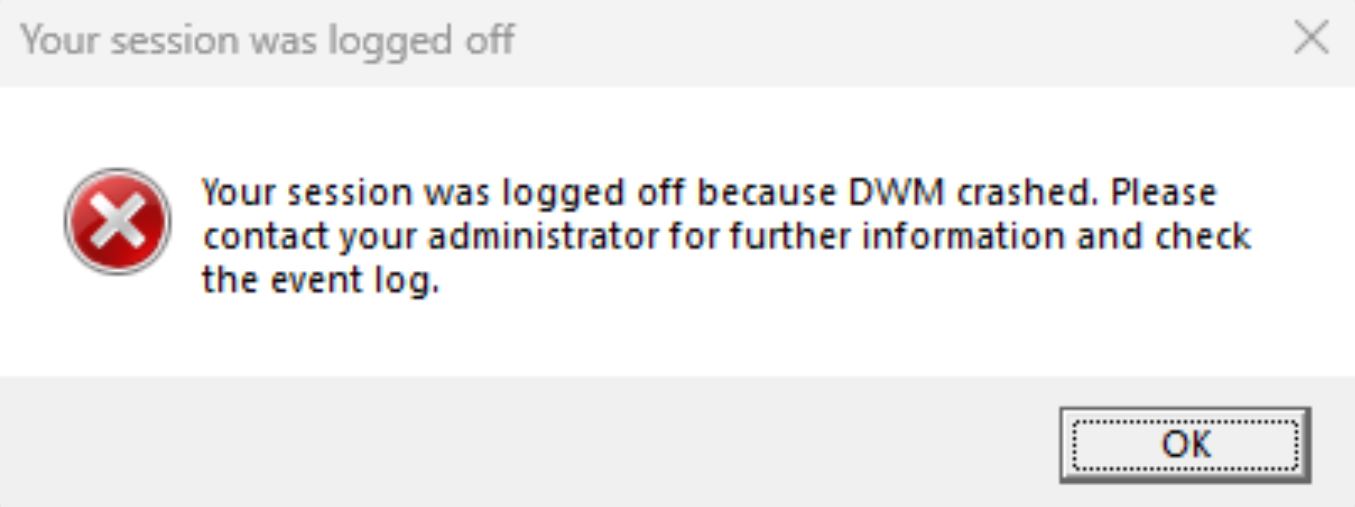
This Windows message means Desktop Window Manager (dwm.exe) crashed badly enough that Windows ended the current user session. Most cases are graphics-stack problems: a GPU driver, Windows display update, HDR/VRR setting, overlay, screen recorder, corrupted system file, or unstable GPU power.
Check Event Viewer first, then update or roll back the graphics driver, disable overlays, test simpler display settings, and repair Windows files with DISM and SFC. Investigate possible malware if dwm.exe is not in C:\Windows\System32, is not Microsoft-signed, or runs from a user folder.
| Process | dwm.exe / Desktop Window Manager |
| Correct path | C:/Windows/System32/dwm.exe |
| Main symptoms | Forced logoff, black screen, display flicker, game crash, Event Viewer AppCrash, high GPU or memory use. |
| Most common cause | Graphics driver, display setting, overlay/hooking software, Windows component corruption, or GPU instability. |
| First check | Event Viewer → Windows Logs → Application, around the exact crash time. |
The DWM.exe process is an important Windows component responsible for drawing the desktop and managing the visual composition of windows. Microsoft describes Desktop Window Manager as the component that redirects window drawing to off-screen surfaces and presents the desktop image on the display. That is why a DWM crash can look dramatic: the desktop itself is part of the failing path.
What is DWM.exe?
DWM.exe, or Desktop Window Manager, is the Windows process behind desktop composition: transparency, window thumbnails, animations, scaling, high-resolution rendering, and the final image that appears on your monitor. It normally uses some GPU and memory, especially on high-resolution or multi-monitor systems.
For the shorter process-safety question, use the separate dwm.exe safe-or-virus checklist; this page focuses on DWM crashes, forced logoff, and display-driver troubleshooting.
A normal DWM.exe process should be stable, signed by Microsoft, and located in C:/Windows/System32. It should not be running from Downloads, AppData, Temp, a browser cache folder, or a random subfolder in your user profile. A crash does not automatically mean malware, but the file path and signature are easy checks to make before you spend hours troubleshooting drivers.
If Windows keeps logging you off before you can troubleshoot
If the DWM crash happens immediately after sign-in, get into Safe Mode or the Windows Recovery Environment before changing drivers. Have your account password and BitLocker recovery key available. From the sign-in screen, hold Shift while selecting Restart, then choose Troubleshoot → Advanced options → Startup Settings → Restart → 4/F4 for Safe Mode.
Once Windows stays open long enough, remove the most recent GPU driver, graphics utility, overlay, game mod, or Windows update that appeared before the logoff loop. Then check Event Viewer and run the driver, DISM/SFC, and clean-boot steps below. If Safe Mode also fails, use Startup Repair, System Restore, or a repair install only after backing up important files.
How to fix “Your session was logged off because DWM crashed”
Work through the steps in this order. The order matters: Event Viewer usually tells you whether you are chasing a graphics driver, a Windows file, a game overlay, or a suspicious executable. Randomly reinstalling tools first can hide the real clue.
1. Check Event Viewer first
Open Event Viewer and go to Windows Logs → Application, and also check System for display-driver events. Look for errors at the minute the session was logged off. Helpful entries often include Faulting application name: dwm.exe, Application Error, Display driver stopped responding, or a faulting module that belongs to a GPU driver, game, overlay, screen recorder, or shell extension.
Write down three things: the faulting module name, the exception code, and whether the crash happens only during games/video calls or also on the desktop. If the faulting module is a display driver DLL, start with the driver steps below. If it is a game, mod, overlay, or recording component, disable that tool first.
2. Update or roll back the GPU driver
A DWM crash is often caused by the layer between Windows and the graphics card. If the problem started after a driver update, roll back to the previous stable version in Device Manager or install an older driver from the GPU or laptop vendor. If the driver is old, install the newest stable driver from NVIDIA, AMD, Intel, or your laptop manufacturer.
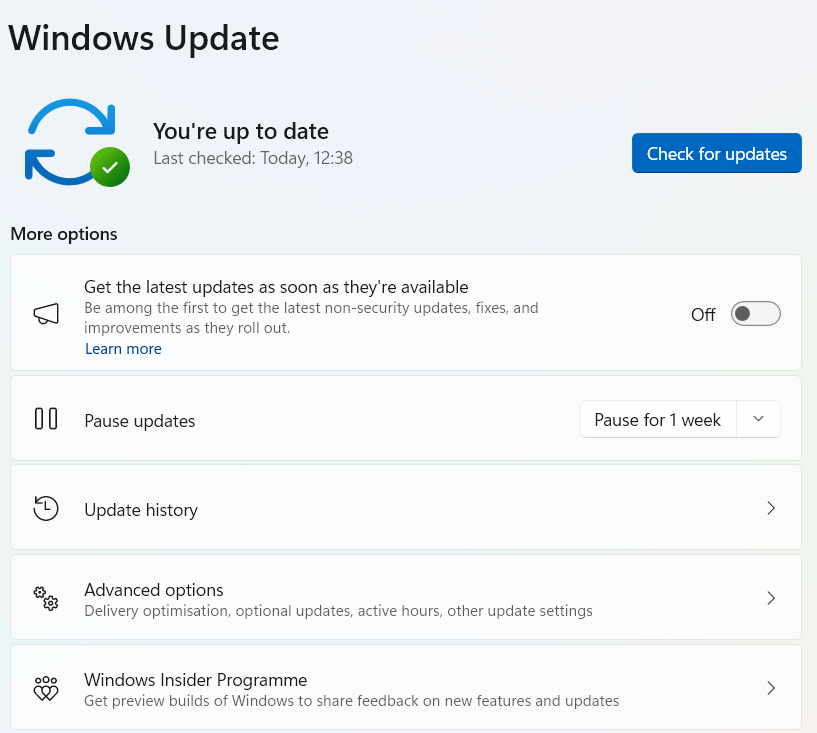
For laptops, prefer the OEM driver when the generic GPU package keeps crashing. Laptop vendors sometimes ship display, power, and hybrid-GPU changes that are not fully represented in a generic driver. Also check Settings → Windows Update → Advanced options → Optional updates, because Microsoft can offer driver updates there.
3. Install Windows updates and optional driver updates
Install available Windows updates, reboot, and test again. Windows display bugs are often fixed through cumulative updates, graphics driver updates, or optional hardware updates. If the issue began after a specific Windows update, do the opposite: note the update number and test whether uninstalling or rolling back that update stops the crash.
Older discussions around DWM crashes often mention KB5026446 because it was a Windows 11 22H2 preview update from May 2023. Do not chase that update blindly in 2026. Use it as a clue that Windows build and graphics driver combinations can matter; the practical fix is still to get the current stable Windows and GPU driver combination for your machine.
4. Disable overlays and tools that hook into graphics
Disable overlays temporarily: Discord overlay, Steam overlay, Xbox Game Bar, GeForce Experience overlay, AMD overlay, MSI Afterburner, RTSS, screen recorders, FPS counters, ReShade, ENB presets, capture tools, remote-control software, and RGB/system-monitoring utilities that draw on top of games. These tools are useful, but they sit close to the graphics pipeline.
If DWM crashes only when a specific game or app is open, launch that app with overlays off and no mods. A clean launch can help test whether an overlay or mod contributes to the crash; it does not identify the cause by itself.
5. Test display settings: HDR, VRR, scaling, and monitors
DWM has to compose every visible window for your actual display setup. Test with the simplest setup possible: one monitor, standard refresh rate, HDR off, variable refresh rate off, no docking station, and no custom scaling. If the crash stops, re-enable one setting at a time.
Pay attention to mixed-refresh multi-monitor setups, USB-C docks, HDR monitors, G-Sync/FreeSync, custom color profiles, and very high scaling values. None of these settings is “bad” by itself, but they can expose a display driver bug that only appears under a specific combination.
6. Repair Windows files with DISM and SFC
If Event Viewer points to dwm.exe itself or the crash happens even with overlays disabled, repair Windows system files. Microsoft recommends running DISM before System File Checker because DISM repairs the component store that SFC uses as a source.
Open Command Prompt or Windows Terminal as administrator and run:
DISM.exe /Online /Cleanup-image /Restorehealth
sfc /scannow
Restart after both commands complete. If SFC says it repaired files, test the machine before making more changes. If SFC cannot repair files, boot into Safe Mode and run the scan again.
7. Check games, mods, overclocking, and GPU load
If DWM crashes during gaming, the visible DWM error may be collateral damage from a GPU reset. Remove recent mods, ReShade/ENB presets, unstable overclocks, undervolts, aggressive fan curves, and experimental game launch options. Return GPU settings to stock temporarily.
Also check power and heat. Desktop GPUs need stable PCIe power connections, and a loose connector can cause black screens or resets under load. On laptops, test both plugged in and on battery, then switch the power mode to balanced or best performance and compare behavior.
8. Check the GPU power connections
On a desktop PC, shut down the machine, unplug it, and inspect the GPU power connectors. The connectors should be fully seated on both the power-supply side and the graphics-card side. Avoid running a high-power GPU through questionable adapters, splitters, or cables that are not meant for that card.
This step is worth doing when the crash happens during games, video rendering, or anything that makes the GPU draw more power. A DWM crash in that situation is often the last visible Windows symptom, not the root cause.
9. Test Safe Mode, clean boot, or a clean user profile
If the crash does not happen in Safe Mode, basic Windows drivers and default settings are likely stable. That points toward a startup app, shell extension, GPU utility, overlay, or profile-specific setting. Use a clean boot or a temporary local Windows account to narrow it down.
A clean user profile is especially useful when only one Windows account crashes. If the new profile is stable, review startup entries, browser extensions, shell customization tools, and recently installed desktop utilities in the original account.
DWM.exe high memory on Windows 11: what to check first
If you searched for Desktop Window Manager high memory, DWM.exe high GPU, or dwm.exe high memory Windows 11, start with the graphics stack rather than random cleanup tools. DWM keeps desktop surfaces in memory; usage can climb when a driver leaks memory, a game or overlay hooks into the compositor, HDR/VRR behaves badly, or a browser/video app keeps forcing composition work.
- If memory rises only while gaming or streaming: disable overlays first: Discord, Xbox Game Bar, GeForce/Adrenalin overlay, MSI Afterburner/RivaTuner, screen recorders, and third-party RGB or monitoring tools.
- If it starts after a driver or Windows update: install the latest GPU driver, or roll back to the last stable driver from Device Manager if the problem began immediately after an update.
- If DWM crashes and logs you out: check Event Viewer for
dwm.exe,Display,nvlddmkm,amdkmdag, origdkmdn64around the exact crash time. Those records can help distinguish a DWM failure from a display-driver reset, but the module name alone is not a complete diagnosis. - If the file path is not
C:\Windows\System32\dwm.exe: treat it as a possible malware masquerade and scan before changing Windows settings.
Do not confuse this with Antimalware Service Executable. That is MsMpEng.exe, not dwm.exe. If Task Manager shows Defender using memory, check Defender scan activity and its own performance guidance instead of DWM fixes. Do not add exclusions merely to lower memory usage.
DWM.exe high memory and GPU usage
High DWM.exe memory or GPU usage is related to the crash problem, but it is not always the same issue. DWM will naturally use more resources with many windows, 4K/5K displays, multiple monitors, video playback, animated wallpapers, transparency effects, screen recording, and hardware-accelerated browsers.
Treat it as a problem when the desktop becomes slow, fans stay loud at idle, memory usage keeps climbing, or the process does not calm down after closing graphics-heavy apps. The same fixes apply: update or roll back the display driver, reduce display complexity, disable overlays, close hardware-accelerated browser tabs, and reboot after Windows updates.
How to identify that DWM.exe is a virus
The legitimate DWM.exe file is in C:/Windows/System32/dwm.exe and is digitally signed by Microsoft. Malware can use the same file name to look harmless, but it cannot make a random file in AppData become the real Windows Desktop Window Manager.
1. Open Task Manager
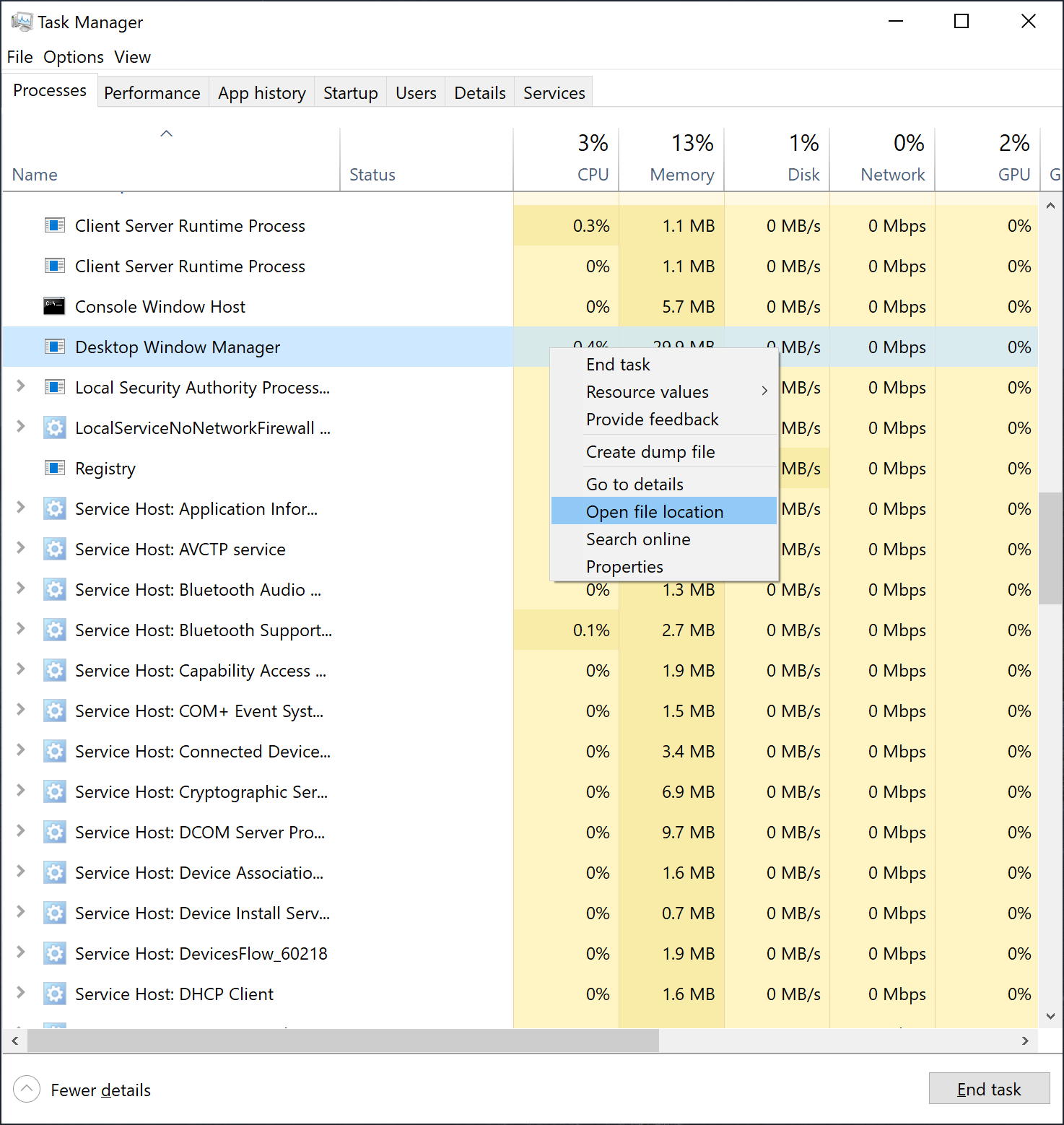
Press Ctrl + Shift + Esc and look for Desktop Window Manager. In modern Windows, the legitimate process is part of the normal desktop session. High resource use alone is not proof of malware, so do not end or delete anything yet.
2. Open the location of the DWM.exe file
Right-click Desktop Window Manager and choose Open file location. The correct location is C:/Windows/System32. Then right-click the file, open Properties, and check the digital signature. It should be signed by Microsoft.
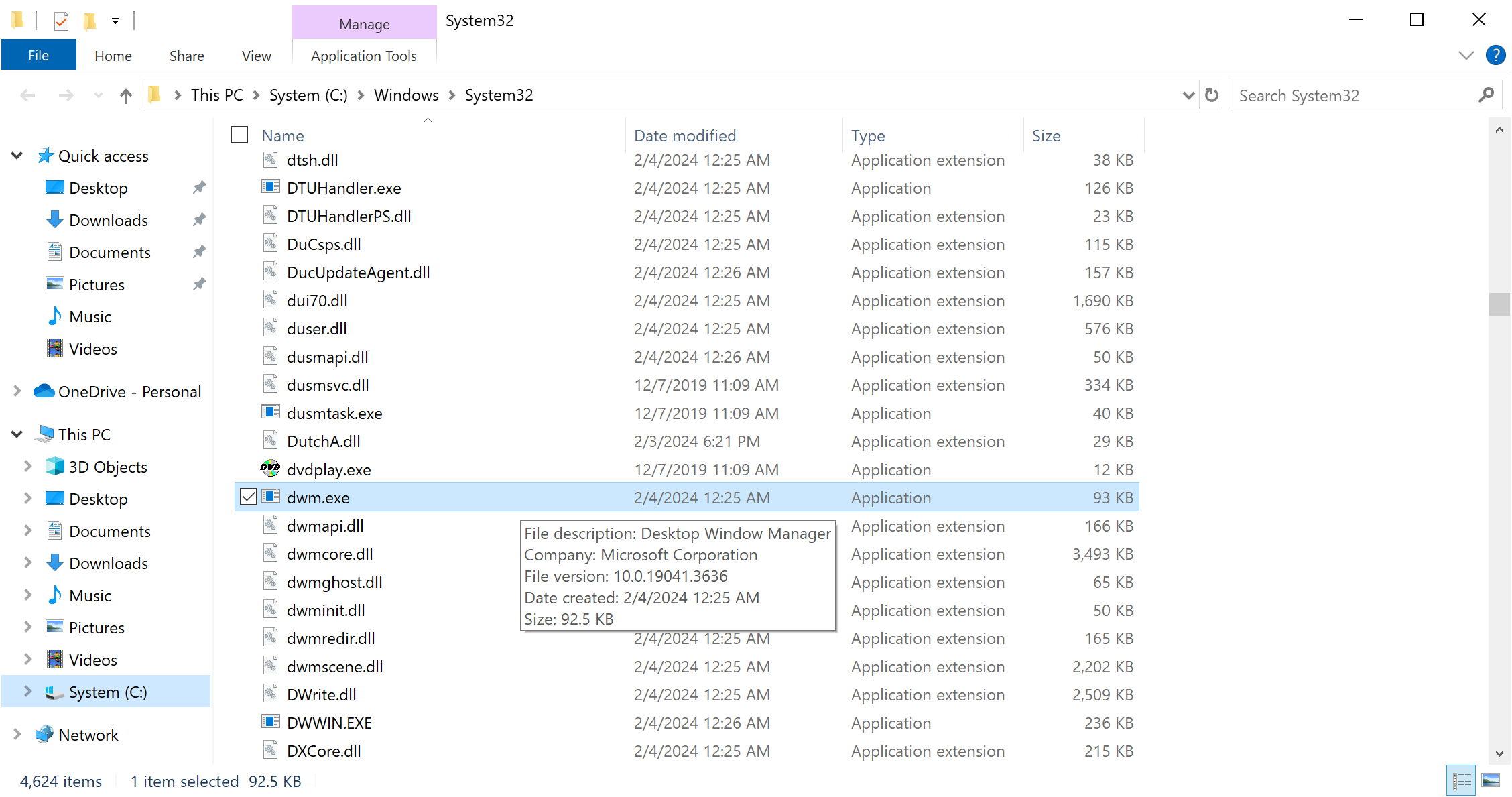
Be suspicious when you find a file named dwm.exe in AppData, Temp, Downloads, ProgramData, a browser cache folder, or a random folder with a fake system-looking name. Other warning signs include no Microsoft signature, double extensions, hidden attributes, strange startup entries, scheduled tasks, or network activity from the suspicious copy.
How to remove malicious DWM.exe with GridinSoft Anti-Malware
If the file path or signature is wrong, scan the system before deleting files manually. Malware that copies a Windows process name often creates scheduled tasks, startup entries, services, browser components, or secondary payloads. Removing only the visible file may leave the persistence mechanism behind.
You can also check a suspicious file with the GridinSoft Online Virus Scanner before running a full cleanup. For an infected system, a full local scan is safer because it can inspect startup points and related files.
If the process path is wrong, the name imitates a Windows component, or high CPU started after an unknown installer, scan for hidden miners, services, startup entries, and bundled components.
Check suspicious DWM lookalikes only if signs matchFrequently asked questions
Is it safe to end the DWM.exe process?
It is not a real fix. Windows may restart Desktop Window Manager automatically, but ending it can make the desktop flicker, freeze, or log off again. Use Event Viewer and driver troubleshooting instead of treating the process itself as the problem.
Why does DWM.exe use so much memory?
DWM.exe can use more memory with many open windows, multiple monitors, high-resolution displays, HDR, transparency effects, browser hardware acceleration, video playback, and driver bugs. If usage keeps rising at idle, suspect a driver leak, overlay, or graphics-heavy app.
Can malware disguise itself as DWM.exe?
Yes. Malware can use the same file name, but the expected file location and Microsoft signature are initial checks, not proof that the system is uncompromised. A suspicious dwm.exe outside C:/Windows/System32 should be scanned and removed with its persistence entries.
Should I reinstall Windows to fix DWM crashes?
Not first. Most DWM crash cases are fixed by driver rollback/update, Windows repair commands, disabling overlays, simplifying display settings, or removing a bad startup tool. Consider repair install or reinstall only after Event Viewer, DISM/SFC, Safe Mode, and driver testing do not isolate the cause.
Why does DWM crash only in games?
Games stress the graphics driver, GPU power delivery, overlays, anti-cheat components, capture tools, and display settings at the same time. Start by disabling overlays and mods, returning GPU clocks to stock, and testing a clean GPU driver install.
Related Windows performance guides
If this crash is part of a broader Windows slowdown, these guides cover nearby high CPU, memory, and shell process issues:
- Vmmem high memory and CPU usage
- SearchHost.exe high CPU, memory, or GPU usage
- Sihost.exe high CPU and malware check
- Computer keeps freezing: Windows fix checklist
- DISM Host Servicing Process high CPU
- TextInputHost.exe using GPU
- Usermode Font Driver Host high CPU and memory
References
- Microsoft. Desktop Window Manager. Microsoft Learn, updated August 23, 2019; accessed October 8, 2026.
- Microsoft. Use the System File Checker tool to repair missing or corrupted system files. Microsoft Support, accessed October 8, 2026.
- Microsoft. Automatically get recommended and updated hardware drivers. Microsoft Support, accessed October 8, 2026.
If your performance issue is on an HP laptop and Task Manager points to AppHelperCap.exe instead of DWM.exe, use our AppHelperCap.exe HP service check before disabling random startup items.


I’m not sure how much assistance you can provide since I’m looking for a lot of information. Can you guide me in more detail?