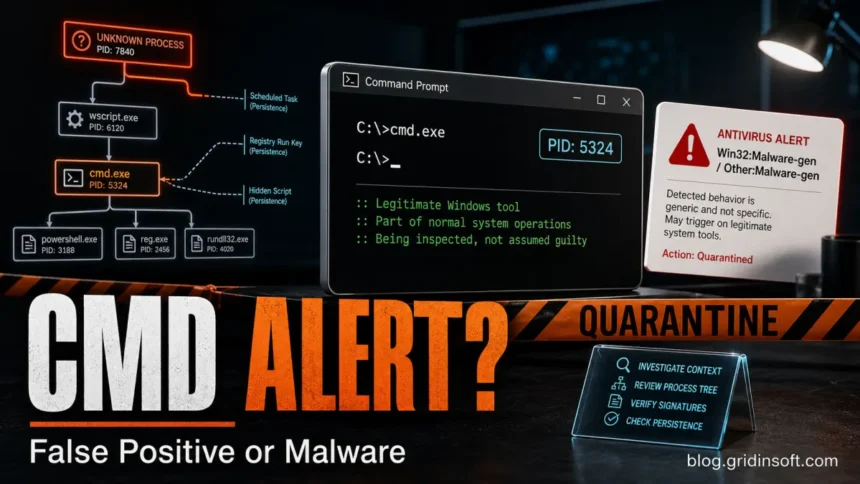
Win32:Malware-gen and Other:Malware-gen are generic antivirus detection names, not a diagnosis of one specific malware family. Keep the item blocked or quarantined while you check what was detected: a downloaded file, an item inside an archive, or activity involving a running process. Record the exact label, affected path, source and action taken. Those details determine whether to ask the antivirus vendor to review a possible false positive or investigate a cleanup case.
- A file or archive was flagged: start with the file checks below. A detection during download or scanning does not by itself establish that the file ran.
- The alert names
cmd.exe[PID]or a behavior event: use the Command Prompt branch below to identify the parent process and command line. Do not delete the Windows command interpreter.
What Win32:Malware-gen and Other:Malware-gen Mean
These labels are generic detection names. They usually mean the security product saw suspicious behavior or file characteristics but did not assign a precise family name such as a named stealer, ransomware family, or downloader. That makes the alert important, but it also means the label alone does not prove what happened.
For Avast and AVG-style detections, Malware-gen often appears as a broad heuristic or generic result. For Norton-style alerts, the wording may appear in an Exploit Prevention or behavior context. In both cases, the detection name must be interpreted with the affected item, its source, the scan action and repeat pattern; parent-process details matter when the alert involves running activity.
If Malware-gen Was Found in a File or Archive
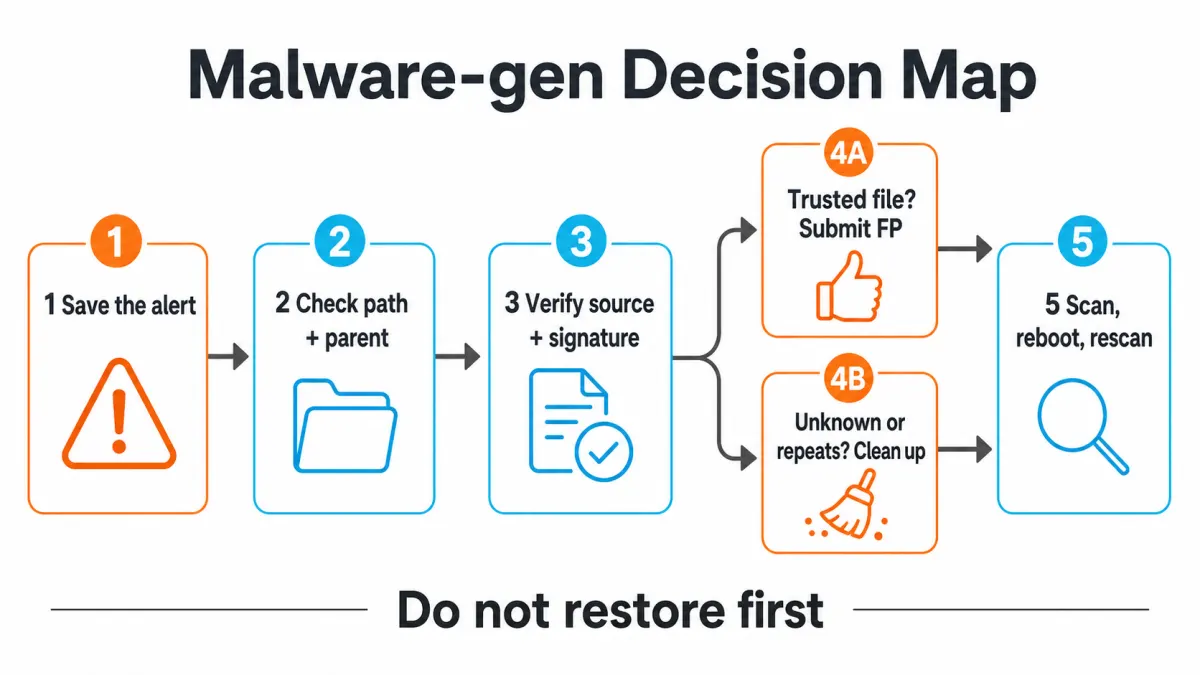
- Read the affected item and scan action together. Save the product name, exact detection, timestamp, full path and whether the item was blocked, quarantined, removed or still needs action. If the report names an archive and an inner file, record both; do not extract or run the file to test the warning.
- Trace the source. Check which download, email attachment, app update or removable drive supplied it. A familiar filename or a Downloads folder location cannot establish trust. For expected software, compare the publisher and version with its official distribution; check its digital signature and any hash the publisher supplies when available.
- Separate a blocked download from something you ran. If it was quarantined before you opened or executed it, keep it contained and complete the scan. If you ran the installer, script or archive contents, or new symptoms appeared, follow the cleanup section as well: quarantining one file does not undo earlier execution.
- Update and review the result. Update the antivirus and run a full scan. For expected software from a verified publisher, use the detecting vendor’s official false-positive process if the warning remains. Keep the item quarantined during review; a clean result from another engine is useful context, not an instruction to allow it.
- Identify what a repeat alert is scanning. Compare its timestamp and path with the saved event. Rescanning the same archive, downloading the file again, and a deleted file being recreated are different situations. Remove an unwanted source download; if a fresh file or process keeps returning without your action, investigate its startup or update source.
Why an Alert May Name cmd.exe[PID]
The Reddit case behind this branch described a specific problem: Norton 360 reported cmd.exe[1672] as infected with Win32:Malware-gen, the alert appeared twice, and the user wanted to know whether it was a false positive. The useful answer is not “cmd.exe is always safe” or “reinstall Windows.” The useful answer is to investigate context: where the file lives, what launched it, what command ran, whether the alert repeats, and whether any downloaded file, startup entry, scheduled task, or browser change appeared around the same time.
cmd.exe itself is a normal Windows command interpreter. Microsoft documents cmd as the command that starts a new instance of Cmd.exe and can run commands through switches such as /c and /k. That normal role is exactly why malware, installers, scripts, and even legitimate tools may use it. The question is not whether Command Prompt exists; the question is who launched it and why.
The number in brackets is usually a process ID for that running instance. An alert such as cmd.exe[1672] points to a process instance, not necessarily to a permanently infected file on disk. A real infection can still be involved, but the suspicious part may be the command line, parent process, script, scheduled task, or exploit chain that started Command Prompt.
Common explanations include:
- Legitimate automation: an updater, installer, backup tool, developer script, or admin task briefly used
cmd.exe. - Blocked exploit behavior: a browser, document, or app tried to launch a command shell unexpectedly.
- Partial cleanup: the visible payload was removed, but a scheduled task or startup command still calls
cmd.exe. - Malware staging: a loader uses
cmd.exeto run PowerShell, delete files, add exclusions, download another payload, or hide windows. - False positive: the security product misread a trusted command or newly updated program behavior.
Checks for the cmd.exe Process Event
- Save the exact alert text. Copy the detection name, product module, time, affected path, action taken, and process ID if shown.
- Confirm the path. Normal Command Prompt should be under
C:\Windows\System32\cmd.exeor, on 64-bit Windows under specific compatibility contexts, a Windows system directory. A copy under Downloads, Desktop, Temp, AppData, or a random user folder is suspicious. - Check the parent process. In Task Manager, Event Viewer, your antivirus event details, or a process-tree tool, look for what launched
cmd.exe. A signed installer is different from a random script in%TEMP%. - Check what changed recently. Review downloads, browser extensions, installed apps, game mods, cracked software, fake updates, email attachments, and remote-support tools from the same time window.
- Run a full scan after updates. Update your security product first, then run a full scan. If the same alert returns after reboot, escalate to persistence checks.
When It Looks Like a False Positive
For an ordinary file, build the case from its verified origin, expected publisher and version, available signature or publisher hash, the scan action and the detecting vendor’s review. An expected app update with no unexplained activity deserves a different investigation from an unknown installer you already ran. Neither a folder name nor the generic Malware-gen label settles that decision.
For a Command Prompt event, a false positive is more plausible when the affected file is the real Microsoft-signed C:\Windows\System32\cmd.exe, the parent process is a trusted signed application, the command line matches a normal update or admin task, no suspicious downloads ran, and repeated full scans find nothing else. Norton itself describes a false positive as an alert that incorrectly marks a file, program, or website as infected or suspicious, and recommends updating definitions and running a full scan before reporting one.
For Avast or AVG cases, a trusted file can be submitted through the official false-positive report channel. Submit only when you have a good reason to trust the file or website. Do not submit a crack, unknown installer, password-protected archive, or fake update just because you want the alert to disappear.
When To Treat It As Malware
Treat the alert as a cleanup case when any of these are true:
- The alert repeats after reboot, login, browser launch, or opening the same app.
- The parent process is unknown, unsigned, or running from
%TEMP%,%APPDATA%,%LOCALAPPDATA%, Downloads, or a browser cache folder. - The command line includes suspicious chains such as
cmd.exe /c powershell,wscript.exe,mshta.exe, hidden windows, encoded commands, or downloads from unknown domains. - You recently ran a crack, activator, trainer, repack, fake browser update, codec, “free premium” installer, or attachment from email/chat.
- New startup entries, scheduled tasks, browser extensions, proxy settings, Defender/security-tool exclusions, or unknown services appeared around the same time.
If one of those signs fits, do not restore or allow the detected item. Keep quarantine active, remove the source download or installer, then check the persistence locations that can recreate the alert.
Cleanup Sequence for Repeating Malware-gen Alerts
- Keep the alert blocked or quarantined while you investigate.
- Delete the original download, archive, installer, or script that triggered the event.
- Uninstall suspicious apps installed around the same time.
- Check Startup Apps, Startup folders, and Task Scheduler for commands that call
cmd.exe,powershell.exe,wscript.exe,mshta.exe,rundll32.exe, or a browser with a URL. For the exactcmd.exe /c start <site>startup pattern, follow the startup website hijack removal steps. - Review browser extensions, notification permissions, homepage/search settings, and browser policies if the alert followed redirects or fake update pages.
- Remove security-tool exclusions you did not create intentionally.
- Run a full scan, reboot, and scan again if the alert returns.
After the visible alert is blocked, a loader, scheduled task, service, browser change, security-tool exclusion, startup command, or bundled module may still be present. Gridinsoft Anti-Malware is useful at this point because it can check the obvious file plus the leftovers that make the alert come back: hidden files, startup entries, scheduled tasks, bundled apps, browser changes, and persistence. Run a full Gridinsoft scan, remove detections, reboot, and repeat the scan if Malware-gen appears again.
If the process path is wrong, the name imitates a Windows component, or high CPU started after an unknown installer, scan for hidden miners, services, startup entries, and bundled components.
Scan for the source of the alertWhat Not To Do
- Do not whitelist
cmd.exeor an entire Windows folder because the alert mentions Command Prompt. - Do not restore a quarantined file from a crack, repack, trainer, fake update, or unknown archive.
- Do not assume “scan found nothing” means the alert was fake if the same event keeps returning.
- Do not run random removal tools from SEO pages or YouTube descriptions.
- Do not delete
C:\Windows\System32\cmd.exe. If system files are damaged, repair Windows rather than removing core components.
Related Guides
If your alert is specifically from Avast or AVG and says Win32:Evo-gen[Trj], use that guide for the Evo-gen false-positive workflow. For broader generic detections, the heuristic virus guide explains how generic and behavior-based alerts work. If the alert is tied to a process tree that closes browsers or Task Manager, compare it with Behavior:Win32/BrowserKill.A!MTB cleanup logic. For alerts with another Avast prefix or bracketed class, use the Avast detection-name guide before deciding what the label means.
FAQ
Is Win32:Malware-gen always a virus?
No. It is a generic detection name, so it can be a real threat or a false positive. Check the file source, path, scan action and whether it ran. For process events, add the parent process, command line and repeat behavior.
Does cmd.exe[1672] mean Command Prompt is infected?
Not necessarily. The number usually identifies a running process instance. The real concern may be what launched cmd.exe and what command it tried to run.
Should I restore a file detected as Other:Malware-gen?
Only after you verify the file source, signature, path, and scan results. Do not restore files from cracks, fake updates, unknown installers, or repeating alerts.
Why does the alert keep coming back?
A source archive, updater, scheduled task, startup entry, browser extension, or leftover loader may be recreating the detected behavior. Remove the source and scan for persistence.
Can I report Win32:Malware-gen as a false positive?
Yes, when the file is trusted and the alert persists after updates and a full scan. Use the official Norton or Avast false-positive process, depending on which product showed the alert.
References
- Norton Support. “Respond to incorrect Norton alerts that a file is infected or a program or website is suspicious.” Gen Digital, last modified December 10, 2024, accessed June 18, 2026. https://support.norton.com/sp/en/gb/home/current/solutions/kb20100222230832EN
- Microsoft Learn. “cmd.” Microsoft, accessed June 18, 2026. https://learn.microsoft.com/en-us/windows-server/administration/windows-commands/cmd
- Avast. “Report False Positive.” Gen Digital, accessed June 18, 2026. https://www.avast.com/report-false-positive