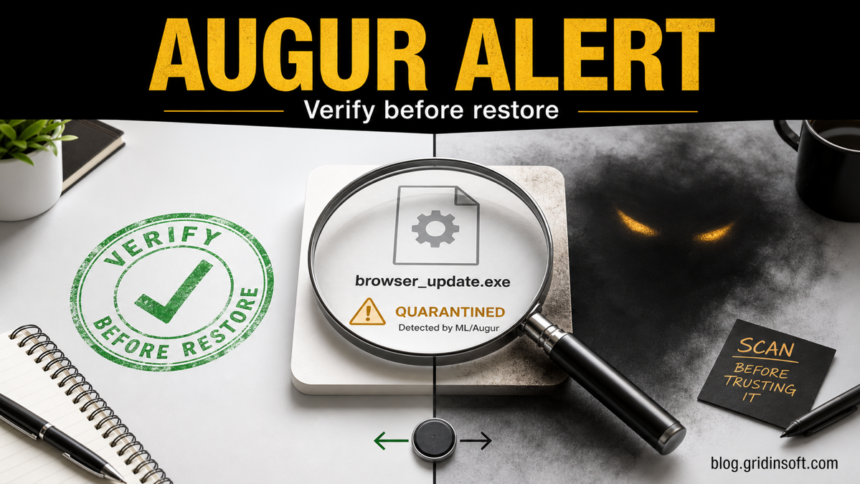
ML/Augur is an ESET detection label, not the name of a file you installed. It often appears when ESET’s heuristic or machine-learning checks decide that a Windows executable, installer, update component, or packed file looks suspicious. Some ML/Augur alerts later turn out to be false positives, including public reports around Microsoft Edge update files, but you should not restore the item until you verify the source, signature, path, and whether the alert returns after reboot.
What to do first
- Leave the file quarantined while you check it. Do not restore and run it just because the file name looks familiar.
- Check the path and publisher signature. A Microsoft Edge update under
C:\Program Files (x86)\Microsoft\EdgeUpdate\Download\...with a valid Microsoft signature is a different case from an unsigned EXE in Downloads, Temp, or AppData. - Update ESET detection modules and rescan the same item. False positives are often corrected through signature or cloud reputation updates.
- Submit the file to ESET as a possible false positive if the source is trusted but the detection remains.
- Run a full malware scan if the file came from a crack, fake update, unknown installer, email attachment, game mod, or if the alert repeats after quarantine.
| Detection | ML/Augur |
| Vendor context | ESET heuristic / machine-learning style alert |
| Common user question | False positive, Microsoft Edge update problem, or real malware? |
| Safe first action | Quarantine, verify source and signature, rescan, then decide |
| Gridinsoft role | Check whether a loader, startup entry, hidden file, or bundled threat remains before restoring anything |
Why ML/Augur can appear during an Edge update
One public ESET forum thread describes multiple Windows machines receiving ML/Augur alerts for a Microsoft Edge update file named BGAUpdate.exe under an EdgeUpdate download path. The original poster noted that VirusTotal showed no detections for the file hash at the time, while another participant said they were seeing the same Edge update flag and had submitted a sample to ESET.1
That pattern is why this page should not give a one-word answer. A trusted update file can be misclassified, but the same detection name can also appear on unknown installers, game files, remote-management agents, packed tools, or malware-like programs. The correct answer depends on evidence, not on the label alone.
Signs it may be a false positive
- The file came from a normal updater, official vendor installer, Microsoft Store, Steam, or a trusted enterprise deployment system.
- The file path matches the expected product folder, not a user-writable staging folder such as Downloads, Temp, or a random AppData subfolder.
- The publisher signature is valid and belongs to the expected vendor.
- The alert appears shortly after a vendor update and then disappears after ESET module updates or sample analysis.
- A second scan with updated local tools does not find persistence, bundled apps, browser changes, or suspicious startup entries.
For broader context, see our heuristic virus guide and the VirusTotal and Hybrid Analysis false-positive checklist. Both explain why a single generic detection can be useful without being a final verdict.
Signs you should treat it as malware
- The file came from a crack, keygen, repack, fake browser update, unofficial driver page, Discord/Telegram link, or email attachment.
- The file is unsigned, recently created, oddly named, or stored in
%TEMP%,%APPDATA%,%LOCALAPPDATA%, Downloads, or a startup folder. - The alert returns after reboot, after restore, or after deleting only the visible file.
- You see new scheduled tasks, startup entries, browser policies, proxy changes, notification spam, or disabled security settings.
- Accounts show unusual logins, password reset emails, wallet activity, or new OAuth/app access after the file ran.
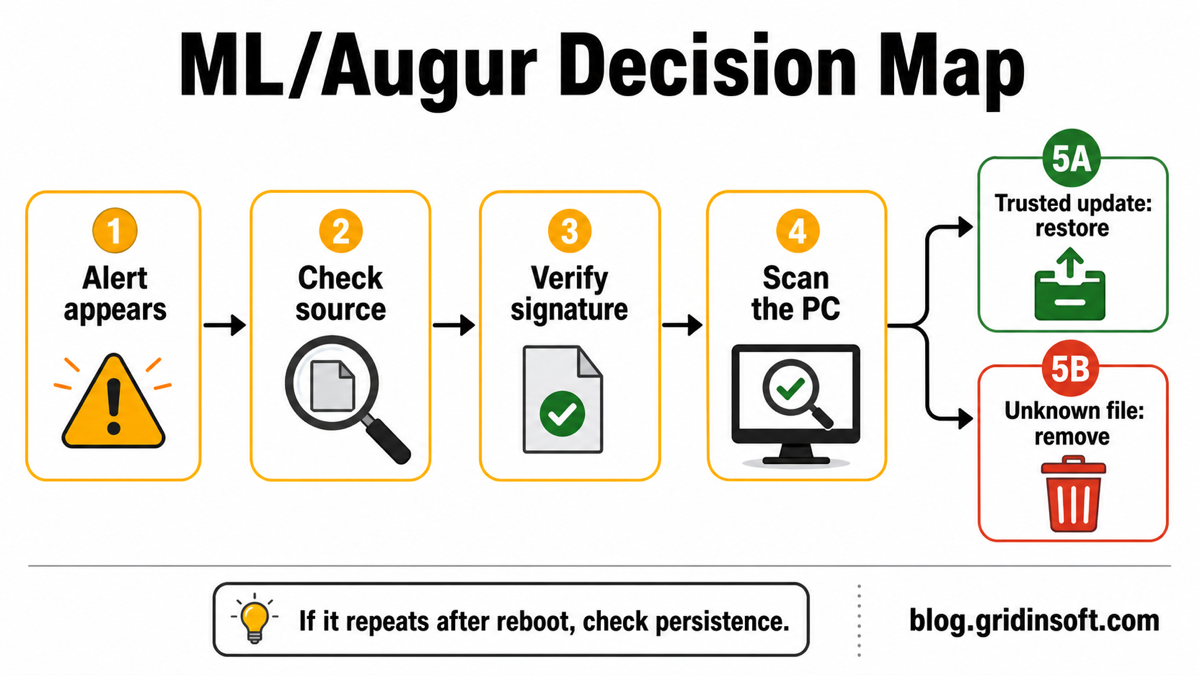
ML/Augur decision map
How to verify an ML/Augur file before restoring it
- Record the exact alert details. Save the detection name, file name, full path, action taken, time, and whether ESET quarantined, deleted, or blocked execution.
- Check where the file came from. A known updater path is lower risk than a random download. For Edge, look for a path similar to
C:\Program Files (x86)\Microsoft\EdgeUpdate\Download\{GUID}\version\BGAUpdate.exe. - Verify the digital signature. Right-click the file if it is available, open Properties, and check Digital Signatures. The signer should match the vendor you expect. If Windows says the signature is invalid or missing, do not restore the file casually.
- Update ESET and rescan. If this is a widespread false positive, updated detection modules may stop flagging the same file.
- Compare the hash with trusted distribution context. Do not rely only on random comments. Use the vendor’s official download path, package manager, update history, or enterprise deployment source where possible.
- Submit the sample to ESET if needed. ESET documents a false-positive submission process through the product sample dialog or by sending a password-protected archive to the ESET Research Lab.2
- Restore only after the evidence matches. Restore a quarantined file only when the path, signature, source, scan result, and vendor context all support that decision.
Scan before you restore or allow the file
If the ML/Augur alert came from an unknown installer, a cracked app, a fake update, a file that already ran, or a detection that keeps returning, use Gridinsoft Anti-Malware before restoring anything. A second check can find the part that a single quarantine action may miss: loaders, hidden files, startup entries, scheduled tasks, browser changes, bundled apps, or persistence that recreates the warning.
A false positive is possible, but restore only after checking that the system has no companion detections, startup entries, scheduled tasks, or hidden files tied to the same source.
Scan before restoring this fileIf Gridinsoft finds related detections, remove them, reboot, and scan again. If scans stay clean and the file is signed by the expected vendor, submit the file to ESET and wait for a corrected verdict instead of creating a permanent exclusion.
How to submit a possible false positive to ESET
ESET’s support instructions say to submit possible false-positive files through the product sample submission tool when available, or by email using a password-protected ZIP or RAR archive and background details such as where the file came from, why you believe it is clean, screenshots, and a support case number if you have one.2 For business environments, include affected product versions, detection timestamps, file hashes, and a few representative machines rather than sending vague “same here” reports.
Do not submit private documents, credentials, personal archives, or company-sensitive files unless your organization has approved that path. If the file is a Microsoft, game, or enterprise software update that cannot be accessed directly, ask the software vendor or admin team to coordinate the sample submission.
What not to do
- Do not disable ESET protection globally just to finish an update.
- Do not create a permanent exclusion for an unknown EXE because one forum reply says ML/Augur is “usually” a false positive.
- Do not restore a file from a crack, fake update, or random download folder without scanning the whole system.
- Do not ignore recurring alerts after reboot. Recurrence often means there is another file, task, service, or startup entry involved.
- Do not upload private files to public multi-scanner sites when the file contains personal or business data.
After a confirmed false positive
When ESET or the software vendor confirms the file is clean, restore it from quarantine or reinstall the official update from the vendor source. Then remove any temporary exclusion you created, update the affected app, and run one final scan. Temporary exceptions should not become permanent blind spots.
If the detection interrupted a Microsoft Edge update, the safer path is usually to update ESET, let Edge update again from its normal updater, and avoid downloading random “Edge update” installers from search results. Fake browser updates are a common malware lure, so keep the trusted updater path clear in your notes.
FAQ
Is ML/Augur a virus?
ML/Augur is a detection label used by ESET, not a standalone virus name. It can point to a real suspicious file or to a false positive on a trusted program. Check the source, signature, path, and recurrence before restoring anything.
Was the Microsoft Edge BGAUpdate.exe alert a false positive?
The public ESET forum thread around Edge’s BGAUpdate.exe strongly fits a false-positive-style pattern, but your local file still needs verification. Confirm the file path, Microsoft signature, ESET module updates, and whether the alert stops after rescan.
Can I restore the quarantined file if VirusTotal says clean?
Not by itself. A clean VirusTotal result helps, but it does not prove safety. Restore only when the vendor source, signature, file path, behavior, and updated local scans also support a clean verdict.
Why does ML/Augur keep coming back?
A repeated alert can mean the file is being recreated by an updater, scheduled task, startup entry, browser extension, loader, or another installer. Check persistence and run a full scan instead of restoring the same file repeatedly.
Should I add an ESET exclusion?
Use exclusions only as a temporary, narrow workaround after you verify the file and submit it to ESET. Never exclude a whole Downloads, Temp, AppData, browser cache, or game mods folder.
References
- ESET Security Forum. “MS Edge Updates Flagged – ML/Augur.” ESET Malware Finding and Cleaning forum, published December 3, 2024, accessed June 18, 2026. https://forum.eset.com/topic/43583-ms-edge-updates-flagged-mlaugur/
- ESET. “[KB141] Submit a virus, website, or potential false positive sample to the ESET Research Lab.” ESET Support, updated 2025, accessed June 18, 2026. https://support.eset.com/en/kb141-submit-a-virus-website-or-potential-false-positive-sample-to-the-eset-lab
- ESET Online Help. “Suspicious application.” ESET Glossary, accessed June 18, 2026. https://help.eset.com/glossary/en-US/suspicious_application.html