Moviesdl.cc should not be treated as a safe place to download movies, install an app, pass a “verification” gate, or enter account or payment details. The live Gridinsoft report reviewed on August 17, 2026 showed a 1/100 trust score, three external provider warnings, and a domain only 28 days old. Those signals justify avoiding the site, but they do not prove that every file from it is malware. Your next step depends on whether you only visited, followed a redirect, allowed notifications, downloaded a file, ran software, or entered information.
This guide does not provide mirrors, working links, or download instructions. It explains what the dated evidence means and how to respond without testing the site on your main device.
What the Current Moviesdl.cc Report Shows
The Moviesdl.cc safety report recorded the site as a movie, streaming, and download destination using an advertising network. At the observed check, it also reported three external warnings, limited independent reputation data, and a recently registered domain. A valid SSL certificate was present, but HTTPS only encrypts the connection to that hostname; it does not authenticate the operator, verify a download, or promise that a redirect will stay on the same domain.
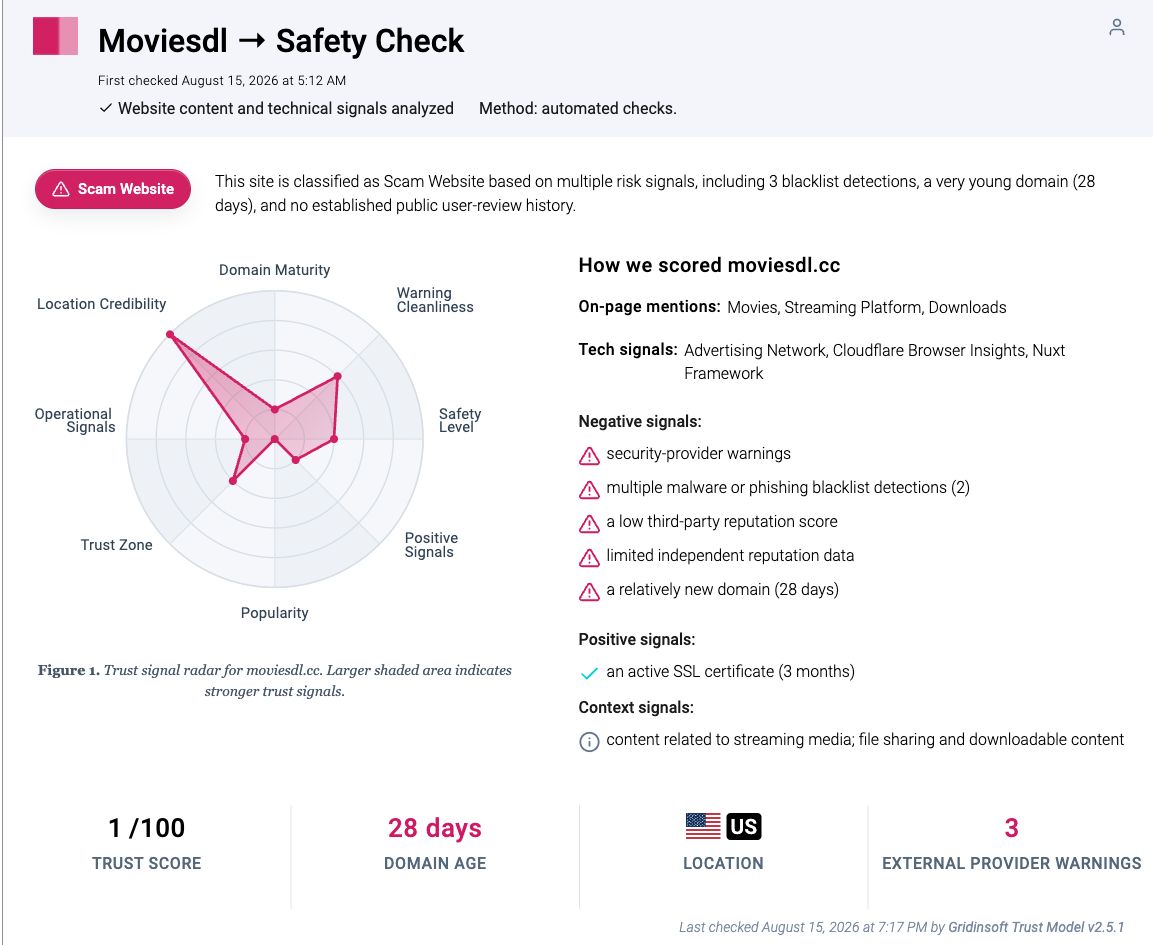
Website scores and blocklist results can change after a rescan. Use the date, exact hostname, and listed evidence together. Do not carry the verdict to a similarly named domain, and do not assume that a later score certifies an app, archive, installer, or external download host.
Your Risk Depends on What You Did
| What happened | Risk and next step |
|---|---|
| You opened the page and closed it | Lower risk than installing software. Close extra tabs, check Downloads, and do not restore the same suspicious session. |
| You clicked Verify, Play, or Download and reached another site | Judge the destination separately. Close it without accepting alerts, surveys, browser permissions, support calls, or payment prompts. |
| You allowed notifications | The allowed domain can send scam alerts after the tab closes. Remove its notification permission and any unfamiliar permission granted in the same session. |
| A file downloaded but you did not open it | Do not preview or launch it. Show the complete extension, identify whether it is really media, and scan or delete it. |
| You opened an archive or installed an app, extension, codec, APK, or EXE | Treat this as software execution. Remove the new item, review browser and startup changes, scan the device, reboot, and check for recurrence. |
| You entered a password, card, or personal details | Secure the device first if software ran, then change exposed credentials from a clean device and contact the payment provider. |
A Verification Gate Does Not Verify the Download
A countdown, “human verification” screen, download token, app requirement, or completed progress bar is controlled by the page itself. It does not prove that a movie exists, that the next host belongs to Moviesdl.cc, or that the offered file matches its label. If a gate asks you to install an app, extension, downloader, VPN, codec, or update, stop. A media file should not require a separate executable merely to prove you are human.
Also watch the address bar after every click. Advertising and redirect chains can move from the original domain to a different hostname. A clean check for the first page says nothing about the next domain, and a browser padlock does not validate the file behind a button.
If a File Downloaded but You Did Not Open It
- Keep it closed. Do not double-click it to “see what it is,” and do not approve SmartScreen, Gatekeeper, Android installation, or administrator prompts.
- Show the full filename extension. A real video might end in
.mp4,.mkv, or.m4v. A name such asMovie.mp4.exeis an executable, while.apk,.msi,.scr,.lnk,.js, and.batare not movie formats. - Inspect the container. A ZIP, RAR, 7z, or ISO is not the movie itself. Do not extract and run a player, codec, password tool, shortcut, or “read me” command from it.
- Delete or scan before any further action. If the download was unexpected, deleting it is safer than testing it. The unopened suspicious download checklist explains how to verify a file without launching it.
A normal video is data for a media player, not an installer. The MP4 and fake-video guide covers double extensions, fake codecs, companion shortcuts, archives, and the smaller but real risk of crafted media opened in outdated software.
If You Only Visited or Followed a Redirect
- Close the original page and every tab it opened. Do not click inside a fake security alert or call a displayed phone number.
- Open the browser Downloads list and remove anything you did not deliberately request.
- Review recently granted permissions for notifications, pop-ups, redirects, clipboard access, camera, and microphone.
- Check whether the homepage, search engine, startup tabs, or extensions changed. Persistent changes after a reboot require deeper cleanup.
Simply visiting and leaving is not proof of infection. Escalate when something downloaded or ran, a permission was granted, browser settings changed, security alerts recur, or the same redirects return. The broader free movie streaming scam guide explains fake Play buttons, notification prompts, subscription traps, and redirect patterns without providing access routes.
Remove Notifications, Extensions, or Apps
Remove permission from the exact hostname shown on an unwanted notification, not only from Moviesdl.cc. A redirect host may be the sender. Blocking pop-ups alone does not revoke notification permission.
If moviesdl keeps showing unwanted pop-ups, you likely granted it permission to send notifications. To stop them, you need to revoke that permission in your browser settings.
- Copy and paste this into the address bar:
chrome://settings/content/notifications - Scroll down to the Allowed to send notifications list.
- Find moviesdl.
- Click the three dots (...) next to it and select Remove (or Block).
- Open Safari and go to Settings (or Preferences).
- Click the Websites tab and select Notifications on the left.
- Find moviesdl in the list on the right.
- Select it and click Remove (or change "Allow" to "Deny").
- Copy and paste this into the address bar:
about:preferences#privacy - Scroll down to Permissions and click Settings... next to Notifications.
- Type moviesdl in the search bar or find it in the list.
- Select the site and click Remove Website.
- Copy and paste this into the address bar:
edge://settings/content/notifications - Look under the Allow section.
- Find moviesdl.
- Click the three dots (...) next to it and select Remove (or Block).
- Copy and paste this into the address bar:
brave://settings/content/notifications - Scroll to the Allowed to send notifications list.
- Find moviesdl.
- Click the three dots (...) and select Remove (or Block).
- Copy and paste this into the address bar:
opera://settings/content/notifications - Check the Allowed to send notifications list.
- Find moviesdl.
- Click the three dots next to it and select Remove.
Next, remove extensions and apps added during the same session. Do not keep a downloader, codec, “HD player,” VPN, or helper just because uninstalling it might cancel access to the promised movie.
- Launch Chrome.
- Click the three dots (...) in the top right corner.
- Select Extensions > Manage Extensions.
- Click Remove next to the extension you want to delete.
Quick Access: Type chrome://extensions/ in the address bar.
- Open Safari.
- In the menu bar, click Safari and select Settings (or Preferences).
- Click on the Extensions tab.
- Select the extension and click Uninstall.
- Click the menu button, select Add-ons and themes.
- Go to the Extensions tab.
- Click the three dots (...) next to the extension and select Remove.
Quick Access: Type about:addons in the address bar.
- Launch Microsoft Edge.
- Click the three dots (...) in the top right corner.
- Select Extensions.
- Find the extension and click Remove.
Quick Access: Type edge://extensions/ in the address bar.
- Launch Brave browser.
- Click the menu icon > Extensions.
- Find the extension and click Remove.
Quick Access: Type brave://extensions/ in the address bar.
- Launch Opera.
- Click the Opera logo in the top left corner.
- Select Extensions > Extensions.
- Click the X or Remove button next to the extension.
Quick Access: Type opera://extensions/ in the address bar.
Open Extensions/Add-ons again and remove any entry linked to moviesdl or clearly out of place.
If you see moviesdl or other suspicious applications that you don't remember installing, you should remove them as well.
- Right-click the Start button and select Installed Apps (or Apps & Features).
- Scroll through the list to find moviesdl or any other unfamiliar program.
- Click the three dots (...) next to it and select Uninstall.
- Open Finder and go to the Applications folder.
- Locate moviesdl or any app you don't recognize.
- Drag it to the Trash.
- Empty the trash to remove it permanently.
- Go to Settings > Apps > See all apps.
- Find moviesdl or any suspicious app in the list.
- Tap on it and select Uninstall.
- Tap on the three dots (...) in the top right corner and Choose Settings.
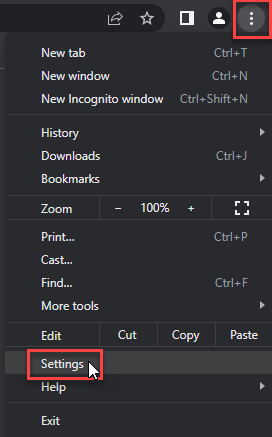
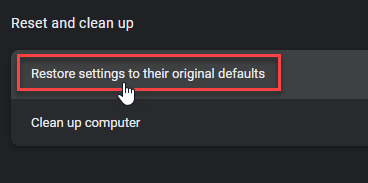
- Choose Reset and Clean up and Restore settings to their original defaults.
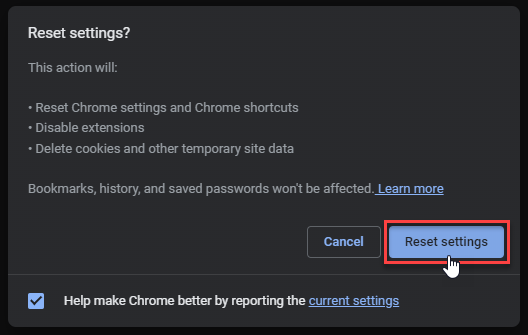
- Tap Reset settings.
Quick Access: Type chrome://settings/reset in the address bar.
- Open Safari.
- In the menu bar, click Safari > Clear History.
- Select all history and click Clear History.
- Go to Safari > Settings (or Preferences).
- Click the Privacy tab and select Manage Website Data... > Remove All.
- In the Advanced tab, check Show features for web developers.
- In the menu bar, select Develop > Empty Caches.
- Launch Brave browser.
- Click the menu icon in the top right corner and select Settings.
- Click Additional settings > Reset settings.
- Tap Restore settings to their original defaults.
- Confirm by clicking Reset settings.
Quick Access: Type brave://settings/reset in the address bar.
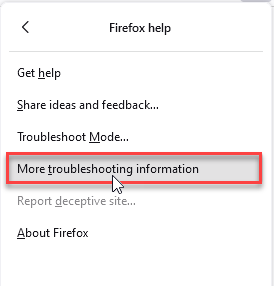
- In the upper right corner tap the three-line icon and Choose Help.
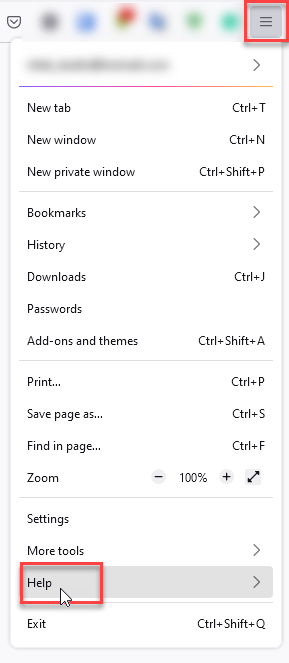
- Choose More Troubleshooting Information.
- Choose Refresh Firefox... then Refresh Firefox.
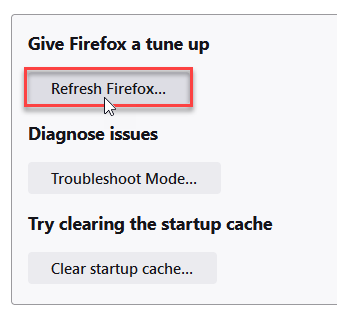
Quick Access: Type about:support and click Refresh Firefox.
- Tap the three dots.
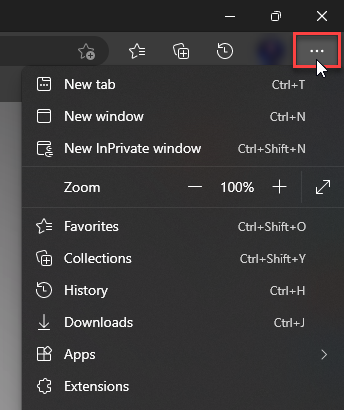
- Choose Settings.
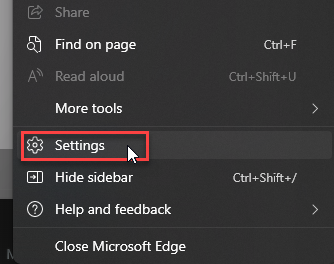
- Tap Reset Settings, then Click Restore settings to their default values.
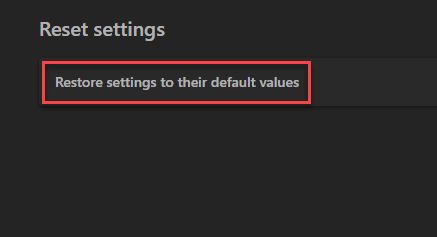
Quick Access: Type edge://settings/reset in the address bar.
- Launch the Opera browser.
- Click the Opera menu button in the top left corner and select Settings.
- Scroll down to the Advanced section in the left sidebar and click Reset and clean up.
- Click Restore settings to their original defaults.
- Click Reset settings to confirm.
Quick Access: Type opera://settings/reset in the address bar.
After reset, verify that moviesdl is no longer set as your default search engine or homepage.
If You Opened or Installed Something
- Disconnect from the site. Close it and stop granting permissions or following verification steps.
- Uninstall the new software. Remove the app, APK, extension, player, codec, downloader, or VPN installed during the visit. Sort installed apps by date when possible.
- Review Windows persistence points. On Windows, check browser extensions, startup apps, scheduled tasks, new services, proxy settings, and security exclusions that appeared at the same time.
- Run a full security scan. Deleting the visible download is not enough if an installer already ran.
- Reboot and recheck. Repeated redirects, pop-ups, blocked connections, or security warnings after reboot suggest that a component remains.
On Android, an installed Moviesdl player or downloader needs an app check. Scan with Trojan Scanner for Android, review findings and confirm unwanted-app removal. If the APK was never installed, use Check a file without launching it.
On Windows, an installer can leave bundled applications, browser policies, hidden files, startup entries, scheduled tasks, or other persistence after the original file is removed. Gridinsoft Anti-Malware can check those areas and remove detected threats. It cannot recover a stolen password, reverse a payment, or prove that no data was exposed.
If a Moviesdl player or downloader ran on Windows, scan the PC for unwanted software it added. Review the findings if browser changes or security warnings return after the original installer is removed.
Scan this Windows PCIf You Entered a Password or Payment
If software ran, clean the device before changing important passwords. Then use a clean device to change the exposed password, replace it anywhere it was reused, sign out other sessions, and enable multi-factor authentication. Start with the email account that can reset your other accounts.
For card or bank details, contact the issuer using the number on the card or the official banking app. Ask about blocking or replacing the card and disputing an unauthorized charge. Preserve the exact hostname, transaction descriptor, date, receipts, and screenshots. The scam recovery checklist covers payment, account, identity, and evidence steps.
If you paid with cryptocurrency, contact the exchange or wallet provider immediately and preserve the transaction ID and destination address. Ignore anyone who promises guaranteed recovery for another fee.
How to Make a Safer Download Decision
- Check the exact hostname and current report date before interacting; a similarly named domain is a separate site.
- Reject any flow that requires an app, browser extension, codec, executable, notification permission, or payment to unlock a movie.
- Read the final extension, not the icon or the first part of the filename.
- Update the browser, operating system, and media player through their built-in menus rather than a page prompt.
- Do not use a clean URL scan, HTTPS padlock, progress bar, or polished interface as proof that a download is safe.
FAQ
Is Moviesdl.cc a virus?
A website is not one file that can be labeled a virus. The dated report shows strong risk signals for this hostname, but it does not prove every page visit or download causes infection. Avoid the site and base recovery on what you clicked, allowed, downloaded, or ran.
Can an MP4 from Moviesdl.cc infect a computer?
A genuine MP4 is normally media data, not a self-starting application. Risk rises when the file is really an executable with a double extension, arrives inside an archive with scripts or shortcuts, requires a fake codec, or targets an outdated media player.
Does clicking Verify mean the movie file was checked?
No. A page-controlled verification step can confirm only whatever condition its own script defines. It does not authenticate the operator, inspect an external destination, or certify the downloaded file.
Should I scan if I downloaded but never opened the file?
Keep the file closed, verify its complete extension, and delete it if it was unexpected. Scan the file or Downloads folder when you need more confidence. A full system scan is more important if an installer, script, app, APK, extension, or archive content already ran.
References
- Federal Trade Commission. “Malware from illegal video streaming apps: What to know.” FTC Consumer Advice, May 2, 2019; accessed August 17, 2026. consumer.ftc.gov/consumer-alerts/2019/05/malware-illegal-video-streaming-apps-what-know
- Federal Trade Commission. “What To Do if You Were Scammed.” FTC Consumer Advice, July 2022; accessed August 17, 2026. consumer.ftc.gov/articles/what-do-if-you-were-scammed