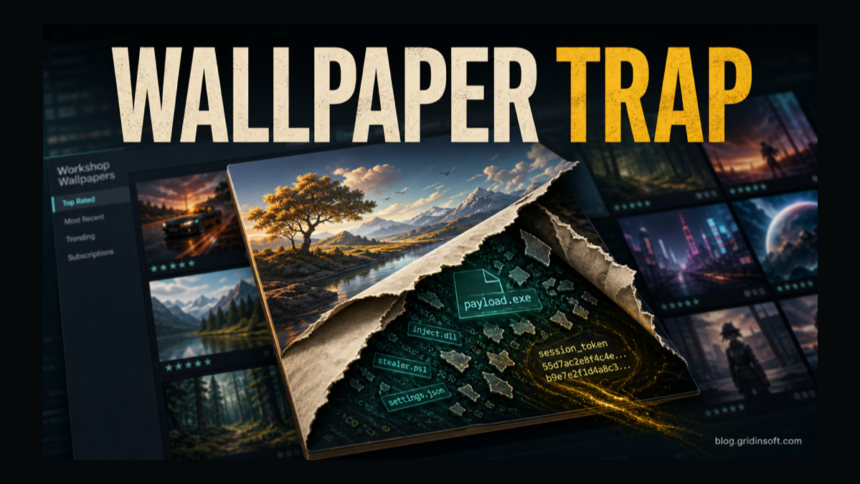
Wallpaper Engine itself is a legitimate app, but malicious Steam Workshop wallpapers are now a real risk when they use the application-wallpaper format. Kaspersky reported on June 16, 2026 that attackers abused Wallpaper Engine packages to run malware from inside wallpapers, steal Steam sessions, and install payloads such as backdoors, infostealers, loaders, miners, and ransomware. If you recently subscribed to a suspicious wallpaper, remove that item, check the downloaded project folder, scan Windows, and secure your Steam account before logging back in normally.[1]
What happened with Wallpaper Engine malware?
The campaign does not mean every Wallpaper Engine wallpaper is dangerous. The important detail is the wallpaper type. Normal videos and many scene wallpapers are a different risk from application wallpapers, because application wallpapers can run Windows programs as part of the desktop background. Kaspersky says attackers placed malicious EXE files, DLLs, scripts, or password-protected archives inside wallpaper packages and, in some cases, the payload ran after the user selected the wallpaper.[1]
| Wallpaper situation | Risk and what to do |
|---|---|
| Video or simple scene from a trusted creator | Lower risk, but still review comments, upload date, creator history, and recent reports before subscribing. |
| Application wallpaper, game-like wallpaper, utility wallpaper, or wallpaper that opens a program | Higher risk. Treat it like running unknown software, especially if it contains EXE, DLL, script, archive, or JSON configuration files. |
| Wallpaper asked for a password, archive extraction, extra download, admin rights, Defender exclusion, or a separate launcher | Remove it immediately and scan Windows. Those are not normal trust signals for a desktop background. |
| Steam account activity changed after using a wallpaper | Secure Steam from a clean browser or device, then scan the PC before returning to normal gaming accounts. |
Remove suspicious Steam Workshop wallpapers
- Open Wallpaper Engine and switch away from the suspicious wallpaper. If the app is unstable, quit Wallpaper Engine from the tray icon.
- In Steam, open the Wallpaper Engine Workshop and unsubscribe from the suspicious item. Also review recent subscriptions, not only the wallpaper you remember applying.
- Open the local Workshop content folder, usually
C:\Program Files (x86)\Steam\steamapps\workshop\content\431960\. Sort by modified date and inspect recently downloaded folders. - Look for executables, DLLs, scripts, password-protected archives, unfamiliar JSON configuration files, or folders that do not match the wallpaper you expected.
- Do not run the files to “test” them. If you need to preserve evidence, copy only filenames, dates, hashes, and the Workshop item URL.
- Empty the Recycle Bin only after security tools finish scanning. If a detection appears, keep the quarantine record for the file path and detection name.
If your main worry is whether Steam Cloud saves carried malware from an older PC, use our separate Steam Cloud malware risk guide. This Wallpaper Engine guide is for Workshop items that may execute code locally.
Meccha Chameleon players should also review the separate Laser Tag Neon Workshop malware cleanup. That item used map logic to write an s.bat script and attempt a hidden PowerShell download, so its item ID and indicators differ from Wallpaper Engine.
Scan Windows before trusting the account again
A malicious wallpaper package can be more than a bad wallpaper file. The reported campaign included stealers, loaders, backdoors, miners, and session theft, so cleanup should check persistence, startup entries, scheduled tasks, browser changes, and hidden payloads. If the wallpaper already ran, remove the item first, then run a full Gridinsoft Anti-Malware scan before you log back into Steam, Discord, email, crypto wallets, or payment accounts from that PC.
Use the scan results as a decision point: remove detected payloads, reboot, scan again if symptoms return, and avoid restoring suspicious files from quarantine unless you have a strong reason and a clean source. If the suspicious wallpaper came from the same chain as a cracked game, cheat loader, or mod installer, compare the red flags with our infostealer after game/mod cleanup checklist.
If a token stealer ran here, logging back in can hand the attacker your new Discord session, email cookie, Steam token, or wallet access. Scan this Windows PC first, then reset passwords from a clean device.
Scan before logging back into SteamSecure your Steam account and inventory
Do these steps from a clean browser session or another trusted device if you suspect the wallpaper stole a session token or ran an infostealer.
- Change your Steam password and the password for the email account attached to Steam.
- Open Steam Support account security settings and review authorized devices. Steam recommends using the sign-out-everywhere option when account activity looks suspicious.[2]
- Confirm Steam Guard is enabled and check whether a mobile authenticator or email address was changed.
- Open
https://steamcommunity.com/dev/apikeymanually while signed in. If an API key exists and you did not create it, revoke it. - Review pending trade offers, market listings, inventory history, and recent friend messages. Steam describes trade redirection as a scam where attackers make a trade look like it is going to a trusted account.[3]
- Warn friends if your account sent Workshop links, trade links, Discord invites, or “try this wallpaper” messages.
If the incident was only a fake Steam login page or FACEIT-style verification lure, our fake FACEIT Steam login scam guide covers that account-theft path in more detail. If the problem is a suspicious wallpaper-related process such as another live-wallpaper app component, compare the file path and hash checks in our Lively.Watchdog.exe safety guide.
What not to do
- Do not assume “from Steam” means “safe to execute.” Workshop content is user-generated.
- Do not restore a quarantined EXE, DLL, or script just because the wallpaper looked normal.
- Do not disable Defender or another security tool to make a wallpaper run.
- Do not approve Steam Guard prompts, QR logins, or trade confirmations that appeared after the suspicious wallpaper.
- Do not wipe Windows before collecting the detection name, suspicious folder path, and Workshop item URL if you may need support or account recovery evidence.
FAQ
Is Wallpaper Engine malware?
No. Wallpaper Engine is a legitimate live-wallpaper app. The risk comes from malicious user-generated Workshop packages, especially application wallpapers that can run Windows programs.
Should I uninstall Wallpaper Engine completely?
Not automatically. If you only used trusted video or scene wallpapers and have no suspicious symptoms, removing one bad Workshop item may be enough. If an application wallpaper ran, a security scan and Steam account review are safer than only uninstalling the app.
Where are Wallpaper Engine Workshop files stored?
Subscribed items are commonly under C:\Program Files (x86)\Steam\steamapps\workshop\content\431960\. The exact Steam library path can differ if you installed Steam games on another drive.
Can a wallpaper steal Steam Guard codes?
A wallpaper package should not need your Steam Guard code. The reported risk is malware or session theft after a malicious wallpaper runs. If you entered a code into a separate page or approved a login prompt, treat the account as compromised and sign out other devices.
References
- Kaspersky. “Kaspersky discovered a malware campaign targeting Steam users through infected wallpaper.” Kaspersky Press Releases, June 16, 2026. Accessed June 16, 2026. https://www.kaspersky.com/about/press-releases/kaspersky-discovered-a-malware-campaign-targeting-steam-users-through-infected-wallpaper
- Steam Support. “Account Security Recommendations.” Valve, accessed June 16, 2026. https://help.steampowered.com/en/faqs/view/6639-EB3C-EC79-FF60
- Steam Support. “Scam: Trade Redirection.” Valve, accessed June 16, 2026. https://help.steampowered.com/en/faqs/view/7F4E-1D40-43D0-73FD