Trojan:Win32/Etset!rfn is a Microsoft Defender detection that should be treated as unsafe until you verify where it came from, what action Defender took, and whether the alert returns after a reboot. If Protection History says the item was quarantined or removed and a full scan stays clean, the visible payload is probably contained. If it came from a crack, repack, game mod, archive, browser cache, or developer tool and keeps appearing, check for persistence before restoring anything.
The search problem around this label is not only “what is Etset.” People want to know whether Defender really removed it, whether a game or plug-in file was a false positive, and what to do when quarantine fails or the same alert comes back. Microsoft Support describes Protection History as the Windows Security page where Defender actions can be reviewed, including quarantined and removed items. [1]
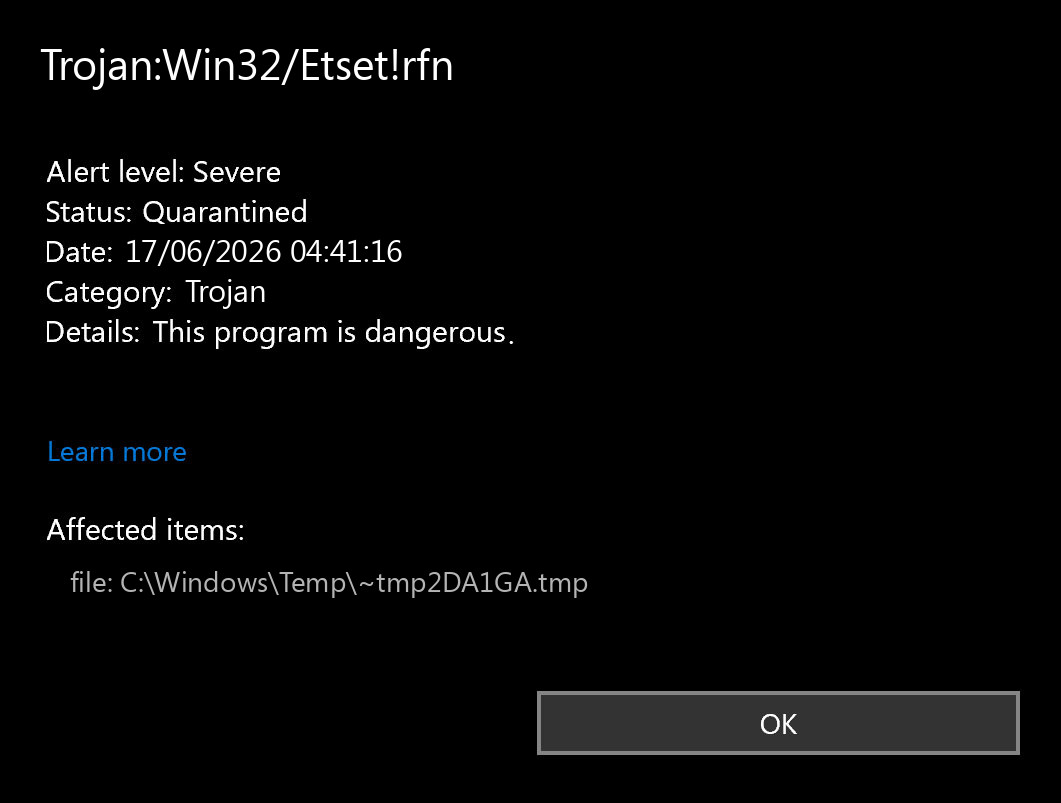
First Check: What Defender Actually Did
Open Windows Security → Virus & threat protection → Protection history. Select the Trojan:Win32/Etset!rfn event and write down four details before clicking Restore, Allow, or Remove:
- Action status: quarantined, removed, blocked, remediation incomplete, or action needed.
- Affected path: for example
%USERPROFILE%\Downloads,%LOCALAPPDATA%\Temp, a browser cache folder, an archive extraction folder, or a game/mod directory. - Detection time: one old event is different from the same alert after every reboot or launch.
- Source: official vendor download, GitHub release, Steam/launcher file, crack, repack, trainer, OnlineFix-style package, or an unknown installer.
If the status is Quarantined or Removed, do not restore it just because the computer seems normal. Run a full scan, reboot once, then check Protection History again. If the same detection returns from the same path, something is recreating or re-extracting the file.
Is Trojan:Win32/Etset!rfn Always Real Malware?
No single antivirus label proves the full story. Trojan:Win32/Etset!rfn can appear on genuinely malicious files, but the current SERP also shows false-positive anxiety around games, plug-ins, and developer artifacts. A Microsoft Learn thread from March 31, 2026, asks exactly how to confirm Defender fully removed Trojan:Win32/Etset!rfn, which reflects the live user problem behind this guide. [2]
Use this decision table instead of guessing:
| Situation | Risk and what to do |
|---|---|
| Detected inside a crack, activator, trainer, repack, or unofficial game multiplayer fix | High risk. Keep it quarantined, delete the source archive, scan the whole PC, and check accounts if the file ran. |
Detected in %LOCALAPPDATA%\Temp, Startup, a scheduled task, or a random AppData folder |
Suspicious. Look for persistence and other payloads before assuming Defender finished cleanup. |
| Detected in a browser cache or download folder before the file ran | Lower risk if blocked before execution, but delete the download and rescan. |
| Detected in a known official app, signed DLL, Jenkins plug-in, or game module after an update | Possible false positive. Verify signature, source, hash, vendor reports, and Microsoft submission results before restoring. |
| Detection returns after reboot, launch, or archive extraction | Do not restore. Find what is recreating it: archive, updater, scheduled task, service, extension, or loader. |
How to Check a False Positive Safely
False positives happen, but a false-positive workflow is not the same as “click Allow.” Microsoft provides a file submission portal for files that may be malware or incorrectly classified as malware. [3] Before restoring a file that triggered Trojan:Win32/Etset!rfn:
- Confirm the file came from the official vendor or a trusted build pipeline, not a mirror, crack, ad download, or repack.
- Check the digital signature when the file should be signed. Unsigned game mods and small loaders deserve more suspicion.
- Compare the file hash with the vendor release or developer issue if one exists.
- Upload the exact file to Microsoft Security Intelligence for review if you own or trust the source.
- Wait for a definition update and rescan before restoring. Do not add a permanent exclusion unless you are responsible for the software and can justify it.
If the detection came from a game or mod context, separate the game itself from the distribution path. A legitimate game can be safe while a repack, crack, trainer, or multiplayer bypass around it is not. For broader context, see our guides on infostealer risks after downloading a game or mod and KMSPico-style activator malware.
If Etset Keeps Popping Up
A recurring Trojan:Win32/Etset!rfn alert usually means one of three things: the original archive is being extracted again, an updater or launcher keeps replacing the file, or a persistence point is still active. Check these areas:
- Archives and installers: delete the ZIP/RAR/ISO/7z source, not only the extracted file.
- Startup folders: check
%APPDATA%\Microsoft\Windows\Start Menu\Programs\Startupand%ProgramData%\Microsoft\Windows\Start Menu\Programs\Startup. - Registry Run keys: inspect
HKCU\Software\Microsoft\Windows\CurrentVersion\RunandHKLM\Software\Microsoft\Windows\CurrentVersion\Runfor unknown commands. - Task Scheduler: look for tasks created near the detection time, especially commands running from AppData, Temp, Downloads, or hidden folders.
- Browser profile folders: clear suspicious downloads and cache if Defender points to Chrome, Edge, Firefox, or a temporary web cache path.
- Defender exclusions: remove exclusions you did not create intentionally. Malware and risky installers often try to hide there.
When a threat appears from C:\Users\...\AppData\Local\Temp or another throwaway path, deleting only that one file may not remove the component that placed it there. The same is true when Defender says remediation failed, when the alert appears after every reboot, or when the file came from an unofficial installer.
After the visible item is quarantined, a loader, scheduled task, browser change, Defender exclusion, startup entry, or bundled module can still recreate the alert. In that situation, run a full Gridinsoft Anti-Malware scan, remove detected leftovers, reboot, and scan again if the Etset alert returns.
Defender can quarantine the visible file, but repeated alerts may mean a loader, scheduled task, service, browser change, or bundled component is recreating it. Scan the PC before trusting the cleanup.
Scan for Etset leftoversDo You Need to Change Passwords?
If Defender blocked Trojan:Win32/Etset!rfn before the file ran, password theft is less likely. If you opened or executed the file, especially from a crack, repack, trainer, fake update, or unknown archive, handle it like a possible compromise:
- Change important passwords from a clean device, starting with email, banking, Steam, Discord, Microsoft, and browser-synced accounts.
- Revoke unknown sessions and app passwords where the service supports it.
- Enable MFA, but do not approve prompts you did not start.
- Check browser extensions, saved payment data, and suspicious forwarding rules in email accounts.
- Watch for follow-up phishing messages that mention the same game, installer, or download.
What Not to Do
- Do not restore the file just because a forum comment says “all cracks are false positives.”
- Do not add a folder-wide Defender exclusion for Downloads, AppData, Temp, or a games folder.
- Do not run a quarantined file again to “test” it on your main Windows profile.
- Do not keep the original archive if every extraction recreates the alert.
- Do not install random removal tools from YouTube descriptions or SEO removal pages.
Practical Cleanup Sequence
- Leave Trojan:Win32/Etset!rfn quarantined or removed in Defender.
- Delete the original archive, installer, or download that produced it.
- Update Defender definitions and run a full scan.
- Reboot and check Protection History again.
- Remove suspicious Defender exclusions, startup entries, scheduled tasks, and unknown recently installed apps.
- Run Gridinsoft Anti-Malware if the alert repeats, if the file ran, or if the source was unofficial.
- If you believe it is a false positive, submit the exact file to Microsoft and wait for confirmation before restoring.
FAQ
What is Trojan:Win32/Etset!rfn?
Trojan:Win32/Etset!rfn is a Microsoft Defender detection label for a suspicious Windows file. Treat it as unsafe until you verify the affected path, source, Defender action, and whether the alert returns after reboot.
Can Trojan:Win32/Etset!rfn be a false positive?
Yes, especially when it appears after an update to a known signed app or a developer/game component. It is much riskier when the source is a crack, repack, trainer, unknown archive, fake update, or random AppData/Temp path.
How do I know if Defender removed Etset completely?
Protection History should show the item as quarantined, removed, or blocked. Then run a full scan, reboot, and check whether the same detection returns. If it returns, investigate the source archive, updater, task, startup entry, or Defender exclusion.
Should I click Allow for Trojan:Win32/Etset!rfn?
No, not unless you have verified the exact file through the vendor, signature, hash, and Microsoft false-positive review. Allowing the threat too early can let the same file run again.
What if the file was in a game mod or OnlineFix-style download?
Keep it quarantined unless you can prove the file is clean. Unofficial game packages often mix legitimate game files with risky loaders, cracks, or account-stealing malware.
References
- Microsoft Support. “Protection History.” Microsoft Support, accessed June 17, 2026. https://support.microsoft.com/en-us/windows/protection-history-f1e5fd95-09b4-46d1-b8c7-1059a1e09708
- Microsoft Learn Q&A. “MS Defender found Trojan:Win32/Etset!rfn.” Microsoft Learn, March 31, 2026, accessed June 17, 2026. https://learn.microsoft.com/en-us/answers/questions/5845348/ms-defender-found-trojan-win32-etset-rfn
- Microsoft Security Intelligence. “Submit a file for malware analysis.” Microsoft, accessed June 17, 2026. https://www.microsoft.com/en-us/wdsi/filesubmission