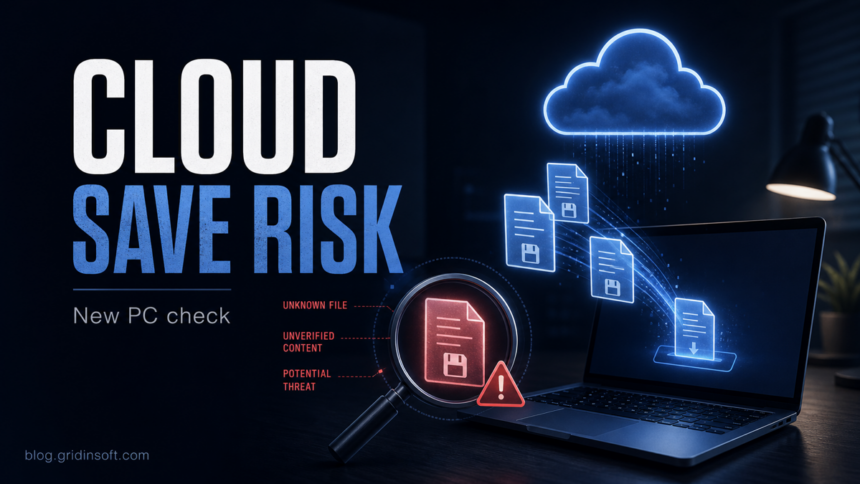
Steam Cloud save files are not the same risk as copying old programs, cracks, mods, or EXE files from an infected PC. In most cases they are saves, settings, profiles, screenshots, or small game data synced through Steam. The risk rises when a game syncs scripts, custom content, mod files, or a folder that the game later executes or loads. If the old PC may have had an infostealer, also treat your Steam account and email as the main risk, not only the save files.
This guide is for the exact situation many players hit after replacing a suspicious or infected Windows PC: you want to sign in to Steam on a new laptop, download games from your official library, and avoid bringing anything malicious back through Steam Cloud.
What Steam Cloud Actually Syncs
Valve describes Steam Cloud as storage for game settings, save games, profile stats, Steam client settings, and other user-specific data. Developers choose which files their games upload, and Steam Support notes that the store page can show whether a game uses Steam Cloud, but the exact file list may depend on the developer or community documentation.
On Windows, Steam stores cloud files locally under C:\Program Files (x86)\Steam\userdata by default. Inside that folder, files are separated by Steam ID and app ID. Many games also use a remote subfolder, for example Steamuserdata[steamID][appID]remote.
That design matters for security: Steam Cloud usually moves data files, not a complete installed game or old Windows programs. But “data file” does not mean “impossible to abuse.” For standalone restored videos, also check whether an MP4/M4V is a real media file or a disguised executable in our MP4 malware safety guide. Some games can load scripts, custom maps, plugins, macros, save editors, or mod-like content from locations that look like normal user data.
When Steam Cloud Is Low Risk
The Steam Cloud part is usually low risk when all of these are true:
- You install the Steam client from the official Steam site.
- You download games from your own Steam Library, not copied folders from the old PC.
- You do not restore old launchers, cracks, trainers, executors, cheat tools, or portable utilities.
- The game only syncs normal save files, settings, profile data, or controller/config data.
- The old infection was removed before you log back into sensitive accounts, or you are using a clean device for account recovery.
In this case, signing in on the new PC and letting Steam download official game builds is safer than copying the old SteamApps, common, Downloads, Desktop, or Documents folders by hand.
When You Should Pause Steam Cloud First
Disable Steam Cloud temporarily for a specific game before first launch when the old PC ran suspicious game-related files or when the game is known to load user content directly. This is especially relevant for:
- modded games where saves live beside scripts, DLLs, custom maps, or workshop-like content;
- games with console/script folders that may execute local files;
- old multiplayer games with custom server downloads;
- games where you used trainers, cracks, cheat engines, “unlockers,” or third-party launchers;
- save files that came from Discord, Telegram, Reddit, file-sharing sites, or a stranger.
To pause sync, open Steam, right-click the game, choose Properties, and turn off the Cloud Synchronization option under the General tab. You can also disable Steam Cloud globally in Steam settings, but per-game control is usually enough.
Safe First-Login Order on the New PC
- Secure the account first. From the new clean device, change your Steam password if the old PC may have had a stealer. Check authorized devices and sign out everywhere if anything looks unfamiliar.
- Secure the email account next. A stolen email can reset Steam access, so change that password, enable two-factor authentication, and review email forwarding rules or recovery options.
- Install Steam from the official source only. Avoid “Steam setup” files from old downloads, mirrors, or bundled installers.
- Install one game at a time. For mod-heavy games, keep Steam Cloud off for the first launch and inspect the cloud files before letting them sync.
- Scan suspicious saves or exported files. If you manually download Steam Cloud files from the web storage page or copy old saves, scan the folder before opening the game.
- Do not copy old executable folders. Saves are one thing; old EXE, DLL, BAT, PS1, SCR, MSI, archives, and portable apps are a separate risk.
If the old machine was infected after downloading a game, mod, launcher, or private build, follow the cleanup-and-account order in our game/mod infostealer response guide before you trust that PC again. If you are rebuilding Windows, use a separate clean device to create your install USB rather than making recovery media on the compromised system.
How to Inspect Steam Cloud Files Without Launching the Game
Valve provides a Steam Cloud storage page where you can view and download cloud files for supported games. Use it when you want to check file names before the new PC launches the game.
Look for unusual file types in the game entry. Normal names vary by game, but be more cautious with .exe, .dll, .bat, .cmd, .ps1, .vbs, .js, .scr, unexpected archives, or files with double extensions such as save.dat.exe. A file extension alone is not a verdict, but it tells you whether you should scan first and research the game’s expected save format.
For normal saves, a safer workflow is: download the cloud files, place them in a temporary folder, scan that folder, and compare the file names with the game developer’s documented save locations. Only then move them into the expected save folder or enable sync for the game.
If the Old PC Had Malware
Do not make Steam Cloud the only focus. A real infostealer can copy browser cookies, saved passwords, Steam session data, Discord tokens, wallet files, and email sessions. In that scenario, the highest-value action is account cleanup from a trusted device.
If the incident started with a subscribed Wallpaper Engine Workshop item rather than Steam Cloud save sync, use our Wallpaper Engine malware cleanup guide for application-wallpaper checks and Steam account steps.
- Change Steam and email passwords from the new clean PC.
- Enable or re-check Steam Guard and email two-factor authentication.
- Review Steam authorized devices and sign out of untrusted sessions.
- Check your email account for forwarding rules, recovery changes, and login alerts.
- Scan the old PC before reusing it for any account login.
- Avoid “recovery helpers” who contact you through Discord, Telegram, Reddit, or Steam messages.
After uninstalling the suspicious app or deleting the visible threat, use Gridinsoft Anti-Malware to check hidden files, startup entries, scheduled tasks, bundled apps, browser changes, and other persistence points that can restore malware.
Download Anti-MalwareWhat Not to Bring From the Old PC
Steam Cloud saves are not the same as a full manual migration. The highest-risk items are usually outside Steam Cloud:
- cracks, keygens, trainers, executors, cheat loaders, and mod installers;
- old browser profiles and saved sessions copied by hand;
- portable utilities from Downloads or Desktop;
- archives whose contents you have not inspected;
- custom DLLs, launch arguments, and patched game files;
- backup folders that mix saves with installers and scripts.
If you only need progress, prefer Steam’s official sync or the game’s documented save location. If you need to move a save manually, copy only the expected save files, not the whole game folder.
Quick Decision Table
| Situation | Risk | Best action |
|---|---|---|
| Official Steam game downloads saves on a clean PC | Usually low | Allow sync, then watch for security-tool alerts |
| Old PC ran a suspicious mod, crack, or trainer | Medium to high | Secure accounts first; disable Cloud for affected games until checked |
| Cloud entry contains scripts, DLLs, EXE files, or archives | Higher | Do not launch the game yet; scan and verify expected file types |
| Steam account or email showed strange logins | High | Change passwords, enable 2FA, sign out other devices, scan systems |
| You are copying the old Steam folder by USB | Higher than Cloud sync | Install clean from Steam instead; copy only verified save files if needed |
For unofficial Fortnite emulators and private-server launchers, the risk is closer to running a downloaded program than syncing a save file. See our Project Era safety guide before trusting a launcher or entering account credentials.
FAQ
Can a Steam save file be a virus?
A normal save file is usually data, not a standalone program. The risk depends on how the game reads that data. Be more careful with games that load scripts, plugins, custom maps, or mod content from the same synced folders.
Should I disable Steam Cloud on a new PC after malware?
Disable it per game if the old PC ran suspicious game tools or mods, or if you want to inspect files before first launch. You do not need to disable every Steam Cloud sync forever if the files are ordinary saves and the account is secure.
Can malware steal my Steam account without Steam Cloud?
Yes. Infostealers can target browser sessions, saved passwords, cookies, Steam session data, and email access. If the old PC was infected, account recovery and session cleanup are more urgent than the save files alone.
Is reinstalling games from Steam safe?
Installing games from your official Steam Library on a clean PC is much safer than copying old game folders or installers from an infected machine. Keep away from cracks, trainers, and old mod installers until they are verified.
Where can I see my Steam Cloud files?
You can use Steam’s Remote Storage page while signed into your account, or inspect local Steam Cloud files under the Steam userdata folder after sync.
If your concern is not Steam Cloud files but a suspicious login or verification page, review the current fake FACEIT Steam login scam checklist before approving Steam Guard prompts or trades.
References
- Valve Corporation. “Steam Cloud.” Steam Support, accessed May 29, 2026. https://help.steampowered.com/en/faqs/view/68D2-35AB-09A9-7678
- Valve Corporation. “Steam Cloud.” Steamworks Documentation, accessed May 29, 2026. https://partner.steamgames.com/doc/features/cloud
- Valve Corporation. “View Steam Cloud.” Steam Remote Storage, accessed May 29, 2026. https://store.steampowered.com/account/remotestorage
- Valve Corporation. “Account Security Recommendations.” Steam Support, accessed May 29, 2026. https://help.steampowered.com/en/faqs/view/6639-EB3C-EC79-FF60