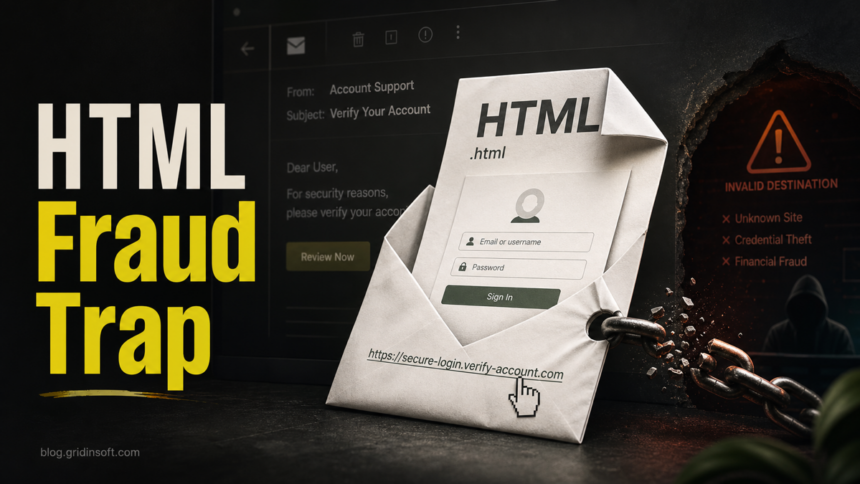
HTML/Fraud Trojan is a detection name security tools use for fraudulent HTML content: a scam email body, an attached .html file, a cached web page, or a fake login page that hides where a link really goes. It does not always mean a full Windows infection is installed. The right response depends on the affected path, whether you opened the file or entered credentials, and whether the alert returns after cache cleanup.
Keep the item quarantined or blocked first. Do not restore the HTML file, do not add an exclusion, and do not sign in through any page opened by the message. Copy the detection name and the affected path, then use the checks below to decide whether this was a blocked page, a suspicious email attachment, or a sign of recurring browser/adware activity.
What HTML/Fraud Trojan Means
HTML/Fraud detections focus on the content of an HTML page, not on a normal Windows executable. The page may display a harmless-looking bank, mailbox, document, delivery, crypto, or support message while the underlying link points somewhere else. F-Secure describes this family as fraudulent email messages and website HTML, often caused by a mismatch between the visible link text and the real href destination.
Microsoft Defender and other tools may use related names such as Trojan:HTML/Fraudload.C!MTB, Trojan:HTML/Phishing..., HTML/Phishing, or vendor-specific labels such as HTML/Fraud.EK. Treat the exact family name as useful context, but make the decision from the source path and what you did with the page.
Check The Path First
The affected path usually tells you how urgent the cleanup is.
| Where the detection appeared | Risk and what to do |
|---|---|
| Browser cache, temporary internet files, or email preview cache | Often a blocked page or message preview. Close the tab or message, clear browser/mail cache, keep quarantine, and scan if the alert returns. |
%USERPROFILE%\Downloads, Desktop, or a saved .html/.htm attachment |
Higher risk because the file was saved locally. Delete or quarantine it, check whether it opened a login page, and scan the PC. |
| Startup, Task Scheduler, extension folders, or a recently installed app path | Treat as possible persistence or bundled adware. Remove suspicious apps/extensions, reset browser settings, and run a full scan. |
| Outlook, Thunderbird, Gmail offline cache, or a mail-client storage folder | The message itself may be the source. Delete it from Inbox, Junk, Sent, Deleted Items, and synced devices; then rescan the mail store. |
What An HTML/Fraud Email Can Look Like
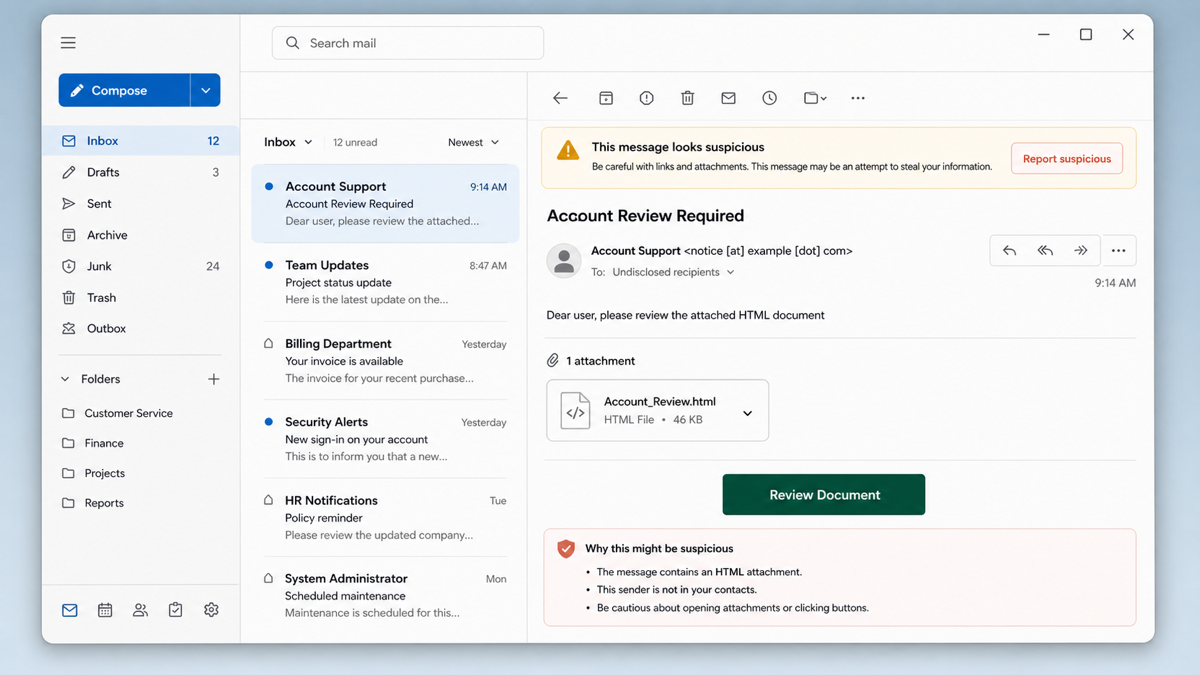
Fraudulent HTML messages often pretend to be account reviews, invoices, secure documents, mailbox notices, or delivery updates. The attachment opens in a browser and shows a fake login form, or the button text looks safe while the destination goes to an unrelated site.
Example:
Subject: Account Review Required
From: Account Support <notice [at] example [dot] com>
Body: Dear user, please review the attached HTML document to keep your account active.
Attachment: Account_Review.html
Button: Review Document
Product Review Request email scam: check the real extension
Legitimate buyers can ask manufacturers for specifications, minimum order quantity, pricing, and lead time, so the phrase Product Review Request is not proof of fraud by itself. The warning signs are an unexpected attachment that ends in .html and a page that asks you to sign in to your email account before you can view the supposed product document.
Example:
Subject: ATTACHED PRODUCT REVIEW – #582855
Request: Confirm whether your company can match the design, materials, dimensions, technical specifications, workmanship, and quality; then provide MOQ, unit price, production lead time, packaging, shipping, payment, and certification details.
Attachment: PRODUCT_SPECIFICATIONS.pdf#02055.xls.html
Read a compound filename from the end. In this example, the real extension is .html; the earlier .xls and .pdf strings only make the attachment look like a spreadsheet or document. Opening the observed local HTML file displays a fake email-provider login. Opening it alone is not proof that Windows malware was installed or that a password was stolen, although the page may load remote content or reveal that it was opened. Credential theft requires entering and submitting account details unless separate download or execution behavior is independently observed.
- Received or read only: do not open the attachment. Delete the message and verify an unexpected procurement request through a known company website or phone number, not the reply details in the email.
- Saved but not opened: quarantine or delete the file. Saving it is not evidence that credentials were submitted, but scan the file or device if your security tool alerted on it.
- Opened the HTML page: close it without signing in. Check Downloads and browser extensions, and use the cleanup steps below if the page triggered another download, installation, notification prompt, or recurring alert.
- Entered an email password: type the provider’s real address into a clean browser, change the password, sign out other sessions, review MFA and recovery methods, inspect forwarding rules and connected apps, and notify workplace IT for a business account.
For a current courier-brand case study with Telegram and EmailJS exfiltration, see our technical analysis of the SF Express e-invoice HTML phishing kit.
That wording is generic by design, but it shows the pattern: vague sender, HTML attachment, account pressure, and a button that asks for sign-in. If you need to check a suspicious message before clicking, paste the sender, subject, visible links, and body text into the Gridinsoft Email Scam Checker instead of opening the attachment.
What To Do If You See The Detection
- Leave quarantine in place. Restoring the HTML file only makes sense after you verify the sender, destination, and false-positive path.
- Close the triggering app. Close the browser tab, email preview pane, PDF viewer, or mail client that accessed the file.
- Clear the matching cache. Clear browser cache and site data for the suspicious domain. If the alert came from a mail client, remove the message from Inbox, Junk, Sent, Deleted Items, and server-side webmail.
- Delete saved HTML attachments. Remove suspicious
.html,.htm,.svg, or zipped document files from Downloads and Desktop. - Check what happened after opening it. If you typed a password, approved MFA, downloaded a viewer, installed an extension, or allowed notifications, treat it as an account and browser recovery case, not only as a file cleanup.
- Run a scan if the alert returns. Recurrence after reboot, repeated redirects, new browser policies, unknown extensions, or detections outside cache can point to adware, a loader, or leftover persistence.
If the page or attachment opened before it was blocked, a scan is useful for checking hidden files, scheduled tasks, startup entries, bundled apps, browser changes, and persistence that a blocked HTML file alone would not explain.
If the page or email made you download an invoice, coupon, tracking app, browser extension, or support tool, scan the PC before opening it again or logging into sensitive accounts.
Scan after opening a suspicious HTML fileIf You Entered A Password
HTML/Fraud is often about credential theft. If you signed in through a page opened by the message or attachment, act as if that password was exposed:
- Change the password from a clean browser session by typing the real site address manually.
- Sign out of other sessions where the account provider allows it.
- Reset MFA methods and recovery email/phone if the account settings look changed.
- Check forwarding rules, mailbox filters, connected apps, payment methods, and recent login history.
- Warn your workplace or school IT team if the account is organizational.
Could It Be A False Positive?
Yes, but only decide that after checking the path and context. A local HTML homework file, exported report, internal web page, or newsletter template can sometimes look suspicious because it contains forms, redirects, obfuscated script, or link mismatch patterns. Do not whitelist it just because you recognize the filename. Verify the sender or creator, open the file only in a safe test environment if needed, and submit it to your security vendor for review when the source is legitimate.
False-positive confidence is higher when the file came from a trusted internal workflow, the real link destinations match the visible text, no credentials or downloads are requested, and a fresh full-system scan finds no other suspicious items. It is lower when the file arrived unexpectedly by email, came from a shortened link, asks for mailbox/bank/payment credentials, or triggers alerts from multiple tools.
Related Cleanup Paths
If the alert is closer to a redirect or browser-cache problem, compare it with our Trojan:JS/Redirector and HTML/Redirector guide. If the risky file is an image-like attachment, see the malicious SVG phishing cleanup guide. For general suspicious-message review, use the Gridinsoft Email Scam Checker guide.
FAQ
Is HTML/Fraud Trojan a real virus?
It can be a real threat, but it is usually fraudulent HTML content rather than a traditional Windows program. The danger is the phishing page, hidden destination, download, extension, or credential theft that the HTML tries to trigger.
Should I delete the detected HTML file?
Yes, if it came from an unexpected email, download, redirect, or cache entry. Keep the security-tool quarantine and remove the original message or saved attachment. Restore only after you verify the source and submit a likely false positive.
Why does the alert come back after I clear the browser?
It may be syncing from another browser profile, sitting in a mail-client cache, coming from a saved attachment, or being recreated by an extension, notification permission, adware app, or startup item. That is when a full scan and browser cleanup are needed.
What if I only viewed the email preview?
If the tool blocked the preview and you did not click, download, or enter credentials, delete the message and clear the mail trash. If the same alert returns while the mail client is closed, investigate local cache or sync copies.
Do I need to change passwords?
Change passwords if you entered them into the page, approved MFA, downloaded a helper app, or cannot confirm where the form submitted data. If the HTML was only blocked in cache and no credentials were entered, password changes are usually not necessary.
References
- F-Secure. “Trojan-Spy:HTML/Fraud.” F-Secure Threat Descriptions, accessed June 24, 2026. https://www.f-secure.com/v-descs/trojan-spy-html-fraud
- Microsoft Security Intelligence. “Trojan:HTML/Fraudload.C!MTB threat description.” Microsoft, published and updated June 16, 2025, accessed June 24, 2026. https://www.microsoft.com/en-us/wdsi/threats/malware-encyclopedia-description?Name=Trojan%3AHTML%2FFraudload.C%21MTB&ThreatID=2147943742