

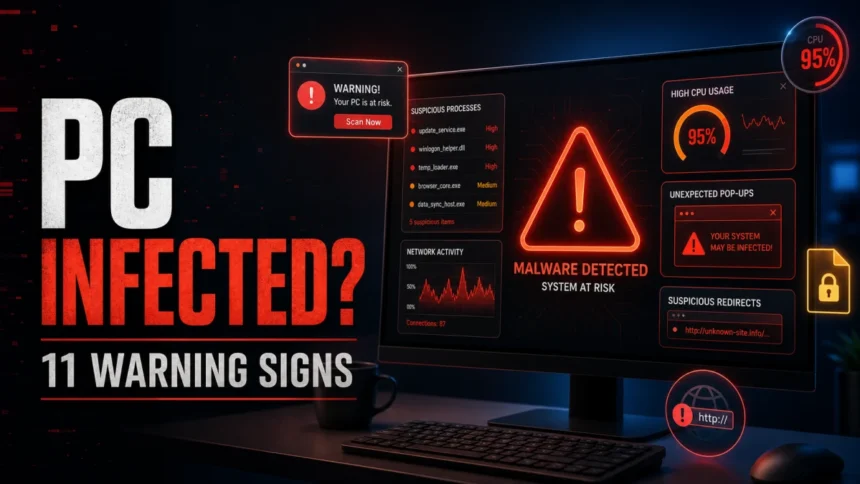
If your computer suddenly became slow, started showing pop-ups, redirects your browser searches, disables security tools, or sends messages you did not write, those are warning signs your computer may have a virus or another malware infection. One symptom can be normal Windows behavior; several symptoms appearing together are the real warning sign. Start by checking running processes, recent apps, browser extensions, antivirus alerts, and account activity before entering passwords or installing any “fix” tool from a pop-up.
A computer “virus” is the name many people use for any malicious software, but today the problem may also be a trojan, browser hijacker, potentially unwanted app, spyware, coin miner, or ransomware. This page is a triage checklist for symptoms and first checks. For the technical definition, virus types, and how true computer viruses spread, use our computer virus definition guide.
11 warning signs your computer may have a virus
Use these signs as a pattern, not as a one-symptom diagnosis. One slow startup can be ordinary Windows behavior; several warning signs together are a stronger reason to run a full scan and review what changed.
If Windows Security names a concrete behavior detection, such as Behavior:Win32/BrowserKill.A!MTB, treat it as stronger evidence than a generic slowdown or pop-up symptom.
- Your PC suddenly becomes much slower. Open Task Manager and sort by CPU, memory, disk, and network. A random-looking process using heavy resources while the PC is idle is suspicious, especially if it returns after reboot.
- Browser redirects or search results change. Check browser extensions, the default search engine, homepage, new-tab settings, notification permissions, and recently installed apps.
- Pop-ups say your PC is infected. Do not call the phone number or install the tool advertised in the pop-up. Many “virus alert” pages are scams, not real antivirus warnings.
- Unknown programs appear. Review installed apps sorted by installation date. Check the publisher and file path before removing anything that might be a legitimate driver or updater.
- Antivirus or firewall protection turns off. Open Windows Security or your security app from the Start menu, not from a pop-up, and review protection history, quarantine events, and blocked settings.
- Disk, CPU, or network activity stays high. High usage while the computer is idle can point to a miner, downloader, proxy trojan, or updater abused by malware.
- Files disappear, change names, or become unreadable. Stop normal work and check backups. Do not rename encrypted files or run random “decryptors”.
- Emails or messages are sent from your account. Change passwords from a clean device and check recent sign-ins. This can indicate stolen browser sessions, saved passwords, or account tokens.
- Startup takes longer or new startup entries appear. Check Startup apps and Task Scheduler. Malware often uses startup entries to return after reboot.
- The system crashes, freezes, or reboots unexpectedly. Drivers, overheating, or updates can also cause this, so treat crashes as suspicious when they appear with other symptoms on this list.
- Laptop battery drains unusually fast. Look for background processes that keep CPU or GPU usage high while you are doing little or nothing.
If the strongest clue is high CPU, redirects, disabled protection, or account activity, write down when it started and continue with the checks below before installing any “fix” tool from a warning page.
What to do first if you suspect an infection
- Disconnect from the internet if the behavior is active. This can interrupt a downloader, remote-control tool, data stealer, or fake support session.
- Do not enter passwords on the suspicious PC. If you need to change passwords, use a phone or another clean computer.
- Do not trust scare pop-ups. Close the browser tab or the browser itself. A page that says “your computer is infected” and shows a phone number is usually a fake Microsoft security warning scam.
- Write down what changed. Note the first day you saw the problem, any recent downloads, browser extensions, game mods, cracks, email attachments, or “updates” you installed.
- Keep important personal files safe. If ransomware is possible, avoid copying executable files or installers into backups. Save documents and photos only after scanning when possible.
How to check your computer for malware
1. Check Task Manager for suspicious resource use
Press Ctrl + Shift + Esc, open Task Manager, and sort the list by CPU, memory, disk, and network. A process with a random name, no clear publisher, or high usage while the PC is idle deserves a closer look. High CPU can also be legitimate, so compare the process name, location, and behavior before deleting anything. If the symptom is mostly slow performance, use our slow PC troubleshooting guide to separate malware from normal Windows causes.
2. Review browser extensions, notifications, and search settings
Browser malware often looks less dramatic than a “virus”: your homepage changes, searches go through an unknown site, new tabs open, or push notifications keep showing ads. Remove extensions you did not install, reset the default search engine, and block suspicious notification permissions. If the main symptom is ads, redirects, or pop-ups, read the adware symptoms and removal guide.
3. Check security alerts from the real security app
Open Windows Security or your antivirus from the Start menu and check protection history, quarantine, and current protection status. Real security tools usually show a product window, detection name, affected file, and action taken. A web page that imitates an alert, speaks loudly, locks the tab, or tells you to call support is almost always a scam.
4. Look for recent installs and startup entries
Open installed apps and sort by date. Then check Startup apps. If a program appeared around the same time as the symptoms and you do not recognize it, research it before running it again. Malware and unwanted apps often arrive bundled with fake updates, cracked software, game mods, free tools, or installers from ads.
5. Check accounts for signs of theft
If people received messages you did not send, if your browser sessions look unfamiliar, or if account recovery emails arrived unexpectedly, assume passwords or session cookies may have been stolen. Change important passwords from a clean device and enable multi-factor authentication. For account-specific recovery steps, see our guide on what to do when a Microsoft account is hacked after malware.
What to clean after you confirm suspicious behavior
After the checks above point to malware, clean the visible symptoms and the places malware commonly uses to return. This section is a practical cleanup checklist; if you specifically need the definition and behavior of self-replicating computer viruses, see the computer virus guide.
- Update your security tool. Outdated signatures miss newer threats. Run updates before scanning if the malware does not block internet access.
- Run a full scan. Use your installed antivirus or a trusted second-opinion scanner. A quick scan is useful, but a full scan is better when the symptoms are unclear.
- Use Safe Mode or an offline scan if malware blocks cleanup. If scans fail, the security app closes, or the threat returns immediately, boot into Safe Mode or use an offline scan path.
- Quarantine first when unsure. Quarantine is safer than manual deletion because it lets the security tool isolate suspicious files without breaking Windows components.
- Remove suspicious browser extensions and notification permissions. Many infections survive because the browser remains hijacked even after the main program is removed.
- Reboot and scan again. A second scan after restart helps catch persistence entries that were hidden during the first pass.
- Change passwords after cleanup. Use a clean device for important passwords if spyware or an infostealer was possible.
- Update Windows, browsers, and common apps. Patching closes the route that malware may have used.
After uninstalling the suspicious app or deleting the visible threat, use Gridinsoft Anti-Malware to check hidden files, startup entries, scheduled tasks, bundled apps, browser changes, and other persistence points that can restore malware.
Download Anti-MalwareIf the same infection keeps returning, security tools cannot start, or system files appear damaged, consider a clean reinstall from trusted media. Our clean Windows install USB after malware guide explains when that stronger step makes sense.
Is it a real infection or a fake virus alert?
A real infection is behavior on your computer: unknown processes, changed browser settings, disabled security tools, encrypted files, suspicious outbound connections, or stolen accounts. A fake virus alert is usually a web page or pop-up that uses fear to make you call a number, download a “cleaner”, or pay for support.
If the warning appears only inside one browser tab, close the tab, clear suspicious notification permissions, and scan the PC. If the warning comes from your actual antivirus app and names a file or detection, treat it as a real security event and follow the app’s quarantine or removal workflow.
How to prevent another infection
- Keep Windows, browsers, and document readers updated.
- Use real-time antivirus protection and a firewall.
- Avoid cracked software, fake browser updates, and installers from ads.
- Back up important files to storage that is not always connected to the PC.
- Use unique passwords and multi-factor authentication for important accounts.
- Do not allow browser notifications from sites you do not trust.
One symptom is not always malware. For example, Task Manager closing after a Claude Desktop install can come from a malformed startup entry, while Defender alerts, redirects, and unknown startup commands still call for a full malware check.
FAQ
How can I tell if my computer has a virus?
Look for several symptoms happening together: unusual slowdowns, pop-ups, redirects, disabled antivirus, unknown startup apps, high CPU or network activity, missing files, or account activity you did not perform. One symptom alone is not proof, but a cluster of symptoms deserves a full scan.
Can a web page really know my computer is infected?
Usually no. A random web page that says your PC is infected is often a fake alert or tech-support scam. Real antivirus warnings come from the security app installed on your device and include details such as detection name, file path, and action taken.
Why is my computer slow after I remove malware?
Leftover startup entries, browser extensions, damaged settings, too many background apps, or pending Windows updates can keep a PC slow after cleanup. Scan again after reboot, remove suspicious extensions, and check startup items.
Should I change passwords after a virus?
Yes, if you saw browser redirects, spyware symptoms, suspicious account activity, or unknown processes. Change passwords from a clean device after the infected computer is cleaned or disconnected.
When should I reinstall Windows?
Reinstall Windows when malware keeps returning, security tools cannot run, system files are damaged, or you cannot trust the PC after an infostealer, ransomware, rootkit, or remote-access infection. Back up personal files carefully and avoid carrying old installers into the clean system.
References
- Microsoft. “Start a scan for viruses or malware in Microsoft Defender.” Microsoft Support, accessed June 2, 2026. https://support.microsoft.com/en-us/defender/how-to-start-a-scan-for-viruses-or-malware-in-microsoft-defender
- Microsoft. “Windows Startup Settings.” Microsoft Support, accessed June 2, 2026. https://support.microsoft.com/en-us/windows/windows-startup-settings-1af6ec8c-4d4a-4b23-adb7-e76eef0b847f
- Cybersecurity and Infrastructure Security Agency. “Malware, Phishing, and Ransomware.” CISA, accessed June 2, 2026. https://www.cisa.gov/topics/cyber-threats-and-advisories/malware-phishing-and-ransomware



This post on identifying computer virus signs is a gem! Clear, concise, and incredibly helpful. Thanks for shedding light on such an important topic. Keep up the great work!