

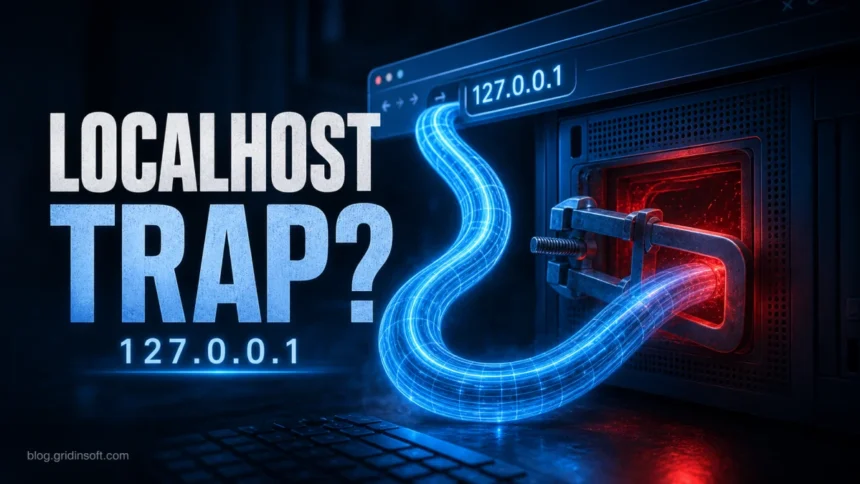
What is 127.0.0.1? It is the IPv4 loopback address—your computer talking to itself. It is not your public IP and, by itself, is not malware. localhost usually resolves to 127.0.0.1 or the IPv6 loopback address ::1; a number after the colon is a port used by one local app. “Refused to connect” normally means that no program is listening on that port or the app is using IPv4 and IPv6 differently. If 127.0.0.1 appears as an unexpected Windows proxy or the setting keeps returning, identify the process behind it before changing system settings.
| What you saw | What it means or where to go next |
|---|---|
127.0.0.1 with no port |
The standard IPv4 loopback address. Traffic stays on the same computer. |
127.0.0.1:49342, :62893, or another port |
A local app is expected to use that port. The process behind the port—not the number alone—determines whether it is trusted. |
| “127.0.0.1 refused to connect” | The requested local service is not accepting the connection. Check the app, port, and IPv4/IPv6 binding. |
An unexpected Windows proxy using 127.0.0.1 |
It may belong to a VPN, filter, developer tool, or unwanted software. If it returns after you disable it, follow the recurring Windows proxy investigation. |
Many hosts-file entries pointing domains to 127.0.0.1 |
They may be deliberate blocking rules or unwanted redirects. Review their source and the hosts-file hijack warning before removing entries. |
127.0.0.1 vs localhost vs ::1 vs 0.0.0.0
127.0.0.1 and localhost often open the same local service, but they are not identical. The first is a literal IPv4 address; the second is a special-use hostname. A computer may resolve localhost to the IPv6 address ::1 first, which can matter when an app listens only on IPv4. The IANA registry designates the entire 127.0.0.0/8 range for loopback use [1], while RFC 6761 defines special handling for localhost names [2].
| Address or name | What it means |
|---|---|
127.0.0.1 |
IPv4 loopback. A connection returns to the same device and is not routed onto the local network or internet. |
localhost |
A local-use hostname that normally resolves to 127.0.0.1, ::1, or both. |
::1 |
IPv6 loopback. See the practical differences between IPv4 and IPv6. |
0.0.0.0 |
When used as a server binding, it usually means “listen on all IPv4 interfaces,” not “localhost only.” That can make a service reachable through a LAN address, subject to firewall rules. |
192.168.x.x, 10.x.x.x, or a public IP |
A network address rather than loopback. Other devices may be able to reach it, depending on routing, binding, and firewall settings. |
Why programs use 127.0.0.1
Loopback lets programs exchange data locally without sending it through a router. Common, legitimate uses include:
- testing a website, API, or database before publishing it;
- running local Node.js, PHP, Python, Docker, database, or debugging services;
- connecting a desktop app or browser extension to its local helper process;
- filtering traffic through a locally installed VPN, security, or parental-control tool;
- checking the operating system’s network stack without requiring an internet connection; and
- blocking selected domains by mapping them to loopback in the hosts file.
A loopback connection limits direct network exposure, but it does not automatically make the program trustworthy. Software already running on the computer can still communicate with a local listener.
What does 127.0.0.1:49342 or :62893 mean?
The number after the colon is a port, a logical endpoint that helps the operating system deliver a connection to the correct program. For example, 127.0.0.1:8000 means “connect to port 8000 on this computer.” High-numbered ports such as 49342 or 62893 are often assigned temporarily to browsers, developer tools, VPNs, updaters, and other apps. A high port is not evidence of malware.
| Signal | How to interpret it |
|---|---|
The address is 127.0.0.1 or ::1 |
The connection is local to this device. |
| The port changes between sessions | The app may be choosing an available temporary port, which is common behavior. |
| A known app owns the listening process | Compare the executable path, publisher, and reason for the connection with software you installed. |
| An unknown process owns it and redirects traffic | Investigate the executable, startup method, digital signature, and recent installations. The behavior matters more than the port number. |
How to identify the process behind a localhost port on Windows
If a local port is unfamiliar, collect the process details before closing it or deleting files. Open PowerShell and list listeners bound to the IPv4 or IPv6 loopback address:
Get-NetTCPConnection -State Listen |
  Where-Object { $_.LocalAddress -in '127.0.0.1','::1' } |
  Select-Object LocalAddress,LocalPort,OwningProcess
Find the row with the port you saw, note its OwningProcess value, and substitute that number for 1234 here:
Get-Process -Id 1234 | Select-Object Name,Path,CompanyMicrosoft documents the available filters and output fields for Get-NetTCPConnection [3]. If the path is blank because of permissions, use Task Manager’s Details tab to match the PID, then open the file location. Check whether the path belongs to an installed program, whether the file has a valid digital signature, and whether the publisher matches that program. An unexpected listener that launches at sign-in is also a reason to review suspicious startup apps.
Why 127.0.0.1 refused to connect
“Refused to connect” means the computer reached the local address, but nothing accepted the connection on the requested port. It usually points to an app or configuration problem rather than a damaged loopback address.
- Confirm the URL and port.
http://127.0.0.1:8000andhttp://127.0.0.1:8080are different endpoints. Use the port shown by the app you are trying to open. - Make sure the local service is running. A development server, database interface, sign-in callback, or desktop helper may have stopped or may still be starting.
- Compare localhost, IPv4, and IPv6. If
localhostfails but127.0.0.1works—or the reverse—the app may be listening only on::1or only on IPv4. - Check the listener. Use the PowerShell command above. No matching row normally means that no app is listening on that port.
- Review app-specific security controls. A firewall, endpoint security product, browser policy, or the app’s own access rules may reject the connection. Avoid disabling protection globally; allow only the trusted app if its documentation requires it.
If ordinary websites redirect to localhost, the Windows proxy switches back on, or the problem returns after reboot, it is no longer just a one-time connection error. Use the linked recurring-proxy guide to trace the setting to its owner.
When 127.0.0.1 becomes suspicious
The address itself is safe. Suspicion comes from an unknown program using it to intercept traffic, restore unwanted settings, display fake warnings, or hide a background service. Warning signs include:
- a manual proxy pointing to localhost even though you did not install or enable a proxy tool;
- the proxy reappearing after you turn it off;
- an unsigned executable in a temporary or user-writable folder owning the port;
- browser redirects, injected ads, certificate warnings, or pages opening without your action;
- unexpected scheduled tasks, services, extensions, or startup entries launching the listener; and
- unexplained bandwidth use associated with a background proxy process.
Do not assume every local proxy is malicious. VPN clients, web filters, debugging tools, antivirus products, and managed workplace software may use one legitimately. If the setting keeps returning, use the recurring-proxy guide linked in the first table to investigate persistence. If an unknown app appears to sell or relay your connection, compare the behavior with proxyjacking and residential proxy abuse. Those guides cover the deeper proxy workflow; there is no need to reset unrelated network settings merely because you saw 127.0.0.1.
For domain mappings, the Windows hosts file is C:\Windows\System32\drivers\etc\hosts. Lines that map advertising or telemetry domains to loopback may come from a blocker or privacy tool. Entries that redirect security, banking, or update domains deserve closer review, but preserve standard localhost lines and confirm the source before editing the file. Hosts-file tampering can accompany a browser hijacker or potentially unwanted app. If name resolution remains broken after cleanup, use the focused DNS errors after malware checks instead of making broad changes at random.
Is 127.0.0.1 safe?
Yes. 127.0.0.1 is a standard loopback address, not a virus and not a public route into your computer. Another device’s 127.0.0.1 points back to that other device, not yours. A service bound only to loopback is not directly reachable through your LAN address; a service bound to 0.0.0.0 or a specific network address may be reachable, depending on firewall and access rules.
The useful security question is: which program owns the port, and why? If the owner is known, signed, installed intentionally, and behaving as expected, the local connection is usually normal. If the owner is unknown or repeatedly changes proxy, browser, hosts-file, or startup settings, scan the system and investigate that program rather than treating the address as the threat.
If the process path is wrong, the name imitates a Windows component, or high CPU started after an unknown installer, scan for hidden miners, services, startup entries, and bundled components.
Scan for the unknown listenerFAQ
What is the difference between localhost and 127.0.0.1?
localhost is a special local hostname; 127.0.0.1 is the IPv4 loopback address. Localhost may resolve to 127.0.0.1, the IPv6 address ::1, or both. That difference can explain why one form works when the other does not.
What does the number after 127.0.0.1 mean?
It is a port identifying one local network endpoint. In 127.0.0.1:62893, the address means this computer and 62893 identifies the port. The number alone cannot tell you whether the owning app is safe.
Why does 127.0.0.1 refuse to connect?
Usually no program is listening on the requested port, the local app stopped, the URL has the wrong port, or the app listens only on IPv4 or IPv6. Start with the app’s status and the listening-process check before changing firewall or proxy settings.
Is 127.0.0.1 my public IP address?
No. Every device uses loopback for local communication. Websites and other devices do not see 127.0.0.1 as your public IP; your public address is assigned elsewhere in the network path.
Can another device connect to my 127.0.0.1?
Not directly. On another device, 127.0.0.1 points back to that device. A local app may still be reachable through your computer’s LAN address if it also listens on a network interface and the firewall permits access.
Does an unexpected 127.0.0.1 proxy mean malware?
Not necessarily. VPNs, filters, developer tools, security software, and managed workplace configurations can use a local proxy. Treat it as suspicious when you did not install the owner, cannot verify its publisher, see redirects or warnings, or the setting keeps returning.
References
- Internet Assigned Numbers Authority. “IPv4 Special-Purpose Address Space.” IANA IPv4 Special-Purpose Address Registry.
- Internet Engineering Task Force. “RFC 6761: Special-Use Domain Names.” IETF Datatracker.
- Microsoft. “Get-NetTCPConnection.” Microsoft Learn.


No opan in Google