Trojan:Win32/MpTamperSrvDisableAV.H is a Microsoft Defender detection for malware or a tool that tries to disable Defender protection services. Treat it as a real security incident unless you can prove the affected file came from trusted admin software. Do not restore the detected item or add an exclusion. First save the affected path from Protection History or Event Viewer, remove the source download or script, run a full scan, and check whether Defender settings, services, exclusions, scheduled tasks, or startup entries were changed.
What to do first
- Keep the item blocked or quarantined. Do not allow, restore, or exclude it just because Windows Security looks broken.
- Copy the exact detection and path. Use Windows Security, Protection History, or Event Viewer event 1116 to capture the affected item before clearing anything.
- Remove the source. Delete the crack, activator, optimizer, script, fake update, archive, or installer that triggered the alert.
- Check Defender tampering. Look for disabled services, suspicious exclusions, policy changes, and repeated alerts after reboot.
- Scan from a clean state. Use Microsoft Defender Offline when Defender is unstable, then run a second-opinion cleanup scan if the PC still behaves oddly.
This guide is for the exact alert Trojan:Win32/MpTamperSrvDisableAV.H. If Defender instead reports VirTool:Win32/DefenderTamperingRestore, the same defensive idea applies, but the detection family and cleanup path are different. For broader label decoding, see the Microsoft Defender detection names guide.
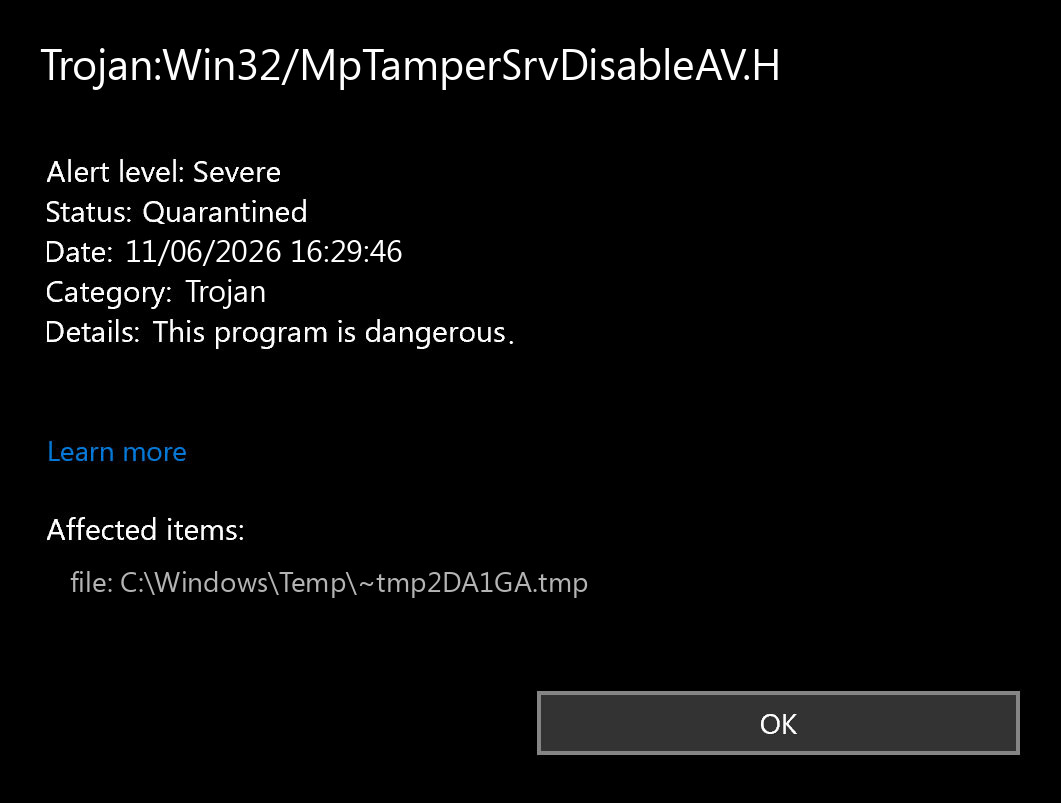
What is Trojan:Win32/MpTamperSrvDisableAV.H?
Trojan:Win32/MpTamperSrvDisableAV.H is a Defender label connected to security-service tampering. The name itself points to the important behavior: an attempt to weaken Microsoft Defender Antivirus rather than a harmless file-name match. It may appear after a malicious script, cracked software installer, fake optimizer, loader, or bundled tool tries to stop Defender, change policies, or make later malware easier to run.
The alert can show in Windows Security, Protection History, or Event Viewer under Microsoft-Windows-Windows Defender/Operational. In the Reddit case that triggered this article, the visible event was Event ID 1116, which is Defender’s malware-detection event. That does not prove what the payload was, but it does prove Defender saw a suspicious item and attached a precise threat name.
| Primary risk | Defender or related protection components may have been weakened before another payload ran. |
| Common trigger | Cracks, activators, fake optimizers, script bundles, fake updates, unsigned tools, and downloads from forum or file-sharing links. |
| First evidence to save | Detection name, affected item path, timestamp, and whether the action says blocked, quarantined, removed, failed, or remediation incomplete. |
| Reinstall needed? | Not immediately. Reinstall only after persistent tampering, repeat detections, hidden admin policy, account compromise, or failed cleanup. |
Signs the alert is still active
- Windows Security opens slowly, crashes, or refuses to show Protection History.
- Virus & threat protection says some settings are managed by an administrator on a personal PC.
- Real-time protection turns off again after you enable it.
- New Defender exclusions appear for folders such as
Downloads,Temp,AppData, game folders, or the folder where a crack/installer ran. - Event Viewer shows repeated Defender warnings after every reboot.
- PowerShell, Command Prompt, scheduled tasks, or unknown startup entries appeared around the same time.
- Accounts show suspicious logins after the file was executed.
If the Windows Security page says protection is managed by an administrator, use the safer home-PC triage in the Virus & Threat Protection page not available guide. Do not blindly delete corporate policy on a work or school device.
Use the affected path to judge the risk
| Affected path or source | What it usually means | What to do |
|---|---|---|
Downloads, archive extraction, game mod, crack, activator, repack, or fake optimizer |
High-risk source. The tamper attempt may be only the first step before a loader, stealer, or backdoor. | Delete the source package, keep the detection quarantined, scan the whole PC, and change passwords from a clean device if the file ran. |
AppData, Temp, ProgramData, startup folder, or scheduled task path |
Possible persistence or dropped script. Repeated alerts after reboot matter more than one blocked download. | Check startup entries, scheduled tasks, Run keys, and Defender exclusions before trusting the cleanup. |
| Admin script, RMM tool, enterprise security tool, or known management package | Could be legitimate in a managed environment, but it should be signed, documented, and expected. | Confirm with the administrator or vendor. On a personal PC, treat unexpected Defender tampering as suspicious. |
| No visible path, blank Protection History, or only Event Viewer evidence | Protection History may be stale, corrupted, hidden by UI problems, or failing after tampering. | Use Event Viewer details, run Defender Offline, then verify settings and repeat alerts after reboot. |
How to remove Trojan:Win32/MpTamperSrvDisableAV.H safely
- Do not restore the item. In Windows Security, choose remove or quarantine when available. If the action already says blocked or quarantined, leave it there.
- Save the detection evidence. Open Windows Security > Virus & threat protection > Protection history. If it fails, open Event Viewer > Applications and Services Logs > Microsoft > Windows > Windows Defender > Operational and look for Event ID 1116 around the alert time.
- Delete the source download or script. Remove the ZIP, installer, crack, activator, batch file, PowerShell script, or fake update that produced the warning. Empty the Downloads folder only after saving the affected path.
- Check Defender exclusions. In Windows Security, review exclusions. Remove any exclusion you did not intentionally create, especially broad folders such as
C:,Downloads,Temp, game folders, or the suspicious installer folder. - Review startup persistence. Check Task Manager Startup apps, Task Scheduler, and suspicious scripts in
AppData,ProgramData,Temp, and Startup folders. - Run a full scan. Start with Microsoft Defender full scan. If Defender is unstable, run Microsoft Defender Offline from Windows Security so the scan happens before normal Windows startup.
- Use a second-opinion cleanup scan. Run Gridinsoft Anti-Malware to check for the payload that may have followed the tamper attempt, including loaders, stealers, unwanted remote-access tools, and startup entries.
- Reboot and re-check. After cleanup, restart Windows and confirm that real-time protection stays on, no suspicious exclusions return, and Event Viewer does not show new detections.
After uninstalling the suspicious app or deleting the visible threat, use Gridinsoft Anti-Malware to check hidden files, startup entries, scheduled tasks, bundled apps, browser changes, and other persistence points that can restore malware.
Download Anti-MalwareCould Trojan:Win32/MpTamperSrvDisableAV.H be a false positive?
A false positive is possible, but it is not the safest first assumption for Trojan:Win32/MpTamperSrvDisableAV.H. Treat it as suspicious if the source was a crack, unsigned utility, fake optimizer, mod, Discord/Telegram download, unknown archive, or command copied from a forum. Consider a false-positive review only when the file is signed, came from the official vendor, the path makes sense, Defender settings were not changed, and repeat scans from Microsoft Defender and a second-opinion scanner are clean.
If you believe the detection is wrong, do not add a permanent Defender exclusion. Keep the file quarantined, collect the hash and source URL, and submit it through Microsoft’s file-submission flow. That gives you evidence without weakening protection for the rest of the system.
Do you need to format or reinstall Windows?
You do not need to format Windows just because one Trojan:Win32/MpTamperSrvDisableAV.H event exists. A clean reinstall becomes more reasonable when Defender remains disabled after cleanup, unknown admin policies keep returning, malware detections repeat after reboot, accounts were accessed, or the system ran an unknown crack/loader with administrator rights. Before wiping the PC, back up personal files carefully, avoid copying executables and scripts, and keep the detection evidence for later account-safety decisions.
After cleanup, protect the accounts too
Defender tampering often happens before another payload runs. If the suspicious file executed, especially from a crack, fake game tool, or optimizer, assume passwords and browser sessions may be at risk until proven otherwise. From a clean device, change email, banking, password-manager, gaming, and social passwords. Revoke active sessions where the service allows it. If browser-saved passwords may have been exposed, follow the password stealer recovery checklist.
How to prevent another Defender tampering alert
- Do not run cracks, activators, fake optimizers, or scripts that ask you to disable antivirus. If you need a legitimate short pause for Windows 11, follow the safe Defender temporary-disable workflow and turn protection back on afterward.
- Keep Tamper Protection enabled unless a trusted administrator has a documented reason to manage it.
- Download tools from official vendor sites, not forum mirrors or file-sharing links.
- Be careful with PowerShell commands copied from comments or video descriptions. If PowerShell was part of the incident, see the PowerShell outbound connection blocked cleanup guide.
- Keep Windows, browsers, and security software updated so blocked tampering does not become a successful compromise.
FAQ
Is Trojan:Win32/MpTamperSrvDisableAV.H a real virus?
It is a Microsoft Defender detection for a suspicious item connected to disabling Defender protection. It may be a trojan, loader, script, or tool used by malware. Treat it as real until the file source, path, and repeat scans prove otherwise.
Why does Windows Security fail when I click actions?
Windows Security may fail because the UI is damaged, the Protection History entry is stale, Defender services are unstable, or the same tampering activity affected settings. Use Event Viewer to capture the detection details, then run Defender Offline if the normal interface does not work.
Should I clear Protection History?
Do not clear Protection History before you save the affected path and status. Clearing history can hide useful evidence while the source file, exclusion, scheduled task, or startup entry is still present.
Can I just turn Defender back on?
Turning Defender back on is only one step. You also need to remove the source file, check exclusions and persistence, run a full scan, and confirm the settings stay fixed after reboot.
When should I reinstall Windows?
Reinstall Windows when tampering keeps returning, Defender remains broken, unknown policies persist on a personal PC, account compromise appears, or an unknown administrator-level loader ran and cleanup cannot be trusted.
References
- Microsoft Security Intelligence. “Trojan:Win32/MpTamperSrvDisableAV.H.” Microsoft, accessed June 11, 2026. https://www.microsoft.com/en-us/wdsi/threats/malware-encyclopedia-description?enterprise=0&name=Trojan%3AWin32%2FMpTamperSrvDisableAV.H
- Microsoft Support. “Protection History.” Microsoft Support, accessed June 11, 2026. https://support.microsoft.com/windows/protection-history-f1e5fd95-09b4-46d1-b8c7-1059a1e09708
- Microsoft Learn. “Microsoft Defender Offline scan in Windows.” Microsoft Defender for Endpoint, updated January 31, 2025, accessed June 11, 2026. https://learn.microsoft.com/en-us/defender-endpoint/microsoft-defender-offline