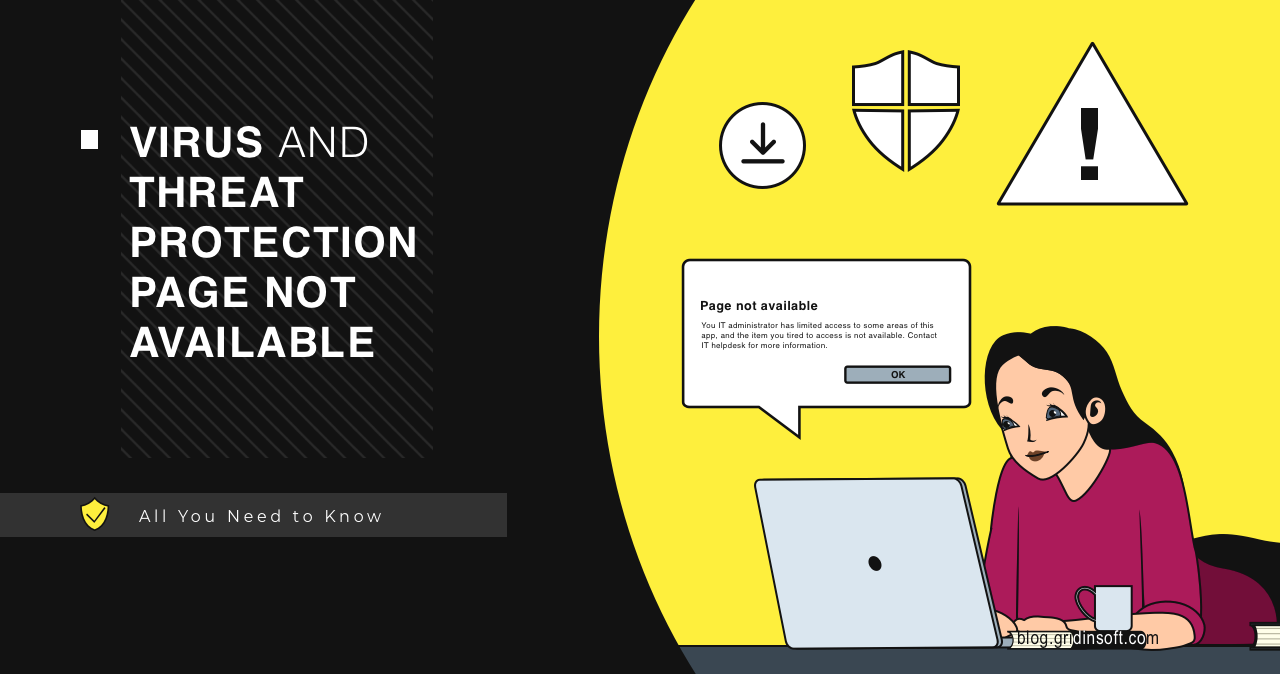
“Virus & threat protection page not available” usually means Windows Security is hidden, disabled by policy, controlled by another antivirus, damaged by system corruption, or blocked by malware. If the same screen says “Threat service has stopped. Restart it now,” use the same safety check but focus first on the active security provider, Defender services, and possible tampering. On a personal PC, the messages “This setting is managed by your administrator,” “Your IT administrator has limited access,” or “Virus & threat protection is managed by your organization” often point to leftover Group Policy or registry settings, a work/school management link, third-party antivirus control, or previous malware tampering.
Why is Virus & threat protection unavailable?
- It is often caused by policy, third-party antivirus, work/school device control, or disabled Defender services.
- Check whether another antivirus is installed before forcing Defender settings.
- On personal PCs, review Windows Security providers, work/school account links, Group Policy/registry settings, and malware signs.
- If the page vanished suddenly or says “Threat service has stopped,” check the security provider, Defender services, and tampering signs before editing policy.
If your real goal is only to turn off Real-time protection for a trusted task, use the Windows 11 Defender temporary-disable guide first. If this page is missing, greyed out, or organization-managed, continue with the policy and tampering checks below.
| Error text | Page not available / This setting is managed by your administrator / Your IT administrator has limited access / Managed by your organization / Threat service has stopped. Restart it now |
| Most common causes | Policy settings, third-party antivirus, work/school management, damaged Windows Security app, malware |
| Do first | Check active security provider and restart Windows Security |
| High-risk sign | Defender disappeared after running a crack, script, fake optimizer, or unknown “tweak” tool |
Why Virus & threat protection is missing
Windows Security can hide or disable the Virus & threat protection page when another antivirus provider is registered, when the PC is managed by an organization, or when local policy says the page should be hidden. Microsoft’s Windows Security settings page describes how Windows uses security providers and categories inside the Windows Security app.
On unmanaged home PCs, this error often follows one of three events: installing/uninstalling another antivirus, applying a “disable Defender” tweak, or running malware that tries to weaken protection.
What to check when Windows says “This setting is managed by your administrator”
This wording does not automatically mean someone hacked the computer. Windows uses the same warning for legitimate device management, third-party antivirus control, Defender for Endpoint/Intune policy, and local policy leftovers. The safe order is to identify the management source before deleting registry values.
- Confirm whether the PC is managed. Open Settings → Accounts → Access work or school. If this is a company, school, or family-managed device, ask the administrator instead of removing policy.
- Check the active security provider. In Windows Security, open Settings → Manage providers. Another antivirus can take over some Virus & threat protection settings while Microsoft Defender stays partly visible.
- Look for Defender for Endpoint or Intune remnants. A personal PC that was once connected to work or school may keep management or onboarding traces. Do not delete unknown enterprise policy keys until you know the device is not still required by an organization.
- Treat sudden policy changes as suspicious. If the warning appeared after a crack, activator, fake optimizer, PowerShell script, fake update, or unknown installer, disconnect from sensitive accounts and run a malware scan before repairing Windows Security.
- Repair Windows after the security check. Once management and malware are ruled out, use Windows Security Repair/Reset, then SFC and DISM. Registry or Group Policy edits should be the last step, with a backup first.
If the same “managed by your organization” message appears in Chrome or Edge rather than Windows Security, use the browser-policy cleanup flow in our Chrome managed by your organization removal guide. If Windows Security later shows a named Microsoft Defender alert, the Microsoft Defender detection names guide explains how to read the label before restoring or deleting files.
How to fix the page not available error
- Restart the PC. This clears simple Windows Security app state issues.
- Check security providers. Open Windows Security → Settings → Manage providers. If another antivirus is active, Defender may not expose every option.
- Remove work or school management if inappropriate. Settings → Accounts → Access work or school. Disconnect only if this is your personal PC and you know the account should not manage it.
- Repair Windows Security. Settings → Apps → Installed apps → Windows Security → Advanced options → Repair or Reset.
- Run SFC and DISM. Use
sfc /scannow, thenDISM.exe /Online /Cleanup-Image /RestoreHealth. - Check policy if you are comfortable editing Windows settings. Look for policy values that hide Virus & threat protection or disable Defender UI access.
- Run Microsoft Defender Offline. Use this if the issue appeared after a suspicious file, crack, fake update, or unknown script.
When Windows says “Threat service has stopped. Restart it now”
This warning means Windows Security can see that the Microsoft Defender protection service is not running or not taking over as the active antivirus. It is not proof of malware by itself: it can happen after uninstalling a third-party antivirus, after a failed Defender platform update, on a work-managed device, or after a tweak/crack/tool changed Defender policy.
- Check Security Providers first. Open Windows Security → Settings → Manage providers. If another antivirus is listed as active, decide whether to keep it or fully uninstall it before forcing Defender back on.
- Restart once, then repair Windows Security. Use Settings → Apps → Installed apps → Windows Security → Advanced options → Repair. If the button still returns “Unexpected error,” continue with service and policy checks.
- Verify the Defender services from an elevated PowerShell window. Run
Get-Service WinDefend, WdNisSvc, SecurityHealthService, wscsvc | Format-Table -Auto Name, StartType, Status.WinDefendand Windows Security services should not stay disabled on a personal PC that relies on Defender. - Do not override a real work or school policy. If Access work or school, Intune, Defender for Endpoint, or a company antivirus manages the device, contact the administrator instead of deleting policy keys.
- Treat sudden failure after a crack, fake update, unknown script, or optimizer as possible tampering. The DefenderTamperingRestore guide and MpTamperSrvDisableAV.H guide explain Defender-tampering alerts; if a named alert appears, check it in the Microsoft Defender detection names guide.
If Defender services keep stopping after you remove a third-party antivirus or suspicious tool, run Microsoft Defender Offline and then use a full malware scan to check for leftover startup entries, scheduled tasks, hidden files, browser changes, and policy changes that can recreate the problem.
Policy and registry areas to inspect
Be careful in Registry Editor. Export a backup before changing values. Common places involved in this error include:
HKEY_LOCAL_MACHINE\SOFTWARE\Policies\Microsoft\Windows Defender
HKEY_LOCAL_MACHINE\SOFTWARE\Policies\Microsoft\Windows Defender Security Center
HKEY_LOCAL_MACHINE\SOFTWARE\Policies\Microsoft\Windows Defender Security Center\Virus and threat protection
If you see values such as UILockdown or settings that hide the Virus & threat protection page on a personal PC, that may explain the error. Do not change corporate-managed devices; ask the IT administrator.
After uninstalling the suspicious app or deleting the visible threat, use Gridinsoft Anti-Malware to check hidden files, startup entries, scheduled tasks, bundled apps, browser changes, and other persistence points that can restore malware.
Download Anti-MalwareFAQ
Why does Windows say “This setting is managed by your administrator” on my own PC?
A leftover local policy, work/school account, Defender for Endpoint or Intune remnant, third-party antivirus, debloat script, or malware can create the same message even on a personal PC.
Will resetting Windows Security delete my files?
No. Resetting the Windows Security app affects the app state, not your documents. Still, create a restore point before deeper registry changes.
Why does Windows say “Threat service has stopped. Restart it now”?
Usually Defender is turned off by another security provider, a broken service state, device management, policy, or tampering. Check Security Providers first, then verify WinDefend and SecurityHealthService before changing registry policy.
Can malware hide Virus & threat protection?
Yes. Some malware and hacktools disable Defender UI access or create exclusions. If the error appeared after suspicious downloads, run an offline scan.
References
- Microsoft Support. “Virus and Threat Protection in the Windows Security App.” Microsoft, accessed June 10, 2026. support.microsoft.com
- Microsoft Learn. “Troubleshoot Microsoft Defender Antivirus service startup problems.” Microsoft, updated May 14, 2026, accessed July 5, 2026. learn.microsoft.com
- Microsoft Support. “Use the System File Checker tool to repair missing or corrupted system files.” Microsoft, accessed June 10, 2026. support.microsoft.com