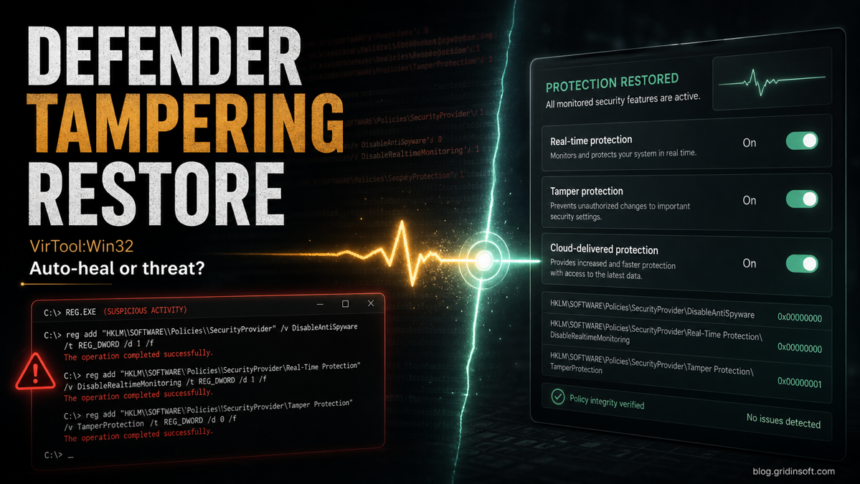
VirTool:Win32/DefenderTamperingRestore means Microsoft Defender found a security configuration that can stop Defender from working correctly and tried to restore safer settings. It can be an MSERT auto-heal or third-party antivirus policy conflict, but it can also point to malware, a crack, or a script changing Defender exclusions and protection settings. Treat the alert as a settings-restored warning until you identify what changed the setting.
If the alert appeared right after running Microsoft Safety Scanner (MSERT), and no suspicious file path remains in Protection History, it may be an auto-heal report rather than a live infection. If it appears repeatedly, points to a script, crack, installer, archive, or download folder, or Defender settings keep turning off, investigate it as possible tampering and scan for leftovers before restoring or allowing anything.
If the problem began with an accidental Allow on device click rather than Defender-tampering settings, first remove the allowed threat and review exclusions, then return to this tampering checklist only if settings keep changing.
| What you see | Risk and what to do |
|---|---|
| MSERT ran, Defender says settings were restored, no file path is left | Often a configuration auto-heal. Update Defender, restart, and check Protection History before doing anything destructive. |
| A third-party antivirus is installed and Defender is passive | Could be policy conflict. Confirm the installed security product is legitimate and that no unknown Defender exclusions were added. |
| The alert names a script, crack, installer, archive, or temporary folder | Higher risk. Delete the source file, remove unknown exclusions, restore Defender settings, and run a full cleanup scan. |
| The detection keeps returning after every scan | Assume something is changing settings again. Check startup entries, scheduled tasks, recent downloads, and run an offline or second-opinion scan. |
What DefenderTamperingRestore Means in Protection History
Microsoft’s threat entry for VirTool:Win32/DefenderTamperingRestore says the detection is tied to configurations that may prevent Microsoft Defender Antivirus from functioning properly, and that Defender can reset those settings to a more secure state. That makes this detection different from a normal file-based trojan alert: it may be reporting a restored setting, not a standalone malicious executable.
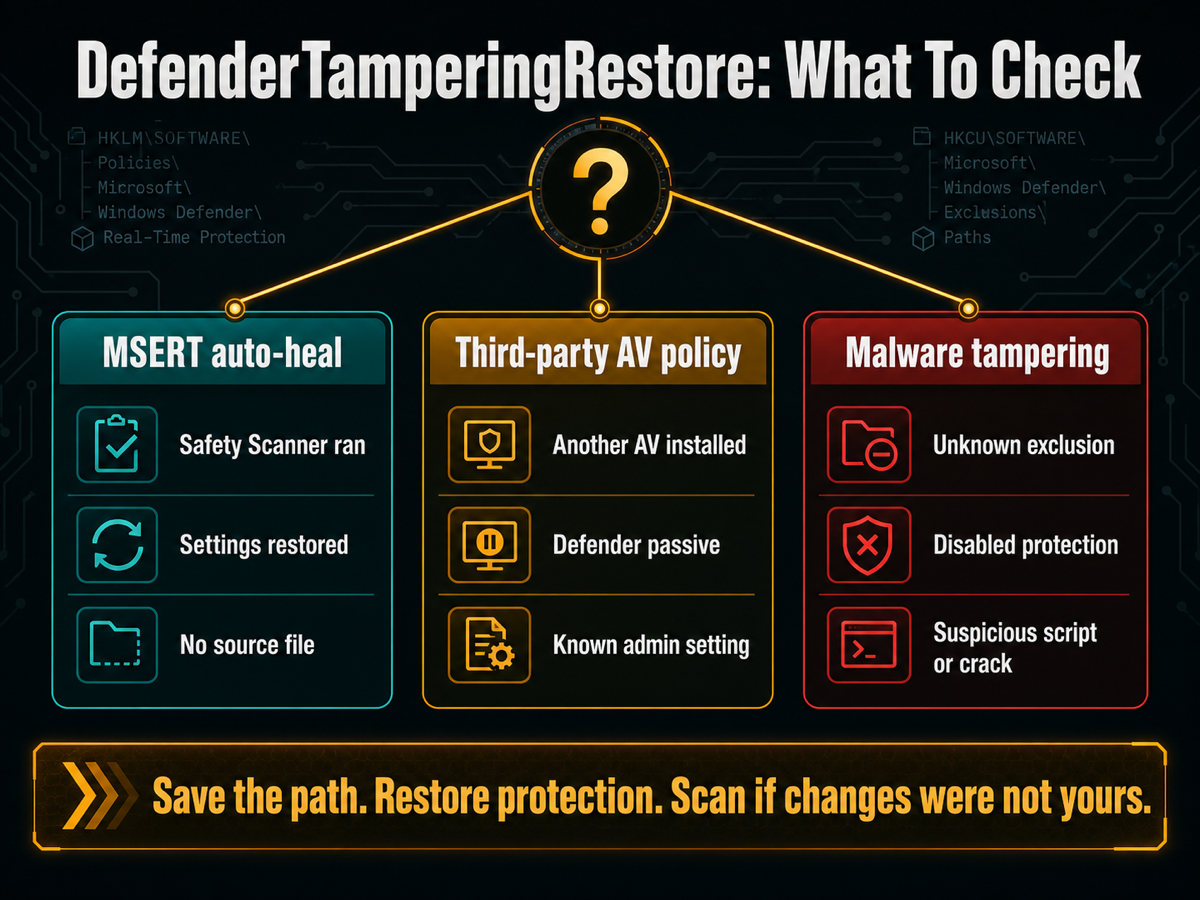
The important question is not only “is this malware?” but “who or what changed Defender settings?” Common causes include:
- Microsoft Safety Scanner (MSERT) finding and reversing unsafe Defender settings during a scan.
- Another antivirus product putting Defender into passive mode or changing related policy values.
- Administrative scripts used on a work/school-managed PC.
- Cracks, loaders, fake installers, or malware disabling real-time protection, cloud protection, notifications, or exclusions.
Check Protection History First
Open Windows Security → Virus & threat protection → Protection history. Microsoft notes that Protection History is where Windows Security shows actions Defender took on your behalf and key services that are turned off. Look for the detection time, affected item, action taken, and whether the entry names a real path.
Save the path before clearing or dismissing anything. The path tells you whether the alert came from a temporary MSERT action, a known security product, a downloaded archive, a script, or a suspicious folder.
| Protection History clue | How to read it |
|---|---|
| No affected file, only restored settings after MSERT | Often a configuration repair. Still check that Defender features are now on. |
| Path under Downloads, Temp, AppData, archive extraction, or a crack folder | Remove the source file and scan. Do not restore it or add an exclusion. |
| Path belongs to a known enterprise/security tool | Confirm with your admin or the product settings before changing policy keys manually. |
| Entry returns after reboot or after you remove it | Look for persistence: startup entries, scheduled tasks, browser downloads, or another security tool changing settings. |
Restore Microsoft Defender Safely
Do not disable Tamper Protection just to make the warning disappear. The safer goal is to restore protection and remove the source of the change. For intentional, short Windows 11 pauses, use the safe Defender disable steps and avoid permanent disabler tools.
- Update Windows Security intelligence. Open Windows Security and check for security intelligence updates.
- Turn protection back on. In Virus & threat protection settings, confirm real-time protection, cloud-delivered protection, and Tamper Protection are enabled unless a trusted managed policy controls them.
- Review exclusions. Remove exclusions you did not create, especially paths under Downloads, Temp, AppData, game cracks, script folders, or unknown tools.
- Remove the source item. Delete the installer, archive, script, or crack named by Protection History. Empty the extraction folder if the alert came from an unpacked archive.
- Run a full scan. If Defender actions fail, Windows Security pages are unavailable, or the alert comes back, run an offline scan and then check for remnants that may be changing Defender again.
Scan for leftovers after restoring Defender settings. If the same alert returns, a loader, script, scheduled task, service, or unknown exclusion may still be changing security settings after Defender repairs the visible problem.
If Defender settings keep changing, a loader, script, scheduled task, service, or unknown exclusion may still be restoring unsafe settings after the visible alert is fixed.
Check Defender-tampering leftoversRegistry and Policy Areas To Inspect
Malware and unsafe scripts often try to weaken Defender through policy keys and service permissions. Do not delete registry keys blindly; use them as clues when you are investigating why the alert appeared.
Common Defender policy locations include:
HKEY_LOCAL_MACHINE\SOFTWARE\Policies\Microsoft\Windows Defender
HKEY_LOCAL_MACHINE\SOFTWARE\Policies\Microsoft\Windows Defender\Real-Time Protection
HKEY_LOCAL_MACHINE\SOFTWARE\Policies\Microsoft\Windows Defender\Spynet
Suspicious values include settings that disable real-time monitoring, behavior monitoring, cloud reporting, sample submission, or Defender notifications. Unknown exclusions are especially important because they can allow a malicious folder to stay unscanned.
False Positive or Real Malware?
VirTool:Win32/DefenderTamperingRestore can be a false alarm in the sense that the user only sees the after-effect of Microsoft restoring a setting. It can also be a real warning when a script or malware changed the setting in the first place. Use context instead of guessing.
| Likely low-risk context | Likely high-risk context |
|---|---|
| You intentionally ran MSERT, and the final scan result shows no active threat. | The alert points to a downloaded script, keygen, crack, fake installer, or archive. |
| A known third-party antivirus is installed and up to date. | Real-time protection or Tamper Protection turns off again after you enable it. |
| No unknown exclusions or suspicious startup items exist. | Protection History shows repeated detections or related malware names. |
| No unusual browser redirects, downloads, account alerts, or performance symptoms appear. | Windows Security pages are blocked, settings are grayed out, or scans fail. |
If the Alert Keeps Coming Back
Repeated DefenderTamperingRestore alerts usually mean either a policy conflict or a persistent source that is changing settings again. Work through the source instead of repeatedly clicking Remove.
- Uninstall or update suspicious recent tools, cracked software, fake activators, and unknown browser extensions.
- Check Task Manager → Startup apps and Task Scheduler for entries tied to the same path or publisher.
- Remove unknown Defender exclusions and restart.
- If Virus & threat protection is unavailable, repair Windows Security policy first, then scan.
- If you saw a related Defender tampering label such as Trojan:Win32/MpTamperSrvDisableAV.H, follow the exact-label guide because that alert has a narrower Defender-service tampering pattern.
How This Fits Other Defender Detection Names
Defender detection names can describe the platform, behavior, family, and confidence level. This page is specifically about the DefenderTamperingRestore configuration-restore alert. For broader naming patterns, see the Microsoft Defender detection names guide.
FAQ
Is VirTool:Win32/DefenderTamperingRestore a virus?
Not always. Microsoft describes it as a detection for unsafe Defender configurations that may be auto-healed. It becomes more concerning when the change came from a suspicious script, crack, installer, or unknown exclusion.
Why did Microsoft Safety Scanner show infected files and then finish with no threats?
MSERT can report items while scanning and then finish after reversing or validating changes. If the final result is clean and Protection History does not point to a suspicious source file, the alert may have been a settings-repair event. If the warning returns, investigate further.
Should I restore the detected item?
No. Do not restore or whitelist a Defender tampering item unless you have confirmed it belongs to a trusted administrator or security product. If the path is a download, crack, script, archive, or temporary folder, remove it.
Should I delete all Defender exclusions?
Delete unknown exclusions. Keep only exclusions you created for a clear trusted reason, such as a known development folder or a verified enterprise security tool.
What should I do if Defender settings keep turning off?
Assume something is changing them again. Remove unknown startup items, scheduled tasks, recent suspicious downloads, and browser extensions, then run an offline scan or a second-opinion malware scan.
References
- Microsoft Security Intelligence. “VirTool:Win32/DefenderTamperingRestore.” Microsoft, published August 2, 2019, updated August 8, 2019, accessed July 6, 2026. https://www.microsoft.com/en-us/wdsi/threats/malware-encyclopedia-description?Name=VirTool%3AWin32%2FDefenderTamperingRestore&ThreatID=2147741622
- Microsoft Learn. “Microsoft Safety Scanner Download.” Microsoft Defender for Endpoint documentation, accessed July 6, 2026. https://learn.microsoft.com/en-us/defender-endpoint/safety-scanner-download
- Microsoft Support. “Protection History.” Microsoft Support, accessed July 6, 2026. https://support.microsoft.com/en-us/windows/protection-history-f1e5fd95-09b4-46d1-b8c7-1059a1e09708