Trojan:Win32/Sfone!pz on an external hard drive means you should stop using the drive, keep the detection quarantined, and clean the removable media before copying files back. Do not wipe a 1 TB or 2 TB drive as the first move. First remove the detected executable or archive, empty the drive’s own Recycle Bin, scan the PC and the external drive, and back up only personal files that are not scripts, installers, shortcuts, or archives. Wipe the drive only if the detection returns after that cleanup or if suspicious executable copies are spread through multiple folders.
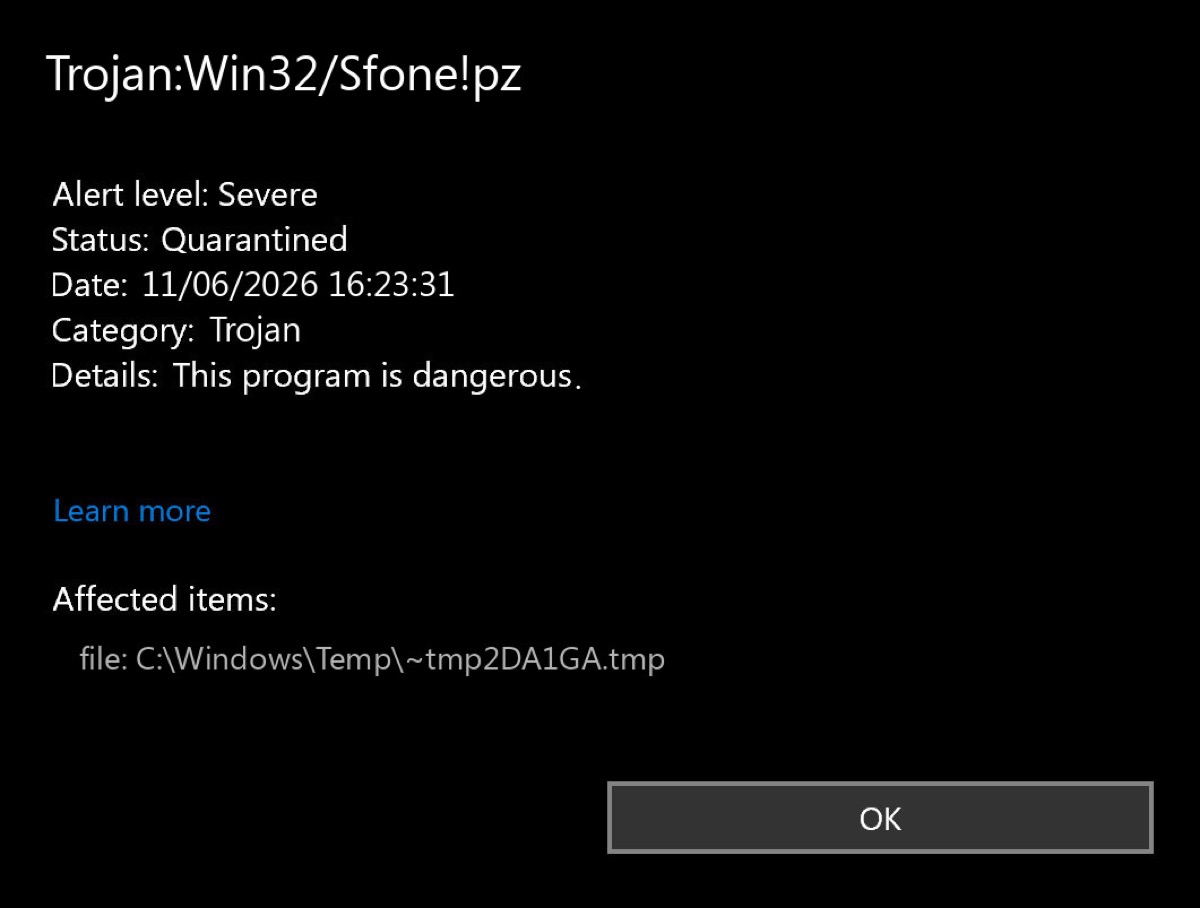
Microsoft also tracks this lane as Worm:Win32/Sfone!pz, while users may see a Trojan:Win32/Sfone!pz alert in Microsoft Defender. That naming difference is not the important part. The important part is whether Defender found a leftover file in the external drive’s Recycle Bin, an executable copy in a shared/download folder, or an active file that keeps coming back after removal.
What Trojan:Win32/Sfone!pz Means
Microsoft’s Security Intelligence entry for Worm:Win32/Sfone!pz says Defender can remove the threat as it is detected, but remnants and system changes may remain [1]. Microsoft also has broader Trojan:Win32/Sfone and Worm:Win32/Sfone family entries, so exact labels can differ by signature update.
The useful technical clue comes from Sfone family behavior rather than from the short Microsoft description. Trend Micro’s Sfone family write-up describes a Windows worm that can arrive as a downloaded or dropped executable, copy itself into folders whose names look like temporary, download, share, peer-to-peer, or incoming folders, and use executable filenames such as readme.txt.exe, setup.exe, driver.exe, or screensaver.scr on shared locations [2]. That is why an external drive or shared folder deserves a careful file-by-file cleanup instead of blind restore.
Why Defender Still Sees It In The External Drive Bin
Each drive can have its own hidden Recycle Bin folder. On Windows, a removable or external drive may contain a hidden $RECYCLE.BIN folder with deleted files that still physically live on that same drive. If Defender removed the original folder but later finds Trojan:Win32/Sfone!pz in the drive bin, the threat may be a leftover deleted copy, not necessarily a fresh reinfection.
That does not mean you should restore it. It means the cleanup target is the external drive’s hidden deleted-file storage and any duplicate executable copies elsewhere on the disk. If the same file appears again after the drive bin is emptied and a full scan completes, then look for a source process on the PC, another infected folder, a scheduled task, or a sync/backup tool putting the file back.
Safe Cleanup Order For An External Drive
- Disconnect the drive after the first alert. Do not open suspicious folders, double-click shortcuts, or run anything from the drive while deciding what to keep.
- Update Microsoft Defender or your main antivirus. Use current signatures before a second scan; stale signatures can miss companion files.
- Scan the Windows PC first. If the computer is infected, it can recreate files on the external drive. Microsoft notes that Defender’s scanning scope can include mounted removable media when protection is active, but the host PC still needs its own clean bill of health [3].
- Reconnect the external drive and run a custom scan of that drive. Scan the whole drive, not only the folder where Defender first reported Sfone.
- Empty the external drive’s Recycle Bin. In File Explorer, empty Recycle Bin while the drive is connected. If the alert points to
$RECYCLE.BIN, this often removes the leftover copy. - Search for executable leftovers. Look for
.exe,.scr,.bat,.cmd,.js,.vbs,.lnk, and suspicious archives in download, temp, share, incoming, game, crack, setup, or backup folders. - Delete only suspicious executables and source archives first. Do not mass-delete photos, videos, documents, and project files just because they were on the same drive.
- Run a second scan after cleanup. If Defender reports no threats and the drive no longer contains suspicious executable copies, wiping is usually unnecessary.
If Defender keeps reporting Sfone after those steps, run Microsoft Defender Offline on the PC before trusting the result. Microsoft describes Defender Offline as a scan that runs from a trusted environment outside the normal Windows kernel and can help confirm cleanup after a malware outbreak [4]. If the offline scan is clean but the external drive still reports Sfone, the remaining problem is likely on the removable media itself.
After uninstalling the suspicious app or deleting the visible threat, use Gridinsoft Anti-Malware to check hidden files, startup entries, scheduled tasks, bundled apps, browser changes, and other persistence points that can restore malware.
Download Anti-MalwareWhat You Can Usually Back Up
The goal is to save personal data without carrying the worm forward. Copy only files you can identify and that do not execute code. If the files are important, copy them to a temporary clean location and scan that backup before opening anything.
- Usually safe to preserve after scanning: photos, videos, music, plain documents, PDFs from known sources, text notes, spreadsheets you created, and project files that are not scripts or executable build artifacts.
- Do not restore blindly: installers, cracks, keygens, portable apps, game mods, unknown ZIP/RAR/7z archives, ISO files, shortcuts, scripts, macro-enabled Office files, and anything with double extensions such as
readme.txt.exe. - Be careful with browser and app profile backups: they can carry cached scripts, malicious extensions, stolen-session residue, or startup helpers. Export clean data instead of copying whole profile folders when possible.
When in doubt, scan the file with Gridinsoft Anti-Malware or upload a suspicious file to a reputable malware-checking workflow from a clean device. Do not test unknown executables by running them.
When You Should Wipe The External Drive
Formatting the external drive is the cleanest path when the drive is mostly replaceable, when the same detection returns after cleanup, or when many suspicious executable copies appear across folders. It is also reasonable if the drive was used to move cracked software, unknown installers, or executable backups between machines.
Before formatting, recover only the personal files you truly need and scan the recovered folder. After formatting, create a fresh folder structure and copy back only the clean backup. Avoid restoring the original root folder wholesale, because that can bring back hidden shortcuts, installers, scripts, or archives that caused the problem.
Check The PC For A Source Infection
A clean scan of the external drive is not enough if the Windows PC keeps recreating the same file. Check these places on the PC if Sfone returns:
- Startup Apps and the Startup folders.
- Task Scheduler entries created around the first detection time.
- Recently installed programs, portable apps, game tools, cracks, and download managers.
- Common autorun Registry keys under
HKCUandHKLM. - Shared folders, sync clients, and backup tools that may be copying the file back to the external drive.
Also check whether the detected item was inside an archive. If the infected file remains inside a ZIP/RAR/7z backup, Defender may find it every time that archive is scanned or extracted. Delete the source archive or rebuild it without the malicious file.
Related Cleanup Guides
If the Sfone alert came from a removable drive scare, start with the exact steps above, then use these related Gridinsoft guides for adjacent cases:
- Music.exe file checks and cleanup helps when an executable with that name appears on a drive or returns after startup. Identify its path and detection before treating it as the same threat.
- USB drive security risks explains what to do after plugging in an unknown or suspicious USB device.
- USB shortcut virus cleanup helps when real files are hidden and replaced by suspicious shortcuts.
- Clean Windows install USB after malware covers safe file recovery and reinstall decisions after a serious infection.
- Microsoft Defender detection names explains why labels such as Trojan, Worm,
!pz, and family variants can change.
FAQ
Is Trojan:Win32/Sfone!pz the same as Worm:Win32/Sfone!pz?
They are closely related Sfone family labels. Microsoft has both Trojan and Worm Sfone entries, and the exact suffix can change by signature. For cleanup, treat Trojan:Win32/Sfone!pz on an external drive as a severe executable-threat alert until scans prove otherwise.
Should I wipe my external drive immediately?
No, not immediately. First empty the external drive’s Recycle Bin, delete the detected executable or archive, scan the PC, scan the full external drive, and preserve only safe personal files. Wipe the drive if the detection returns or if suspicious executable copies are widespread.
Can photos, videos, and documents be saved?
Usually yes, if they are normal personal files and scan clean. Do not restore executable files, shortcut files, scripts, cracked software folders, unknown archives, or full app/browser profile folders without review.
Why does the alert come back after Windows says it removed the virus?
The most common reasons are a leftover deleted copy inside $RECYCLE.BIN, an infected archive that remains on the drive, another duplicate executable in a download/share folder, or a PC-side process that recreates the file when the drive is connected.
Is it safe to plug the drive back in for scanning?
Yes, if you do not run files from it and real-time protection is enabled. Connect it only long enough to scan, clean, and copy known-safe personal files. If Windows tries to open anything automatically, close it and scan first.
References
- Microsoft Security Intelligence. “Worm:Win32/Sfone!pz threat description.” Microsoft, published October 23, 2023, accessed June 11, 2026. https://www.microsoft.com/en-us/wdsi/threats/malware-encyclopedia-description?Name=Worm%3AWin32%2FSfone%21pz&ThreatID=2147893599
- Trend Micro. “Worm.Win32.SFONE.B.” Trend Micro Threat Encyclopedia, initial sample date July 6, 2020, accessed June 11, 2026. https://www.trendmicro.com/vinfo/us/threat-encyclopedia/malware/worm.win32.sfone.b
- Microsoft Learn. “Configure advanced scan types in Microsoft Defender Antivirus.” Microsoft, accessed June 11, 2026. https://learn.microsoft.com/en-us/defender-endpoint/configure-advanced-scan-types-microsoft-defender-antivirus
- Microsoft Learn. “Run and review the results of a Microsoft Defender Offline scan.” Microsoft, accessed June 11, 2026. https://learn.microsoft.com/en-us/defender-endpoint/microsoft-defender-offline