Trojan:JS/Cryxos.ASI!MTB is a Microsoft Defender alert for malicious JavaScript, often a cached browser page rather than a normal Windows app. Do not restore it. Open Protection history, copy the affected path, clear the matching browser or Service Worker cache, remove suspicious extensions, update Defender, and scan deeper if the alert returns after reboot or outside the cache.
The affected path is the key detail. A detection under a browser profile cache usually means Defender caught a web script from a page you visited. A detection in Downloads, an extracted archive, an extension folder, a startup location, or a normal script folder deserves deeper malware cleanup.
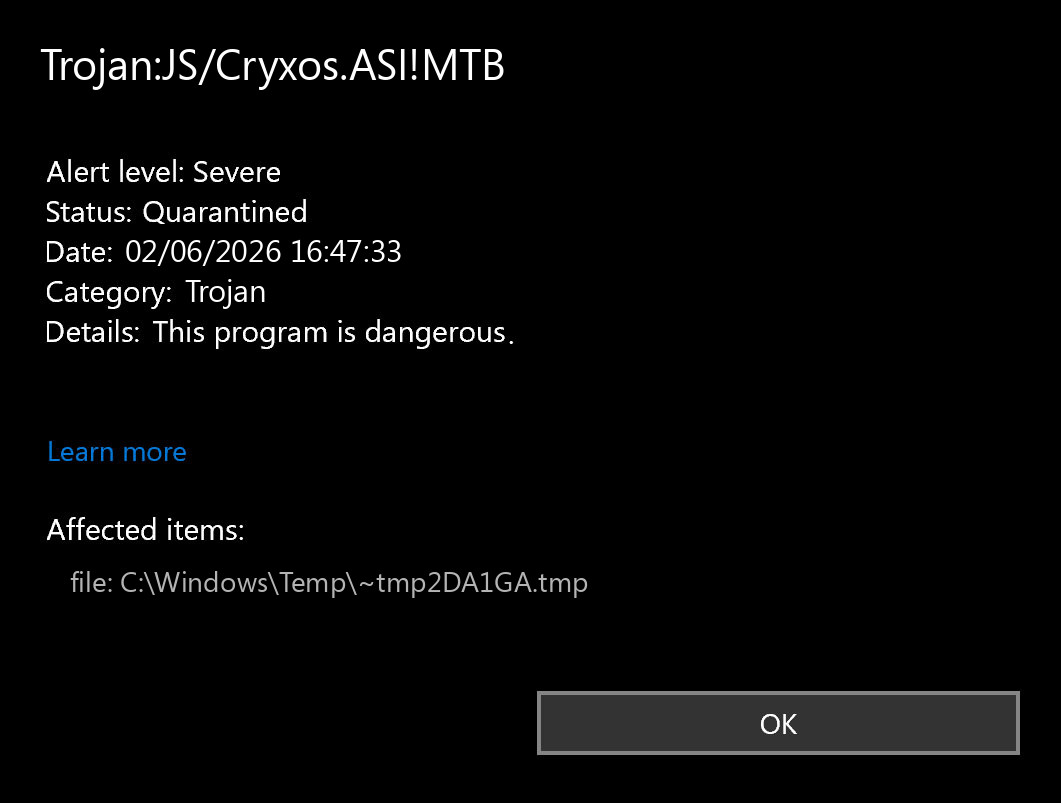
What Trojan:JS/Cryxos.ASI!MTB Means
Microsoft lists Trojan:JS/Cryxos.ASI!MTB as a Defender Antivirus detection and says the exact threat behavior details are not currently available. F-Secure’s Cryxos description explains the broader family: Cryxos JavaScript trojans show alarming browser messages that claim the computer is blocked or infected and push the user to call a fake support number.
That explains why this alert often appears around ad-heavy streaming pages, piracy mirrors, fake security warnings, malicious redirects, and cached browser content. Cryxos is not a normal Windows program you intentionally installed. It is usually web content or JavaScript designed to scare the user, redirect the browser, or support a tech-support-scam flow.
If you are comparing Defender names, our Microsoft Defender detection names guide explains why the family, platform, and suffix in the label matter.
Check Where Defender Found It
Open Windows Security, go to Protection history, expand the Trojan:JS/Cryxos.ASI!MTB event, and copy the affected item. Then use the location to decide how much cleanup is needed.
| Affected path | Likely meaning and next step |
|---|---|
| Chrome, Edge, Brave, Opera, or Firefox cache folders | Usually a cached web script from a page you opened. Keep quarantine, close the tab, clear cache for that browser, and rescan. |
Service Worker\CacheStorage, Code Cache, or cache2\entries |
Often cached JavaScript or page resources. Clear browser data and avoid the triggering site. |
INetCache or temporary web files |
Often an Edge, Office, mail preview, or Windows web cache item. Clear the related app/browser cache and scan again. |
| Extension folders under a browser profile | More suspicious. Disable unknown extensions, remove recently installed helpers, and check whether an extension keeps returning. |
Downloads, extracted archives, startup folders, scheduled-task scripts, or normal .js/.html files |
Higher risk. Do not restore the item. Remove the original source, scan the folder, and check persistence. |
How To Remove Trojan:JS/Cryxos.ASI!MTB
- Leave the item quarantined. Do not restore or exclude it just because it is in browser cache.
- Write down the full path and time. The path tells you whether this is likely cache-only or a persistent source.
- Close the triggering browser tabs. Do not revisit the site that caused the alert, especially if it showed fake security warnings or download prompts.
- Clear browser cache for the affected browser. Clear cached images/files, site data, and cookies for the relevant time window. If you use several browsers, clear the one named in the Defender path first.
- Remove suspicious extensions. Disable anything recently installed or unfamiliar, especially search helpers, download helpers, coupon extensions, fake VPNs, or extensions that return after removal.
- Update Defender and run a full scan. Microsoft recommends updated antimalware definitions and a full scan after this type of detection.
- Run a second-opinion cleanup scan if symptoms persist. Use Gridinsoft Anti-Malware when redirects continue, pop-ups return, or Defender keeps detecting the same family after cache cleanup.
If the browser page looked like a fake Windows warning, compare it with our Windows Defender Security Center scam guide before calling any phone number. If the alert appears after a fake browser update or downloaded script, use the fake Chrome update cleanup guide as a deeper persistence checklist.
When It Is Probably Browser Cache Only
A lower-risk cache case is more likely when all of these are true:
- the affected item is only under browser cache,
Service Workercache,Code Cache,cache2, orINetCache; - you did not download, extract, or run anything from the page;
- the browser stops redirecting after you close the site and clear cache;
- a full Defender scan and a second-opinion scan find nothing else;
- there are no new extensions, startup items, scheduled tasks, or account sign-in alerts.
In that situation, you usually do not need to reinstall Windows. Keep the quarantine event, avoid the site that triggered it, and watch whether the same label returns during normal browsing.
If Defender Says Remediation Incomplete
Remediation incomplete means Defender tried to act on the Cryxos item but could not finish cleanly, or Protection history still sees the source as unresolved. For Trojan:JS/Cryxos.ASI!MTB, that often happens when the affected item is browser cache, a Service Worker cache, an extension folder, or a page resource that the browser recreates after you revisit the same site.
| What you see | What to do next |
|---|---|
| Cache path plus remediation incomplete | Keep the item quarantined, close the browser, clear cache and site data for that browser, update Defender, then run a full scan. Do not restore the cached script. |
| Same Cryxos alert after revisiting one site | A page, redirect, or Service Worker may be loading the same script again. Avoid the site, clear site permissions, and remove notification permissions for unfamiliar domains. |
| Alert returns after reboot or outside cache | Look for an extension, startup item, scheduled task, downloaded script, or helper app that opens the web resource again. That is no longer a simple cache-only case. |
If the status stays incomplete after cache cleanup, use the full path from Protection history as the starting point. A browser-profile path points you toward cache, extension, sync, and site-permission cleanup; a Downloads, Startup, Task Scheduler, or normal script path points toward deeper malware cleanup and a second-opinion scan.
When To Investigate Deeper
Take the alert more seriously if it returns after cache cleanup, appears outside cache, or comes with real symptoms: fake support pop-ups, new search redirects, unknown extensions, browser policies you did not set, repeated downloads, PowerShell/CMD windows, startup entries, or scheduled tasks.
For extension persistence, see our browser extension keeps reinstalling itself guide. For a nearby Defender cache scenario, our Trojan:HTML/Redirector!MTB guide explains how cached redirect detections differ from installed malware. For JavaScript-family context, see TrojanDownloader:JS/Nemucod.
Cleanup Flow
- Confirm the Defender action says quarantined or removed.
- Clear the affected browser cache and site data, then close and reopen the browser.
- Remove suspicious extensions and reset notification permissions for unknown sites.
- Check recent Downloads, extracted archives, and temp folders for scripts or HTML files created around the alert time.
- Review Startup Apps and Task Scheduler if the alert returns after reboot.
- Run an updated Defender full scan.
- Scan the browser profile, downloads, and user startup locations with Gridinsoft Anti-Malware.
- Change passwords from a clean device only if you interacted with the scam page, downloaded a file, entered credentials, or the system shows compromise symptoms.
After uninstalling the suspicious app or deleting the visible threat, use Gridinsoft Anti-Malware to check hidden files, startup entries, scheduled tasks, bundled apps, browser changes, and other persistence points that can restore malware.
Download Anti-MalwareDo not add a Defender exclusion for Trojan:JS/Cryxos.ASI!MTB. Exclusions hide future detections and do not prove that the cached script or source page was safe. If you believe a known, trusted file was misclassified, submit the sample to Microsoft instead of whitelisting the whole browser profile.
FAQ
Is Trojan:JS/Cryxos.ASI!MTB a real virus?
It is a real Microsoft Defender detection. In many user cases it points to JavaScript or HTML content in browser cache rather than an installed Windows program, but the source page can still be malicious or scammy.
Can a browser-cache Trojan infect my PC by itself?
A cached script usually does not run by itself while it sits in cache. The risk comes from visiting the page, following redirects, downloading files, entering credentials, or leaving a malicious extension/source active.
Why does the Cryxos alert keep coming back?
The browser may be revisiting the same site, a Service Worker may still have cached resources, an extension may be loading the content again, or another app may be opening the same web resource. Clear cache, remove suspicious extensions, and avoid the triggering site.
What does remediation incomplete mean for Trojan:JS/Cryxos?
It means Defender did not fully close the event or the source can still be reached. For Cryxos, first check whether the affected item is browser cache or a Service Worker cache. Clear the matching browser data, remove suspicious extensions or notification permissions, update Defender, and rescan before treating it as fixed.
Should I restore the quarantined item?
No. Restoring a cached Cryxos script gives you no useful benefit and may recreate the warning. Clear the cache or remove the source file instead.
Is Cryxos the same as a fake Microsoft support popup?
It is closely related in behavior. F-Secure describes Cryxos as JavaScript that shows alarming blocked-computer messages and pushes users toward a fake support call. Defender may detect the script even if the page did not fully display.
References
- Microsoft. “Trojan:JS/Cryxos.ASI!MTB threat description.” Microsoft Security Intelligence malware encyclopedia, published July 24, 2025, accessed June 2, 2026. https://www.microsoft.com/en-us/wdsi/threats/malware-encyclopedia-description?Name=Trojan%3AJS%2FCryxos.ASI%21MTB
- F-Secure. “Trojan:JS/Cryxos.” F-Secure malware description, accessed June 2, 2026. https://www.f-secure.com/v-descs/trojan-js-cryxos.shtml
- Microsoft Q&A. “Trojan:JS/Cryxos.ASI!MTB no meu pc.” Microsoft Learn Q&A, published April 9, 2025, accessed June 2, 2026. https://learn.microsoft.com/pt-br/answers/questions/3847327/trojan-js-cryxos-asi-mtb-no-meu-pc
- Microsoft Support. “View and delete browser history in Microsoft Edge.” Microsoft Support, accessed July 12, 2026. https://support.microsoft.com/en-US/edge/view-and-delete-browser-history-in-microsoft-edge