Explorer.exe high CPU usually means File Explorer is repeatedly processing one folder, preview, archive, cloud location, or third-party shell extension. Restarting Windows Explorer is a safe temporary reset, but the lasting fix is to reproduce the spike and isolate what Explorer was touching. Do not delete explorer.exe or download a replacement copy.
If you restart Windows Explorer, the desktop, taskbar, and open File Explorer windows may disappear for a few seconds. That is expected because the same process provides much of the Windows shell. Save any file operations first, then use the steps below to find why the CPU usage returns.
Restart Explorer.exe safely
- Press Ctrl+Shift+Esc to open Task Manager.
- On the Processes page, select Windows Explorer.
- Choose Restart task. If it is not listed, use Run new task, enter
explorer.exe, and press Enter. - Wait one minute without opening folders. If CPU stays low, repeat the exact action that caused the spike.
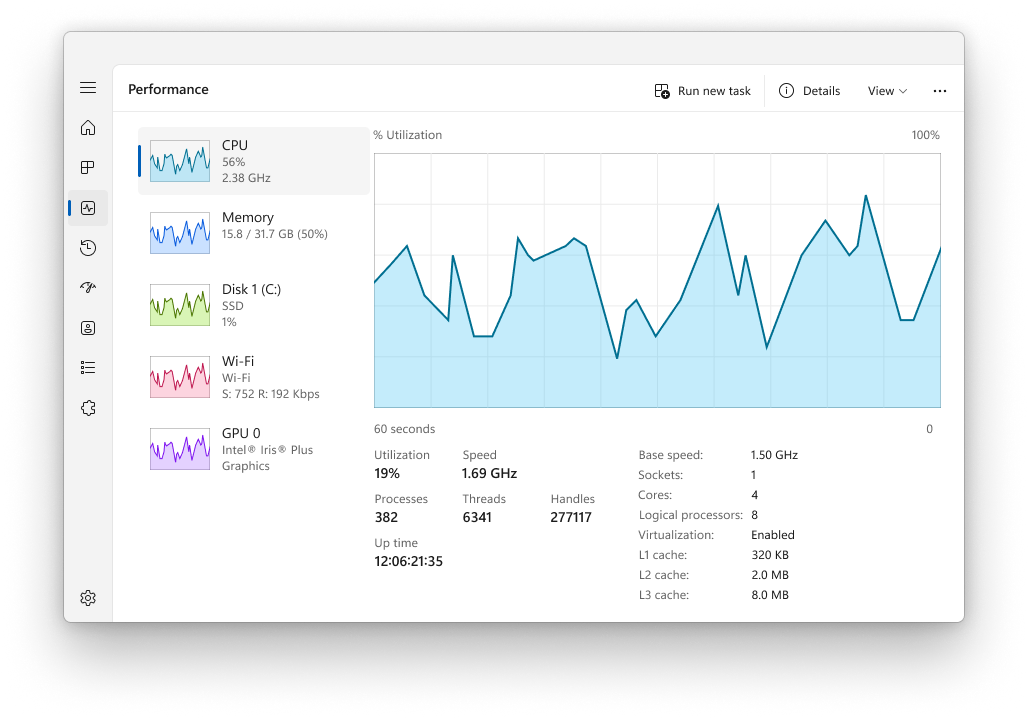
A restart clears the current loop; it does not identify the cause. Record whether the CPU rises while Explorer is idle, only after opening one folder, when right-clicking, during a cloud sync, or while the Preview pane is visible. That trigger decides the next step.
Match the high-CPU pattern to the likely trigger
| When Explorer.exe spikes | Best first isolation test |
|---|---|
| After opening one folder | Switch off Preview and thumbnails, then move the newest archive/media file out of that folder. |
| When right-clicking | Test third-party context-menu and shell extensions with Microsoft Autoruns. |
| On Home or Quick access | Clear File Explorer history and remove an unavailable pinned/network location. |
| During OneDrive or another sync | Pause sync briefly and test a local folder; inspect the sync error rather than disabling Explorer. |
| With Preview pane open | Turn Preview off and isolate the file type or preview handler that triggers the loop. |
| Even while idle | Use clean boot and Autoruns to isolate an extension, startup utility, or desktop customization tool. |
| Only after a Windows update | Install the newest cumulative fixes, restart, and check the update history before rolling anything back. |
Find the folder, file, or view that starts the spike
Open File Explorer and change one thing at a time. Start with a simple local folder such as Documents. Then test the folder, archive, network share, or removable drive that usually causes the problem. Watch the Windows Explorer row in Task Manager for at least 30 seconds after each action.
Turn off previews and thumbnails temporarily
Press Alt+P to close the Preview pane. In File Explorer, open Options → View, temporarily enable Always show icons, never thumbnails, and test the folder again. If CPU drops, the problem is more likely a preview handler, thumbnail generator, damaged media file, or archive—not Explorer itself.
Sort the affected folder by Date modified and move the newest large archive, video, audio, PDF, or image into a temporary empty folder. Do not open an unknown archive just to test it. If moving one file stops the spike, update the app responsible for that file type and scan the file if its source is uncertain.
Clear Home and Quick access state
If the spike begins on File Explorer Home, open Options and select Clear beside File Explorer history. Unpin unavailable network folders and removable drives from Quick access. A disconnected share, stale Recent item, or cloud placeholder can keep Home refreshing while Explorer waits for metadata.
If a local folder works but a mapped drive does not, test the network path directly and reconnect the share. Avoid repeatedly rebuilding caches while the real problem is an unavailable server or broken cloud placeholder.
Separate Explorer from sync and indexing activity
Explorer can look busy while another component changes the folder underneath it. Pause OneDrive or the relevant cloud client for a few minutes, then open the same local folder. If Explorer calms down, resume sync and resolve the stuck file, conflicting name, permission error, or Files On-Demand loop. Our OneDrive high CPU and stuck-sync guide covers that branch without deleting local files.
Also compare the Windows Explorer and Microsoft Windows Search Indexer rows in Task Manager. If SearchIndexer.exe is the process using CPU or disk, use the SearchIndexer repair flow; do not disable Windows Search because Explorer happened to be open at the same time.
Isolate a bad shell extension
Context-menu, icon-overlay, archive, cloud, security, and desktop customization extensions can load into Explorer. A damaged or outdated extension can make explorer.exe consume one CPU core continuously, especially when you right-click, browse a particular file type, or open a synced folder.
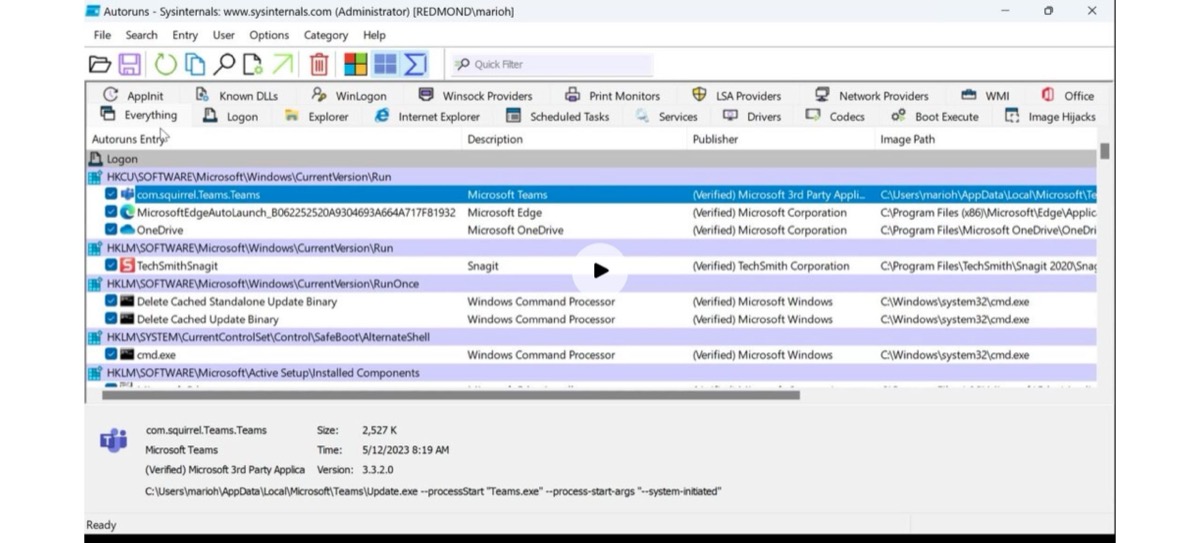
- Download Autoruns only from Microsoft Sysinternals and run it as administrator.
- Open the Explorer tab, then enable Hide Microsoft Entries so the test focuses on third-party additions.
- Take a screenshot of the current enabled entries before changing anything.
- Uncheck half of the non-Microsoft Explorer entries, restart Windows Explorer, and reproduce the trigger.
- If the spike stops, re-enable half of that disabled group. If it continues, restore that group and test the other half.
- When one entry is isolated, update or uninstall its owning application. Do not permanently disable unrelated security or sync components without identifying the owner.
This half-split method is faster and safer than disabling entries at random. It also distinguishes an Explorer extension problem from ShellExperienceHost.exe resource use, which belongs to a different Windows shell component.
Use a clean boot if Explorer is high while idle
If Explorer.exe climbs after sign-in even when no folder is open, perform a Microsoft clean boot. Hide all Microsoft services before disabling third-party services, and disable nonessential startup apps in Task Manager. Restart and leave the desktop idle for several minutes.
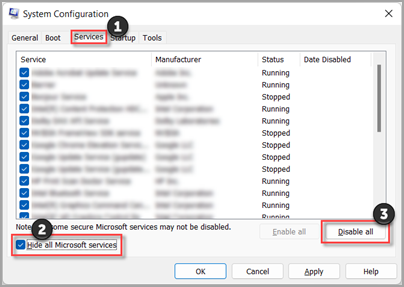
If the CPU problem disappears, re-enable items in halves until it returns. Restore normal startup after the test. Pay particular attention to recently installed archive managers, cloud clients, graphics overlays, file preview tools, context-menu utilities, and taskbar/Explorer customization software. A clean boot is a diagnostic state, not a permanent operating mode.
Update Windows before deeper repair
Install current Windows 11 cumulative updates and restart. Microsoft continues to ship File Explorer performance and explorer.exe reliability fixes; the August 2026 preview updates for supported Windows 11 versions include Explorer Home and general shell reliability improvements. Do not install a preview update solely because a third-party extension is broken, but do not troubleshoot an already-fixed Windows build indefinitely either.
If the issue began immediately after a cumulative update, check Settings → Windows Update → Update history and the official release-health notes for a matching known issue. Rollback is a last resort after backing up important files and proving the update—not a folder, extension, or sync client—is the trigger.
Repair Windows files only after isolation
If Explorer remains high in a clean boot, across different folders and user accounts, repair the Windows component store and protected system files. Open Terminal as administrator and run:
DISM.exe /Online /Cleanup-Image /RestoreHealth
sfc /scannow
Let both commands finish, restart, and test again. DISM/SFC is appropriate when Explorer also crashes, Windows components fail elsewhere, or the clean-boot result points away from third-party software. It is not a substitute for isolating a corrupt archive, unavailable network share, or bad preview handler.
If the problem affects only one Windows account, create a temporary local account and test there before considering an in-place repair. If every account is affected and DISM/SFC cannot repair the system, back up your data and use official Windows installation media for an in-place repair that keeps files and apps.
When Explorer.exe may be suspicious
The genuine Windows shell file is C:\Windows\explorer.exe and should have a valid Microsoft digital signature. In Task Manager, right-click Windows Explorer, choose Open file location, and inspect Properties → Digital Signatures.
A similarly named file in Downloads, AppData, Temp, a game folder, or an unknown program directory is not the protected Windows Explorer binary. A wrong path, invalid signature, unexplained outbound traffic, or a copy that relaunches from Startup or a scheduled task justifies isolation and a security scan. Follow our EXE safety checklist before deleting anything.
A security tool may quarantine one visible file while a scheduled task, startup entry, bundled module, or browser change remains and recreates the activity. If the Explorer-named file is outside C:\Windows, unsigned, or arrived with a suspicious installer, scan the system for those persistence points rather than replacing the legitimate Windows file.
If the process path is wrong, the name imitates a Windows component, or high CPU started after an unknown installer, scan for hidden miners, services, startup entries, and bundled components.
Scan a suspicious Explorer.exe copyFAQ
Is it safe to restart Windows Explorer in Task Manager?
Yes. The desktop, taskbar, and File Explorer windows may disappear briefly, then return. Save file operations first because open Explorer windows will close.
Why does Explorer.exe use high CPU when no folder is open?
Explorer also provides parts of the desktop and shell. A context-menu extension, icon overlay, desktop customization tool, cloud client, unavailable Quick access location, or startup utility can keep it busy while no folder window is visible.
Can I end Explorer.exe permanently?
No. Ending it temporarily is safe, but Windows needs Explorer for the normal desktop and taskbar. Permanent disablement hides the symptom and leaves the triggering extension, file, or service unresolved.
Should I clear the thumbnail cache?
Only after the Preview and thumbnail test points to that branch. Rebuilding every cache first can erase useful evidence and will not fix a bad shell extension, network share, or corrupt file.
Is high Explorer.exe CPU always malware?
No. The common causes are legitimate folders, previews, extensions, cloud locations, or Windows faults. Treat it as suspicious when the executable is outside C:\Windows, lacks a valid Microsoft signature, or has related persistence or network behavior.
References
- Microsoft Support. “KB5120998: Windows 11 24H2 and 25H2 preview update,” August 27, 2026. Open source ↗
- Microsoft Sysinternals. “Autoruns v14.3,” June 17, 2026. Open source ↗
- Microsoft Support. “How to perform a clean boot in Windows.” Open source ↗
- Microsoft Support. “Use the System File Checker tool to repair missing or corrupted system files.” Open source ↗