Windows can repair many common problems automatically, but the safest result comes from using the built-in tools in the right order. Start with Windows Update and the relevant troubleshooter, then repair system files with DISM and SFC, and use Startup Repair or System Restore from Windows Recovery Environment when the PC will not boot. Avoid “registry cleaner” style fixes unless you have a verified reason; they often change more than the real problem requires.
This guide focuses on Windows 11 and Windows 10 repair paths that keep your files intact whenever possible. If the problem started after malware, a suspicious installer, or repeated security warnings, scan the PC first so Windows repair does not leave the original cause behind.
If the visible symptom is a startup error or leftover malware path in the Registry, use the narrower broken registry after malware repair guide before deleting keys manually.
Which Windows Repair Tool Should You Use?
| Problem you see | Best first repair option |
|---|---|
| Windows Update fails, Settings is unstable, system components are damaged | Windows 11: Settings > System > Recovery > Fix problems using Windows Update > Reinstall now. Microsoft says this reinstalls the current Windows version, repairs system files and components, and keeps apps, files, and settings.1 |
| Apps crash, Windows features fail, or you suspect corrupted system files | Run DISM first, then SFC. Microsoft recommends this order when repairing missing or corrupted system files.2 |
| Windows will not start, loops into recovery, or shows startup errors | Use Startup Repair in Windows Recovery Environment. If that fails, try System Restore, uninstall the latest update, or repair from installation media.3 |
| The problem began after a new app, driver, or system setting | Use System Restore or uninstall the recent driver/update before resetting Windows. |
| There are popups, unknown apps, blocked connections, or browser redirects | Run a malware scan before system repair. Repairing Windows files will not remove an active unwanted app or persistence entry. |
Before You Start Automatic Repair
- Back up important files. Built-in repair tools are designed to preserve data, but disk errors, power loss, or a failing drive can still cause data loss.
- Keep the PC on power and online. DISM and the Windows Update repair reinstall may need Windows Update as the repair source.
- Disconnect unnecessary peripherals. Leave only the keyboard, mouse, monitor, network, and system drive attached while troubleshooting startup loops.
- Scan for malware if symptoms are suspicious. Unknown startup items, browser hijackers, fake update installers, and repeated antivirus alerts should be cleaned before you trust the Windows state. You can use Gridinsoft Anti-Malware as a second-opinion scan.
Method 1: Use “Fix Problems Using Windows Update”
On supported Windows 11 builds, the most user-friendly repair option is Fix problems using Windows Update. It downloads a repair version of the current Windows build, reinstalls Windows system components, and keeps your apps, files, and settings. Use it when Windows still boots but update components, system files, or built-in apps behave incorrectly.
- Open Settings.
- Go to System > Recovery.
- Under Fix problems using Windows Update, choose Reinstall now.
- Keep the PC connected to power and the internet until the repair finishes.
- Restart when Windows asks you to do so.
If this option is missing, the device may be on an older Windows 11 build, managed by work/school policy, or blocked from using the required Windows Update source. In that case, use DISM and SFC next.
Method 2: Repair System Files With DISM and SFC
DISM repairs the Windows component store that SFC depends on. SFC then checks protected system files and replaces damaged copies. This is the best automatic repair path for missing DLL errors, broken Windows features, crashes after updates, and unexplained system instability.
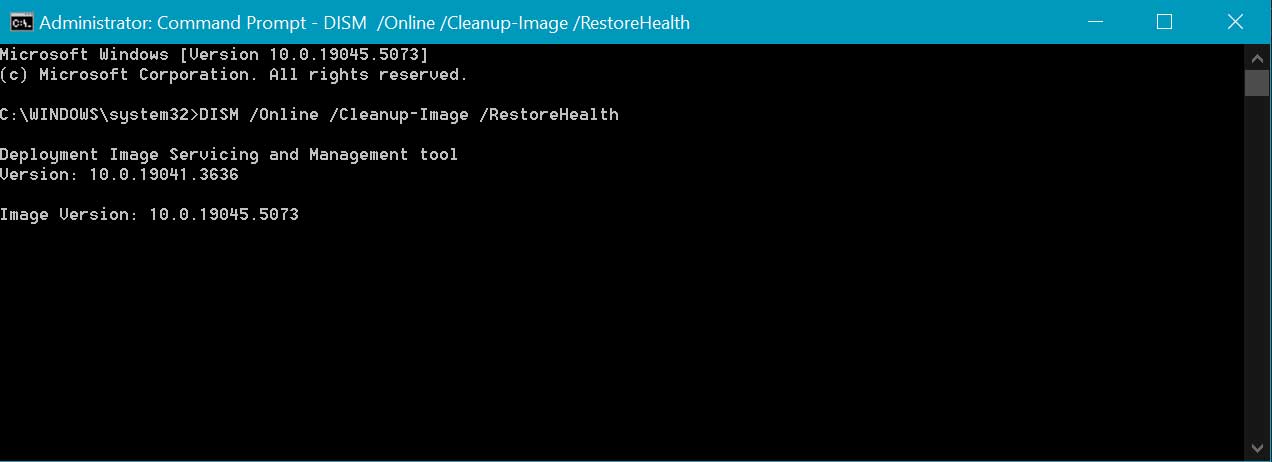
- Right-click Start and open Terminal (Admin) or Command Prompt (Admin).
- Run this command and wait for it to finish:
DISM /Online /Cleanup-Image /RestoreHealth- When DISM reports that the operation completed successfully, run:
sfc /scannow- Restart the PC after SFC reaches 100%.
- If SFC says it repaired files, use the PC normally for a while and confirm the original problem is gone.
If DISM cannot find repair files, retry after Windows Update works again, or use a matching Windows ISO as the repair source. Do not download random DLL files or “one-click repair” packages from unknown sites.
Method 3: Use Startup Repair When Windows Will Not Boot
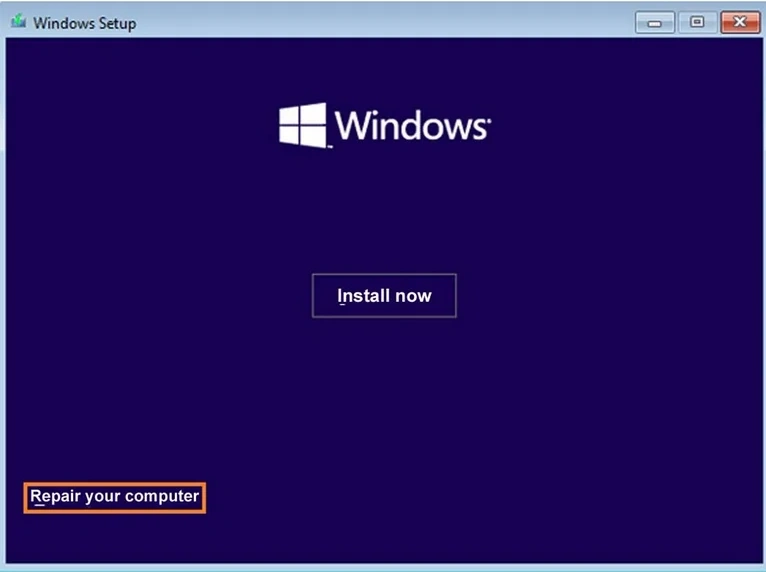
When Windows fails during startup, it may enter Windows Recovery Environment automatically. You can also reach it from a Windows installation USB by choosing Repair your computer instead of installing Windows.
- Open Troubleshoot > Advanced options.
- Choose Startup Repair.
- Select the Windows installation if prompted.
- Let Windows diagnose boot files, startup configuration, and common boot blockers.
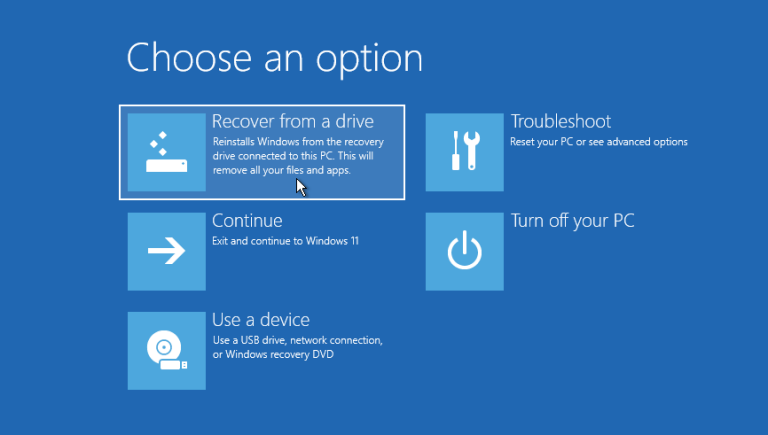
If Startup Repair says it could not repair the PC, do not keep looping the same option. Try System Restore, Uninstall Updates, or Command Prompt from the same Advanced options screen. If the drive is failing or BitLocker asks for a recovery key you do not have, stop and recover the data first.
Method 4: Use System Restore or Uninstall a Bad Update
System Restore is useful when Windows was working before a driver, app, or setting change. It rolls system files, registry settings, drivers, and installed programs back to a restore point without deleting personal documents. If the issue began right after a monthly update, use Uninstall Updates from Recovery Environment before you reset Windows.
This path is often faster and safer than a broad “PC optimizer” scan because it targets the event that changed the system.
Method 5: Check the Disk When Repairs Keep Failing
If DISM, SFC, Startup Repair, and System Restore all fail, the problem may not be Windows itself. A failing SSD/HDD, file-system corruption, bad RAM, or unstable power can corrupt repairs again after every reboot. Check the drive health and back up files before running repeated repair attempts.
For file-system checks, open an elevated terminal and run:
chkdsk C: /scanIf Windows reports physical disk errors, replace the drive before reinstalling Windows. Reinstalling onto unreliable storage usually brings the same problem back.
When Should You Use a Third-Party Repair Tool?
Use third-party tools only when they solve a specific problem that Windows built-in repair does not cover. A malware scanner can remove the infection that damaged Windows. A vendor driver utility can update a device driver from the manufacturer. A backup tool can protect files before repair. Generic registry cleaners and “fix all errors” utilities are not a good first step because they may delete settings that are not actually broken.
If your repair started because of malware symptoms, first remove the unwanted program, then run DISM and SFC. For performance-only complaints, read our guide on how to speed up and clean a Windows computer without relying on risky registry-cleaner claims.
FAQ
Can Windows repair itself automatically?
Yes, but the tool depends on the failure. Windows Update repair reinstall can repair many Windows 11 component problems while keeping apps and files. DISM and SFC repair corrupted system files. Startup Repair handles boot failures from Windows Recovery Environment.
Should I run DISM or SFC first?
Run DISM first, then SFC. DISM repairs the component store that SFC uses as a source for clean system files.
Will “Fix problems using Windows Update” delete my files?
Microsoft describes this Windows 11 recovery option as reinstalling the same Windows version while preserving apps, files, and settings. You should still back up important files before any repair that reinstalls system components.
Why is the Windows repair option missing?
It can be missing on older Windows 11 builds, on Windows 10, or on managed work/school devices where update policies block the feature. Use DISM, SFC, System Restore, or installation media instead.
Can malware cause Windows repair loops?
Yes. Malware, unwanted startup tasks, fake update installers, and browser hijackers can damage settings or relaunch after repair. Scan and remove the active threat before trusting the repaired Windows state.
References
- Microsoft Support. “Fix issues by reinstalling the current version of Windows.” Microsoft, accessed June 1, 2026. https://support.microsoft.com/en-us/windows/fix-issues-by-reinstalling-the-current-version-of-windows-497ac6da-7cac-4641-82a5-f50398d879a0
- Microsoft Support. “Using System File Checker in Windows.” Microsoft, accessed June 1, 2026. https://support.microsoft.com/en-us/windows/using-system-file-checker-in-windows-365e0031-36b1-6031-f804-8fd86e0ef4ca
- Microsoft Support. “Recovery options in Windows.” Microsoft, accessed June 1, 2026. https://support.microsoft.com/en-us/windows/recovery-options-in-windows-31ce2444-7de3-818c-d626-e3b5a3024da5