
Coffin Locker ransomware is associated with files ending in .coffin and a ransom note named how_to_recover.coffin.txt. If previously usable documents now match that pattern, disconnect the affected Windows PC from networks and keep backup drives detached. Before cleanup or a reset, preserve the encrypted files, the note, and any coffin_keys folder with qualified help. A public sandbox report lists local private- and public-key files—a detail worth preserving, not a promise that decryption will work. Removing the malware and restoring your documents are separate steps.
Check what changed, not just the name
A renamed file by itself is not enough to identify ransomware. Look for several changes together: documents that no longer open, the new .coffin suffix, a matching ransom message, or an unexpected desktop background. Keep the original filenames and the time you first noticed the problem. Do not open an unfamiliar executable to find out whether it is the cause.
The public VirusTotal report examined for this guide identifies a submitted Windows executable as Coffin.exe. Its CAPE Sandbox results list writes to files ending in .coffin and .coffin.tmp, along with local key files and logon persistence. These are observations from a third-party analysis environment, not a diagnosis of your PC. [1]
A Windows drive padlock or a request for a 48-digit BitLocker recovery key is a different starting point. If that is your only symptom, use the Windows drive-lock checks before assuming Coffin Locker is involved.
Isolate the PC and preserve recovery material
- Disconnect network access. Unplug Ethernet and turn off Wi-Fi. Leave external backup drives disconnected. On a work or school device, contact the response team before installing tools, deleting files, or restarting.
- Keep the original evidence. Preserve the note, encrypted data, original directory structure, and any known-good copies stored elsewhere. Record discovery times and security-tool findings. Avoid experimenting with your only copy.
- Preserve local key files before destructive cleanup. If a
coffin_keysfolder exists, keep the entire folder, including its filenames and timestamps, for analysis. Do not upload its contents to a public scanner, forum, or recovery advertisement.
If files are still changing, stop using the PC and get qualified help to contain the process and collect data from a trusted environment. Network isolation protects other devices; it does not stop a running program from changing local files. Do not attach your only backup drive to the infected Windows session to make a quick copy. For irreplaceable files, have a specialist preserve the disk before installing cleanup software or reinstalling Windows.
Why the coffin_keys folder matters
In the inspected CAPE report, the Files Written section includes coffin_keys\master_rsa_private.pem and coffin_keys\master_rsa_public.pem under the sandbox user’s Desktop. The expanded entries associate those writes with Coffin.exe. The Desktop location belongs to this run; your paths may differ. [1]
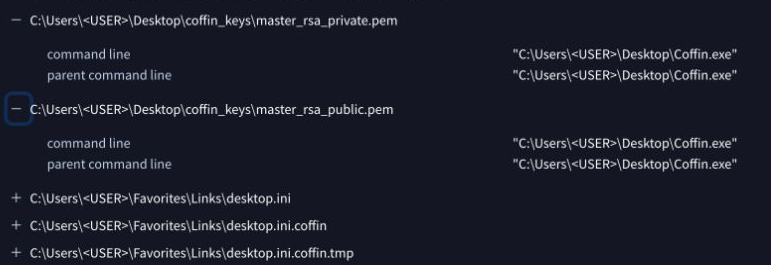
This changes the first recovery decision: save possible key material before wiping the affected environment. A file named “private key” still needs examination. Its name does not establish that it contains a valid key, that the key matches your encrypted files, or that a safe tool can use it. The report alone does not establish a working free recovery method.
Keep an untouched set of encrypted files and keys separate from any working copies. A qualified analyst can assess the material and test an appropriate recovery method on duplicates. Do not launch the ransomware again, including an advertised “unlock” mode, to test the note’s instructions. Do not rename, edit, or overwrite the only key file you have.
What the report shows about recurrence and backups
The same report records a CoffinLocker value under HKCU\Software\Microsoft\Windows\CurrentVersion\Run and a command to create an on-logon scheduled task with that name. The task’s command points to Coffin.exe and an extracted coffin_locker.py file. That provides a concrete reason to check persistence during cleanup: deleting a ransom note does not address a program configured to start again. [1]
CAPE also lists an invocation of the Windows shadow-copy administration tool requesting deletion of shadow copies. An attempted command is not proof that every snapshot was deleted. Likewise, a ransom note’s statements about destroyed backups, overwritten sectors, or strong encryption are claims by the malware’s author, not verified outcomes for your disk.
Check surviving backup versions from a clean environment. Do not discard them because the note says recovery is impossible, and do not assume Windows Previous Versions will be available simply because it existed before the incident.
Remove the active threat from Windows
After important evidence is preserved, clean the system before restoring valuable files. A security tool may quarantine the visible executable while another component or startup entry remains. If new encrypted files or alerts appear after logon, the cause still needs investigation.
Gridinsoft Anti-Malware is the main scan-and-cleanup route in this guide. It checks for malicious files and related persistence; it does not decrypt .coffin documents, validate the saved keys, or guarantee detection of every specimen.
- Download Gridinsoft Anti-Malware from the official site, using an unaffected device if necessary.
- Install it on the affected Windows PC after preservation is complete. Update the detection database when a safe connection can be arranged, keeping the PC separated from shared folders and backup storage.
- Run a Full Scan. Review the results, apply cleanup to detected threats, and retain the scan report.
- Restart when cleanup requires it, then check for returning detections or newly changed files. Keep your backup disconnected during these checks. Investigate recurrence before restoring data.
After preserving encrypted files and any local keys, run a Full Scan to check for active malware and persistence. Review detections and apply cleanup before restoring data. Scanning does not decrypt files.
Scan the affected Windows PCIf the installer or scanner cannot run, use trusted technical help or an offline recovery environment, then return to the scan once access is restored. Persistent encryption, unexplained remote access, or an uncertain system state may require a clean Windows rebuild after evidence has been saved. A completed scan is useful evidence, not proof that no compromise occurred.
Manual inspection of the CoffinLocker task and matching Run entry is an optional fallback for a technician if symptoms remain. It is not a mandatory second cleanup sequence. Record the task’s executable path and actions before changing anything; a name match alone is not permission to delete unrelated files. Our explanation of malware versus ransomware covers why eliminating the program cannot by itself undo its damage.
Choose the recovery path your evidence supports
You have an intact backup or an earlier version
Check offline backups, retained cloud versions, another trusted device, and copies you previously shared. Open representative files in a clean environment and check their contents and dates. Restore to a cleaned or rebuilt system after addressing the likely entry point. Keep the preserved encrypted set until the restored files have been verified.
You found local key files
Have a qualified analyst examine copies of the key material and encrypted files. Ask what has actually been tested: a filename, a parseable key, a matching key, and a successfully restored document are different levels of evidence. A successful small-file test would still need checking across the file types you care about. This guide does not provide or claim a tested Coffin Locker decryptor.
You have only encrypted files
As of October 27, 2026, we found no Coffin Locker entry in the No More Ransom decryption-tools catalog. Recheck that catalog from a clean device, and use a tool only when its documentation explicitly supports the identified variant. Absence from the catalog does not prove permanent impossibility, and a tool for CryptoLocker or another similarly named threat is not a substitute. [2]
Preserve the originals and test any supported recovery method on duplicates with output written elsewhere. Renaming photo.jpg.coffin back to photo.jpg changes the name, not encrypted contents. Deleted-file recovery is a different question from decryption; avoid unnecessary writes if a specialist is assessing whether earlier data survives.
Before returning the PC to routine use, review how the suspicious file arrived and fix that route. From a clean device, check important account sessions if there are signs of account misuse or other malware. The Coffin report does not establish that every affected user had passwords stolen.
FAQ
I downloaded Coffin.exe but did not run it. Are my files encrypted?
A download alone does not establish execution or encryption. Keep the file quarantined, do not launch it, and check whether documents changed or a security alert recorded execution. A filename alone is insufficient to identify the specimen; investigate the actual path, source, and detection result.
Does paying guarantee that I can recover everything?
No. No More Ransom advises against paying: payment does not guarantee a working solution, and implementation errors can prevent recovery even when a key is supplied. Preserve your evidence and assess independent recovery options instead of treating a deadline as a technical verdict. [3]
References
- VirusTotal / CAPE Sandbox. “Behavior report for Coffin.exe,” SHA-256 beginning
034436d3b6715c98; accessed October 27, 2026. File-write, registry, and process observations. - The No More Ransom Project. “Decryption Tools”; accessed October 27, 2026. Supported ransomware decryption tools.
- The No More Ransom Project. “Ransomware: Q&A,” payment and recovery guidance; accessed October 27, 2026. Ransom payment and recovery limitations.