
OneDrive can briefly use extra CPU, memory, and disk while it scans new files or completes a large sync. It needs attention when the load stays high at idle, the fan keeps running after sync should be finished, or the same files remain stuck on “Processing changes.” First pause and measure the change, then inspect the sync status and affected folders. If the sync state is damaged, Microsoft’s reset procedure rebuilds OneDrive connections without deleting files stored in the cloud.
- Normal: a short spike after sign-in, a large copy, a Windows or OneDrive update, or enabling backup for a large folder.
- Needs attention: sustained CPU, memory, or disk activity at idle, repeated file retries, sync errors, or load that returns after every reboot.
- Best first test: note the busy process, pause sync, and compare Task Manager and Resource Monitor before changing settings.
- Safe escalation: fix the file or folder problem, reset OneDrive, unlink and re-link only if needed, then reinstall as the last app-level step.
- Security check: verify the file location and Microsoft signature before treating OneDrive.exe as legitimate.
| What you see | Likely meaning and best first move |
| CPU rises while many files are changing | Usually active hashing, upload, download, or metadata work. Let the file count fall before repairing anything. |
| Tray says synced, but CPU or disk stays high | Local database, thumbnail, search-index, or folder-change work may continue. Quit OneDrive and compare the load. |
| “Processing changes” never finishes | Look for one blocked file, a shared-folder shortcut, permissions, a long path, or a damaged sync connection. |
| Memory keeps growing while OneDrive is idle | Update and restart OneDrive; reset it if usage does not settle after the active sync completes. |
| Bad Image or application error | Repair or reinstall the OneDrive app and Windows components; do not download replacement DLLs or EXEs. |
| OneDrive.exe is unsigned or in an unusual folder | Treat it as a possible lookalike and scan the system instead of deleting random files. |
Confirm that OneDrive is causing the high CPU or memory use
- Press Ctrl + Shift + Esc, sort Task Manager by CPU, then by Memory and Disk.
- Expand Microsoft OneDrive. Record whether the busy entry is
OneDrive.exe, a OneDrive sync service, File Explorer, SearchIndexer.exe, or another process. - Select the OneDrive cloud in the notification area and read the current state: syncing, processing changes, paused, signed out, storage full, or a specific error.
- Note what changed before the spike: a large folder copy, many photos, a shared-folder shortcut, Desktop/Documents/Pictures backup, a Windows update, or another app scanning the OneDrive folder.
- Pause syncing for two hours. If the load falls quickly, OneDrive file activity is involved. If it does not, choose Help & Settings → Quit OneDrive and compare again.
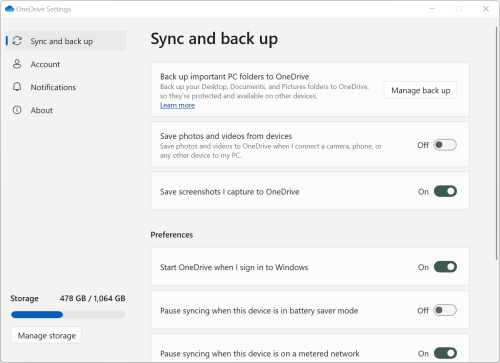
Pause is a diagnostic test, not a cure. Some local OneDrive database or thumbnail work can continue even when cloud transfer is paused. Quitting the app gives a stronger comparison. If the busy row is actually SearchIndexer.exe, troubleshoot Windows Search scope and progress rather than resetting OneDrive repeatedly.
Use Resource Monitor when Task Manager is too vague. Press Win + R, enter resmon, and inspect the CPU and Disk tabs. Repeated access to the same folder, database, thumbnail store, or file can reveal the loop. Network activity with falling file counts suggests a real sync; heavy local reads and writes with little network activity suggest local indexing, hashing, or metadata work.
Fix the folder or file that keeps OneDrive busy
1. Let a legitimate sync finish
OneDrive must compare local and cloud state after sign-in, reset, re-link, or a large folder change. CPU, memory, and disk use can rise during that pass. Leave the PC powered and watch whether the number of remaining changes decreases. Restarting, resetting, or rebuilding again while useful progress is being made can start the same work over.
2. Open the sync error instead of guessing
Select the cloud icon and open the problem item. Common blockers include a file that is open in another app, insufficient cloud or local disk space, invalid characters, a path that is too long, missing permissions, and a shortcut to a shared folder whose access changed. Fix the named item first, then resume sync and check whether resource use settles.
Do not delete a local file just to clear the status without checking its cloud copy. A deletion inside the OneDrive folder can sync to other devices. If the file matters, confirm it at OneDrive on the web or copy it outside the synced folder before testing.
3. Reduce high-churn folders
Desktop, Documents, and Pictures backup can include folders that another app changes constantly. Photo catalogues, media managers, browser profiles, development outputs, archives, and databases may trigger repeated scans even when the user does not edit a visible document. Temporarily stop the other app or move its high-churn working folder outside OneDrive, then measure again.
Use Choose folders to keep unnecessary libraries off this PC. Use Files On-Demand so a large cloud library does not need every file stored locally. Do not mark an entire large library “Always keep on this device” merely to test performance; that can cause a large download and another long processing pass.
4. Check the Windows Search interaction
When OneDrive changes a file, Windows Search may index the new name, metadata, or contents. That is normal once, but a folder that changes repeatedly can keep both OneDrive and SearchIndexer.exe active. Compare the two processes in Task Manager and review Windows indexing scope. Exclude only volatile folders whose contents you do not need to search; do not permanently disable Windows Search as the first fix.
If the entire drive is pinned rather than OneDrive alone, use the broader 100% disk usage diagnosis. Low free space, Windows Update, paging, antivirus scans, storage errors, and a failing drive can produce the same slow-PC symptom.
Reset OneDrive safely
Reset OneDrive when sync remains stuck after the obvious file, folder, storage, and permissions problems are fixed. Microsoft states that reset does not delete files or data stored in OneDrive. It disconnects the current sync connections, rebuilds local state, and then performs a full sync. Expect temporary CPU, memory, and disk activity while that comparison finishes.
- Press Win + R.
- Enter
%LOCALAPPDATA%\Microsoft\OneDrive\OneDrive.exe /resetand select OK. - If Windows cannot find it, try
C:\Program Files\Microsoft OneDrive\OneDrive.exe /reset. - If that path is also absent on a 32-bit installation, try
C:\Program Files (x86)\Microsoft OneDrive\OneDrive.exe /reset. - Wait a few minutes. If the cloud icon does not return, open Start, search for OneDrive, and start the desktop app.
Do not run the command repeatedly because the icon does not return immediately. Check Task Manager first. A reset can make OneDrive compare the full library again, and selected-folder settings may need to be confirmed after sync completes.
When to unlink, re-link, or reinstall OneDrive
Unlink and re-link the account
Use unlink/re-link when reset completes but the account still cannot maintain a healthy sync connection. Open OneDrive settings, go to Account, select Unlink this PC, then sign in again. When OneDrive says the local folder already exists, select Use this folder only after confirming it is the correct folder for that account.
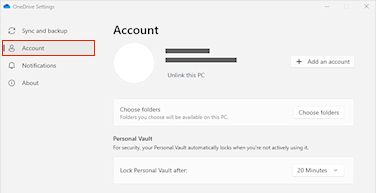
Unlinking does not erase the cloud library. It temporarily disconnects the local folder. Changes made while the PC is unlinked will be compared and synchronized after the account is connected again. A work or school account may have organization policies, protected libraries, or access changes that only the Microsoft 365 administrator can resolve.
Reinstall the desktop sync app
Reinstall when OneDrive itself will not start, reset commands cannot find the app, Bad Image errors point to damaged OneDrive components, or the same application crash returns after Windows and OneDrive updates. Uninstall Microsoft OneDrive from Installed apps, restart Windows, then install the current desktop sync app from Microsoft.
Uninstalling the app stops local sync but does not delete files stored at OneDrive.com. After reinstalling and signing in, OneDrive performs another full comparison. Confirm selected folders and Files On-Demand before judging the first post-install CPU or memory spike.
Fix OneDrive.exe Bad Image or application errors
A Bad Image dialog often names a DLL next to error status such as 0xc0000020. The message means Windows could not load a required component cleanly; it does not prove that the DLL is malware. Record the exact file and status, install pending Windows updates, restart, then reinstall OneDrive through the supported Microsoft package.
If other Windows apps also show Bad Image or missing-DLL errors, repair Windows components from an elevated Terminal. Run DISM.exe /Online /Cleanup-Image /RestoreHealth, wait for it to finish, then run sfc /scannow and restart. Do not download a replacement DLL or OneDrive.exe from a file-download site. A mismatched or untrusted binary can create a larger security problem than the original app error.
Is OneDrive.exe safe or malware?
The legitimate OneDrive desktop sync client is published and digitally signed by Microsoft. Depending on the installation, it can run from a Microsoft OneDrive folder under %LOCALAPPDATA% or C:\Program Files. Version-numbered subfolders may also exist. The exact folder is less important than the full path, signer, and installation context.
- In Task Manager, right-click the OneDrive process and choose Open file location.
- Open Properties → Digital Signatures and confirm a valid Microsoft Corporation signature.
- Check whether the file belongs to the installed OneDrive package rather than Downloads, Temp, a game folder, or another unrelated user-writable location.
- Review what happened before it appeared. An unknown installer, crack, email attachment, or fake update changes the risk decision.
A wrong-path copy, missing Microsoft signature, unexpected startup entry, recurring security warning, or additional unknown processes is a valid reason for a full Gridinsoft Anti-Malware scan. Keep suspicious files closed, remove confirmed detections, reboot, and scan again if the process or related activity returns. A scan can find lookalikes and persistence; it does not repair a legitimate OneDrive sync database.
If the process path is wrong, the name imitates a Windows component, or high CPU started after an unknown installer, scan for hidden miners, services, startup entries, and bundled components.
Scan the suspicious OneDrive.exe copyPrevent another OneDrive sync loop
- Keep Windows and the OneDrive desktop sync app updated.
- Leave enough free local and cloud storage for file comparisons and temporary work.
- Keep high-churn caches, databases, build folders, and media catalogues outside synced folders.
- Use Files On-Demand and Choose folders instead of downloading a library you do not need offline.
- Fix individual sync errors promptly rather than leaving one file in a retry loop.
- Let a reset, re-link, or reinstall finish its first full comparison before measuring steady-state resource use.
- Use the whole-PC slowdown checklist when several unrelated processes are busy.
FAQ
Does resetting OneDrive delete my cloud files?
No. Microsoft says reset does not delete OneDrive files or data. It disconnects and rebuilds sync connections, then performs a full sync. Selected-folder choices may need to be confirmed again.
Why is OneDrive still busy when it says files are synced?
The client may still be hashing files, updating thumbnails or local metadata, checking folder changes, or interacting with Windows Search. Quit OneDrive and compare CPU and disk activity to separate that local work from another background process.
Should I disable OneDrive to stop high CPU use?
Not as the first fix. Pause or quit it to confirm the cause, then correct the file, folder, storage, indexing, or sync-state problem. Disable or uninstall it only if you do not need synchronization or as a temporary diagnostic step.
Why does OneDrive use more CPU after a reset or reinstall?
Reset and reinstall make OneDrive compare the local folder with the cloud again. A temporary increase is expected. Investigate when the file count does not fall, errors repeat, or the load remains high after the comparison should be complete.
Can malware be named OneDrive.exe?
Yes, malware can copy a familiar filename. The name alone is not proof. Check the path, valid Microsoft signature, installation context, and related startup behavior; scan when the file is unsigned or runs from an unrelated folder.
References
- Microsoft. “Reset OneDrive.” Microsoft Support, accessed September 1, 2026. support.microsoft.com
- Microsoft. “Unlink and re-link OneDrive.” Microsoft Support, accessed September 1, 2026. support.microsoft.com
- Microsoft. “Reinstall OneDrive.” Microsoft Support, accessed September 1, 2026. support.microsoft.com
- Microsoft. “How to access OneDrive settings.” Microsoft Support, accessed September 1, 2026. support.microsoft.com