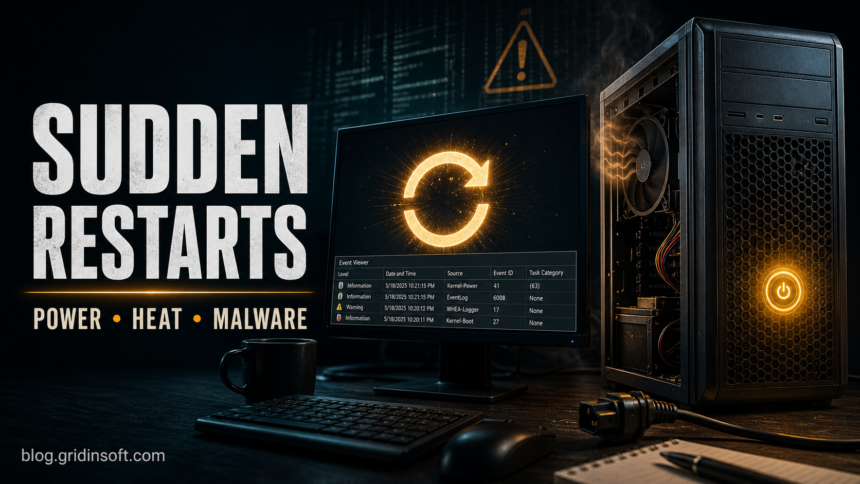
A computer that randomly restarts is usually reacting to one of five things: unstable power, overheating, unstable RAM or overclocking, a driver/update crash that reboots before the blue-screen message is visible, or malware/unwanted software that added a bad driver, miner, scheduled task, or startup component. The safest path is to capture evidence first: check Event Viewer for Kernel-Power Event ID 41, disable automatic restart on system failure, note whether the reboot happens under load or while idle, then test power, temperature, memory, drivers, storage, and malware signs in that order.
If the PC restarts with no warning, do not keep forcing games, benchmarks, or heavy GPU tasks until temperatures and power delivery are safe. Repeated hard restarts can corrupt files, damage active downloads, and make a failing drive worse. If the reboot started after a fake update, cracked installer, unknown optimizer, browser redirect, or security alert, keep malware in the checklist instead of treating it as an afterthought.
Quick check: match the symptom to the likely cause
| What you see | First thing to check |
|---|---|
| Instant black screen and reboot, no blue screen | Power supply, wall power, loose power cable, motherboard power connectors, Kernel-Power 41 in Event Viewer. |
| Restart during games, rendering, or heavy browser tabs | CPU/GPU temperature, dust, fan speed, thermal paste, unstable XMP/EXPO or GPU overclock. |
| Restart after a driver, Windows update, or new device | Recent updates, Device Manager driver rollback, Safe Mode, clean boot. |
| Restart loop before the desktop loads | Startup Repair, Safe Mode, System Restore, recently installed drivers, storage health. |
| Security alerts, browser redirects, unknown startup entries | Malware scan, scheduled tasks, startup apps, browser extensions, suspicious downloads. |
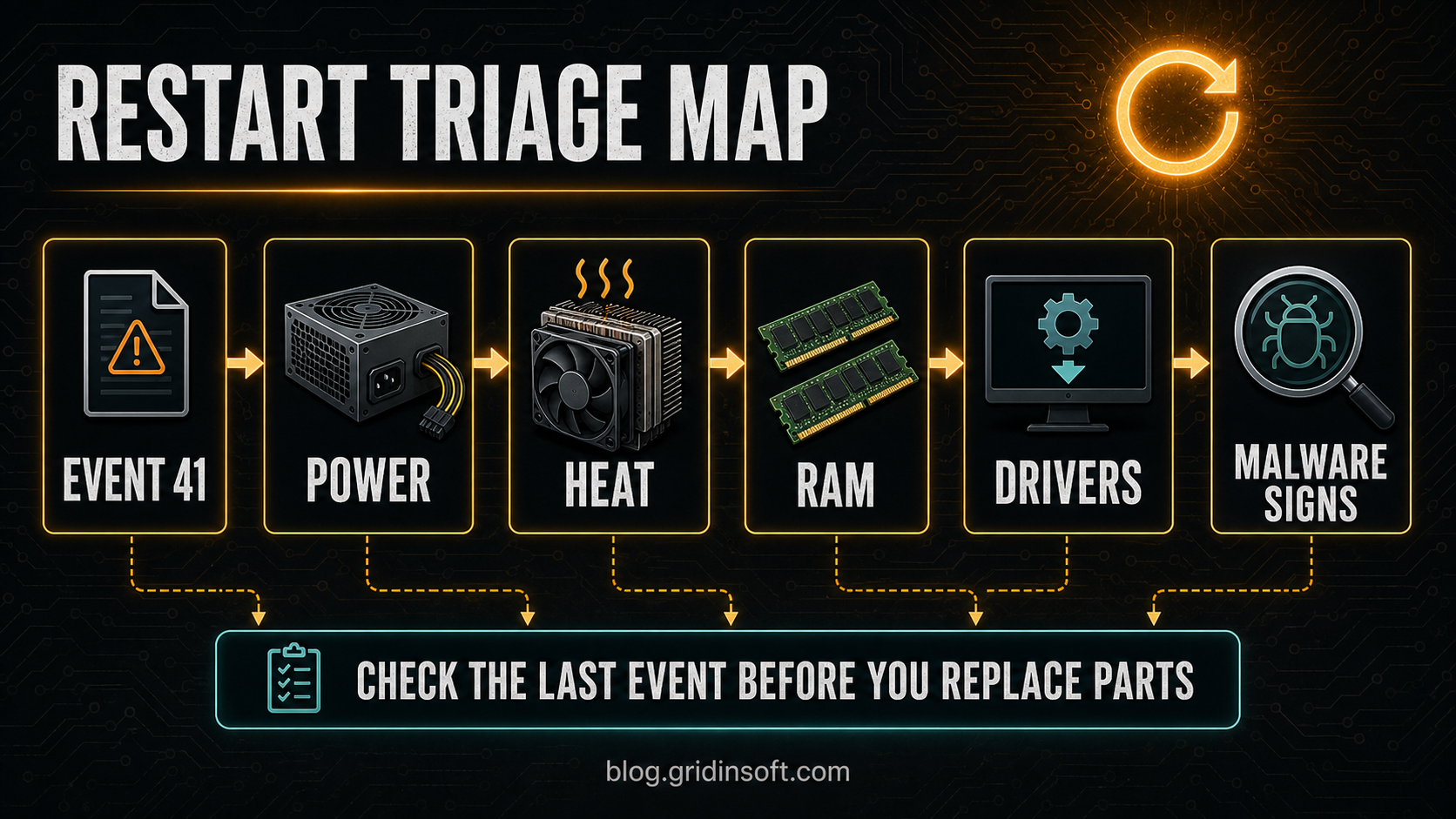
Use this restart triage map as the short version of the guide: Event ID 41 tells you Windows saw an unclean restart, then the last useful clue decides whether to test power, heat, RAM, drivers, or malware signs first.
Before you change hardware, capture the restart evidence
Windows often hides the useful error because it is configured to restart automatically after a system failure. Temporarily turn that off so the next crash can show a stop code instead of rebooting too fast to read.
- Press Win + R, type sysdm.cpl, and press Enter.
- Open Advanced -> Startup and Recovery -> Settings.
- Under System failure, clear Automatically restart, then click OK.
- After the next crash, write down the stop code, driver name, or exact message.
Then open Event Viewer -> Windows Logs -> System. A critical Kernel-Power, Event ID 41 entry confirms that Windows detected an unclean restart, but it does not prove the root cause by itself. Look at the warnings and errors immediately before the Event 41 entry: WHEA-Logger often points to hardware, BugCheck points to a Windows stop error, Display driver errors point to GPU/driver problems, and User32 Event ID 1074 usually means a planned restart.
If User32 Event ID 1074 specifically says wininit.exe initiated the restart, use the Wininit.exe restart-event guide to read the process, SYSTEM account, reason code, Comment, and neighboring events before treating it as malware.
What the Event Viewer clue means
| Last clue before Event 41 | What to do next |
|---|---|
| BugCheck or a stop code | Disable automatic restart, capture the stop code, then focus on the named driver, Windows update, storage, or memory path. |
| WHEA-Logger | Treat hardware stability as the main lane: CPU, RAM, motherboard, BIOS, XMP/EXPO, voltage, overheating, or PSU behavior. |
| Display driver or GPU reset errors | Check GPU temperature, power cables, recent GPU driver updates, overclocking, and whether restarts happen only under 3D load. |
| User32 Event ID 1074 | Look for a planned restart from Windows Update, a management tool, an installer, or a user/session action rather than a crash. |
| No useful event before Event 41 | Start with physical power, PSU, wall outlet, laptop charger, reset button, motherboard cables, and sudden power-loss symptoms. |
1. Check power delivery and the PSU
Sudden restarts with no blue screen often mean the PC briefly lost stable power. This can come from the power supply unit, a loose cable, an overloaded power strip, a weak laptop charger, or a motherboard connector that was not fully seated after a build or upgrade.
- Plug the PC directly into a known-good wall outlet for a test. Skip cheap extension cords and overloaded strips.
- Reseat the 24-pin motherboard cable, CPU power cable, GPU PCIe power cables, and the power cable going into the PSU.
- If the restart happens only under GPU/CPU load, compare the PSU wattage and age against the actual CPU/GPU combination.
- For laptops, test with the original charger, then on battery only if the battery is safe and removable in normal use.
- Stop and use a repair shop if you smell burning, see arcing, hear crackling, or find swollen capacitors.
Do not open a PSU casing. The capacitors inside can remain dangerous after shutdown.
2. Rule out overheating
Modern CPUs and GPUs protect themselves by throttling or shutting down when temperatures cross safe limits. A desktop with dust-clogged heatsinks, a laptop with blocked vents, dried thermal paste, or a failed fan can restart suddenly during games, video export, virtual machines, or even browser workloads.
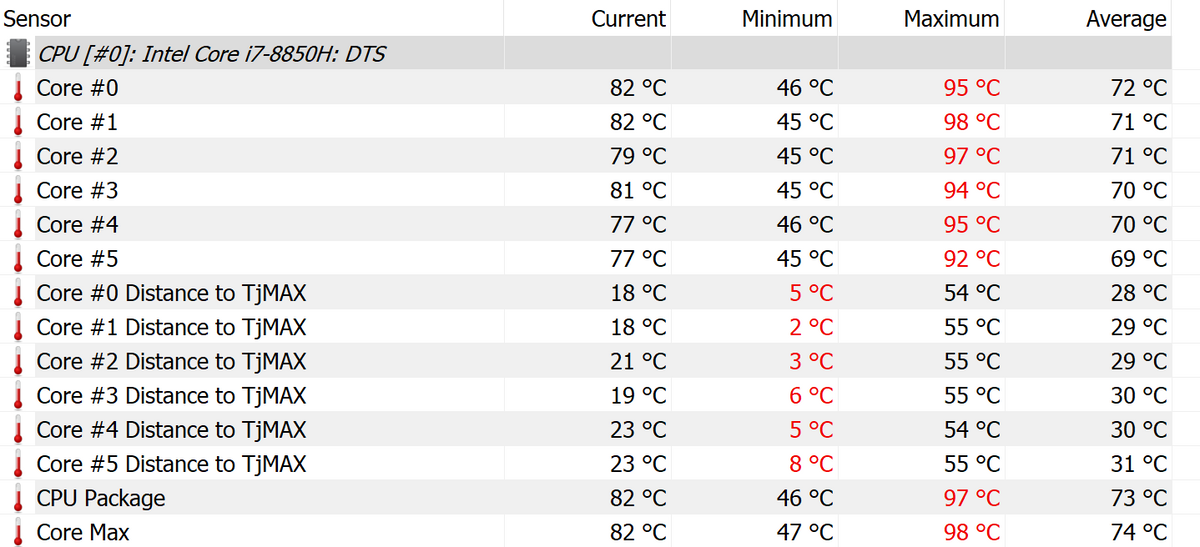
Check temperatures while the computer is idle and again under the workload that usually triggers the restart. If temperatures climb rapidly, clean dust from vents and heatsinks, confirm all fans spin, improve airflow around the case, and remove aggressive overclocking profiles. Laptops should be tested on a hard flat surface, not on bedding or fabric.
3. Test RAM, XMP/EXPO, and overclocking
Unstable memory can look like random Windows restarts, browser crashes, corrupted downloads, game crashes, or a reboot with no useful message. This is common after enabling XMP/EXPO, mixing RAM kits, moving a PC, or updating BIOS defaults.
- Turn off CPU/GPU overclocking and return BIOS power settings to default.
- Temporarily disable XMP/EXPO and test the PC at standard memory speed.
- Reseat RAM sticks and use the motherboard manual’s recommended slots.
- Run Windows Memory Diagnostic or a longer memory test if restarts continue.
- If the PC has multiple RAM sticks, test one stick at a time only if you are comfortable working inside the case.
If disabling XMP/EXPO stops the restarts, the memory kit may still be healthy; it may simply need a lower speed, newer BIOS, or adjusted voltage/timings from the motherboard vendor’s compatibility list.
4. Check drivers, Windows Update, and recent changes
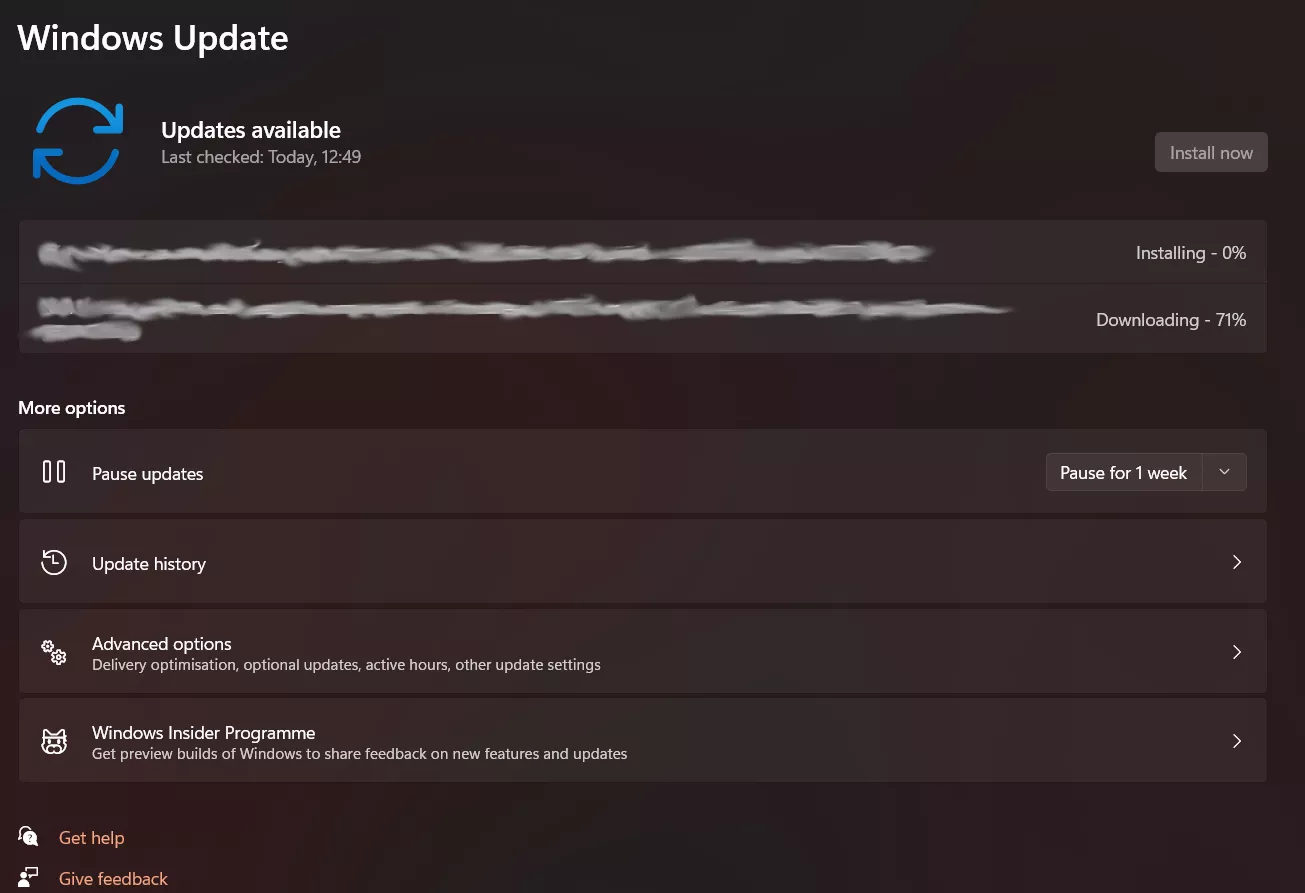
If restarts began after a driver, BIOS update, GPU utility, antivirus change, or Windows feature update, treat the timing as evidence. Look in Settings -> Windows Update -> Update history, and compare the install date with the first restart. When the next blue screen names vgk.sys, follow the dedicated Riot Vanguard crash guide to separate the anti-cheat driver from Intel/BIOS or wider hardware instability.
Use these checks in order:
- Install pending Windows and driver updates if the PC is stable long enough.
- Roll back a recently updated GPU, chipset, storage, or network driver from Device Manager if the timing matches.
- Uninstall the newest optional driver/update only when the restart started immediately after it.
- Boot into Safe Mode. If the problem disappears there, suspect a third-party driver, startup app, security product conflict, or service.
- Use a clean boot to isolate startup software before reinstalling Windows.
5. Repair system files and check storage
Corrupted system files and failing storage can trigger restarts, especially after repeated hard shutdowns. Open Command Prompt or Windows Terminal as administrator and run:
sfc /scannow
DISM /Online /Cleanup-Image /RestoreHealth
chkdsk C: /scan
If Windows reports disk errors, back up important files before running repair commands that require a reboot. A drive that repeatedly disconnects, clicks, disappears from BIOS, or shows growing SMART errors should be treated as a hardware problem, not just a Windows problem.
6. Scan for malware and unwanted startup persistence
Malware is not the most common cause of instant power-style restarts, but it is relevant when the reboot comes with browser redirects, unknown scheduled tasks, strange PowerShell windows, new startup entries, fake update prompts, security alerts, or high CPU/GPU load after an unknown download. Some unwanted programs install unstable drivers, miners, proxy settings, browser extensions, or startup persistence that can make the system crash under load or reboot after cleanup.
- Disconnect from suspicious sites and stop using cracked installers, fake driver updaters, or unknown “optimizer” tools.
- Open Task Manager -> Startup apps and disable unfamiliar entries while you investigate.
- Check Task Scheduler for recently created tasks with random names, PowerShell commands, or files in AppData, Temp, or browser profile folders.
- Run a full security scan before deleting random files manually. Removing only the visible process may leave a loader, scheduled task, service, browser change, or bundled module that recreates the symptom.
- After cleanup, change passwords only from a clean device if you found an infostealer, browser password theft, suspicious account activity, or an executable that ran from a game/mod/crack download.
Gridinsoft Anti-Malware is useful in this lane because it checks detections, hidden files, startup entries, scheduled tasks, bundled apps, browser changes, and persistence together instead of asking you to guess which leftover is safe to delete.
If the process path is wrong, the name imitates a Windows component, or high CPU started after an unknown installer, scan for hidden miners, services, startup entries, and bundled components.
Scan suspicious restart signsRelated Gridinsoft guides can help when the restart is only one symptom of a broader infection: PowerShell outbound connection blocked, fake Chrome update terminal popups, and infostealer cleanup after downloading a game or mod.
If the computer is stuck in a restart loop
If the PC cannot stay on long enough for normal troubleshooting, enter the Windows Recovery Environment. From the sign-in screen or Start menu, hold Shift while choosing Restart. If Windows cannot boot normally, interrupt startup three times to reach recovery options, then try Startup Repair, System Restore, Uninstall Updates, or Startup Settings -> Safe Mode.
Before using Reset this PC, save important files if the drive is still readable. A reset can fix Windows corruption, but it will not repair a failing PSU, overheating GPU, unstable RAM, or dying SSD.
Best troubleshooting order
- Back up important files if the PC stays on long enough.
- Disable automatic restart so the next crash can show a stop code.
- Check Event Viewer and Reliability Monitor for the last event before the restart.
- Test wall power, cables, PSU behavior, laptop charger, and battery.
- Check CPU/GPU temperatures and clean dust or blocked vents.
- Undo overclocking and test RAM without XMP/EXPO.
- Review Windows Update, drivers, Safe Mode, and clean boot behavior.
- Run SFC, DISM, CHKDSK, and a malware scan.
- If hardware signs remain, stop guessing and test with known-good parts or a repair shop.
FAQ
Why does my computer randomly restart with no blue screen?
The most likely causes are power loss, overheating, unstable RAM or overclocking, or Windows automatically restarting before you can read the blue-screen stop code. Disable automatic restart and check Event Viewer before replacing parts.
Is Kernel-Power Event ID 41 the cause of the restart?
No. Event ID 41 usually means Windows noticed the system did not shut down cleanly. It is a symptom marker. The useful clue is often the driver, WHEA, BugCheck, disk, display, or User32 event recorded right before it.
What should I check first if the PC restarts during games?
Check GPU and CPU temperature, PSU capacity, GPU power cables, recent graphics driver changes, and any overclocking profile first. If the same game also came from a crack, mod loader, or fake installer, add a malware scan to the same pass.
Can malware make a PC restart randomly?
Yes, but it is less common than power, heat, memory, driver, or update problems. Malware becomes more likely when restarts happen with unknown startup entries, fake update prompts, browser redirects, PowerShell activity, suspicious downloads, or repeated security alerts.
Should I reinstall Windows to fix random restarts?
Only after basic evidence points to Windows corruption or a driver/software conflict. Reinstalling Windows will not fix bad power delivery, overheating, unstable RAM settings, a failing SSD, or a weak laptop charger.
When should I stop troubleshooting and get hardware checked?
Stop if the PC restarts under BIOS/UEFI, smells hot or burnt, shuts off during light use with normal Windows logs, shows rising drive errors, or restarts even after Safe Mode and clean boot. Those signs point to hardware or power delivery.
References
- Microsoft Learn. “Advanced troubleshooting for Event ID 41: The system has rebooted without cleanly shutting down first.” Microsoft, updated 2026, accessed June 20, 2026. https://learn.microsoft.com/en-us/troubleshoot/windows-client/performance/event-id-41-restart
- Microsoft Support. “Troubleshooting Windows unexpected restarts and stop code errors.” Microsoft, accessed June 20, 2026. https://support.microsoft.com/en-gb/windows/resolving-blue-screen-errors-in-windows-60b01860-58f2-be66-7516-5c45a66ae3c6
- Microsoft Support. “Recovery options in Windows.” Microsoft, accessed June 20, 2026. https://support.microsoft.com/en-us/windows/recovery-options-in-windows-31ce2444-7de3-818c-d626-e3b5a3024da5