Service Host Network Service high network usage means a Windows service is transferring data, but the Task Manager label does not tell you which download is responsible. Start by identifying the busy process and whether it is receiving or sending data. If Delivery Optimization is responsible, check its source and apply the matching bandwidth control. Turning off downloads from other PCs stops peer sharing; it does not stop Windows from downloading updates from Microsoft. Avoid disabling the whole service group just to clear the graph.
The useful question is whether you are seeing an update that can finish, peer uploads you can limit, or a different service that needs investigation. Here is how to tell them apart.
Identify the service before changing settings
NetworkService is a built-in Windows service account. The visible Service Host entry is a container for services running in that context, not a single application called Network Service. Several svchost.exe instances can therefore be legitimate. [1]
- Press Ctrl + Shift + Esc, open Task Manager, and sort the Processes list by Network. Expand the busy Service Host entry and note the service names. Look for Delivery Optimization, but do not assume it must be the culprit.
- Right-click the busy entry and use Go to details when available. Record its PID. From the corresponding Details row, Go to service(s) helps map the process to its hosted services.
- Press Win + R, enter
resmon, and open the Network tab. Match that PID under Processes with Network Activity. Compare Send and Receive while the slowdown is actually happening.
A shared PID can host several services, so this narrows the investigation rather than naming the exact app by itself. Do not end every process with the same filename. If the PID changes after a restart, match the new one before comparing results.
Receive dominates: investigate a download. Send dominates: investigate an upload. The busy PID belongs to another app: use that app’s download or sync controls instead of changing Delivery Optimization.
Also compare actual throughput, not just a percentage. Task Manager’s adapter figures are not a direct measurement of your internet plan. As a worked example, 40 Mbps is about 5 MB/s before overhead: that can consume most of a 50 Mbps internet connection while remaining a small fraction of a fast local Ethernet link. A game can lag without the adapter graph reaching 100%.
Check whether Delivery Optimization explains the traffic
In Windows 11, open Settings → Windows Update → Advanced options → Delivery Optimization → Activity monitor. Windows 10 places Delivery Optimization under Settings → Update & Security. The monitor separates download sources and uploads, but its totals cover the current month. A large total is history, not proof of a download happening now. [2]
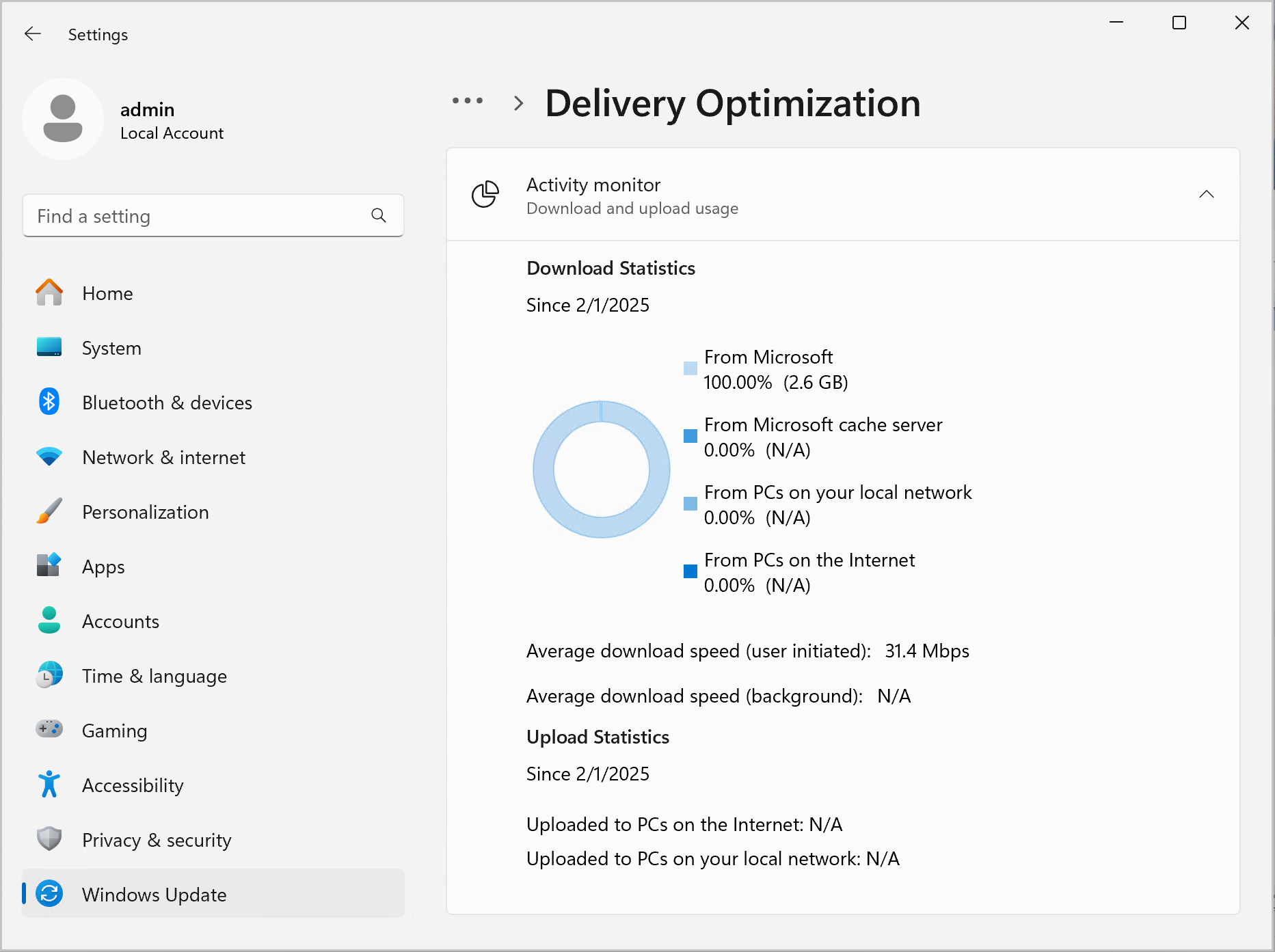
Use the monthly view to choose a hypothesis, then compare it with the live PID and transfer direction:
- Microsoft downloads, with little or no peer traffic: turning off peer sharing is unlikely to explain away the download. Check Windows Update and the Microsoft Store download queue for an active job.
- Uploads to internet peers: changing peer-sharing or upload settings addresses that branch. An upload limit does not limit an unrelated incoming download.
- The monitor does not explain the busy process: verify the PID again. Traffic from another Windows service, an app updater, a VPN or a sync client needs its own diagnosis.
For a closer check, open Windows PowerShell as administrator and run Get-DeliveryOptimizationStatus while the problem is occurring. This read-only command lists current Delivery Optimization jobs. Compare two snapshots: a job marked Downloading with increasing TotalBytesDownloaded supports an active transfer; BytesFromHTTP and BytesFromPeers distinguish HTTP delivery from peer delivery. SourceURL, when present, gives additional source context. [3]
If no job appears, that snapshot does not attribute the traffic to Delivery Optimization. Return to the busy PID rather than treating an empty result as evidence of malware. If the command is unavailable, continue with Task Manager, Resource Monitor and the update queues; do not install a script from a forum just to obtain the command.
Choose the control that matches the problem
Stop sharing updates with other PCs
In Delivery Optimization settings, turn off Allow downloads from other devices or Allow downloads from other PCs, depending on your Windows version. This disables peer sharing, while Microsoft downloads continue. Choosing local-network peers instead can preserve sharing among your own PCs without internet peer sharing.
This distinction explains a common failed “fix”: the toggle is off, but the same host still receives data. If a Windows update is downloading from Microsoft, that behavior is expected. Delivery Optimization distributes update/app content; it does not give other people access to your personal files. [4]
Reduce download bandwidth during calls or games
Use Download options in Delivery Optimization; some versions place the limits under another Advanced options link. Choose an absolute bandwidth limit or a percentage, as available. Match the background/foreground setting to the transfer. Microsoft notes that these automatic-update limits do not apply to downloads you manually start through Windows Update or the Store.
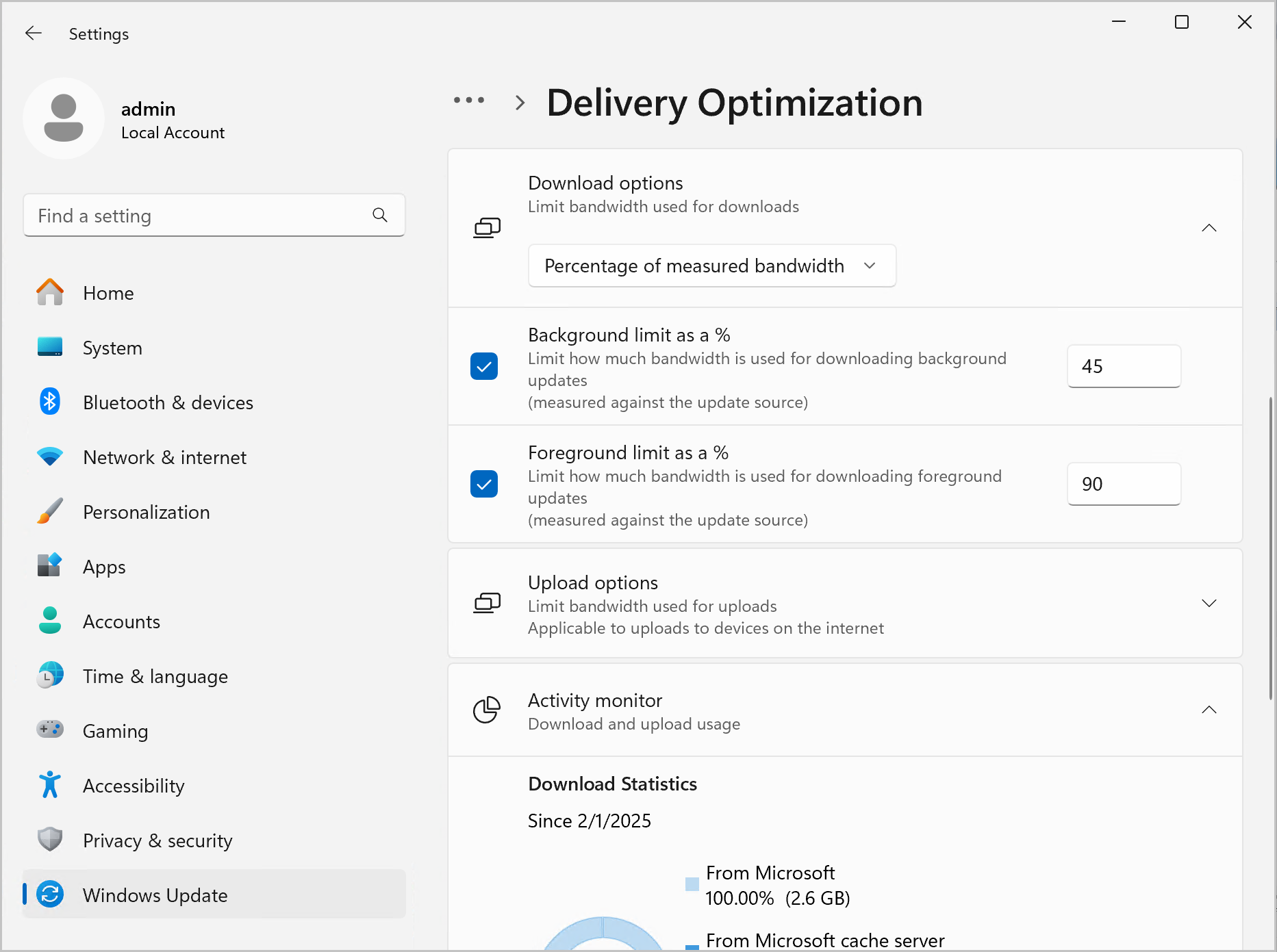
Choose a starting cap that leaves room for the activity you care about, then test the call or game with the same download still running. For example, on a measured 50 Mbps connection, a 10 Mbps background-download cap leaves more capacity than allowing that job to take 40 Mbps. This is a starting experiment, not a universal recommended value or a guarantee of low latency.
If you started the download yourself, use the initiating app’s supported pause control where available, or let the job finish before the call. Windows Update also offers a temporary Pause updates control; resume promptly afterward. Avoid repeatedly killing svchost.exe, stopping BITS, or disabling Windows Update as a permanent bandwidth policy.
Limit uploads or protect a capped connection
If you keep internet peer sharing enabled, use Delivery Optimization’s Upload options to restrict it. On a capped connection, Windows’ Metered connection setting is another supported way to reduce some background traffic. It is not a universal firewall or a guarantee that no data will be used.
Keep the distinction clear: an upload cap, a download-rate limit and a data allowance solve different problems. Lowering a download’s speed spreads its data use over more time; it does not necessarily reduce the total size of the update.
If options are gray and Windows says your organization manages them, contact the administrator with the PID, time of the slowdown and observed transfer direction. Do not remove management policies or copy registry overrides to unlock the switches.
If high usage returns after every restart
Record which update or Store app is running, whether its progress advances, and any error code. A transfer that makes progress and finishes is different from the same item failing and restarting. Finish a pending restart, then observe the same workload again. If the job repeats without progress, troubleshoot that specific update or app error.
Do not clear the Delivery Optimization cache as the first bandwidth fix: removing cached content can mean downloading it again. Network resets and blanket service disabling also make attribution harder if you apply them before recording the original symptom.
If the main symptom is freezing, CPU or disk pressure rather than network saturation, follow the Windows freezing diagnostic guide. A busy network graph alone does not identify a disk or driver fault.
If the busy row is specifically Local System and CPU is the bottleneck, use the Service Host Local System high-CPU guide to map that host to its services before choosing a repair.
When the process needs a security check
A legitimate service host normally runs from C:\Windows\System32\svchost.exe; Windows also has a legitimate 32-bit copy under C:\Windows\SysWOW64. Check the exact file location and signature, not merely the displayed name. Our svchost.exe verification guide explains how to distinguish a Windows host from a lookalike.
A lookalike in a user-writable folder, a security warning, or unexplained traffic after an unknown installer warrants a separate malware check. In that situation, a bundled app or startup component may keep recreating the activity even if one visible process is closed. Download Gridinsoft Anti-Malware, update it, run a Full Scan, review detections and apply cleanup, then restart and check the original traffic again. Ordinary update downloads alone are not a reason to call the PC infected.
A scan can identify malicious files and persistence; it does not establish the cause of every network spike. The useful completion check is that the identified job finishes or obeys the appropriate control, and the original slowdown no longer returns under the same conditions.
References
- Microsoft. NetworkService Account. Microsoft Learn. Accessed September 21, 2026.
- Microsoft. Delivery Optimization in Windows. Microsoft Support. Accessed September 21, 2026.
- Microsoft. Monitor Delivery Optimization. Microsoft Learn. Accessed September 21, 2026.
- Microsoft. Windows Update Delivery Optimization and privacy. Microsoft Support. Accessed September 21, 2026.