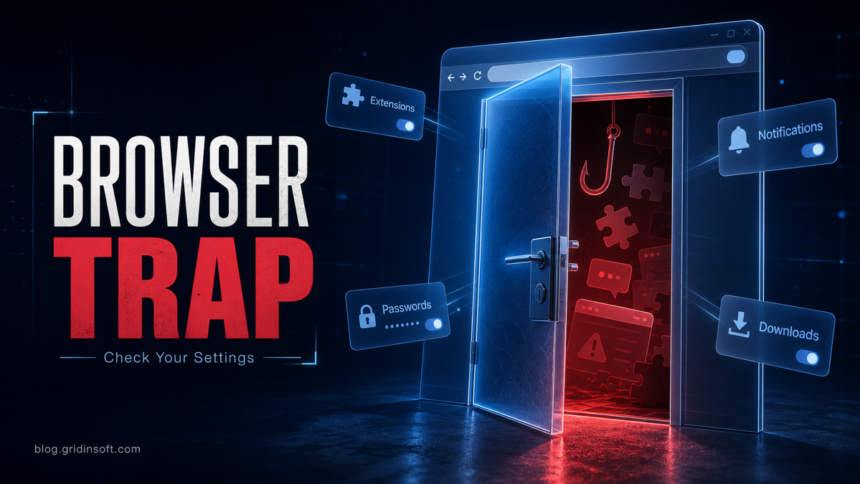
Browser security settings matter most when something already feels wrong: fake virus alerts keep popping up, a new extension appeared, search results redirect, or the browser warns you before a download. The safest baseline is simple: keep the browser updated, use built-in phishing and malware protection, remove risky extensions, block suspicious notification permissions, and check saved passwords after any browser hijacker or fake-alert incident.
If you want the safer everyday routine behind these settings, see our guide on how to browse the web securely, which covers links, downloads, fake updates, notifications, and public Wi-Fi in one checklist.
Best browser security settings to check first
- Chrome: run Safety Check, keep Safe Browsing on, and consider Enhanced Protection if you often download files or install extensions.
- Microsoft Edge: keep phishing and malware warnings on, and use Enhanced security in Balanced mode for unfamiliar sites.
- Safari: keep fraudulent website warnings and HTTPS warnings enabled.
- Firefox: keep Enhanced Tracking Protection on Standard or Strict, depending on site compatibility.
- Every browser: remove extensions you do not actively trust, block unknown notifications, and use unique passwords.
Problem you see — Setting to inspect
- Fake McAfee, Norton, or Windows virus alerts in the corner
- Site notification permissions, then suspicious extensions
- Search engine, homepage, or new tab changed by itself
- Extensions, startup pages, search provider, browser policies
- Warnings before downloads or unknown files
- Safe Browsing, SmartScreen, download source, file scan
- Saved passwords may have been exposed
- Password manager breach check, account sessions, 2FA
- Browser says “Managed by your organization”
- Legitimate work/school policy, or unwanted browser policy left by malware
If You Already See Fake Alerts or Redirects
Do not click the alert, call the phone number, install the offered cleaner, or allow a remote-support session. Many “your computer is infected” popups are site notifications, not real antivirus alerts. They can appear even when the original tab is closed because the browser stored permission for that site.
- Open the browser settings and search for Notifications.
- Remove unknown sites from the allowed list. If you do not need browser notifications, block new requests by default.
- Open the extensions page and remove anything unknown, recently installed, abandoned, or too broad for its purpose.
- Check the default search engine, homepage, startup pages, and new-tab settings.
- If the same changes come back after restart, reset the browser and scan the system for adware or a browser hijacker.
When a suspicious link or download started the problem, scan the URL with the Gridinsoft URL Scanner. If the browser keeps changing settings after cleanup, run a local malware scan as well; some hijackers reinstall browser policies or extensions from Windows startup entries.
Chrome: Safe Browsing, Safety Check, and Extensions
Chrome’s Safe Browsing is the most important Chrome security setting. Google says Safe Browsing helps warn users about malware, abusive sites and extensions, phishing, intrusive ads, and social engineering attacks.[1] Enhanced Protection gives stronger warnings for dangerous sites, downloads, and extensions, but it sends more security-related browsing signals to Google than Standard Protection. Pick the level that fits your risk and privacy comfort, but do not turn Safe Browsing off unless you are testing in a controlled environment.
- Go to Settings -> Privacy and security -> Security and confirm Safe Browsing is enabled.
- Run Safety Check to review updates, weak or compromised passwords, extensions, and site permissions.
- Open chrome://extensions and remove extensions you do not recognize or no longer use.
- For extensions you keep, review site access. Prefer “on click” or specific sites over “all sites” when the extension does not truly need broad access.
- Open Settings -> Privacy and security -> Site settings -> Notifications and remove unknown allowed sites.
Microsoft Edge: Use Balanced Enhanced Security
Edge has an additional protection called Enhance your security on the web. Microsoft says it can reduce risk from memory-related vulnerabilities by disabling JIT JavaScript compilation and enabling extra operating-system protections for the browser.[2] For most people, Balanced is the practical default because it applies stronger protection mainly to unfamiliar sites while letting frequently used sites work normally.
- Go to Settings -> Privacy, search, and services -> Security.
- Keep phishing and malware protection enabled.
- Turn on Enhance your security on the web and choose Balanced.
- Use Strict only if you can handle occasional broken site features and manage exceptions.
- Review edge://extensions and notification permissions just as you would in Chrome.
If Edge reports repeated updater failures, follow the MicrosoftEdgeUpdate.exe troubleshooting steps to verify the update outcome and collect the right logs before changing update settings.
Safari: Keep Fraud and HTTP Warnings On
Safari users should keep Apple’s warning features enabled. In Safari on Mac, open Safari -> Settings -> Security and keep warnings for fraudulent websites enabled. If Safari warns before connecting to an HTTP site, treat that as a reason to avoid entering passwords, card details, or personal data on that page.
- Review Safari extensions and remove old shopping, coupon, VPN, search, or PDF tools you do not trust.
- Use Settings -> Websites to review camera, microphone, location, downloads, popups, and notification permissions.
- Keep macOS and Safari updated; Safari security updates arrive through system updates.
- Do not disable JavaScript globally unless you know the compatibility tradeoff. It can break normal buttons, forms, logins, and checkout pages.
Firefox: Tracking Protection and Permissions
Firefox focuses heavily on tracking protection. Standard Enhanced Tracking Protection is a good baseline for most users; Strict can block more trackers and fingerprinting behavior but may break some websites. The important security habit is not to install extra privacy extensions blindly. Too many overlapping extensions can create a larger attack surface than the protection they add.
- Open Settings -> Privacy & Security and confirm Enhanced Tracking Protection is on.
- Try Strict if you want stronger privacy and can troubleshoot broken sites.
- Open about:addons and remove extensions you do not need.
- Review notification, location, camera, and microphone permissions under the Permissions section.
- Use Firefox Monitor or your password manager’s breach check if you reused passwords on a site that later looked suspicious.
If your firewall shows activity after Firefox closes, use the PingSender.exe verification and privacy guide to distinguish a normal telemetry upload from an unfamiliar executable and review the separate data-sharing controls.
Audit Extensions Like They Can Read the Page
Extensions are the biggest blind spot in browser security. A useful extension can later become risky if it is sold, abandoned, compromised, or updated with malicious behavior. In 2025, Koi Security reported the RedDirection campaign: 18 Chrome and Edge extensions with about 2.3 million users were used to track browsing and redirect users after malicious updates.[3] That is why install count, reviews, or a polished store page are not enough by themselves.
- Remove extensions you installed “just once” and forgot.
- Be skeptical of free VPNs, coupon tools, video downloaders, PDF converters, AI assistants, search helpers, and “security” extensions from unknown publishers.
- Check whether the extension asks to read and change data on all websites. That permission is powerful.
- Look for recent ownership changes, strange release notes, a dead website, or a publisher name that no longer matches the original tool.
- After removing a suspicious extension, change passwords for accounts you used while it was installed, especially email, banking, crypto, social media, and work accounts.
Downloads, Passwords, and Autofill
A hardened browser can still be bypassed by one unsafe download or one reused password. Keep download warnings on, avoid cracked installers, and do not train yourself to click through red warning pages. For passwords, use a password manager, unique passwords, and two-factor authentication. If the browser warns that a saved password appeared in a breach, change it on the real website, not through a link in an email or popup.
- Download software from official vendor sites or trusted stores.
- Check the domain carefully before typing credentials.
- Do not save passwords on a shared or already suspicious computer.
- Turn on password breach alerts in your browser or password manager.
- After a fake-alert or extension incident, sign out of sensitive accounts and revoke unknown sessions.
What Not to Do
- Do not install a “recommended” cleaner from a browser popup.
- Do not disable Safe Browsing, SmartScreen, or Safari fraud warnings just to open one file.
- Do not assume Incognito or Private Browsing removes malware, extensions, or site permissions.
- Do not keep extensions because they have good reviews if you no longer know why they are installed.
- Do not ignore recurring browser changes after a reset; that usually means something outside the browser is restoring them.
FAQ
Which browser is the safest?
Chrome, Edge, Safari, and Firefox can all be safe when updated. For everyday users, the safer browser is usually the one with updates, phishing protection, limited extensions, clean permissions, and unique passwords.
Are fake McAfee or Norton browser alerts real?
Usually no. Many of these alerts are website notifications that imitate antivirus warnings. Remove the site from notification permissions and scan the system only if redirects, unknown extensions, or repeated setting changes continue.
Can a browser extension steal passwords?
A malicious extension with broad page access can observe or change page content and may capture sensitive data depending on its permissions and behavior. Remove suspicious extensions and change important passwords after exposure.
Should I turn on Chrome Enhanced Protection?
Use Enhanced Protection if you want stronger warnings for suspicious sites, downloads, and extensions and accept the extra security telemetry. Use Standard Protection if you prefer the default privacy/security balance, but avoid turning protection off.
Does Private Browsing protect me from malicious sites?
No. Private or Incognito mode mainly limits local history, cookies, and session storage after the window closes. It does not make dangerous downloads safe, remove bad extensions, or stop fake notification permissions already granted. If a family or administrator needs to remove that option, use the supported Chrome Incognito mode policy steps and verify the result in Chrome.
Related: disable push notifications in your browser, reset browser settings, phishing links in browser, are browser extensions safe?, remove Managed by your organization.
References
- Google Chrome Help. “Choose your Safe Browsing protection level in Chrome.” Google, accessed June 7, 2026. https://support.google.com/chrome/answer/9890866
- Microsoft Support. “Enhance your security on the web with Microsoft Edge.” Microsoft, accessed June 7, 2026. https://support.microsoft.com/en-us/edge/enhance-your-security-on-the-web-with-microsoft-edge
- Edward Roberts. “Are These 18 Malicious Browser Extensions on Your Organization’s Devices?” Stairwell, July 14, 2025, accessed September 24, 2026. RedDirection extension investigation