The current Medal app from the official Medal website is a legitimate game recorder, but the name Medal.exe does not prove that a particular file is safe. If Bitdefender or another security tool flags Medal, keep the item quarantined while you verify the download source, full path, digital signature, exact detection name, and system scan results. Review Medal’s recording and upload settings separately: normal capture behavior can feel intrusive without being malware, but you should still decide what the app records and shares.
Is Medal safe to download and use?
Medal is a Windows and mobile platform for recording, editing, and sharing game clips. Its official Windows download starts at medal.tv/download. A copy obtained there and signed by a publisher that identifies Medal or Medal B.V. is much more trustworthy than a same-name installer from a search advertisement, mirror, video description, Discord message, or file host.
That is a starting point, not a lifetime guarantee. A valid signature identifies the publisher and shows whether the signed file changed after signing; it does not replace antivirus scanning or explain an alert in a different file. Treat “Is Medal safe?” as two decisions:
| What you are checking | Evidence that matters |
|---|---|
| The official Medal product | Real vendor site, expected recording features, current privacy terms, and controls for clips, audio, desktop capture, uploads, and connected accounts. |
| Your exact file | Download source, full path, valid publisher signature, SHA-256 hash, exact antivirus detection, and whether a full scan finds anything else. |
| Your PC after execution | Returning alerts, unknown startup items, scheduled tasks, browser changes, unexpected account prompts, or network activity unrelated to recording. |
Do not use a clean-looking filename, one forum reply, or Medal’s own reassurance as permission to restore an arbitrary file. If you need more detail on publisher signatures and hashes, use the EXE safety checklist.
What to do when Bitdefender flags Medal.exe
Recent user reports describe alerts for Medal.exe and Medal-related data under paths such as %APPDATA%\Medal\Crashpad\settings.dat. Medal’s own Bitdefender instructions refer to its application folder under %LOCALAPPDATA%\Medal. Neither an expected-looking path nor the word Crashpad settles the verdict; record the exact object and detection before changing anything.
- Leave the item quarantined. Do not restore it, disable protection, or exclude the whole Medal folder just to make the alert disappear.
- Record the alert details. Save the detection name, affected file, full path, time, and action. An alert on
%USERPROFILE%\Downloads\medal.exeis a different case from a detection that returns from a temporary, roaming-profile, or startup location. - Confirm the source. If the installer came from anywhere other than the direct Medal site, delete that copy and do not reuse the same download link.
- Check the signature. Open the file’s Properties and Digital Signatures tab. The signature should be valid and identify Medal rather than an unrelated company. Missing or invalid signature data is a reason to keep the file blocked.
- Calculate a SHA-256 hash. A hash identifies the exact bytes. Use it when submitting the file or comparing vendor responses; do not compare it with an old build and assume all versions must match.
- Update the security product and rescan. Detection logic changes. If only the verified Medal object is flagged and the rest of the PC is clean, a false positive becomes more plausible.
- Submit the exact sample to the detecting vendor. Bitdefender accepts suspected false positives for review. A vendor determination for your hash is stronger evidence than a blanket whitelist article.
- Restore only after the evidence agrees. The source, signature, path, scan results, and vendor response should all fit. If they do not, remove the file and obtain a fresh official copy later.
If you ran an unverified copy, the visible alert may not be the only issue. A loader, bundled app, scheduled task, startup entry, browser change, or security exclusion can remain after the detected file is quarantined. Run a full Gridinsoft Anti-Malware scan, review every result, reboot, and scan again if the warning returns. This checks for related files and persistence; it cannot prove that no account data was exposed.
A false positive is possible, but restore only after checking that the system has no companion detections, startup entries, scheduled tasks, or hidden files tied to the same source.
Scan before restoring this Medal fileWhy recording software can look suspicious
A game recorder must detect a running game, maintain a recent video buffer, respond to hotkeys, capture selected audio, draw an overlay, encode video, and sometimes start with Windows. Those capabilities overlap with behaviors security tools watch closely. Overlap explains why a false positive is possible; it does not prove every detection is wrong.
The safest interpretation is behavior-specific. A signed Medal process recording the selected game and writing clips to its configured folder matches the product. An unsigned same-name process launching scripts, reading browser credential stores, creating unrelated scheduled tasks, or contacting unexplained domains does not.
Does Medal record everything on your screen?
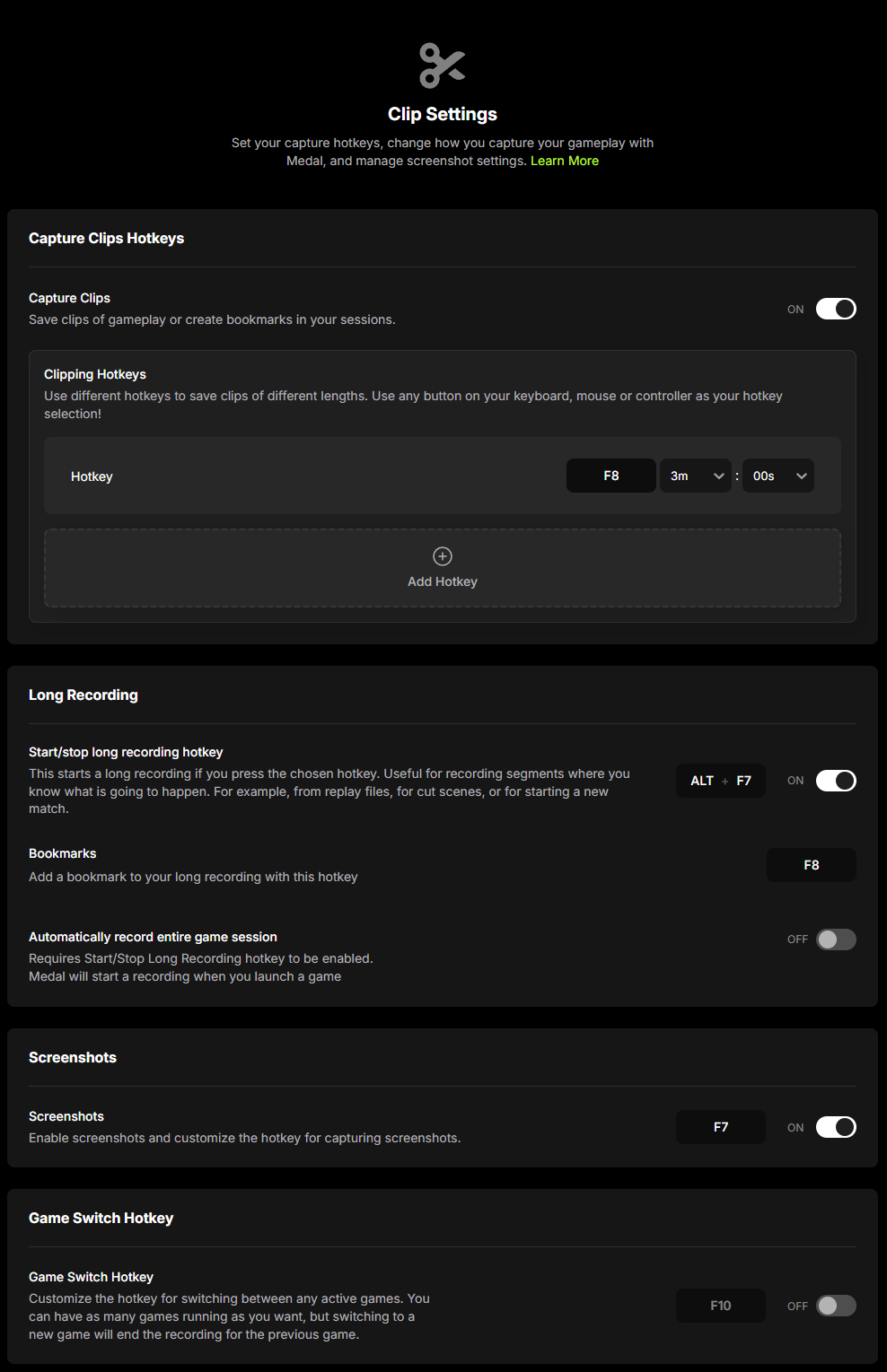
Medal has several recording modes, and they are not equivalent:
- Clip capture keeps a rolling gameplay buffer and saves the configured interval when you use the clip hotkey.
- Long recording can capture an entire game session from launch until the game closes or you stop recording.
- Desktop capture can record a selected monitor and non-game applications. It is a separate choice that deserves extra privacy care.
- Audio and overlays can include selected PC audio, microphone input, webcam video, and keyboard/controller overlays when enabled.
- Auto clipping can save supported in-game events automatically.
Open Medal’s Recording settings and turn off modes you do not need. In particular, check whether desktop capture starts with the app, whether full-session recording is automatic, which microphone and audio sources are selected, and whether webcam or input overlays are enabled. If you only want manual game clips, disable desktop capture and automatic long-session recording.
Medal privacy settings worth reviewing
Medal’s July 2026 privacy policy says the service can process information connected with the game, application, browser window, online service, or activity you choose to record. Depending on features and choices, this can include clip audio, game identifiers, input/controller data used for overlays, hardware details, connected-account data, and uploaded content.
The same policy describes audio scanning for moderation and the use of clips or associated data for research, algorithms, and AI-model development, with privacy-setting controls to object or opt out of certain research and advertising uses. Read the policy for your region because the US version can differ from the global policy.
- Review recording scope. Prefer game capture over desktop capture when you do not need the whole monitor.
- Check audio, webcam, and input overlays. Disable sources that could capture private conversations or on-screen information.
- Review uploads and cloud sync. Decide whether clips upload automatically, stay local, or create share links. A local clip is not the same as a public post.
- Inspect clip visibility before sharing. Remove private notifications, account names, chat windows, or browser tabs from the recording.
- Audit connected accounts and devices. Remove connections you no longer use and sign out unknown devices.
- Review privacy and research choices. Use the in-app privacy controls for recommendations, advertising, research, or AI-related processing where the policy offers them.
How to uninstall or clean-reinstall Medal safely
- Find your clip folder first. Check Medal’s PC Storage settings and copy any local clips you want to keep to a separate folder or drive.
- Turn off recording and exit Medal. Confirm that the app and its recorder are no longer running.
- Uninstall from Windows Settings. Use Apps > Installed apps rather than deleting only an executable or application folder.
- Reboot and rescan. If the original alert came from an unknown source or keeps returning, run a full scan before reinstalling.
- Download a fresh copy directly. Type
medal.tv/downloadinto the browser instead of following a sponsored result, mirror, or chat link. - Recheck the signature and settings. After installation, review startup, capture, audio, upload, cloud, and privacy choices before recording.
If you only downloaded a suspicious installer and never opened it, the risk is usually much lower. Delete it, keep the security alert resolved, and use the unopened suspicious-download checklist when you are unsure whether the file executed.
When to treat a Medal-named file as possible malware
- It came from a mirror, advertisement, shortened link, torrent, video description, Discord/Telegram upload, or lookalike domain.
- The signature is missing, invalid, or belongs to an unrelated publisher.
- The file appears in an unrelated temporary, startup, or system folder and returns after deletion or reboot.
- Several security products agree on a trojan, loader, stealer, backdoor, or ransomware verdict.
- Running it was followed by PowerShell/Command Prompt flashes, unknown remote-access software, browser/session changes, disabled protection, new exclusions, or account prompts.
If account activity changed after an unverified copy ran, disconnect the PC while you investigate. From a known-clean device, change the email and password-manager credentials first, revoke active sessions, then secure gaming and chat accounts. The account recovery checklist explains the order.
FAQ
Is Medal malware?
The official Medal app is a legitimate game recorder. A file named Medal.exe from an unknown source can still be malicious, so verify the exact copy rather than trusting the name.
Why does Bitdefender detect Medal?
Recording, overlay, hotkey, auto-start, and frequent-update behavior can contribute to a false positive. The detection may also be correct for a modified or same-name file. Keep it quarantined until the source, signature, path, full scan, and vendor review agree.
Should I whitelist the Medal folder?
Not before verification. A folder-wide exclusion such as all of %LOCALAPPDATA%\Medal can hide a later unwanted file. If a security vendor confirms your exact signed sample is clean, use the narrowest temporary exception available and remove it after the detection is corrected.
Does Medal record my desktop?
It can when Desktop Capture is enabled. Normal game clip mode and desktop capture are separate settings. Check the selected monitor, automatic-start option, audio sources, webcam, and overlays before recording.
Are Medal clips uploaded automatically?
That depends on your upload and cloud settings. Review whether clips stay on the device, sync to the cloud, upload after a game closes, or receive a share link. Check visibility before posting.
Can Medal use clips for AI or research?
Medal’s current privacy policy describes research, algorithm, and AI-model uses for clips or associated data and provides privacy-setting controls for some objections or opt-outs. Review the policy and in-app privacy settings for your region before uploading sensitive content.
References
- Medal. “Getting to Know Medal’s Settings.” Medal Support, updated February 24, 2026; accessed August 15, 2026. https://support.medal.tv/support/solutions/articles/48001271487-getting-to-know-medal-s-settings
- Medal B.V. “Privacy Policy.” Medal, updated July 13, 2026; accessed August 15, 2026. https://medal.tv/privacy
- Bitdefender. “How to Restore a Legitimate File from Bitdefender Quarantine.” Bitdefender Consumer Support, accessed August 15, 2026. https://www.bitdefender.com/consumer/support/answer/2092/