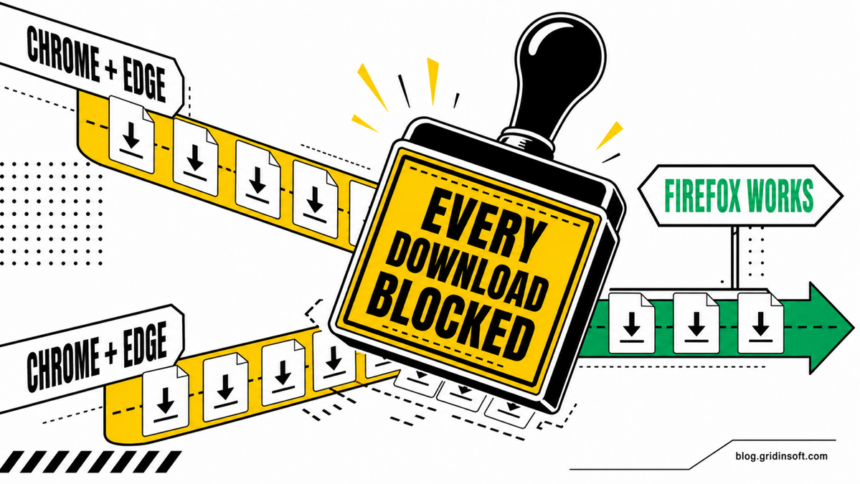
When every download says “Virus detected” or “Virus scan failed” in Chrome and Edge, but Firefox still works, that does not mean every PDF, image, and installer is infected. The pattern points more often to the Windows security handoff used by the Chromium browsers: Microsoft Defender, a registered third-party antivirus, Attachment Manager, browser policy, or a damaged security integration may be rejecting the scan result. Check the exact message and security logs before reinstalling browsers, changing the Registry, or weakening protection.
Start by separating one genuinely blocked file from a systemwide failure. A named detection for one download is a file-safety decision. Ordinary files from several trusted sites failing in both Chrome and Edge is a Windows or security-provider troubleshooting problem.
Decide whether one file or every file is blocked
| What you observe | What it most likely means and what to do |
|---|---|
| One file shows a named threat in Protection History | Keep that file blocked. Verify its source, publisher, signature, and detection before restoring it. Use the single-file virus-block decision guide. |
| PDFs, images, and other ordinary files fail in both Chrome and Edge | Check the active antivirus, Protection History, browser policy, download folder, and security-product health. Do not assume all files are infected. |
| Firefox downloads the same known-safe file | This is a diagnostic clue that the browsers use different download/security paths. It does not prove the file is safe or identify the broken component by itself. |
| Every browser fails, or the error is “Disk full,” “Forbidden,” or “No permission” | Follow the exact error. Storage, folder permissions, the server, network controls, or a systemwide security product may be responsible. |
| Only one browser profile fails | Test a clean profile or private window. An extension, profile setting, or managed browser policy may be involved. |
How to fix every-download Virus detected errors safely
- Record the exact error before changing anything. Chrome may say Failed – Virus detected or Virus scan failed; Edge may say Couldn’t download – Virus detected. Also record the file type, source site, time, and whether the download fails immediately or at the end. These details separate a scan rejection from network, disk, or permission errors.
- Open Windows Security > Virus & threat protection > Protection history. Match events to the download time. A card with a detection name and affected item means Windows made a file-specific decision. No matching card makes a broken provider handoff, third-party antivirus, or policy more plausible, but it is not proof.
- Check the active antivirus log. Windows Security shows which provider is active. If a third-party antivirus is installed, open its activity, quarantine, or event log. An old product that was disabled or partly uninstalled can still leave services or registration behind. Update or repair the active product through its official installer before removing it. Do not run two real-time antivirus engines together.
- Use one controlled known-safe test. Try a small public PDF or image from an official government, browser-vendor, or software-vendor site. Do not use a crack, mod, password-protected archive, unknown executable, or the original suspicious file as your test. If several harmless file types fail on several trusted sites, the problem is broader than one download.
- Test a private window or clean profile. Try Chrome Guest mode or a new Chrome profile, then Edge InPrivate or a new Edge profile. If the clean profile works, disable extensions one at a time and review download-related or security extensions. If both browsers still fail, repeatedly reinstalling Chrome is unlikely to repair the Windows security provider.
- Check the download location. Confirm that the folder exists, has free space, and lets you create a normal text file. In Edge, review
edge://settings/downloads; in Chrome, reviewchrome://settings/downloads. A folder or permission failure usually has different wording, so do not treat it as a virus verdict. - Inspect browser policy without deleting it. Open
chrome://policyandedge://policy. On a work or school computer, export the policy list and contact IT. On a personal PC, unexpected download restrictions or a forced download directory should lead back to the utility, script, or security product that created them. Do not delete the entire browser policy tree. - Update, restart, and test again. Install current Chrome and Edge updates, Windows updates, and antivirus security intelligence, then restart Windows. A restart can clear a stuck scan broker or finish a security-product update. If the error returns after every reboot, repair the active security product instead of cycling protection off and on.
- Repair the security component that is actually failing. If Windows Security pages are blank or unavailable, use the Windows Security repair checklist. If Edge reports a managed SmartScreen policy, use the SmartScreen policy guide. For a third-party antivirus, use that vendor’s official repair or clean-uninstall path, then confirm that Windows Security shows one active provider.
When a malware scan is the right next step
Run a full malware scan when Protection History names a threat, a suspicious installer or script already ran, the warning returns after reboot, security exclusions appeared unexpectedly, or Windows reports incomplete remediation. Those signs can mean the blocked download is only one visible symptom.
A security tool may quarantine the file you can see while a loader, scheduled task, service, browser change, Defender exclusion, or bundled module remains. In that situation, run a full Gridinsoft Anti-Malware scan to check for detections, hidden files, startup entries, scheduled tasks, bundled applications, browser changes, and persistence. Remove confirmed detections, restart, and scan again if the alert returns. A clean scan adds evidence; it cannot guarantee that every file is safe or that no compromise occurred.
Defender can quarantine the visible file, but repeated alerts may mean a loader, scheduled task, service, browser change, or bundled component is recreating it. Scan the PC before trusting the cleanup.
Check for security leftoversIf one legitimate file alone is detected, do not broaden the issue into a system repair. Keep it quarantined, collect the hash, source, signer, and exact detection, then follow the false-positive reporting process. For an executable, the EXE safety checklist helps verify the publisher and path before you consider restoring anything.
Do not “fix” the error by disabling the scan
Many forum and video fixes tell readers to turn off Safe Browsing, SmartScreen, real-time protection, or the Windows attachment scan. That can make the message disappear while leaving the cause unresolved and removing the check that would stop a real threat.
- Do not add exclusions for the whole Downloads folder, browser process, file type, or drive.
- Do not set a policy to allow all downloads merely because several safe files failed.
- Do not change
ScanWithAntiVirusto suppress Attachment Manager notification. Microsoft documents that this policy controls whether Windows calls registered antivirus programs; bypassing the call is not a repair. - Do not download the original suspicious file through Firefox just because Firefox works.
- Do not clear Protection History or antivirus logs until you have recorded the matching event.
The safe end state is simple: one active and healthy antivirus provider, current security intelligence, normal browser policy, a writable download folder, and known-safe files downloading without protection being disabled.
FAQ
Why do Chrome and Edge say Virus detected while Firefox works?
Chrome and Edge share Chromium foundations and can interact with Windows download and security components differently from Firefox. The contrast points toward a shared security, antivirus, Attachment Manager, or policy path, but logs are still required to identify the cause.
Does every-download Virus detected mean my PC has malware?
No. It can be a damaged antivirus integration, stale security-provider registration, policy, or scan failure. Malware becomes more plausible when a named detection appears, a suspicious file ran, alerts recur after reboot, or security settings changed unexpectedly.
Should I change ScanWithAntiVirus in the Registry?
No. That value controls whether Windows notifies registered antivirus programs when attachments are opened. Disabling the call can bypass a safety check without repairing the provider that failed. Check logs, policy, updates, and the active antivirus first.
What if the computer is managed by work or school?
Do not remove download or antivirus policy. Export the entries shown on chrome://policy and edge://policy, record the exact error and time, and send them to the administrator who manages the device.
References
- Google. “Fix file download errors.” Google Chrome Help, accessed August 20, 2026. Chrome download-error definitions.
- Microsoft. “Troubleshoot download failures.” Microsoft Learn, updated April 6, 2026, accessed August 20, 2026. Edge download-failure checklist.
- Microsoft. “Policy CSP – AttachmentManager.” Microsoft Learn, updated March 12, 2025, accessed August 20, 2026. Attachment Manager antivirus-notification policy.