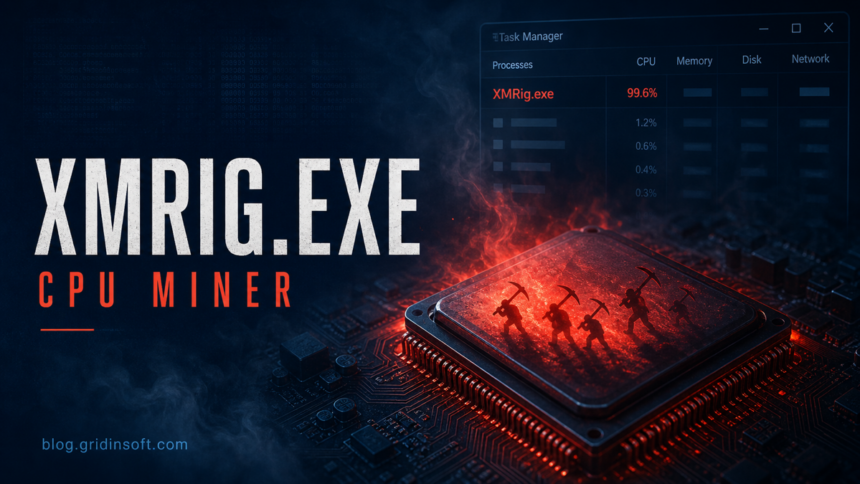
XMRig.exe is a legitimate cryptocurrency miner, but an unexpected copy can mean someone is using your PC to mine without permission. If you did not install it and it causes high CPU usage, loud fans, or returns after you end the process, check for a miner infection.
Start with a Gridinsoft Anti-Malware system scan to find coin miners and related threats, review detections, and apply cleanup. Ending the process alone may leave a loader or startup item that brings it back. If you intentionally installed XMRig, verify its source and configuration before removing it; high CPU usage alone is expected during mining.
Use Gridinsoft Anti-Malware to scan for coin miners and related threats, review the findings, and clean detected items. Check the miner and components that may restart it instead of repeatedly ending the process.
Free 6-day full trial for eligible new users, including cleanup. Email activation; no credit card required.
Download Gridinsoft Anti-Malware for WindowsIf the high-CPU process uses a Windows-looking name instead of XMRig.exe, compare the same persistence clues with the PerfMonHost.exe high CPU cleanup guide before restoring or allowing the file. If it appears as a service-style name, compare it with the Altisik Service high CPU miner guide as well.
| Threat name | XMRig.exe / XMRig miner / CoinMiner / cryptojacking malware |
| Main symptom | High CPU usage, loud fans, heat, lag, or a miner process that flashes in Task Manager |
| Common locations | %TEMP%, %AppData%, %LocalAppData%, C:\ProgramData, cracked-game folders, fake updater folders |
| Common persistence | Scheduled tasks, Windows services, Run keys, startup folders, loader scripts, security-tool exclusions |
| Best first action | Keep quarantined items blocked; scan for the unwanted miner, review detections, clean up, and restart |
What Is XMRig.exe?
XMRig is an open-source CPU/GPU miner used for cryptocurrency mining, especially Monero-style mining. That does not make every copy of xmrig.exe malware by itself. The danger starts when another program installs it secretly, hides it under a misleading folder, adds persistence, or mines for someone else while you pay the power and performance cost.
Attackers like XMRig because it is a working miner they do not need to write from scratch. A cracked game, fake utility, malicious script, or compromised remote-login session can drop the miner and then use a scheduled task or service to bring it back if you only delete the EXE.
If the process is tied to a cracked game or repack, read the broader cracked games malware guide too. Those bundles often include more than a miner, including stealers, loaders, and security-tool exclusions.
XMRig.exe Virus Symptoms
- CPU stays near 80-100% while idle. Task Manager may show
xmrig.exe, a random EXE, or a process that disappears when you open Task Manager. - Fans and heat spike on the desktop. Laptops may throttle, drain battery quickly, or shut down under load.
- Games and browser tabs lag. The miner competes with normal apps for CPU/GPU time.
- The file returns after deletion. A task, service, script, or loader is restoring it.
- Security tools mention CoinMiner, XMRig, HackTool, or RiskTool. Do not restore the item unless you intentionally installed a miner and verified the source.
- Defender or another scanner has exclusions you did not add. Miner installers sometimes add exclusions so the payload can keep running.
Is XMRig.exe Always Malware?
No. A user who intentionally downloads XMRig from the official project, configures a wallet and pool, and expects the performance cost is using mining software. A user who finds xmrig.exe in a Temp folder after installing a crack, fake update, game mod, or unknown utility is dealing with a very different situation.
| Situation | What it means |
| You installed XMRig yourself from the official project and know the wallet/pool config | Likely a risk-tool or unwanted-software alert, not automatically a compromise. Keep it only if you accept the resource use and trust the source. |
| XMRig.exe is in Temp, AppData, ProgramData, System32-looking folders, or a crack/repack folder | Treat it as malware or unwanted mining until proven otherwise. |
| The miner comes back after you delete it | There is persistence. Check tasks, services, startup entries, scripts, and the original installer. |
| A detection appears after running a cracked tool, fake installer, or suspicious script | Assume possible additional malware. Scan fully and rotate important passwords from a clean device if the file ran. |
How to Remove XMRig.exe Virus From Windows
If the PC is overheating, stop heavy activity and let it cool before scanning. Leave any quarantined miner blocked.
Start with a system scan and cleanup
- Install Gridinsoft Anti-Malware and update its detection database. Eligible new users can request the trial in the app and activate it with the emailed code.
- Run a Full Scan and review the findings. Check the detected names, locations, and suggested actions before cleanup. Do not restore a quarantined item just to scan it again.
- Apply cleanup to confirmed threats. Quarantine or remove detected unwanted items. Keep Microsoft Defender enabled.
- Restart and verify. Check Task Manager after Windows settles: the unwanted miner should not restart, and unexplained CPU use should fall. Rescan if it returns. A clean scan does not guarantee that no compromise occurred. If symptoms persist, use the targeted checks below or contact support from the app.
Optional manual checks if the miner remains
The detailed checks below are a fallback for persistent symptoms or an alternative for experienced users. You do not need to complete them before starting the scan.
1. Stop the miner and protect the hardware
If the computer is overheating, disconnect from the internet and close heavy apps first. Open Task Manager, sort by CPU, and note the process name, publisher, command line, and file path before ending the process. If the process immediately restarts, persistence is already active.
2. Open the file location before deleting anything
Right-click the process and choose Open file location. A miner in %TEMP%, %AppData%, %LocalAppData%, C:\ProgramData, a random folder, or a cracked-game directory is suspicious. Do not trust a folder simply because it contains words such as Windows, Update, Host, or Service.
3. Quarantine, do not restore
If your security tool quarantined XMRig.exe, leave it there. Restoring it to “test again” can reactivate the miner or its loader. If you think it is a false positive because you intentionally installed XMRig, verify the hash, source, wallet configuration, and folder before allowing it.
4. Remove the source package
Delete or uninstall the cracked game, fake utility, repack, mod loader, browser extension, or installer that appeared just before the miner started. If the infection came from a fake updater or cracked software package, also remove the downloaded archive and extracted folder so you do not run it again later.
5. Check persistence points
Open Task Scheduler and review recently created tasks, especially tasks that run at logon, at startup, or every few minutes. Then check Windows Services, Startup apps, shell:startup, and Run keys for entries pointing to unknown EXE, BAT, CMD, VBS, JS, or PowerShell commands. Be careful: disable or export suspicious entries first when possible, rather than deleting system-looking items blindly.
If the miner behaves like a service and high CPU returns after every reboot, compare it with the service-persistence patterns in the Service Miner Removal Guide.
6. Scan the whole system
If you used the optional manual route, finish with a full system scan. Gridinsoft Anti-Malware can help find coin miners and related unwanted apps that a Task Manager check can miss.
7. Remove unwanted security exclusions
Check whether Defender or another antivirus has exclusions for the miner folder, Temp, AppData, ProgramData, PowerShell, or the cracked software directory. Remove exclusions you did not create yourself. A miner that can run because security exclusions were added should be treated as a broader compromise, not just a noisy CPU process.
8. Reboot and verify
Restart Windows, wait a few minutes, then check Task Manager again. CPU should settle when no heavy app is open. Recheck Task Scheduler and Services if xmrig.exe or a renamed miner returns. If the miner came with a stealer, loader, or cracked software bundle, change important passwords from a known-clean device after cleanup.
Why XMRig Keeps Coming Back
Deleting xmrig.exe fixes only the visible payload. The installer may have created another component that downloads or launches it again. Common causes include:
- a scheduled task that runs a hidden command at logon;
- a Windows service with a generic name such as updater, host, helper, or monitor;
- a Run key or startup-folder shortcut pointing to a script;
- a PowerShell command that downloads a fresh miner;
- a browser extension or unwanted app that restores the payload;
- a security-tool exclusion that lets the miner folder survive scans.
For the broader symptoms, sources, and prevention checklist, use the Coin Miner Malware guide. If the infection appeared after a pirated game, the StaryDobry XMRig campaign shows how cracked-game malware can deliver a miner as part of a larger infection chain.
Do You Need to Reinstall Windows?
Not every XMRig infection requires a clean Windows reinstall. A reinstall becomes the safer option when the miner was installed with administrator access, security settings were tampered with, unknown remote-access tools appear, the same payload returns after several cleanup attempts, or you see signs of credential theft in addition to mining.
If the miner was limited to one downloaded folder and the scanner removed the persistence cleanly, a full scan, reboot verification, and password review may be enough. If you used a crack that asked you to disable protection, assume the machine may have received more than a miner.
How to Prevent XMRig Miner Infections
- Do not install cracks, activators, fake utilities, or repacks that ask you to disable antivirus protection.
- Download legitimate mining tools only from the official project if you truly intend to mine.
- Keep Windows, browsers, GPU drivers, and security tools updated.
- Review new startup apps and scheduled tasks after installing unfamiliar software.
- Use separate non-admin accounts for everyday work where possible.
- Scan downloaded archives and installers before running them.
FAQ
Is XMRig.exe a virus?
XMRig.exe is a miner executable name. It is not automatically a virus when intentionally installed, but it is malware or unwanted software when it appears without consent, hides in suspicious folders, or persists after removal.
Why does XMRig use so much CPU?
Mining is CPU/GPU-intensive by design. A malicious installation uses your hardware to mine cryptocurrency for someone else, so the PC becomes hot, noisy, slow, and less responsive.
Can I just end XMRig.exe in Task Manager?
Ending the process can stop the immediate CPU load, but it rarely removes the infection. You still need to remove the source package and persistence that can restart the miner.
Is it safe to add XMRig to antivirus exclusions?
Only if you intentionally installed a known-good miner and fully understand the risk. Do not add exclusions for a surprise XMRig detection, a cracked-game folder, Temp/AppData, or an unknown script.
Should I change passwords after XMRig?
Change important passwords if the miner came from cracked software, a fake installer, a script you ran, or any bundle that may also include stealers. Do it from a known-clean device after cleanup.
References
- XMRig Project. “xmrig/xmrig: RandomX, KawPow, CryptoNight and GhostRider unified CPU/GPU miner.” GitHub, accessed June 7, 2026. https://github.com/xmrig/xmrig
- Cybersecurity and Infrastructure Security Agency. “MAR-10387061.r1.v1.CLEAR Malware Analysis Report.” CISA, accessed June 7, 2026. https://www.cisa.gov/sites/default/files/publications/MAR-10387061.r1.v1.CLEAR.pdf
- MITRE ATT&CK. “Scheduled Task/Job: Scheduled Task (T1053.005).” MITRE, accessed June 7, 2026. https://attack.mitre.org/techniques/T1053/005/