
SearchIndexer.exe is the legitimate Windows Search indexing process, and short CPU or disk bursts are normal while Windows catalogs new or changed files. A problem is more likely when the process stays busy long after indexing should be complete, repeatedly writes large amounts of data, or makes the PC lag at idle. Check indexing status and scope first, then narrow indexed locations or rebuild the index. Do not delete SearchIndexer.exe or permanently disable Windows Search as the first fix.
- Normal: activity after setup, a Windows update, a large file copy, OneDrive sync, or an Outlook mailbox sync, followed by a return to low usage.
- Needs attention: sustained CPU or disk use while Windows says indexing is complete, repeated rebuilds, search errors, freezes, or large write bursts that return after every reboot.
- Expected file:
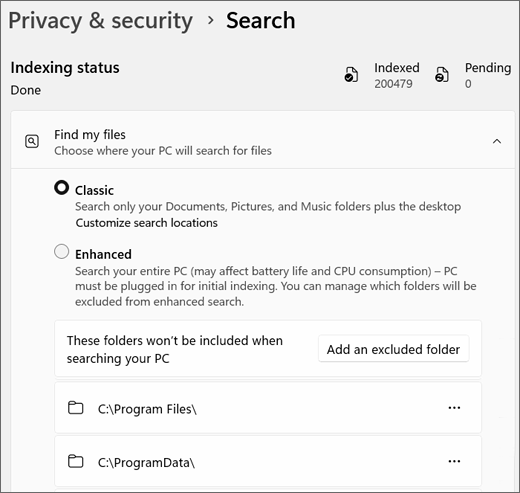
C:\Windows\System32\SearchIndexer.exe, digitally signed by Microsoft Windows. - Best first move: open Windows Search settings, note the Indexed and Pending counts, and check whether Classic or Enhanced scope matches what you actually need.
| What you see | Likely meaning and next step |
| CPU or disk rises after adding files | Usually normal indexing. Leave the PC powered for a few hours and watch whether Pending reaches zero. |
| Enhanced mode indexes the whole PC | The scope may be broader than necessary. Exclude large code, build, VM, backup, or archive folders. |
| Indexing is complete but usage stays high | Check the item count, Outlook mailboxes, database size, file types, and errors; a rebuild may be justified. |
| Large NVMe writes repeat after reboot | Correlate the writes with index status and drive health. Do not assume normal indexing is destroying the SSD. |
| File runs outside System32 or is unsigned | Treat it as a suspicious same-name copy and scan the system rather than deleting files at random. |
What is SearchIndexer.exe?
SearchIndexer.exe maintains the local catalog used by Windows Search. Instead of opening every file whenever you search, Windows records file names, paths, properties, and—when enabled—file contents in an index. File Explorer, Outlook, and other Windows experiences can query that catalog for faster results.
The process is tied to the Windows Search service, whose service name is WSearch. It is not the same as SearchHost.exe. SearchHost.exe presents the Windows 11 search interface; SearchIndexer.exe does background catalog work. Ending a frozen SearchHost can restart the interface, but it does not repair a large or damaged index. If the popup or Event Viewer names SearchProtocolHost.exe instead, diagnose the indexed data-store handler before rebuilding the catalog.
Microsoft documents two search scopes. Classic focuses on common folders such as Documents, Pictures, Music, and Desktop. Enhanced can search across the whole PC and therefore has more work to do. A large Outlook mailbox also adds indexed items because Outlook uses Windows Search for offline mail search.
When is high CPU or disk usage normal?
A new index can take hours to build. Activity is also expected after you install Windows, change search scope, rebuild the index, restore a backup, move a large photo collection, unpack a development tree, or sync many messages. Windows may reduce indexing speed while you use the PC and resume when the device is idle or connected to power.
If the activity begins with a OneDrive file pass, check which process remains busy. When OneDrive.exe stays high after indexing settles, use the OneDrive high CPU and stuck-sync guide to isolate the folder and reset the sync client safely instead of rebuilding Windows Search for the wrong process.
Look at behavior over time instead of judging one Task Manager snapshot. If the Pending count falls, search results improve, and SearchIndexer.exe settles, the activity is doing useful work. If the counter does not move, the status repeatedly switches to maintenance or error states, or the same heavy write cycle returns every boot, investigate the scope and database.
Microsoft notes that very large indexes can cause resource problems. Its current guidance says the indexer can handle up to one million items, while database growth becomes more significant beyond roughly 400,000 items. Those figures are diagnostic context, not a promise that every smaller index will be fast or every larger index will fail.
Confirm that SearchIndexer.exe is the source
- Press Ctrl + Shift + Esc and sort Task Manager by CPU, then by Disk.
- Confirm that Microsoft Windows Search Indexer or SearchIndexer.exe remains near the top for several minutes.
- Open Settings → Privacy & security → Searching Windows.
- Record the indexing status, Indexed count, Pending count, and whether Classic or Enhanced is selected.
- Note what happened immediately before the spike: update, sync, large copy, mailbox import, new drive, or rebuild.
If the Disk column is at 100% but another process is responsible, use the broader Windows disk-usage diagnosis. Low free space, updates, antivirus scans, paging, storage drivers, and a failing drive can look similar. For a PC that is slow across CPU, memory, and disk—not only SearchIndexer.exe—start with the whole-PC performance checklist.
How to fix SearchIndexer.exe high CPU or disk usage
1. Let a legitimate indexing pass finish
If Windows shows Indexing in progress and Pending is falling, leave the PC turned on and connected to power. Avoid rebuilding while useful progress is being made: a rebuild discards the current catalog and starts the work again. Microsoft advises allowing up to 24 hours for a rebuilt index on a large system.
2. Narrow indexed locations
Enhanced indexing is convenient, but it may include folders that rarely need content search. In Searching Windows, add exclusions for large source-code trees, package caches, virtual machines, game libraries, backup sets, exported mail archives, and folders with thousands of tiny generated files. Exclude only data you do not need in Windows Search.
For finer control, open Advanced indexing options → Modify. Deselect an unnecessary location instead of disabling the entire Windows Search service. Under Advanced → File Types, you can also choose whether a file type needs properties only or properties and contents.
3. Restart Windows Search
If the status appears stuck and the counts do not change, open Services, find Windows Search, and restart it. The normal startup type is Automatic (Delayed Start). A restart is a diagnostic step: if sustained activity immediately returns, continue to the scope and rebuild checks rather than repeatedly stopping the service.
4. Rebuild the index only when needed
Use Settings → Privacy & security → Searching Windows → Advanced indexing options → Advanced → Rebuild when results remain missing, the database appears damaged, or the index stays stuck after scope and service checks. Search results may be incomplete until the rebuild finishes.
Do not manually delete Windows.db while the service is running. The Windows 11 database is normally under C:\ProgramData\Microsoft\Search\Data\Applications\Windows\Windows.db. Microsoft recommends checking its Size on disk, because the ordinary Explorer size can be misleading for this compressed sparse database.
5. Repair Windows Search if rebuild does not help
Install pending Windows updates and restart first. Then use Microsoft’s current Windows Search repair guidance for your Windows version. Advanced resets can change a package folder, execution policy, or registry state, so use the official procedure and restore any temporary policy change. On a managed PC, contact the administrator instead of overriding organization settings.
Check Outlook when the index is unusually large
Outlook mailboxes are indexed by default. A mailbox with years of mail, several shared mailboxes, or a large offline cache can keep adding items even when your document folders are modest. Compare the indexed count before and after Outlook finishes synchronizing, and check whether the problem disappears when the mail client is closed.
Do not remove the mailbox from search blindly: that can make offline Outlook search incomplete. A better fix may be to reduce the offline synchronization window, archive older mail appropriately, repair the Outlook profile, or let a one-time resync finish. If Windows Search works in a new user profile but not the original one, the issue may be profile-specific rather than a system-wide SearchIndexer.exe fault.
Does SearchIndexer.exe damage an SSD or NVMe drive?
Indexing necessarily reads files and writes a local database, so Task Manager or drive telemetry can show real write activity. That does not mean ordinary Windows Search activity is destroying an SSD. The useful question is whether writes are bounded and correspond to changed content, or whether an error causes the same data to be cataloged repeatedly.
When writes look excessive, capture the time, indexing status, Pending count, database size on disk, and the folders being indexed. Check drive health and Windows storage errors before blaming the index alone. Microsoft’s performance guidance warns that index maintenance or repeated write errors can coincide with disk problems, so back up important files if you also see I/O errors, freezes, SMART warnings, or unusually high response times.
Is SearchIndexer.exe safe or malware?
The normal executable is C:\Windows\System32\SearchIndexer.exe and should be digitally signed by Microsoft Windows. In Task Manager, right-click the process, open its file location, then check Properties → Digital Signatures. The filename alone is not proof: malware can use a familiar process name from AppData, Temp, Downloads, or another user-writable folder.
If the location or signature is wrong, follow the same evidence-first checks used for an unknown EXE file. Do not delete the legitimate System32 file. Disconnect from untrusted networks if the suspicious copy is making connections, preserve its path and hash for review, and check startup entries, services, and scheduled tasks.
A wrong-path copy, an unsigned executable, activity that began after an unknown installer, or a process that returns with other suspicious persistence is a valid reason for a full Gridinsoft Anti-Malware scan. Remove confirmed detections, reboot, and scan again if the process or related activity returns. A scan can find related files and persistence; it does not repair a legitimate oversized Windows Search index.
If the process path is wrong, the name imitates a Windows component, or high CPU started after an unknown installer, scan for hidden miners, services, startup entries, and bundled components.
Scan the suspicious SearchIndexer.exe copyAfter malware cleanup, use the post-malware Windows security audit to check exclusions, startup entries, tasks, browser changes, and account risk.
Keep indexing useful without constant load
- Use Classic scope unless whole-PC content search is genuinely useful.
- Exclude generated code, VM disks, package caches, backup mirrors, and other high-churn folders.
- Let a rebuild finish before judging its performance.
- Keep enough free disk space for the database and Windows maintenance.
- Review Outlook cache size when indexed-item counts are unexpectedly high.
- Back up data and investigate drive errors instead of masking them by disabling services.
- Verify the executable path and signature before treating a familiar name as safe.
FAQ
Why is SearchIndexer.exe always running?
Windows Search tracks changed files and updates its catalog in the background. The process can remain present while using little CPU. Persistent resource use matters more than whether the process exists.
Can I end SearchIndexer.exe in Task Manager?
You can restart the Windows Search service for troubleshooting, but ending the process is temporary and may interrupt indexing. It does not fix a broad scope, large mailbox, damaged database, or suspicious same-name copy.
Should I disable Windows Search permanently?
Usually no. First narrow indexed locations, correct the file-type scope, restart the service, or rebuild the index. Permanent disablement reduces search functionality and can affect Outlook and File Explorer search.
How long should a SearchIndexer.exe rebuild take?
A small index may finish quickly, while a large index can take hours. Microsoft advises allowing up to 24 hours. Watch whether Pending decreases and whether Windows reports indexing complete.
Why does SearchIndexer.exe write to my NVMe at idle?
The indexer may resume when the PC is idle because Windows reduces background indexing during active use. If large writes repeat without progress, check indexing status, item count, scope, database size on disk, and drive health.
References
- Microsoft. “Search indexing in Windows.” Microsoft Support, accessed August 28, 2026. support.microsoft.com
- Microsoft. “Troubleshoot Windows Search performance.” Microsoft Learn, updated February 12, 2026; accessed August 28, 2026. learn.microsoft.com
- Microsoft. “Fix problems in Windows Search.” Microsoft Learn, updated February 12, 2026; accessed August 28, 2026. learn.microsoft.com