


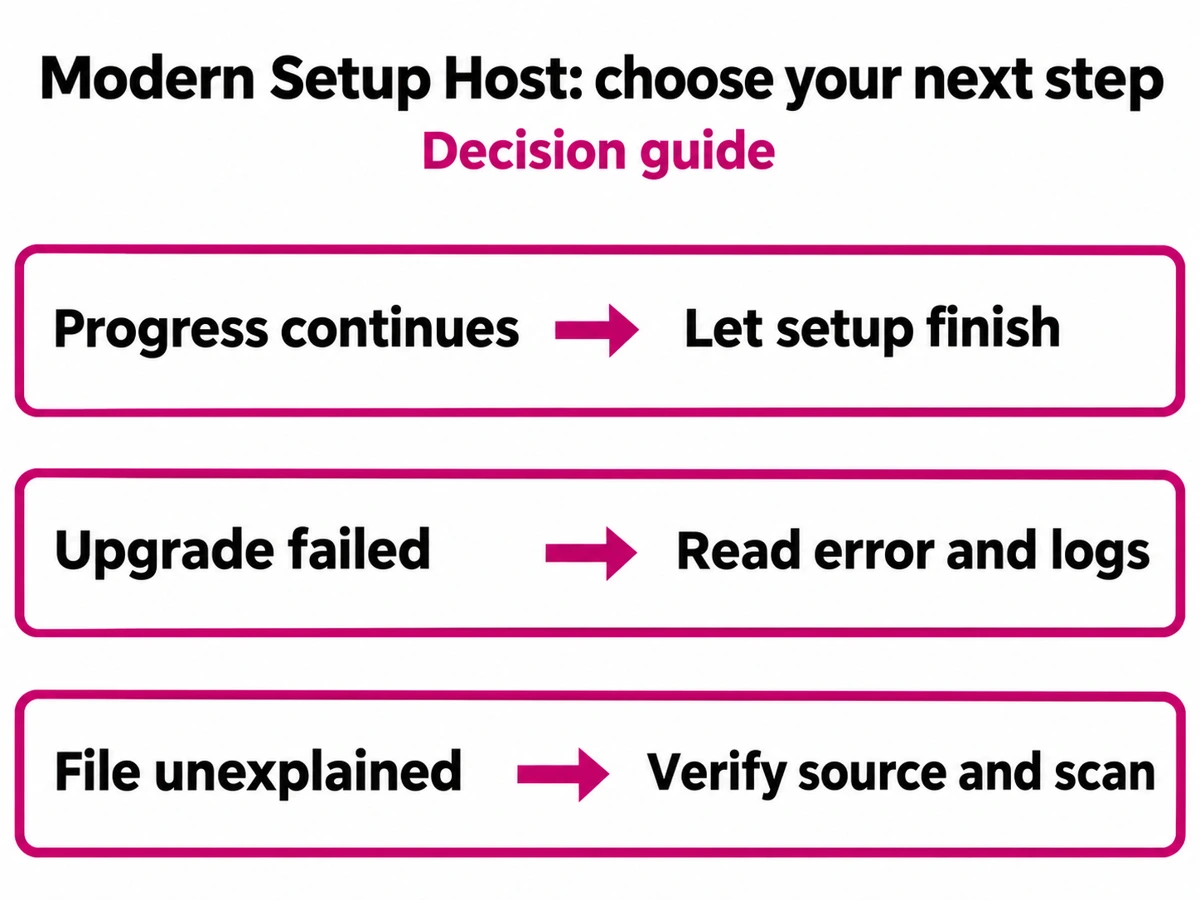
Modern Setup Host can use a lot of CPU or disk while Windows is preparing an upgrade. The process normally corresponds to SetupHost.exe, part of Windows Setup. High usage alone does not tell you whether it is stuck or malicious. First check whether Windows Update or the installer is making progress. If it is, keep the PC powered and let that attempt finish. If the upgrade has failed or rolled back, investigate its error and logs. If the file appeared after an unknown download, verify the executable separately before trusting its Windows-looking name.
Choose the action that matches the evidence
- An expected upgrade is still progressing. Leave SetupHost running. Save your work, connect the laptop to power and close resource-heavy applications you do not need. Do not delete setup folders to make the disk meter fall.
- The upgrade finished unsuccessfully or Windows rolled back. Record the update name, failure time and error code. Use the failed-upgrade checks below before another attempt.
- You cannot explain the file or its launch. Check its actual location, signature and origin. An unexpected publisher, an untrusted installer or an independent security alert calls for the suspicious-file branch.
CPU percentage is a measurement of work, not a diagnosis. Likewise, a disk at 100% active time does not show that an upgrade has failed. The useful distinction is whether the expected installation is advancing, has reported a failure, or has no trustworthy explanation.
Check which SetupHost.exe is running
Press Ctrl + Shift + Esc to open Task Manager. Find Modern Setup Host and use Go to details if available to identify its executable and process ID. Right-click the relevant process and choose Open file location. Inspect the file; do not run another copy to test it.
A common Windows upgrade staging location is C:\$Windows.~BT\Sources\SetupHost.exe. Setup files can also belong to installation media or another setup working directory. Microsoft’s media-maintenance documentation explicitly includes setuphost.exe among Windows Setup files. A single expected path is therefore useful context, not a whitelist of every legitimate installation. [1]
Open the file’s Properties → Digital Signatures, select the signature and inspect its details. Compare the publisher and validation result with the Microsoft setup package you intended to use. A missing signature tab or failed validation needs investigation; it does not, on its own, identify malware. A valid signature also does not explain why an unknown download launched the file.
Make the checks agree: the actual file, its publisher, where the installation came from and the time Windows Update or Setup began. If Task Manager shows TiWorker.exe instead, use the TiWorker high-CPU guide. For dismhost.exe, use the separate DISM Host troubleshooting guide. Similar symptoms do not make these executables interchangeable.
Is it working, waiting or repeating a failed attempt?
Open Settings → Windows Update in Windows 11, or Settings → Update & Security → Windows Update in Windows 10. Also check any Windows Setup window you started yourself. Note the exact state: downloading, installing, awaiting a restart, an error or a rollback. Record the time and the displayed percentage so that the next observation has something concrete to compare with.
Look for a change in state, not continuous movement. A percentage may pause while a stage works. An updated setup log can show activity, but repeated retries can write to a log too. Combine the installer’s state with the latest completed operations or errors; a changing timestamp alone is not proof that the upgrade will succeed.
For example, an installation that advances from one percentage to another while SetupHost uses CPU supports waiting. An attempt that returns to the desktop with an error, then repeats the same failure after a restart, supports investigating that error. These are examples of how to interpret observations, not timings or results from a test PC.
There is no universal “end it after 30 minutes” rule. Hardware, available storage and the work being performed differ. If the installer asks you to restart, save your work and follow that prompt. If it offers Cancel and you need to stop, use that supported control and allow it to unwind. Killing SetupHost merely stops work; it does not repair whatever prevented completion.
If the entire computer is unresponsive, recovery may be necessary, but repeatedly forcing it off is not a troubleshooting plan. After Windows becomes usable, check the outcome of the interrupted attempt. Do not treat the disappearance of a busy process as proof that the update succeeded.
After a failed upgrade, preserve the evidence
Start with Windows Update → Update history and the installer’s error message. Save the update name, error code and approximate failure time. Before removing temporary installation files or Windows.old, copy the relevant diagnostic logs to a private location.
Microsoft documents different log locations for different setup phases. The downlevel stage can write setupact.log under C:\$Windows.~BT\Sources\Panther; rollback investigation can involve C:\$Windows.~BT\Sources\Rollback. Start with the folder matching the failed attempt. An old error in another installation’s log can send you toward the wrong repair. [2]
Use SetupDiag for an unsuccessful upgrade
SetupDiag examines Windows Setup logs to help explain a failed upgrade. It can run automatically after an upgrade problem. Check whether %WinDir%\Logs\SetupDiag\SetupDiagResults.xml exists and whether its time matches the attempt you are investigating. If it identifies a failure, record the reported rule, error and affected component. Microsoft notes that, when multiple failures appear, the last one is usually the fatal failure. [3]
If no relevant result exists, Microsoft’s SetupDiag page provides the current tool and instructions for manual analysis. Missing output is not a clean bill of health, and an unmatched rule does not prove that nothing failed. SetupDiag is a failed-upgrade diagnostic tool, not a general high-CPU monitor or malware scanner.
Use the finding to choose a repair. A named incompatible application needs a compatibility decision; a storage error needs space or disk investigation. Avoid applying every fix from an unrelated checklist. Logs may include account names, paths or other sensitive details: share them privately with the administrator or support team, and redact personal information before posting excerpts publicly.
Make one informed retry
Once the failed attempt has ended and Windows is usable, back up important files, check available system-drive space and confirm a stable connection. Run the Windows Update troubleshooter through Get Help; in Windows 11 you can also start from Settings → System → Troubleshoot → Other troubleshooters → Windows Update. Follow its findings and the actual error rather than disabling security tools or update services by default. [4]
Change one relevant cause, then retry and compare the result. Record whether the update completed, a different error appeared or the same failure returned. If the same documented failure recurs, bring the error and matching logs to Microsoft support, the PC manufacturer or your IT administrator. On a managed computer, do not remove organizational update policies to force an installation.
Keep rollback files while you still need them. If a security tool reports a threat specifically inside an old Windows installation, the Windows.old detection guide explains that separate decision.
If the executable or download is suspicious
An unexpected file launched from an unknown package, a publisher mismatch or a security-tool alert requires a file investigation. Keep a detected file quarantined while you verify it. Do not download a replacement SetupHost.exe from a file-download site or allow an entire setup folder just to silence a warning.
If an untrusted installer already ran, deleting its visible executable may leave another component or startup entry behind. Download and install Gridinsoft Anti-Malware, update the database, run a Full Scan, review the detections and apply the selected cleanup. Restart when requested and check whether the unexplained launch or warning returns. Scanning addresses suspicious software; it does not repair every Windows upgrade error or establish that no information was exposed.
If the file came from a verified Microsoft installation and you suspect a false positive, retain the detection name, exact path and signature details for review by the security vendor. A familiar filename alone is insufficient grounds to restore it.
Confirm the result in Windows Update
A successful outcome is an update recorded as installed, its requested restart completed and the unexplained activity resolved—not merely a quieter CPU graph. If the upgrade failed, keep its evidence until you know why. If the file was suspicious, check both the scan findings and the original symptom after restart. Those outcomes tell you which problem was actually solved.
References
- Microsoft Learn. “Update Windows installation media with Dynamic Update.” Microsoft; accessed November 10, 2026. Windows Setup media components.
- Microsoft Learn. “Windows upgrade log files.” Microsoft; accessed November 10, 2026. Phase-specific setup logs.
- Microsoft Learn. “SetupDiag.” Microsoft; accessed November 10, 2026. Upgrade failure analysis.
- Microsoft Support. “Troubleshoot problems updating Windows.” Microsoft; accessed November 10, 2026. Update troubleshooting guidance.