
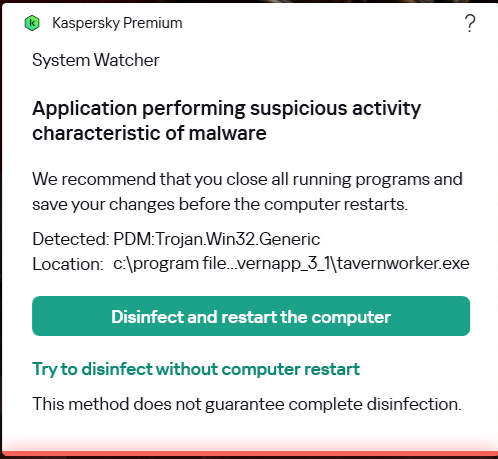
PDM:Trojan.Win32.Generic is a Kaspersky behavior-based detection associated with System Watcher. It means the application’s activity was judged suspicious; the label alone does not identify a particular Trojan family or establish that your passwords were stolen. If Kaspersky Plus offers disinfection and a restart, save your work, close other applications, and let it complete the recommended action. Keep the flagged application closed while you investigate a possible false positive.
The important details are the detection event, the program that initiated it, and what happens after cleanup. A familiar filename—or a clean scan of that file by itself—does not settle a warning about behavior.
What PDM:Trojan.Win32.Generic means in System Watcher
System Watcher monitors application activity, including changes to files and registry entries. It can stop suspicious activity and, where supported, roll back changes. Kaspersky documents limits to that rollback, so the presence of a disinfection option should not be read as a promise that every consequence can be reversed. [1]
In this alert, PDM points you toward behavioral analysis. Trojan.Win32.Generic is a broad classification, rather than the name of one executable you should search for and delete. Do not infer a specific payload, ransomware family, or credential-stealing capability from these words alone.
That distinction explains a common puzzle: an installer can look unremarkable when scanned as a file, then trigger a warning during an update. The relevant event might involve another process or a sequence of changes. For example, replacing an executable and creating an automatic-start entry may be legitimate updater work, but those same kinds of actions also deserve scrutiny when an unknown download performs them. This is an illustration of the diagnostic problem, not a claim about the exact rule that triggered your alert.
Disinfect and restart, or try without restarting?
Choose the recommended disinfection and restart after saving your work when you cannot establish why the program was flagged. Kaspersky’s documented Advanced Disinfection workflow includes a restart; some Windows functions may be unavailable while it runs. Follow the application’s instructions and allow the procedure to finish. [2]
- Disinfect and restart the computer. Save open documents, close applications, then let Kaspersky perform the operation and restart. Afterwards, check the result in its report.
- Try to disinfect without computer restart. An attempt to clean up during the current session. The dialog warns that this may be incomplete. If a restart is still requested or the operation fails, follow through with the recommended restart.
The second choice is not a way to confirm that the file is safe. Neither choice is a reason to restore the application immediately or add its entire folder to exclusions.
What to do after the warning
- Stop using the flagged program. Do not repeatedly launch it to see whether the warning comes back. If you observe unexpected remote control, file encryption, or account activity, disconnect the PC from the network while arranging cleanup.
- Keep the event details. In Kaspersky’s reports or activity log, record the detection name, time, full object path, application or initiating process, component, and action taken. Menu wording varies by version. You need to distinguish an item merely detected from an action completed or still pending.
- Complete the recommended treatment. Save your work and allow the requested restart. Leave quarantined objects isolated while their status is unresolved.
- Update Kaspersky and run a full scan. Read the final report and resolve outstanding actions. An old notification still visible in the log does not, by itself, mean the program ran again.
- Investigate the source before reinstalling. For an application you need, compare its download origin, version, publisher signature where available, and checksum against the developer’s release. Our guide to checking an EXE before running it explains how those checks fit together.
If the application already ran and alerts recur, a quarantined file may be only one part of the problem. A related loader, service, scheduled task, or startup entry could recreate it. That is a reason to check the rest of the installation and persistence locations, rather than repeatedly removing the same visible item.
After Kaspersky’s cleanup has finished, use Gridinsoft Anti-Malware to scan the Windows PC for related detections and leftovers. Review what it finds and apply the relevant cleanup actions. Avoid running two full scans simultaneously; an additional scan does not replace the false-positive investigation below.
Could this be a false positive?
Yes, but the detection name does not tell you whether this particular event is a mistake. Kaspersky acknowledges false detections of non-malicious behavior. Its support guidance specifically mentions PDM:Trojan.Win32.Generic and asks Windows users to collect a GSI report when escalating a PDM detection. Trace files may also be requested. [3]
Build an evidence package before considering restoration:
- The exact Kaspersky event and the application version that triggered it.
- The download source, file version and hash, plus publisher-signature information if present.
- Kaspersky’s version and antivirus database date, and whether the alert began after a particular update.
- The action underway when detection occurred: installation, updating, launching, or unattended background activity.
Update the databases first. Follow Kaspersky’s false-detection support procedure in reference 3 for analysis and any requested diagnostics. Send diagnostic reports privately to the intended support team, not to a public discussion.
A clean scan from another engine is supporting information, not a vote that overrides the behavioral event. Conversely, several people reporting the same warning is a lead to investigate, not confirmation that every copy of that program is safe. Wait for a resolution tied to the actual file, version, and behavior. Prefer a corrected official release or a detection update over a broad exclusion.
If the alert returns after every restart
First compare timestamps. A historical report entry is different from a new detection after Windows starts. If there is a new event, compare its object path and initiating application with the previous one.
- Same path, new time, before you open the app: inspect related automatic-start components and scheduled tasks. Use the suspicious startup apps checklist to identify the command and publisher before disabling anything.
- A new temporary filename each time: investigate the installer or updater creating it. Deleting each replacement file will not explain why it reappears.
- Only when a specific app updates: keep that app closed and give its developer and Kaspersky the event/version details. This narrows the trigger without declaring it harmless.
- Cleanup remains pending or fails: complete the requested restart and escalate the recorded error to support if it persists.
Paths such as %USERPROFILE%\Downloads and %LOCALAPPDATA%\Temp provide context, not a verdict. An .exe.new suffix can be used for a replacement file during an update, but the suffix does not authenticate its creator. Do not delete Windows Installer folders or unrelated system files to stop a generic detection.
If the program ran and you find evidence of account misuse or credential theft, use a clean device to change affected passwords, revoke sessions, and enable multifactor authentication. Scanning the PC cannot revoke a session that has already been stolen.
FAQ
Does “Generic” mean the alert is low risk?
No. It describes how broadly the detection is classified. Use the event context and cleanup result to decide the next action; do not downgrade the alert because it lacks a specific malware family name.
Why does a clean file scan disagree with System Watcher?
Checking a stored file and observing a running application answer different questions. A runtime event can involve child processes or changes that a standalone file scan does not reproduce. Include the behavioral report when asking for a review.
Should I reinstall Windows immediately?
The label alone does not establish that a reinstall is necessary. Start with completed treatment, reports, and scans. Escalate if malicious activity persists, security settings cannot be trusted, or cleanup cannot be completed.
References
- Kaspersky. “System Watcher settings.” Kaspersky for Windows 21.22 documentation, July 8, 2025; accessed November 5, 2026. Component behavior and rollback settings.
- Kaspersky. “PC resource consumption.” Kaspersky for Windows 21.7 documentation; accessed November 5, 2026. Advanced Disinfection and restart.
- Kaspersky. “False detections by Kaspersky applications. What to do?” Updated June 3, 2026; accessed November 5, 2026. False-detection review and PDM diagnostic requirements.
- Kaspersky Support Forum. “False Positive.” May 2024; accessed November 5, 2026. Original System Watcher alert image and discussion.