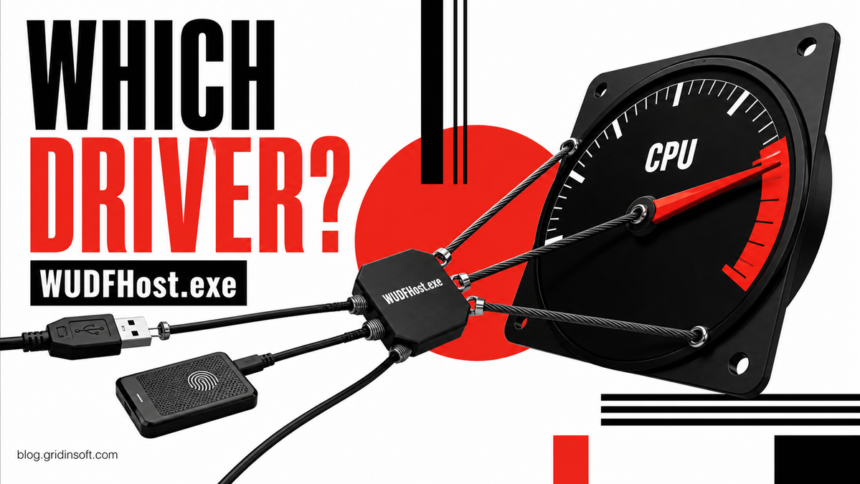
WUDFHost.exe high CPU usually means a device driver hosted by Windows Driver Foundation is stuck, repeatedly waking, or handling too many requests. The genuine file is a Microsoft component in C:\Windows\System32\WUDFHost.exe. Several instances can be normal because Windows may isolate different device stacks in separate host processes. Do not delete the file or keep ending every copy. First match the busy process to the device that triggers it, then repair that device’s driver.
A short spike while connecting a phone, USB device, fingerprint reader, camera, sensor, headset, or game controller is not the same as sustained load while the PC is idle. Battery drain, fan noise, and repeated Device Manager refreshes point more strongly to a driver or device loop.
What Is WUDFHost.exe?
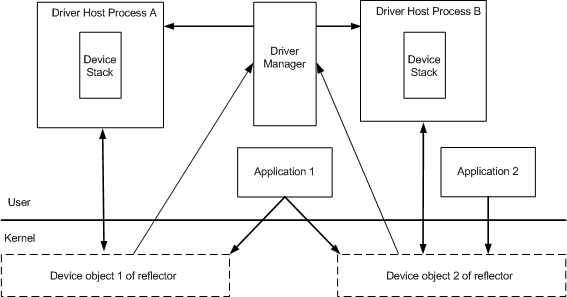
WUDFHost.exe is the User-Mode Driver Framework Host. Microsoft documents it as a child of the UMDF driver manager. Each host loads one or more user-mode driver DLLs and provides the runtime that passes input/output requests between applications, device stacks, and Windows.
User-mode drivers are isolated from ordinary applications and from other host instances. That design limits the damage a faulty device driver can cause compared with running all of its code in the Windows kernel. It also explains why Task Manager may show more than one WUDFHost.exe process.
| What you see | Likely meaning and first move |
|---|---|
| Brief CPU spike when a device connects | Usually normal driver initialization. Wait for setup or synchronization to finish. |
| Several WUDFHost.exe instances with low use | Usually normal isolation or device pooling. Compare paths and signatures; do not end them by count alone. |
| One instance stays busy at idle | A hosted device driver may be looping. Record its PID and test recently used devices one at a time. |
| Load starts with a game, dock, headset, fingerprint reader, or phone | The trigger is likely a device stack, companion service, or OEM driver. Reproduce once, then update or roll back that specific component. |
| The file runs outside System32 or lacks a Microsoft signature | Treat it as a suspicious lookalike. Do not delete the genuine System32 file; scan the wrong-path copy and its startup context. |
Find Which Device or Driver Is Using CPU
Do not begin with DISM, a registry change, or a random driver updater. The strongest diagnosis is a repeatable relationship between one WUDFHost.exe PID and one device, driver DLL, or action.
- Record the busy PID. Open Task Manager, choose Details, sort by CPU, and note the process ID of the WUDFHost.exe instance that remains busy. If several copies exist, this prevents you from investigating the wrong one.
- Note the trigger. Did the load start after docking, unlocking with a fingerprint, connecting a phone, starting audio, launching a game, waking from sleep, or installing a driver? Repeat the action once and watch the same PID.
- Disconnect one nonessential device at a time. Start with the most recent or most repeatable trigger: portable storage, phone, camera, biometric reader, USB receiver, headset, controller, sensor, smart display, or dock. Wait 20 to 30 seconds after each change. Reconnect only once to confirm the relationship.
- Check Device Manager. Look for a warning icon, a device that disappears and returns, or a category that refreshes repeatedly. Open the suspected device’s properties and record its name, provider, driver date, version, and status before changing anything.
- Inspect the exact PID with Microsoft Process Explorer. Run Process Explorer as administrator, select the busy WUDFHost.exe PID, and switch the lower pane to DLL view. A vendor DLL or device-specific module can identify the stack the host loaded. Record the publisher and path; do not delete a DLL from this view.
If Windows is repeatedly discovering or pairing a printer, scanner, Bluetooth accessory, or network device, compare the separate DasHost.exe device-association diagnosis. If a removable drive reports No Media or 0 bytes rather than only high CPU, use the USB No Media decision guide before changing storage drivers or formatting anything.
Are Multiple WUDFHost.exe Instances Normal?
Yes. Multiple concurrent WUDFHost.exe processes are not proof of malware. Microsoft explains that UMDF can pool several compatible device stacks in one host or run other stacks in separate hosts. Each host has its own address space. The count can therefore change as devices connect, disconnect, wake, sleep, or load different framework versions.
Judge each process by resource use, path, signature, and trigger. Several quiet signed copies under System32 are ordinary. One copy that remains busy after the related device is idle deserves driver troubleshooting. A wrong-path unsigned copy needs security triage even if its CPU use is low.
Fix WUDFHost.exe High CPU or Battery Drain
1. Restart the device before Windows
Power-cycle or reconnect the identified peripheral first. For a dock, headset, controller, fingerprint reader, camera, or external storage enclosure, also check its cable, power source, and firmware. A loose connection or device that repeatedly resets can keep the driver host active.
2. Install the correct driver update
Check Windows Update, including optional driver updates, and then the PC or device manufacturer’s support page for the exact model. Avoid generic driver-download sites. Microsoft recommends Windows Update for most hardware and the manufacturer’s official site when a newer compatible package is needed.
After installing the update, restart Windows and reproduce the original trigger. Do not declare success only because the process disappeared during installation.
3. Roll back a recent driver
If the CPU or battery problem began immediately after a Windows or OEM driver update, open the device in Device Manager, choose Properties > Driver, and use Roll Back Driver when available. Restart and test the same device. Keep the new driver if the issue existed before the update or the rollback does not change the behavior.
4. Reinstall only the responsible device
When update and rollback do not help, uninstall the identified device in Device Manager and restart Windows so it can reinstall the driver. Disconnect other similar devices first so you do not remove the wrong entry. Some printers, docks, biometric readers, and vendor utilities may need their supported installer afterward.
5. Isolate a companion app or service
If WUDFHost.exe becomes busy only while one game, audio app, hardware dashboard, RGB utility, phone-link tool, or OEM control center runs, update or clean-reinstall that app too. A clean boot can confirm a software conflict, but restore normal startup afterward. Do not permanently disable all Microsoft services or the Windows Driver Foundation components.
6. Repair Windows only when broader symptoms exist
Use Windows servicing after device-specific repairs when the signed System32 file is damaged, several unrelated devices fail, or Windows reports component corruption. Run these commands in Terminal as administrator, then restart:
DISM.exe /Online /Cleanup-Image /RestoreHealth
sfc /scannow
DISM and SFC repair Windows components; they do not replace a faulty OEM driver or fix failing hardware. If the same device immediately recreates the load, return to its driver, firmware, cable, or hardware path.
Why It Can Drain Battery During Games
On a laptop or handheld PC, a game may wake more than the GPU: controller input, motion sensors, audio enhancements, fingerprint hardware, USB-C docks, lighting, monitoring utilities, and power-management drivers can become active at the same time. If WUDFHost.exe rises only with one game launcher or performance profile, compare the exact PID before and after launch and test one attached device or OEM utility at a time.
Do not solve the symptom by deleting WUDFHost.exe. That can break the device while Windows restores or restarts the host. The durable fix is an updated, rolled-back, reinstalled, or disabled responsible device—and disabling it is appropriate only when you accept losing that hardware function.
Can You End WUDFHost.exe?
Ending the busy instance once can be a diagnostic test after you save your work, but the associated device may stop working and Windows can restart the process. If CPU returns immediately, repeated termination only hides the trigger. Do not rename, delete, replace, or block C:\Windows\System32\WUDFHost.exe.
Is WUDFHost.exe a Virus?
The genuine Microsoft-signed file in C:\Windows\System32\WUDFHost.exe is a legitimate Windows component. A familiar filename alone is not enough, though. Right-click the process in Task Manager, open its file location, and inspect Properties > Digital Signatures. The EXE safety checklist explains how path, signer, parent process, and behavior work together.
Investigate a copy that runs from AppData, Temp, Downloads, a program folder, or an unexpected Windows subfolder; lacks a valid Microsoft signature; started after an unknown installer; opens unusual network connections; or returns through an unknown task or service. Record the path and hash before quarantine. Do not remove the signed System32 host because another file copied its name.
A visible lookalike can be only one part of persistence. If the suspicious file ran or returns after reboot, scan the system for related detections, hidden files, startup entries, scheduled tasks, services, bundled apps, browser changes, and exclusions. Gridinsoft Anti-Malware can check those locations; it does not repair a legitimate device driver or prove that no compromise occurred. Follow with the Windows security audit when other settings changed.
If the process path is wrong, the name imitates a Windows component, or high CPU started after an unknown installer, scan for hidden miners, services, startup entries, and bundled components.
Scan a suspicious WUDFHost.exe copyFAQ
Why does WUDFHost.exe keep coming back?
Windows starts a host when a UMDF device stack needs it. If you end the task without fixing the device or driver that requests it, the driver manager can launch another instance.
Does multiple WUDFHost.exe mean malware?
No. Windows can run multiple isolated hosts for different device stacks. Check the path, Microsoft signature, PID-specific resource use, and device trigger rather than using the process count as a malware test.
Can I disable Windows Driver Foundation?
Do not disable the framework globally. Devices that depend on user-mode drivers may stop working. Disable only a confirmed nonessential device as a test, then update, roll back, or reinstall its driver.
Why is WUDFHost.exe using CPU when no USB device is connected?
UMDF also hosts built-in and wireless hardware such as sensors, biometric readers, cameras, Bluetooth components, and vendor device services. Check the busy PID, recent wake or app trigger, and Device Manager rather than limiting the search to removable USB hardware.
Should I run DISM and SFC first?
No. First identify the device and repair its driver. Use DISM and SFC when the genuine Windows component is damaged or several unrelated Windows devices and components fail.
References
- Microsoft. “UMDF Driver Host Process.” Microsoft Learn, updated January 20, 2023; accessed August 28, 2026. Microsoft Learn.
- Mark Russinovich. “Process Explorer v17.12.” Microsoft Sysinternals, published May 7, 2026; accessed August 28, 2026. Microsoft Learn.
- Microsoft. “Update drivers through Device Manager in Windows.” Microsoft Support, accessed August 28, 2026. Microsoft Support.