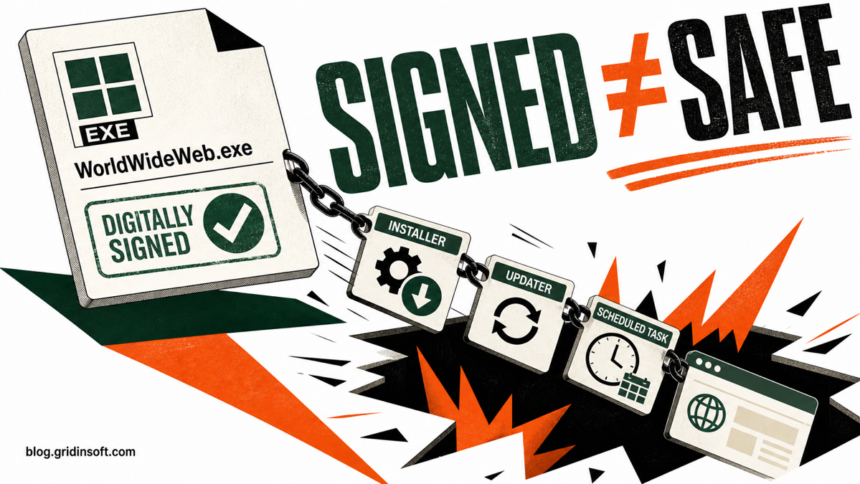
WorldWideWeb.exe is not a Windows system file. A copy found under C:\Program Files (x86)\World Wide Solutions\World Wide Web\, especially when it is signed by Dragon Boss Solutions LLC and appears with an updater, Setup.msi, a WorldWideWeb task, Chromnius, or LocalNetSolutions components, should be treated as a potentially unwanted browser-bundle component. Do not run it to “see what it does.” Verify the path and signature, uninstall the parent bundle, remove its persistence, then scan and check again after reboot.
The filename alone is not a verdict. Someone could save an unrelated program under the same name. The decision comes from the combination of the full path, signer, installation context, scheduled task, updater files, browser changes, and hash. A valid digital signature can identify who signed a file; it does not prove that you asked for the program or that its update chain is safe.
- Do now: do not launch the file. Record its full path and open Properties without approving any UAC prompt.
- Strong unwanted-software match: World Wide Solutions path, Dragon Boss Solutions signature, matching task or updater, and browser symptoms.
- Remove the bundle: uninstall the related app, disable its task, scan for remaining files and persistence, then reboot and rescan.
- Do not trust the signature alone: signed software can still be unwanted or use a risky update mechanism.
What is WorldWideWeb.exe?
WorldWideWeb.exe has been observed as an executable in a product labeled World Wide Web under a World Wide Solutions folder. Gridinsoft ThreatInfo identifies a specific recorded hash as PUP.Chromnius and shows a valid Dragon Boss Solutions LLC signature.2 That file-level result applies to the recorded sample, not automatically to every file with the same name.
Current Huntress research places World Wide Web in a larger family of signed, browser-related programs that use repeated folder names and updater infrastructure. The researchers documented silently delivered MSI and PowerShell payloads, scheduled tasks, WMI persistence, security-tool interference, and update domains that created a serious execution risk.1 This is why a matching file deserves more than a quick “the signature is valid” check.
If your only clue is a scheduled task named WorldWideWeb plus Chromnius browser artifacts, use the focused Chromnius and WorldWideWeb task removal guide. This page covers the executable, its World Wide Solutions package, and the surrounding updater chain.
Is WorldWideWeb.exe safe?
| Evidence you find | What it means | Next step |
|---|---|---|
C:\Program Files (x86)\World Wide Solutions\World Wide Web\WorldWideWeb.exe |
Matches the observed unwanted-browser ecosystem. | Keep it from running and complete the bundle-removal steps below. |
| Valid Dragon Boss Solutions LLC signature | Confirms the signer for that file; it is not a harmlessness certificate. | Check the path, hash, install source, task and related files. |
WorldWideWeb.ini, an updates folder, or Setup.msi nearby |
Shows an updater/install chain that may recreate components. | Uninstall the parent program and scan before deleting leftovers. |
A WorldWideWeb task whose Action points to the same folder |
Persistence can restart the executable or updater after reboot. | Disable the task, save its Action and Trigger, then remove the parent app. |
| Chromnius, Web Genius, OneChecker, or numbered LocalNetSolutions folders | Suggests a wider bundled installation rather than one isolated file. | Inventory recently installed apps, tasks, browser policies and extensions. |
| Same filename in an unrelated folder with a different known vendor | May be unrelated, but the name is too generic for a safe verdict. | Use path, signature and hash checks before taking action. |
How to inspect WorldWideWeb.exe without running it
- Open the location, not the file. In Task Manager, right-click the process and choose Open file location. If it is not running, search for the filename in File Explorer. Do not double-click it.
- Record the full path. A matching World Wide Solutions folder is much stronger evidence than the filename by itself.
- Check Properties. Review the Details and Digital Signatures tabs. Note the company name and whether Windows reports the signature as valid.
- Calculate a hash. A hash lets you compare the exact sample with a file report. Do not assume another hash has the same verdict.
- Inspect the scheduled task read-only. Query the task and review its Action, working directory, account and triggers. Microsoft documents
schtasks /queryas the command for listing task details.3
Get-AuthenticodeSignature -LiteralPath "C:\Program Files (x86)\World Wide Solutions\World Wide Web\WorldWideWeb.exe" | Format-List Status,StatusMessage,SignerCertificate
Get-FileHash -LiteralPath "C:\Program Files (x86)\World Wide Solutions\World Wide Web\WorldWideWeb.exe" -Algorithm MD5
schtasks /query /tn "\WorldWideWeb" /fo LIST /v
These commands only inspect the file and task. If the path does not exist or the task has another name, do not invent a replacement path or run nearby executables. For a generic checklist, see how to check whether an EXE file is safe.
Choose the response that matches your state
The file has not run
Do not launch it and do not approve an installer prompt. Record the path and hash, then scan the containing folder or quarantine the file through your security product. Check the download source and recently installed programs because the executable may have arrived inside a larger bundle.
WorldWideWeb.exe is running
Disconnect from untrusted networks if you also see security tools disabled, blocked security websites, unexpected PowerShell, or new browser software. End the process through Task Manager, but treat that only as containment. Disable the matching scheduled task and uninstall the parent World Wide Web or World Wide Solutions entry before removing leftover files.
It returns after uninstall
A returning file points to persistence or a sibling installer. Check the task Action, updates directories, recently installed browser bundles, startup entries, browser policies and extensions. If you find Chromnius or ExtensionSeed, follow the Chromnius cleanup workflow. If numbered LocalNetSolutions folders or NetOneUpdater variants are present, use the NetOneUpdater and LocalNetSolutions guide.
The PC looks clean after reboot
Confirm that the file and task remain absent, the browser opens with your chosen search and start page, and security tools stay enabled and can update. Run one more full scan. A clean reboot plus a clean rescan is stronger evidence than deleting one visible EXE, but it still cannot prove that no account or data was exposed if the program previously executed.
How to remove WorldWideWeb.exe and its bundle
- Save the evidence. Note the full file path, signature, hash, task Action, Trigger and recently installed app names. Screenshots are useful if you later need support.
- Disable the matching task. In Task Scheduler Library, disable
WorldWideWebor the task whose Action targets the World Wide Solutions folder. Do not click Run. If the task uses hidden PowerShell or a random script, compare it with the suspicious scheduled-task checklist. - Uninstall the parent application. In Settings → Apps → Installed apps, remove World Wide Web, World Wide Solutions, or another unfamiliar program installed at the same time. Do not uninstall unrelated Microsoft, browser, driver, or OEM components by name similarity.
- Check sibling bundle entries. Look for Chromnius, Web Genius and UniversalUpdater persistence, LocalNetSolutions, unfamiliar updaters, browser helpers, or duplicate installers from the same date. Remove only entries you can connect to the unwanted bundle.
- Restart Windows. Reopen Task Scheduler and Installed apps. If the task or program returns immediately, a loader, updater, service or WMI subscription may still be active.
- Run a full security scan. Stopping or quarantining WorldWideWeb.exe may leave scheduled tasks, hidden files, startup entries, browser changes or bundled modules. Run a full scan with Gridinsoft Anti-Malware and review each detection before removal.
- Remove confirmed leftovers. After uninstall and scan, remove only the abandoned World Wide Solutions folder and task whose path you recorded. Do not perform blanket registry deletion.
- Verify after a second reboot. Search for the exact filename, recheck the task, confirm security services and updates work, and open each browser profile once to check extensions, policies and search settings.
If the process path is wrong, the name imitates a Windows component, or high CPU started after an unknown installer, scan for hidden miners, services, startup entries, and bundled components.
Scan for PUP files and persistenceCheck the browser and accounts
Remove unknown extensions, restore your preferred search engine and start page, and inspect browser policy pages if settings remain managed on a personal PC. A browser reset should come after the restoring program, task and updater are removed; otherwise the unwanted settings may return.
If WorldWideWeb.exe ran and the system also showed credential prompts, unexpected remote access, disabled security tools, or redirects to login pages, change important passwords from a different clean device and revoke active sessions. Do not change passwords on the affected PC until its cleanup is complete. Consider a clean Windows reinstall when security tools cannot be restored, unknown WMI persistence returns, or new privileged components continue appearing after repeated cleanup.
FAQ
Is WorldWideWeb.exe part of Windows?
No. Windows does not require a system component named WorldWideWeb.exe. Treat the path, signer, installation source and related persistence as the deciding evidence.
Can WorldWideWeb.exe be safe because it has a valid signature?
No signature can answer the whole safety question. A valid signature helps identify the signer and whether the signed file changed, but signed software can still be unwanted, bundled without clear consent, or connected to a risky updater.
Should I delete WorldWideWeb.exe manually?
Not as the first step. Disable its persistence, uninstall the parent program, scan the system and reboot. Manual deletion alone can leave the updater, scheduled task, MSI package, browser changes or another bundled component behind.
Why does WorldWideWeb.exe return after I remove it?
A scheduled task, updater directory, sibling bundle, service, startup entry, browser policy or WMI subscription may recreate it. Record what returns and when; that timing helps identify the active persistence source.
Is the WorldWideWeb task the same as WorldWideWeb.exe?
They may belong to the same bundle, but the task name alone does not prove which file it runs. Open the task’s Action and verify the exact executable or script path. The separate Chromnius guide covers the task-and-browser persistence lane in detail.
References
- Huntress. “When PUPs Grow Fangs: Dragon Boss Solutions’ $10 Supply Chain Risk.” Huntress research blog, April 14, 2026. Accessed August 27, 2026. https://www.huntress.com/blog/pups-grow-fangs
- Gridinsoft ThreatInfo. “WorldWideWeb.exe Removal: PUP.Chromnius File Report.” Last analysis July 10, 2025. Accessed August 27, 2026. https://threatinfo.net/files/WorldWideWeb.exe-c3df7be92706e2a9fb44033b3ffec495
- Microsoft. “schtasks query.” Microsoft Learn, updated February 16, 2024. Accessed August 27, 2026. https://learn.microsoft.com/en-us/windows-server/administration/windows-commands/schtasks-query