A phishing scam is any message, call, website, QR code, or attachment that tries to make you reveal a password, payment detail, recovery code, or other private information. If a message says your account is locked, a payment failed, a security check is urgent, or a file must be opened right now, do not use the link inside the message. Open the service from the official app or typed address, check the real account status, and only then decide what to do.
That simple pause matters because phishing no longer looks like only a badly written email. Current scams arrive through email, SMS, social media DMs, collaboration tools, search ads, QR codes, fake login pages, browser pop-ups, and phone calls. APWG recorded hundreds of thousands of phishing attacks in a single 2025 quarter, and the FBI’s latest IC3 report lists phishing and spoofing among the most frequently reported internet-crime complaints. The signs below focus on what victims actually see before a click.
What Makes a Message Look Like Phishing?
Most phishing scams combine three ingredients: a trusted name, a reason to panic, and a shortcut that keeps you away from the real website. The brand can be your bank, Microsoft, Apple, Google, PayPal, a delivery company, a game account, a crypto wallet, or even your employer. The bait can be “account locked”, “unusual sign-in”, “invoice attached”, “storage will be deleted”, “verify identity”, “scan this QR code”, or “call support now”.
Scammers want you to react before you verify. Treat any unexpected security alert as untrusted until you have checked it through a known-good channel.
7 Phishing Scam Signs to Check Before You Click
1. The Message Tries to Rush or Frighten You
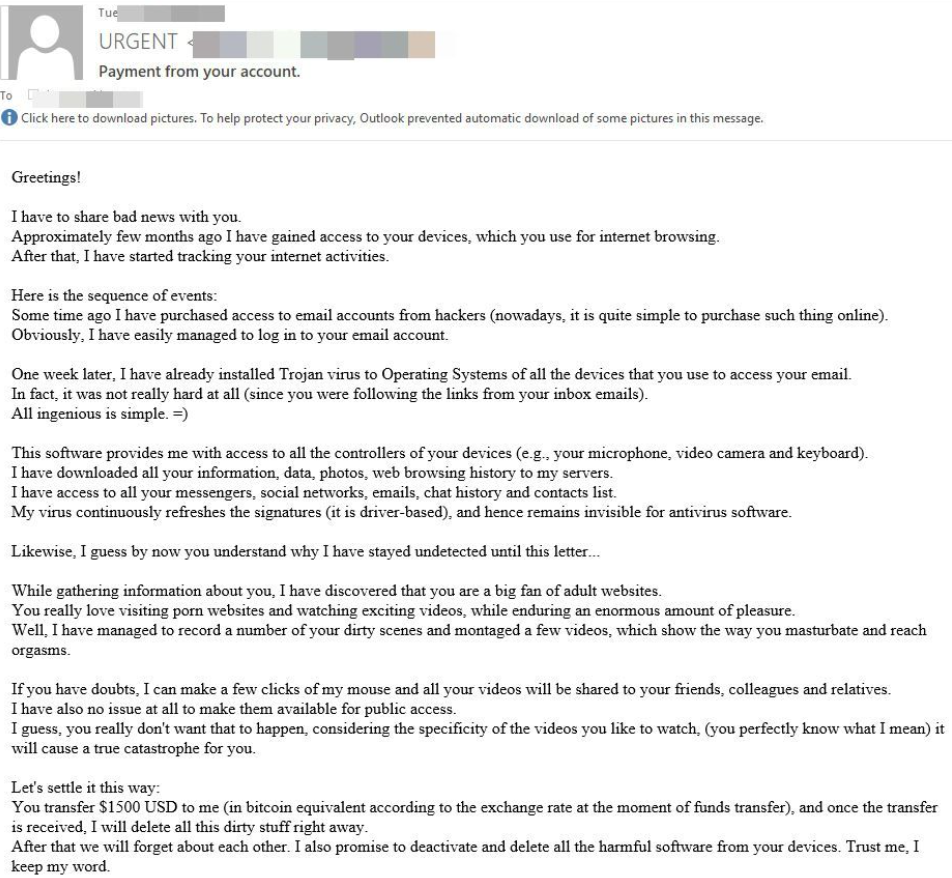
“Your account has been locked”, “your computer is infected”, “your payment failed”, and “your data will be deleted today” are classic pressure lines. Real services may send security notices, but they usually let you sign in independently and review the issue inside the account. A message that demands immediate action through its own button, link, QR code, phone number, or attachment should be treated as suspicious.
2. The Link, QR Code, or Button Sends You Somewhere Unexpected
A phishing page often looks convincing while the domain is wrong by one word, one letter, or one extra subdomain. Hover over links on desktop, long-press carefully on mobile without opening, and compare the final domain with the service’s real website. QR code phishing is harder because the destination is hidden until you scan it, so do not scan payment, login, or “security verification” QR codes from unexpected messages.
If you need to inspect a suspicious URL, use a separate checker instead of opening it in your main browser. Gridinsoft’s Online Virus Scanner can help check links and files before you interact with them.
3. The Sender Name Looks Familiar but the Address Does Not
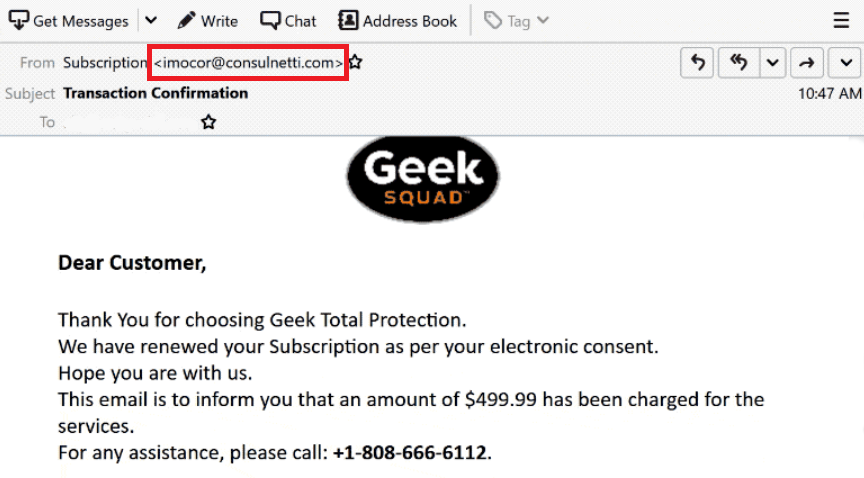
Sender names, caller IDs, and display photos can be spoofed. A message can say “Microsoft”, “Apple Support”, “PayPal”, or your bank while the real sender address belongs to an unrelated domain. Check the full email address, reply-to address, and domain, not just the display name. If the sender and signature do not match, or if the message asks you to continue on a different website, assume it is unsafe.
4. It Asks for Passwords, MFA Codes, Recovery Phrases, or Card Data
Legitimate support teams should not ask for your password, full payment-card number, seed phrase, backup code, or one-time verification code through email, chat, or a third-party form. Modern phishing pages often try to steal both the password and the second-factor code in the same session. If you entered a code or approved a login prompt after following a suspicious link, treat the account as exposed.
5. The Attachment or File Is the “Fix”
Unexpected invoices, voicemail files, shipping labels, password-protected archives, HTML attachments, and documents that ask you to enable macros or active content are risky. A real company can usually show an invoice, order, or security notice after you sign in through its official website. Do not open an attachment just because the message says it is urgent.
6. The Message Is Almost Right, but Not Quite
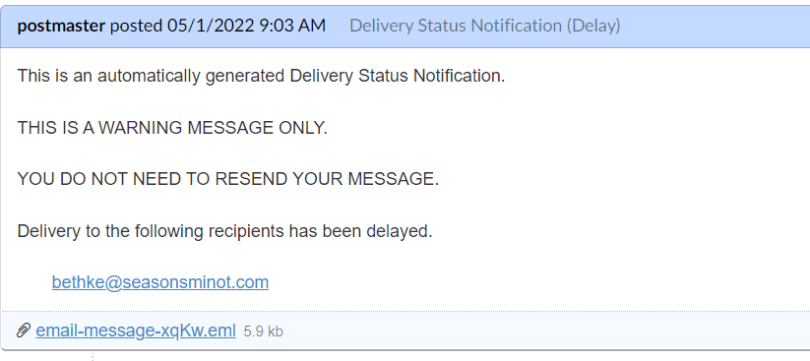
Old phishing advice focused heavily on spelling mistakes. That still helps, but it is no longer enough. AI-assisted and template-based scams can use clean grammar, correct logos, and convincing wording. Look for stronger clues: a domain that does not match the brand, a generic greeting for an account-specific issue, a reply-to address that changes the conversation, a mismatched phone number, a login page that feels slightly different, or a message that arrives through an unusual channel.
7. It Bypasses Normal Recovery and Reporting Paths
A legitimate account-lock or unusual-sign-in alert should let you open the official app or website and see the same warning there. A phishing message tries to keep you inside its own path: click this link, scan this QR code, call this number, run this command, or reply with a code. If the warning is real, you should be able to verify it without using anything from the message.
If Your Account Is “Locked”, Check It Safely
- Do not click the button, QR code, attachment, or phone number in the message.
- Open the service from a saved app, bookmark, or typed address.
- Check recent sign-ins, security alerts, active sessions, forwarding rules, and recovery methods.
- If the account is really locked, use the service’s official recovery flow.
- If the account is not locked, report the message as phishing and delete it.
For Microsoft-specific warnings, use our separate Microsoft account locked recovery guide. For browser pop-ups with a phone number, see the Microsoft account locked pop-up scam guide instead.
What to Do If You Already Clicked
The right response depends on what happened after the click:
| What happened | What to do now |
|---|---|
| You only opened the link and closed it | Clear the tab, do not return to the page, and watch for browser permission prompts, downloads, or redirects. |
| You typed a password or MFA code | Change the password from the official site, sign out other sessions, reset MFA, and review recovery email, phone, forwarding rules, and connected apps. |
| You entered card or bank details | Contact the bank through the number on the card or official app, freeze or replace the card if needed, and monitor transactions. |
| You downloaded or opened a file | Disconnect from sensitive accounts, scan the device, remove suspicious downloads, and check startup items or browser extensions if symptoms continue. |
For a deeper step-by-step checklist, use our clicked a phishing link guide. If the suspicious message was an email and you want sender/link examples, see how to spot a phishing email.
Where This Page Fits in the Phishing Cluster
This page is the quick red-flag checklist for broad phishing scam signs. Use these related guides when your situation is more specific:
- Phishing email red flags for sender, attachment, invoice, and login-page examples.
- Clicked a phishing link for browser and account-safety recovery steps.
- QR code phishing for quishing and hidden-destination checks.
- Phishing vs spoofing when the sender name looks legitimate but the path feels wrong.
- Account verification alert scams for fake identity-check messages.
FAQ
Is every “your account is locked” message a scam?
No. Real services can lock accounts after suspicious activity. The safe test is how you verify it: open the official app or website yourself instead of using the link, QR code, phone number, or attachment from the message.
Can a phishing message have perfect grammar?
Yes. Grammar mistakes are still useful clues, but modern phishing can be well written. Domain mismatches, pressure, unusual recovery paths, password/code requests, and fake login pages are stronger warning signs.
Should I scan my computer after a phishing message?
If you only read the message, a scan is usually not the first priority. Scan the device if you downloaded a file, opened an attachment, allowed browser notifications, installed an extension, ran a command, or notice suspicious pop-ups, redirects, or account alerts afterward.
What is the safest way to report phishing?
Use the reporting option inside your email provider or the official service. You can also report consumer fraud to the FTC, internet crime to IC3, and phishing samples to APWG. Do not forward suspicious attachments to friends or coworkers.
References
- Anti-Phishing Working Group. “Phishing Activity Trends Reports.” APWG, accessed June 7, 2026. https://apwg.org/trendreports
- Federal Bureau of Investigation. “2025 Internet Crime Report.” FBI Internet Crime Complaint Center, accessed June 7, 2026. https://www.fbi.gov/file-repository/2025_ic3report.pdf/view
- Microsoft Support. “Protect yourself from phishing.” Microsoft, accessed June 7, 2026. https://support.microsoft.com/en-us/security/protect-yourself-from-phishing