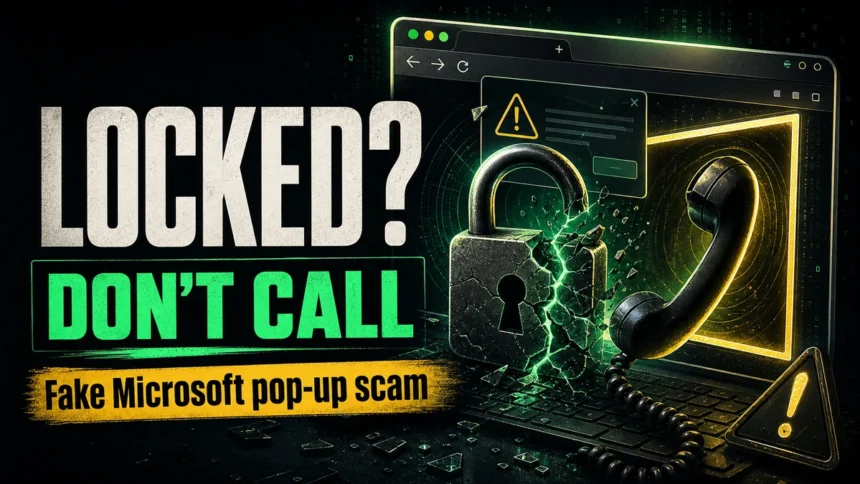
If a “Microsoft Account Locked” warning appears inside a browser tab and tells you to call a phone number, treat it as a fake Microsoft pop-up scam, not a real account lock. A website cannot lock your Microsoft account, scan your PC for crimes, or connect you to official Microsoft support. The safest move is to close the browser trap, clean up notifications or extensions if it returns, and use official Microsoft recovery only when the lock appears during sign-in.
On your screen now? Do this first
- Do not call the number in the pop-up.
- Do not type your Microsoft password, recovery code, card details, or identity documents into the page.
- Press Esc if the browser is stuck in full-screen mode.
- Close the tab. If it will not close, use Task Manager on Windows or Force Quit on macOS to close the browser.
- Reopen the browser without restoring the previous session.
- If the warning returns, remove suspicious notification permissions, extensions, startup pages, and recently installed apps.
If Microsoft blocks you while you are signing in to Outlook, Xbox, OneDrive, Windows, or account.microsoft.com, that is a different problem. Use our separate Microsoft Account Locked recovery guide and never use links or phone numbers from the pop-up.
Why this scam still matters in 2026
Tech support scams are still a high-loss fraud category. Microsoft warns that scammers use fake error pages, full-screen browser traps, support numbers, and remote-access requests to sell bogus fixes or steal data [1]. The FTC issued a 2025 warning about urgent security pop-ups that impersonate trusted brands and push victims to click or call [2]. In the FBI IC3 2025 report, tech/customer support scams generated 47,794 complaints and $2.13 billion in reported losses [3].
Real Microsoft account lock or fake pop-up?
The phrase “Microsoft Account Locked” is confusing because it can describe two different situations. A real lock appears during sign-in to Microsoft services and asks you to verify identity through Microsoft’s own recovery flow. A fake lock appears inside a browser tab, often after a redirect from an ad, compromised site, or push-notification spam.
| Where you see it | What it usually means |
| Microsoft sign-in page, Outlook, Xbox, OneDrive, Windows, or Microsoft 365 | Possible real account lock; recover through Microsoft’s sign-in and recovery tools. |
| Random browser tab, full-screen warning, countdown, loud alert, or support phone number | Fake pop-up scam; close the page and clean the browser. |
| Message asks for password, recovery code, remote access, gift cards, crypto, or a paid support plan | Scam behavior; stop interacting and secure the device/account. |
What the fake “Microsoft Account Locked” pop-up looks like
The fake page may say your account or computer was locked because of suspicious activity, illegal content, money laundering, malware, or a security breach. It may claim that closing the page will disable your computer or expose your data. Those threats are designed to make you call before thinking.
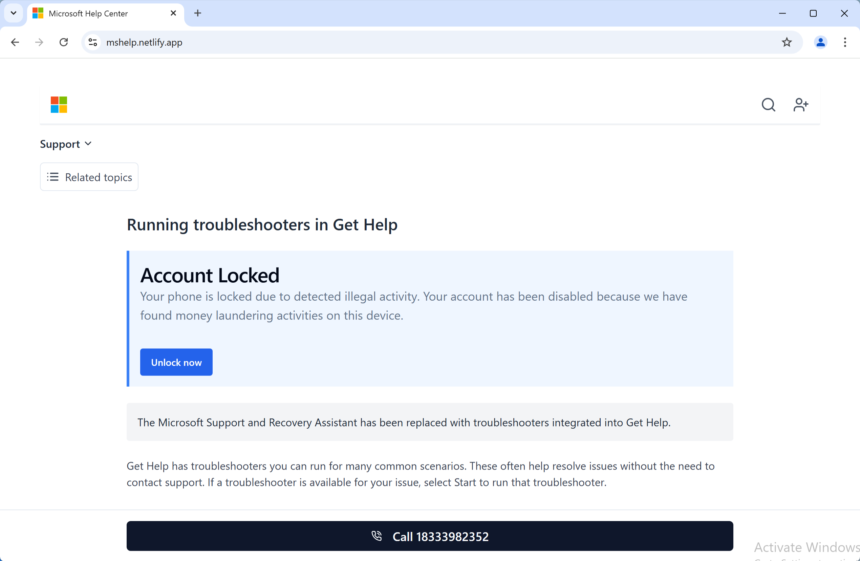
Some versions switch the browser to full screen, play a voice warning, or repeatedly reopen dialogs to make the computer feel frozen. That does not prove the device is locked. It usually means the page is abusing normal browser features.
What scammers want from you
- Your Microsoft password or verification code.
- Remote access through tools such as AnyDesk, TeamViewer, UltraViewer, Quick Assist, or a browser-based support session.
- Payment for a fake security service, “support plan,” refund process, or unlock fee.
- Personal documents, banking details, saved browser passwords, or email access.
Clean up the browser after closing it
Many repeat warnings come from notification permissions, malicious ads, or adware-like extensions. Check these areas first:
- Notifications: remove unknown sites allowed to send notifications in Chrome, Edge, Firefox, or Safari.
- Extensions: uninstall extensions you do not recognize or no longer use.
- Startup pages: remove suspicious pages set to open automatically.
- Search engine: restore your preferred search provider if it changed.
- Site data: clear data for the suspicious domain that showed the warning.
- Installed apps: remove recently installed remote-access tools or unknown “support” programs.
If the warning keeps returning, if browser settings changed without your consent, or if you installed software while talking to the operator, run a full system scan before using the device for email, banking, or account recovery.
After uninstalling the suspicious app or deleting the visible threat, use Gridinsoft Anti-Malware to check hidden files, startup entries, scheduled tasks, bundled apps, browser changes, and other persistence points that can restore malware.
Download Anti-MalwareIf you called the number
End the call. Do not argue with the operator and do not follow more instructions. If you installed remote access software, disconnect from the internet, uninstall the tool, and restart the computer. Then change important passwords from a different trusted device, starting with your Microsoft account and email account.
If you paid, contact your bank, card provider, payment app, or crypto exchange immediately. If you shared identity documents, payment details, or authentication codes, treat the incident as possible identity theft and monitor accounts closely.
If you gave remote access
Remote access changes the risk level. Scammers may have viewed files, installed software, changed browser settings, added startup entries, or stolen saved passwords. After disconnecting them:
- uninstall the remote access tool they asked you to install;
- check installed apps, startup apps, browser extensions, and scheduled tasks;
- run a full security scan;
- change passwords from a clean device;
- enable two-step verification on your Microsoft account;
- review recent sign-in activity for email, Microsoft, banking, and payment accounts.
If your real Microsoft account is locked too
Sometimes users see a scam pop-up while also having a separate sign-in problem. Handle the real account only through Microsoft’s official recovery flow. Do not use any number or link from the pop-up. We wrote a separate guide for that situation: Microsoft Account Locked: how to recover access safely.
How to avoid this scam next time
- Type Microsoft URLs manually or use bookmarks for account recovery.
- Ignore browser pages that claim to be scanning your computer for illegal activity.
- Remember that legitimate Microsoft warnings do not ask you to call a phone number from a web page.
- Keep the browser updated and remove extensions you do not need.
- Use browser phishing protection and a reputable security tool to block known scam pages.
- If you see similar fake alerts, compare them with our guides to Microsoft Security Warning scams and fake virus alert pop-ups.
FAQ
Can a website lock my Microsoft account?
No. A website can show a scary page, but it cannot lock your Microsoft account. Real account locks are handled by Microsoft during sign-in.
Does Microsoft show support phone numbers in browser pop-ups?
No. Microsoft says its error and warning messages do not include phone numbers. A browser warning that tells you to call “Microsoft support” is a scam signal.
Should I restart the computer?
Restarting can close the browser trap, but it does not remove notification permissions, malicious extensions, or remote access software. Check those items afterward.
Is my Microsoft account hacked?
The pop-up alone does not prove your account was hacked. If you entered your password or verification code, change the password immediately and review recent sign-in activity from a clean device.
References
- Microsoft Support. “Protect yourself from tech support scams.” Microsoft, accessed June 7, 2026. https://support.microsoft.com/en-us/security/avoid-and-report-microsoft-technical-support-scams
- Federal Trade Commission. “Seemingly urgent security messages could lead to tech support scams.” FTC Consumer Advice, April 28, 2025, accessed June 7, 2026. https://consumer.ftc.gov/consumer-alerts/2025/04/seemingly-urgent-security-messages-could-lead-tech-support-scams
- Federal Bureau of Investigation. “2025 Internet Crime Report.” Internet Crime Complaint Center (IC3), 2026, accessed June 7, 2026. https://www.fbi.gov/file-repository/2025_ic3report.pdf