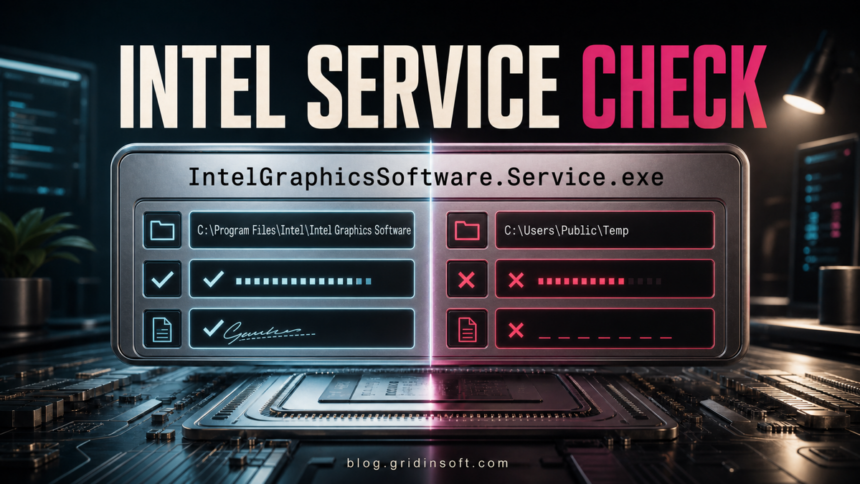
IntelGraphicsSoftware.Service.exe is normally a legitimate component of Intel Graphics Software, not malware. Intel documents the file under C:\Program Files\Intel\Intel Graphics Software\IntelGraphicsSoftware.Service.exe. The filename alone is not proof, though: the folder, Intel digital signature, installed package, and behavior must agree before you trust the copy.
If the signed file crashes when Windows shuts down, or CPU usage rises while Intel Graphics Software is open, start with the Intel update and repair steps below. Scan the PC when the file runs from a user-writable folder, lacks a valid Intel signature, uses a misspelled name, or keeps returning through an unrelated startup item.
What IntelGraphicsSoftware.Service.exe does
IntelGraphicsSoftware.Service.exe is a background component used by the current Intel Graphics Software app. The app provides graphics settings, performance monitoring, profiles, and supported tuning controls. The service supports that software layer; it is not the display driver itself.
This distinction matters. Closing or disabling the app component can remove app features, monitoring, or tuning, but disabling the Intel graphics adapter in Device Manager can interrupt display output. Do not remove the adapter or delete a signed Intel file just because its name appears in Task Manager.
| What you find | What it means and what to do |
|---|---|
C:\Program Files\Intel\Intel Graphics Software, valid Intel signature, Intel Graphics Software installed |
Usually legitimate. Update or repair the Intel app if it crashes or uses excessive resources. |
| A different Intel or OEM package folder with a valid Intel signature | Not automatically malicious. Confirm the file belongs to the installed driver/app version and compare it with the PC maker’s package. |
Downloads, Temp, AppData, Desktop, or another user-writable folder |
Suspicious. Do not run or restore it merely because the filename looks familiar; scan the file and the PC. |
| No valid signature, a misspelled filename, or an unrelated publisher | Treat the copy as untrusted until verified. A damaged download is possible, but so is a lookalike executable. |
| Only a shutdown Event Viewer error, with no slowdown or blue screen | Intel documented this crash in older Intel Graphics Software builds. Update the software before assuming infection. |
How to check IntelGraphicsSoftware.Service.exe safely
- Open the actual file location. In Task Manager, open the Details tab, right-click
IntelGraphicsSoftware.Service.exe, and choose Open file location. Do not rely on a shortcut or a filename shown by another utility. - Compare the path. Intel’s crash article shows
C:\Program Files\Intel\Intel Graphics Software\IntelGraphicsSoftware.Service.exe. A versioned Microsoft Store or OEM installation can differ, so a different path requires verification rather than an instant malware verdict. - Check the digital signature. Open Properties, select Digital Signatures, and verify that Windows reports a valid signature from Intel Corporation. Microsoft’s Sigcheck can also display the signer, certificate chain, version, and file hash.[3]
- Check the installed package. Settings > Apps > Installed apps should show Intel Graphics Software or an Intel/OEM graphics package that explains the file. A matching filename with no related software deserves more scrutiny.
- Check the behavior. A signed Intel copy that becomes busy only when the graphics app opens points toward an app or driver issue. A wrong-path copy that starts with scripts, creates unrelated tasks, contacts unknown hosts, or returns after removal is a security problem.
For a broader checklist, see how to check whether an EXE file is safe. If several unfamiliar entries appeared together, use the suspicious Startup apps checklist before deleting anything.
How to fix an IntelGraphicsSoftware.Service.exe crash
Intel documented an Intel Graphics Software error that appeared when the app closed, Windows shut down, or the computer restarted. In that documented case, the application still performed normally and did not cause a blue-screen crash. Intel says the Intel Graphics Software version included with driver 32.0.101.6651 or newer fixes the issue.[1]
- Record the fault before changing anything. In Reliability Monitor or Event Viewer, confirm that the faulting application is
IntelGraphicsSoftware.Service.exeand note the version. - Update Intel Graphics Software and the graphics driver. Prefer the support page for your PC or laptop maker when it provides a customized graphics package. Otherwise use Intel’s official download channel.
- Repair the app. In Settings > Apps > Installed apps, open Intel Graphics Software’s advanced options and use Repair if available. Reset is more disruptive because it can clear app settings.
- Reinstall the package if repair fails. Remove Intel Graphics Software through normal Windows app controls, reboot, then install the correct OEM or Intel package. Do not manually delete the service executable from Program Files.
If the event continues on a current version, collect the exact error and system details for Intel or the PC maker. A crash entry by itself does not prove that the file is malicious.
What to do about high CPU usage
First identify which process is busy. Intel has acknowledged a case where using Intel Graphics Software increases CPU use by WMI Provider Host; Intel’s current article applies to Arc B570 and B580 products and directs affected users to Intel support.[2] That is different from a lookalike IntelGraphicsSoftware.Service.exe consuming CPU from a suspicious folder.
- Close Intel Graphics Software and watch CPU use for one or two minutes. If activity drops, reopen the app and reproduce the exact page or monitoring feature that triggers it.
- Update the app and driver, then reboot. Do not install a random “driver updater” from a search ad or download portal.
- Use the app Repair option. If the issue began after an update, install the supported OEM package for the device instead of mixing packages.
- Check the process path and Intel signature. High CPU plus a wrong folder, invalid signature, unexpected network traffic, or unknown persistence is a reason to scan.
A short CPU spike while the app initializes or reads performance data is not the same as sustained high usage at idle. Record the duration, file path, signer, and the Intel Graphics Software version before deciding.
Can you disable Intel Graphics Software Service?
You can test whether you need the Intel Graphics Software app at startup, but do not confuse three different controls:
- Intel Graphics Software app startup: disabling its startup entry may stop the interface, overlay, monitoring, or tuning features from loading automatically.
- IntelGraphicsSoftware.Service.exe: stopping the background component can make parts of the Intel app unavailable or cause the app to reopen it.
- Intel graphics adapter/driver: do not disable this in Device Manager as a startup-cleanup step; it is responsible for display output.
The safest test is reversible: disable only the Intel Graphics Software startup entry, reboot, and confirm that display output, brightness, external monitors, game profiles, performance monitoring, and tuning features still work as needed. Re-enable it if a required feature disappears. If the legitimate service keeps returning because the Intel app launches it, change the app’s startup behavior or repair the package instead of deleting the file.
What to do if the file looks suspicious
Scan rather than delete blindly when one or more of these red flags appear:
- the file runs from
Downloads,Temp,AppData, Desktop, or an unrelated program folder; - the filename is misspelled or padded with extra characters;
- Properties shows no valid Intel signature or a different publisher;
- the copy arrived after a fake driver update, crack, bundled installer, or suspicious archive;
- it creates an unknown startup entry, scheduled task, service, browser change, or security exclusion;
- it returns from the same wrong folder after reboot or removal.
- Do not run the file again. If a security tool already quarantined it, do not restore it only because the name resembles an Intel component.
- Keep the exact path and file hash for comparison, then run a full security scan.
- Check Startup apps, Task Scheduler, Services, browser extensions, and recently installed programs for the item that launches or recreates the file.
- Remove confirmed detections, reboot, and scan again if the process or alert returns.
A visible lookalike executable can be only one part of the persistence chain. A loader, scheduled task, service, bundled app, or browser change may recreate it after the file is removed. Gridinsoft Anti-Malware can check hidden files, startup entries, scheduled tasks, bundled apps, browser changes, and other persistence when the copy is in the wrong folder or behaves unlike the signed Intel component.
If the process path is wrong, the name imitates a Windows component, or high CPU started after an unknown installer, scan for hidden miners, services, startup entries, and bundled components.
Scan a suspicious Intel service copyRelated Intel process checks
Intel graphics packages can expose several helpers with different roles. Check igfxtray.exe as the older tray component, igfxpers.exe as the legacy Persistence Module, and hkcmd.exe as the older hotkey helper. Do not merge their startup advice with the current Intel Graphics Software service: verify each file’s path, signer, package, and function.
For Intel’s separate performance-tuning service, use the XtuService.exe path, signature, OEM-dependency, and safe-removal check. XtuService can remain without the standalone XTU app because another performance-control package may depend on it.
FAQ
Is IntelGraphicsSoftware.Service.exe a virus?
Not by default. Intel documents the legitimate file as part of Intel Graphics Software. It becomes suspicious when the path, signature, package context, or behavior does not match the Intel component.
Where should IntelGraphicsSoftware.Service.exe be located?
Intel’s support article shows C:\Program Files\Intel\Intel Graphics Software\IntelGraphicsSoftware.Service.exe. OEM or Store packaging can vary, so verify the Intel signature and installed package when the path is different.
Why does IntelGraphicsSoftware.Service.exe keep coming back?
The legitimate Intel Graphics Software app can start its background service again when the app opens or Windows loads its startup entry. A copy that returns from a wrong folder may instead be recreated by another startup item, task, service, or bundled program.
Can I delete IntelGraphicsSoftware.Service.exe?
Do not manually delete a signed copy from the Intel program folder. Update, repair, reset, or uninstall Intel Graphics Software through normal Windows controls. Quarantine and scan a wrong-path or unsigned copy instead.
Is the shutdown crash dangerous?
Intel documented an older crash that appeared during app close, shutdown, or restart without performance loss or a blue screen. Update to the corrected Intel Graphics Software release, but investigate separately if the path or signature is wrong or other security symptoms appear.
References
- Intel Corporation. “Intel® Graphics Software (IGS) Event Viewer Reporting App Crash Error When Closing the App, Shutting Down, or Restarting the Computer.” Intel Support, last reviewed April 9, 2025; accessed July 13, 2026. Intel support article 000100356.
- Intel Corporation. “Intel® Graphics Software (IGS) Causing High CPU Usage for the WMI Provider Host Process.” Intel Support, last reviewed January 28, 2025; accessed July 13, 2026. Intel support article 000100361.
- Russinovich, Mark. “Sigcheck v2.91.” Microsoft Sysinternals, published February 4, 2026; accessed July 13, 2026. Microsoft Learn.