

Quick fix checklist for a freezing PC
If your computer keeps freezing, start with the causes that are easiest to confirm: overloaded RAM, a failing disk, overheating, bad drivers, too many startup apps, or malware. Random freezes during gaming or video calls often point to drivers, temperature, or memory pressure. Freezes right after boot often point to startup apps, disk errors, or background services.
If the freeze turns into an instant reboot or Windows restarts before showing an error, use our computer randomly restarting troubleshooting guide to check Kernel-Power 41, power delivery, overheating, RAM, and driver causes in the right order.
- Restart and check Task Manager for high CPU, memory, or disk usage.
- If the screen is frozen but the PC is still running, try Win+Ctrl+Shift+B to restart the graphics driver before holding the power button.
- If Task Manager shows 100% disk during a freeze, check Service Host, DiagTrack, Windows Search, SysMain, and Delivery Optimization before reinstalling Windows.
- Install Windows updates and GPU/storage driver updates.
- Check Reliability Monitor or Event Viewer for errors logged at the exact freeze time.
- Check disk health and free space before reinstalling Windows.
- Use Safe Mode or a clean boot if freezes started after a new app, driver, game, or Windows update.
- Scan for malware if freezes started after a download, crack, or unknown installer.
Have you ever been in the middle of a project when your computer suddenly freezes? Maybe the cursor stops moving, or you get the dreaded blue screen of death, forcing you to restart. If this sounds familiar, don’t worry! While it’s frustrating, you can often fix these issues yourself. The key is to understand why your PC might be freezing and then take steps to prevent it.
Why does my computer keep freezing?
There are some reasons why your computer keeps freezing or works poorly. Usually, it is a software problem, or too many apps are running on your computer simultaneously, which causes it to hang. We will not consider the option with weak hardware, where the system initially ran slowly. However, additional problems, such as a lack of hard disk space or issues with drivers, can also prevent it from working correctly.
So, what to do when you encounter the problem that a Windows PC freezes randomly?
Check if your computer is entirely dead-locked
First decide whether one app froze or the whole Windows session is locked. Press Ctrl+Shift+Esc to open Task Manager directly. If Task Manager opens, end the app marked Not responding and sort the process list by CPU, Memory, and Disk to see what spiked before the freeze.
If the mouse will not move, press Caps Lock. When the keyboard light still responds, Windows may be alive behind a frozen display. Press Win+Ctrl+Shift+B once to restart the graphics driver; the screen may blink and recover without a full reboot. If nothing responds, hold the power button for about 10 seconds, wait 30 seconds, then turn the PC back on. Repeated hard shutdowns are a symptom, not a fix, so check the logs after the next boot.
Check Reliability Monitor and Event Viewer after a hard freeze
Competitors often rank for this topic because they answer the user’s next question: “what do I check after I force shut down?” Open Reliability Monitor by typing reliability in Start and choosing View reliability history. Look for red marks at the time of the freeze, especially display driver crashes, Windows failures, app hangs, or hardware errors.
Then open Event Viewer and check Windows Logs → System. Kernel-Power 41 usually means Windows noticed an improper shutdown; it does not prove the power supply is bad by itself. Pair it with the surrounding errors. Display driver resets point toward GPU drivers or overheating, disk warnings point toward storage, WHEA hardware errors point toward CPU/RAM/PCIe hardware, and repeated Service Control Manager errors can reveal a bad driver or service.
Software issues when a computer keeps freezing
Software issues are the most common cause of my PC freezing randomly. At some point, the software loses control of the application or tries to run the application in a way that the Windows operating system does not recognize. This often happens when trying to run old programs in new versions of Windows or vice versa. Updating the software and the OS usually corrects the PC freezing problem. However, in some cases, reinstalling the application is the most effective way to deal with occasional software-related hangs.
Sometimes errors in running programs cause memory leaks. This happens when objects in a heap are no longer used. However, the garbage collector cannot remove them from memory; thus, they remain there unnecessarily. A memory leak is not good because it blocks memory resources and reduces system performance over time.
If Task Manager points to Memory Compression, compare the parenthesized compressed value, Available memory, Committed memory, and kernel pools before changing settings. The Memory Compression high-RAM guide shows how to distinguish ordinary memory pressure from a growing app or driver allocation.
Check for Running Resource-Intensive Software
Sometimes, programs will remain running in the background even after you end working with them. This particularly true for different sort of virtual machines: they can stay in the background, showing no activity, while taking significant amount of your CPU and memory. Particular names to seek for in Task Manager are “Vmmem” (or “Vmmemvsl”), “VirtualBox”, “Vmware-vmx” or the like. Stopping them will give a huge relief to your hardware.
Check Windows background services that can freeze the PC
If Task Manager shows 100% disk usage while apps freeze for 10-60 seconds, the culprit may be a Windows background service rather than the foreground app. Do not disable services at random. Sort Task Manager by Disk, CPU, and Memory, expand Service Host entries, and write down the exact service name. The common freezing suspects are Windows Search, SysMain, Delivery Optimization, and Connected User Experiences and Telemetry, also shown as DiagTrack in some tools.
If the busy entry is Microsoft Compatibility Telemetry or CompatTelRunner.exe, use the Compatibility Appraiser CPU and disk guide to match the slowdown to the scheduled task. The Appraiser process and the DiagTrack transmission service need different checks.
- Press Ctrl+Shift+Esc, open Processes, and sort by Disk. If the disk stays near 100% while transfer speed is low, switch to Details or Services and match the busy Service Host to its service name.
- If Connected User Experiences and Telemetry is the busy service, open services.msc, find it, choose Stop, and use the PC for a while. If the freezes stop, leave optional diagnostic data reduced or set the service to Disabled only if you do not rely on Windows Insider feedback, enterprise management, or Microsoft support diagnostics.
- If Windows Search is busy, first reduce indexed locations or rebuild the index instead of permanently disabling search. Large Outlook mailboxes and huge file libraries can make indexing expensive.
- If Delivery Optimization is active after updates, turn off downloads from other PCs in Windows Update settings before disabling the service itself.
- If SysMain is busy on an older HDD or low-RAM PC, stop it as a test and compare freeze behavior after a reboot. Re-enable it if app launch times get worse or nothing changes.
If the service name looks unfamiliar, the executable path points to AppData, Temp, Downloads, or a removable drive, or the freezing started after a cracked app or unknown installer, scan the PC before blaming Windows. Legitimate Microsoft services should run from Windows system folders; malware often hides behind similar names.
Use Safe Mode or a clean boot to isolate the cause
If the PC freezes after login, after launching a game, or after a recent driver/app install, test Windows with fewer moving parts. Boot into Safe Mode first. If the freezing stops there, the likely cause is a startup app, non-Microsoft service, driver, antivirus conflict, overlay, or hardware utility rather than Windows core files.
For a narrower test, perform a clean boot: hide Microsoft services in System Configuration, disable the remaining third-party services, disable startup apps in Task Manager, restart, and use the PC normally for a while. Re-enable items in small groups until the freeze returns. This is safer than randomly disabling Windows services because it keeps core Microsoft components running while you isolate the third-party conflict. If a game-triggered blue screen specifically names vgk.sys, use the Riot Vanguard BSOD isolation flow before changing unrelated Windows services.
Check for Malware and Viruses
Computer freezes and crashes can be signs that your computer is infected. In some cases, malware loads your system by running dozens of processes in the background, consuming your computer’s RAM and causing it to freeze. It is often coin miners’ work, as it is their typical behavior – overloading the system, leaving no resources for other applications. In contrast, viruses can corrupt system files, without which the system cannot work correctly. As a result, this can cause blue screens of death. If your PC keeps freezing after rebooting, we recommend checking it for viruses with a our security solution.
After uninstalling the suspicious app or deleting the visible threat, use Gridinsoft Anti-Malware to check hidden files, startup entries, scheduled tasks, bundled apps, browser changes, and other persistence points that can restore malware.
Download Anti-MalwareProcessor overheating
Because computers are susceptible to heat, a room without air conditioning on a 90-degree day can negatively affect your computer’s performance. You can tell if your PC is overheating by listening to your laptop or desktop computer’s internal fans. Suppose the cooling is running too loud or louder than usual. In that case, you should dust your PC and replace the thermal paste on the processor.
However, there is the opposite situation when the processor is overheating, and the cooling does not work, i.e. fans are silent. In this case, you should carefully inspect the coolers, maybe they are faulty, or contact is lost, listen further if your computer locks up randomly. At best, the processor will start to throttle, and at worst, overheating can lead to a complete shutdown. Next, get some air circulation in the room and ensure the CPU vents are not clogged with dust. If the problem with the PC keeps freezing is gone, that was the reason for the issue.
Multitasking Issues
Each program on your computer requires some internal and external (hardware) resources to run. If you run multiple programs simultaneously, your computer may need more memory or processing power. Therefore, run programs only as required to reduce the chance of being short on resources.
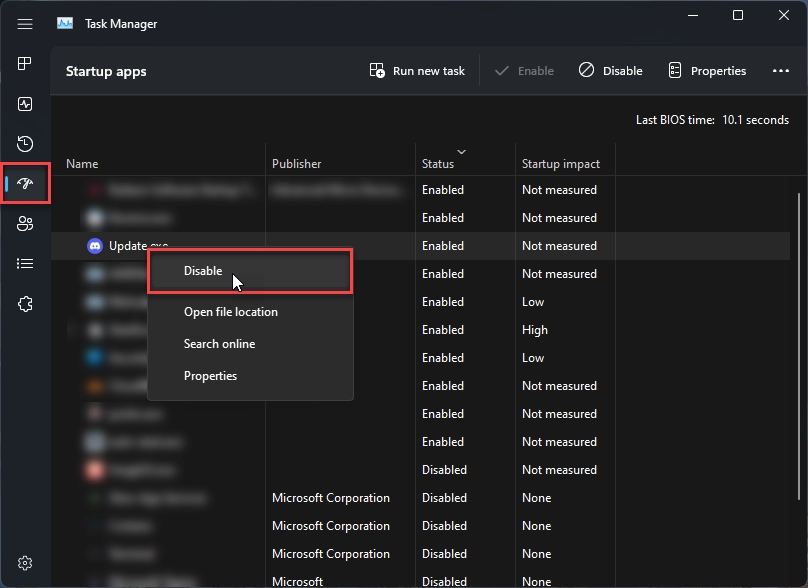
We also recommend checking the program autorun settings and disabling the autorun of unnecessary applications. This will significantly speed up the startup of your laptop. To do this, run the task manager, go to the “startup applications” tab, and disable unnecessary applications.
Driver Issues
Drivers directly affect the performance of your PC and can cause the computer to constantly freeze. If application drivers are corrupt or outdated, applications cannot appropriately interact with your hardware. Most modern operating systems get drivers from the Windows Update Center after installation, but drivers are rarely updated there. This is especially true for drivers for graphics adapters. For example, suppose your PC has powerful hardware but works slowly in graphics applications. In this case, we recommend downloading and installing the latest video driver from the manufacturer’s website. In most cases, this will solve the problem of poor performance in applications and the PC freezes for a few seconds.
Computer keeps freezing? Check RAM pressure
Lack of memory is often the cause of occasional freezes. Unfortunately, you cannot solve this issue programmatically. However, you can try increasing the memory dump. The easiest way to check for insufficient RAM is to run a Windows memory diagnostic. Below are the steps to update your RAM:
- Open the Start menu and type in Windows Memory Diagnostic Tool in the search box.
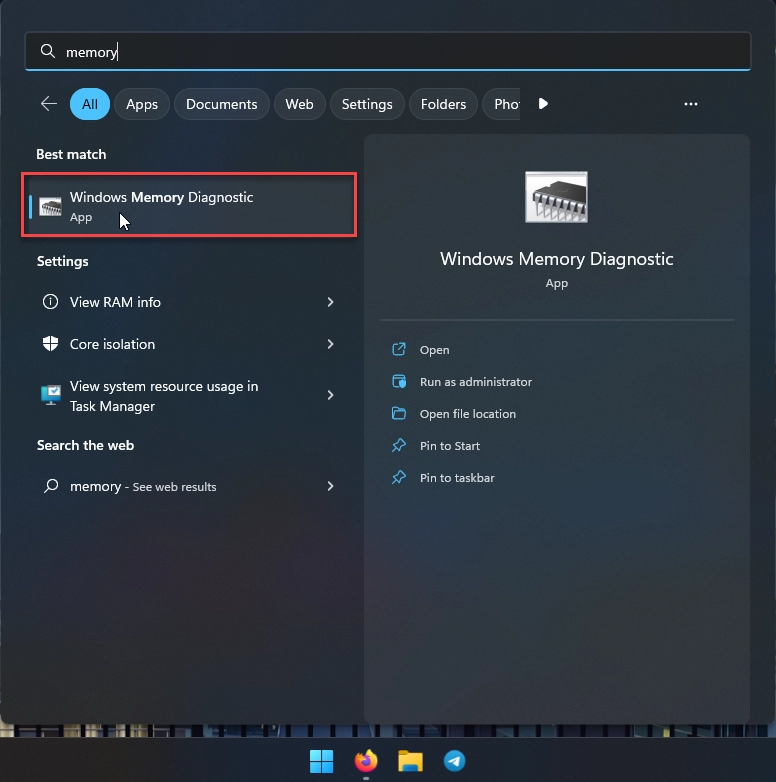
- Click on it. This will reboot your system and check out your memory. It will also notify you if it finds any problems.
If no errors are found, there is probably nothing wrong with the memory. Most likely, your system and applications don’t have enough RAM. Consider upgrading your PC. At the very least, try adding RAM to fix the problem. You can find out if your system has enough RAM by running Task Manager and opening the Performance tab. If your device’s RAM is more than 70% used, you should add RAM to your device.
If you have a desktop PC, everything is as simple as possible. You just need to find out what type of memory you have installed. To do this, you need to open Task Manager, go to the tab performance, and click on memory.
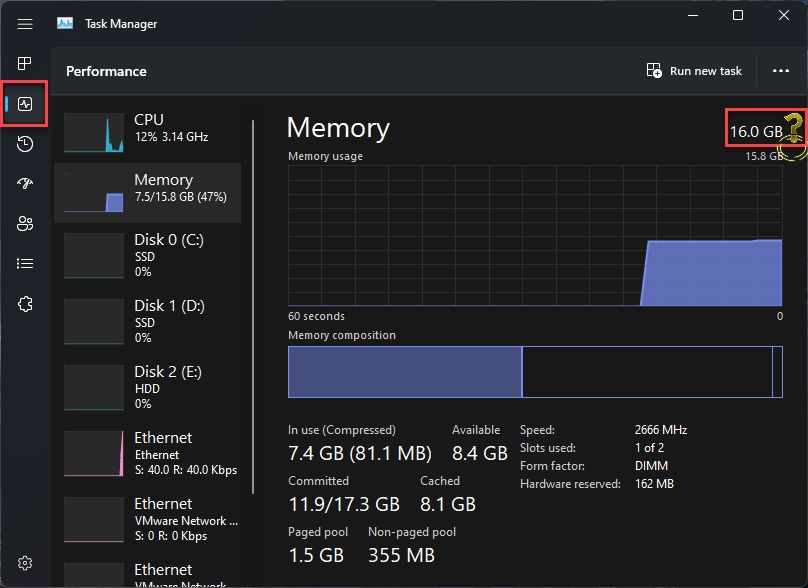
If your memory type is not displayed there, use special utilities, such as AIDA64.
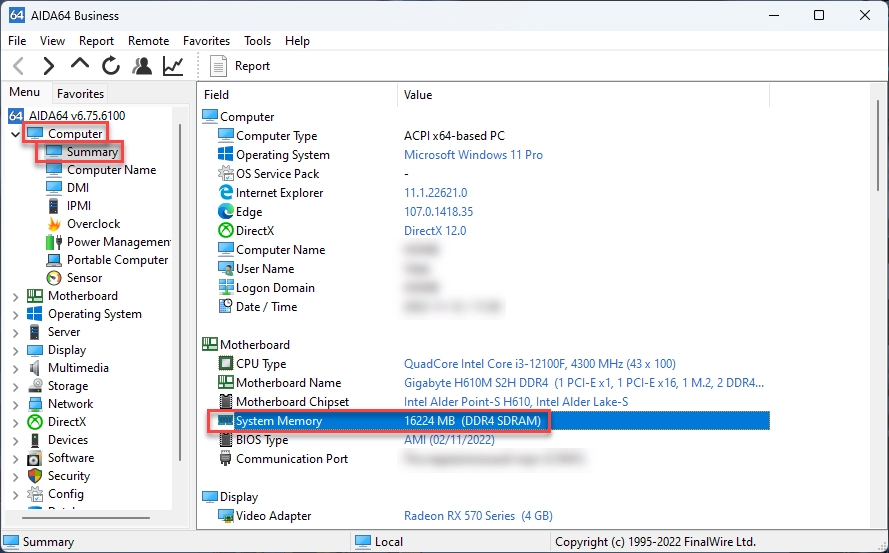
If you have a laptop, google your model to find out what RAM it uses. However, not all laptops allow you to expand RAM because, in compact models, this memory is soldered onto the motherboard and is physically impossible to replace.
Hardware issues that lead to the computer freezing
A more severe problem is a hardware issue, where a particular computer component is not working correctly or is malfunctioning. This can happen for some reasons, such as overheating or excessive dust buildup on components inside the computer. For example, as trivial as it sounds, a mouse or keyboard cord can become damaged over time, and a wireless device can have a dead battery. For the past few years, all computers have been equipped with high-speed SSD drives, but older machines have obsolete hard disk drives.
If your device has an older hard drive, we recommend replacing it with a faster SSD. This is guaranteed to give a significant performance boost to your PC. Although SSDs, if used correctly, can last quite a long time, and there will be no problems with their work if the SSD fails, it stops working completely.
How to Fix Computer Keeps Freezing
Are you facing the problem that “computer keeps freezing randomly”? In addition to the tips above, you can apply some of the following valuable techniques to minimize the risk of your computer freezing frequently:
Method #1. Clean up Windows Temporary Files
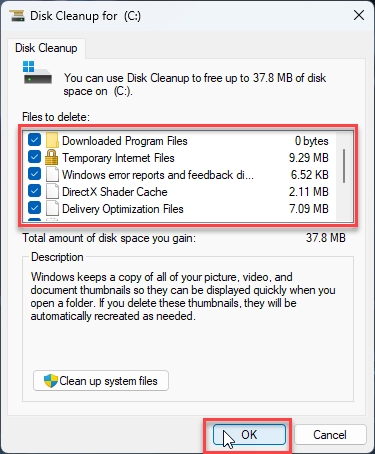
Microsoft Windows uses a cache to store temporary files to access them quickly. In addition to the fact that these files take up extra space, they can also interfere with Windows, causing performance issues. If you clear the cache folder, you can remove all unneeded files that may have been created in the past. And may have caused your OS to hang. To clear the Windows cache files, follow these steps:
- Press Win+R and type or paste “%temp%” in the Run window to open the temporary cache folder.
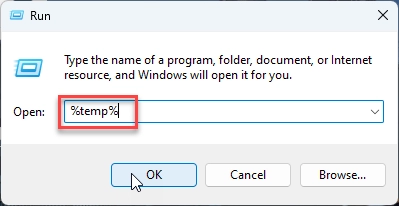
- Please select all the files with the CTRL+A key combination and then permanently delete them. You can use the disk cleanup tool by clicking start and typing “disk cleanup” in the search box.
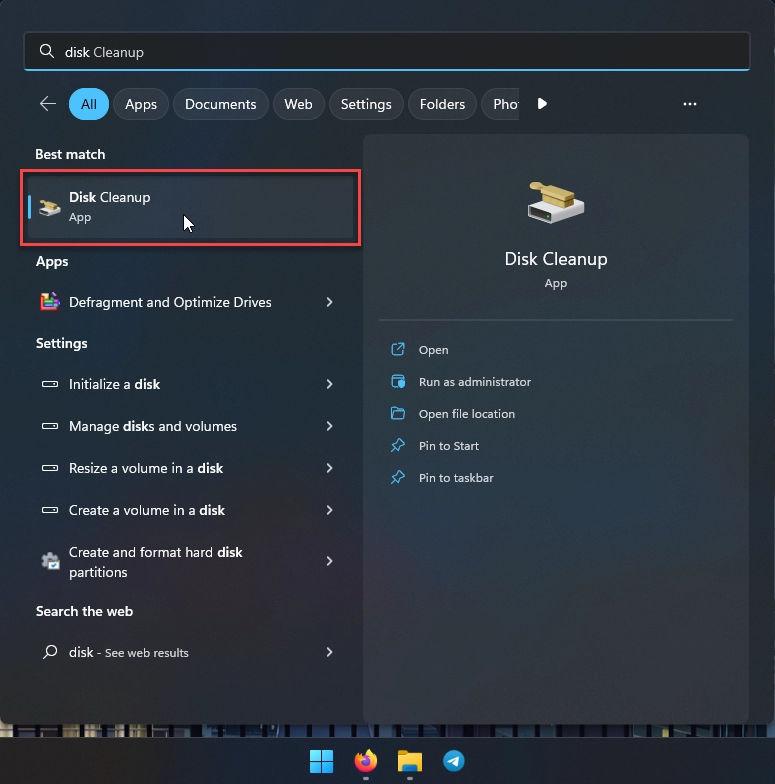
- In the window that opens, select the drive where the OS is installed (by default, it’s the C drive). Then, choose the types of data you want to delete in the next window. If you have very little space, you can select all of them.
Method #2. Check The Disk For Malfunctions
Suppose the hard drive’s response speed is not up to standard. In that case, Windows may not be able to access it at the necessary rate, and this causes the hard drive to freeze between access intervals. In addition, fragmentation errors may occur on the hard drive due to a PC crash or abnormal termination. Windows has a built-in tool to help you identify and fix disk problems. Another step that will help eliminate the problem is that my computer is hanging again and again. To do this, follow these steps:
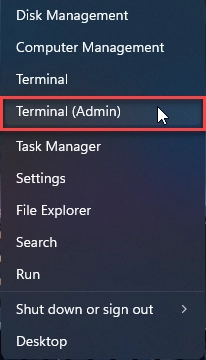
- Right-click Start and select Terminal (Administrator).
- Type or paste “chkdsk” at the command prompt and press Enter.
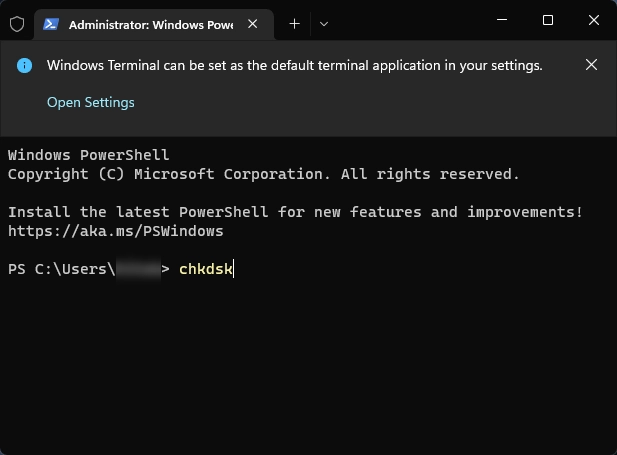
This will start checking your hard drive for malfunctions using the Windows command line. Sometimes Windows will need to reboot to complete the check. When the utility finishes, it will notify you of any disk errors.
Method #3. Run Defragmentation
On an older HDD, defragmentation can reduce slow file access that feels like short freezes. On an SSD, do not force old-style defragmentation; Windows uses the same Optimize Drives screen to run the correct SSD maintenance task, such as TRIM. To check storage optimization safely:
- Open My Computer
- Right-click on the desired drive and choose Properties.
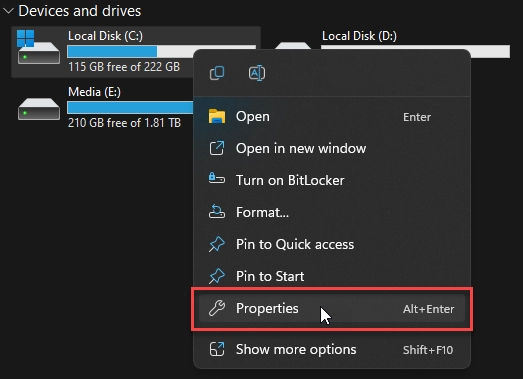
- Click the Tools tab.
- Click Optimize
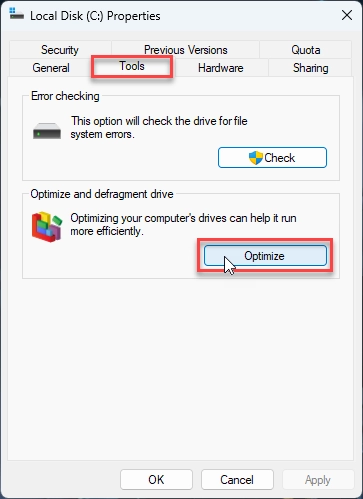
- When the window appears, click Optimize.
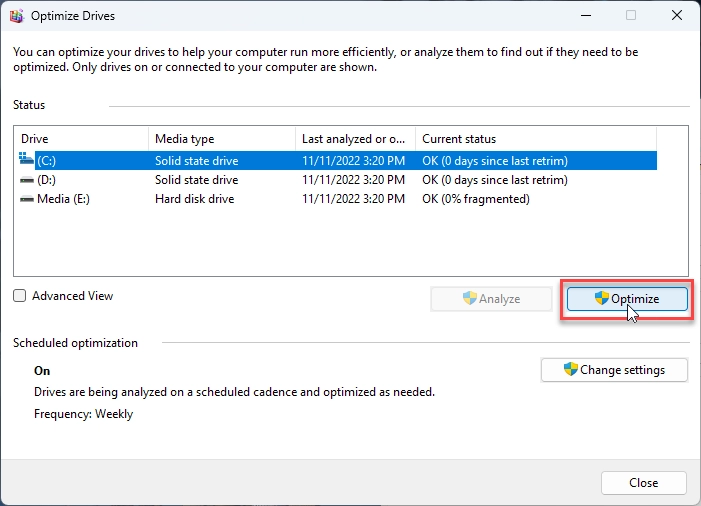
If Windows reports that an HDD is heavily fragmented, optimize it and then watch whether freezes improve. If an SSD keeps freezing the PC, focus on free space, firmware, disk health, and Event Viewer disk warnings instead of repeatedly optimizing the drive.
Method #4. Run Memory Check
If you suspect your computer has memory problems, you can run the Windows Memory Diagnostics utility by completing the following steps:
- Press Windows + R key combinations and type mdsched.exe in the input box. Then press Enter.
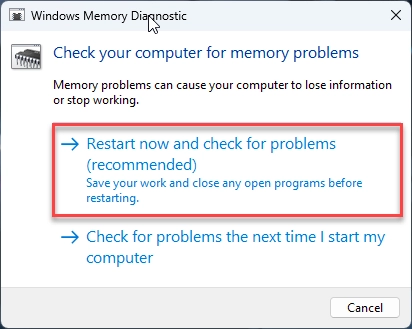
- Click Restart now and check for problems (recommended) to check for problems immediately (If you want to check later, click “Check for problems the next time I start my computer”).
- Windows will restart and you will get the following window showing the progress of the check and the number of passes it will run on memory. It might take several minutes for the tool to finish.
Method #5. Run System File Checker
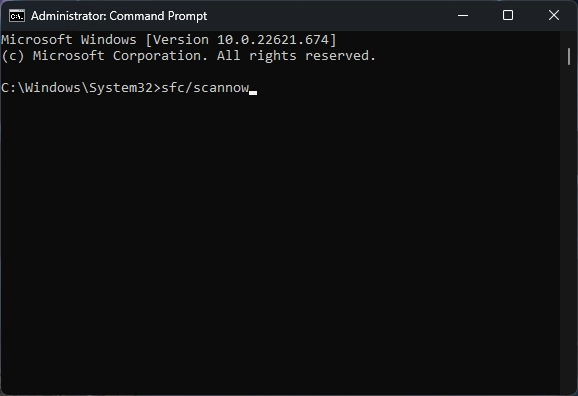
Sometimes a computer keeps freezing randomly due to corrupted or missing system files. Run the built-in repair tools from an administrator Command Prompt or Terminal. Start with Deployment Image Servicing and Management, then run System File Checker:
DISM /Online /Cleanup-Image /RestoreHealth
sfc /scannow
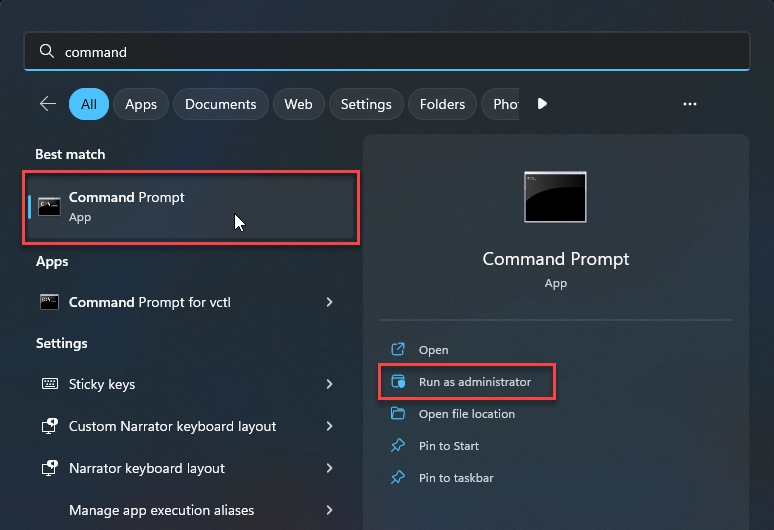
DISM repairs the Windows component store that SFC relies on, and SFC then checks protected system files. If either tool reports that it fixed corruption, restart and test the PC before moving to more disruptive options.
No matter how well you maintain your PC, all systems hang at some point. If freezing started right after a Windows update, driver update, BIOS change, or new hardware utility, install any follow-up patches first. If the timing is obvious and the PC became unstable immediately after one change, roll back that driver or uninstall that update before resetting Windows.
However, understanding what causes your computer to hang can help you prevent problems and troubleshoot problems in the future. We hope that the methods described above have helped you to solve the Windows freeze problem so that you can get back to using your device comfortably. Suppose none of the above solutions did help to solve the problem with computer keeps freezing. In that case, your PC likely has a hardware problem that requires further investigation. In this case, you can apply to the service center, where qualified specialists will be able to find and fix the problem.
References
- Microsoft Learn. “Essential services and connected experiences for Windows.” Microsoft, updated May 23, 2025. Accessed June 5, 2026. https://learn.microsoft.com/en-us/windows/privacy/essential-services-and-connected-experiences
- Microsoft Learn. “Troubleshoot Windows Search performance.” Microsoft, original KB 4558579. Accessed June 5, 2026. https://learn.microsoft.com/en-us/troubleshoot/windows-client/shell-experience/windows-search-performance-issues
- Microsoft Support. “How to perform a clean boot in Windows.” Microsoft Support, accessed June 5, 2026. https://support.microsoft.com/en-us/help/929135/how-to-perform-a-clean-boot-in-windows


If your keyboard suddenly stops working, try restarting your computer, checking for loose connections, and replacing the batteries if wireless. If issues persist, try connecting a different keyboard to troubleshoot. If all else fails, seek professional repair or replacement options.