vmmem or VmmemWSL is the memory and CPU that Windows shows for WSL2, Docker Desktop, Hyper-V, Windows Sandbox, Android emulators, and other virtualized workloads. It is usually safe. If Vmmem uses too much RAM or CPU, first find which workload is still running, then shut it down or set a WSL/Docker memory policy. Do not delete Vmmem; treat it as a meter for the virtual machine behind it.
Vmmem or VmmemWSL high memory: what to do first
- If you use WSL2, Docker, a VM, Windows Sandbox, or an Android emulator, Vmmem is expected.
- Save Linux work and stop containers before
wsl --shutdown. It terminates every running WSL distribution, not just the visible terminal. - The long-term fix is a clear resource cap in
%UserProfile%\.wslconfigand Docker/VM settings. - Scan for malware only when the process does not match your setup, a similarly named file appears in user folders, or suspicious startup/browser activity appears.
| Process names | vmmem, vmmem.exe, VmmemWSL, sometimes related variants such as vmmemWSA or VmmemCmFirstBoot |
| Usually caused by | WSL2, Docker Desktop on WSL, Hyper-V, Windows Sandbox, Android emulators, virtual machines |
| Safe? | Yes, when it matches a real virtualization workload |
| Quick fix | Stop the workload or run wsl --shutdown |
| Permanent fix | Set WSL memory/CPU limits and enable memory reclaim where supported |
Find What Is Using Vmmem
Before changing limits, identify the virtualized workload. Vmmem is only a host-side resource view; the real work may be inside Linux, Docker, a VM, or an emulator.
- Check Task Manager. Sort by memory and CPU. If Docker Desktop, a Linux terminal, Windows Sandbox, Hyper-V Manager, Android Studio, BlueStacks, or another emulator is open, start there.
- Check running WSL distributions. Open PowerShell and run:
wsl --list --running
wsl --status
- Check Docker Desktop. Look for running containers, background Compose projects, Kubernetes, or build tasks. Docker Desktop on Windows often uses WSL2 as its backend.
- Check Hyper-V and Sandbox. If a Windows Sandbox or Hyper-V guest is starting, stuck, or suspended, Vmmem can stay high until that guest closes cleanly.
- Check emulators. Android emulators and virtualization-based app players can also make Vmmem look like the top memory user.
What Is Vmmem or VmmemWSL?
Vmmem is not a normal app you open. It is the Windows process view for resources consumed by virtualized environments. With WSL2, Windows runs Linux in a lightweight virtual machine, so Task Manager may show Linux memory as Vmmem or VmmemWSL instead of showing every Linux process separately.
Microsoft documents global WSL2 resource settings in %UserProfile%\.wslconfig, including memory, processor, and swap controls [1]. Those settings are the most reliable way to stop WSL and Docker workloads from taking more host RAM than you intended.
Is Vmmem a Virus?
Vmmem itself is usually not malware. If you use WSL2, Docker Desktop, Hyper-V, Windows Sandbox, VMware/VirtualBox with Windows virtualization features, or an Android emulator, high Vmmem memory means that one of those workloads is using or caching RAM.
Treat it as suspicious only when the context is wrong: you do not use virtualization tools, a similarly named file appears in Downloads, AppData, Temp, or Startup folders, or high Vmmem activity comes with unknown PowerShell windows, browser redirects, fake update installers, or newly installed tools you did not approve.
How To Fix Vmmem High Memory or CPU
- Save work before stopping WSL. Stop active builds, containers, and databases first. In PowerShell,
wsl --shutdownterminates all running WSL distributions and the WSL2 VM; it can interrupt unsaved work. - Terminate only one stuck distro if needed. If
wsl --list --runningshows a specific distro, runwsl --terminate Ubuntu, replacingUbuntuwith the exact distro name. - Stop Docker containers before quitting Docker Desktop. Closing a terminal may not stop containers, Compose projects, or Docker’s WSL distributions.
- Restart Docker Desktop after WSL shutdown. If Docker was using WSL, quit Docker Desktop, run
wsl --shutdown, then reopen Docker. - Set a WSL memory limit. Create or edit
%UserProfile%\.wslconfig, then restart WSL. - Update WSL and Docker Desktop. Use
wsl --updateand install current Docker Desktop builds so newer memory-reclaim behavior is available. - Scan only when the source is unclear or suspicious. Vmmem is normally the symptom, not the malicious file. The thing to investigate is the unknown workload, startup item, installer, script, or emulator that keeps launching it.
Set a WSL memory limit and apply it
On current WSL installations, Microsoft recommends WSL Settings in the Start menu for configuration. Open Memory and processor. If that interface is unavailable, use the file method below. These limits apply across WSL2 distributions, not separately to each one.
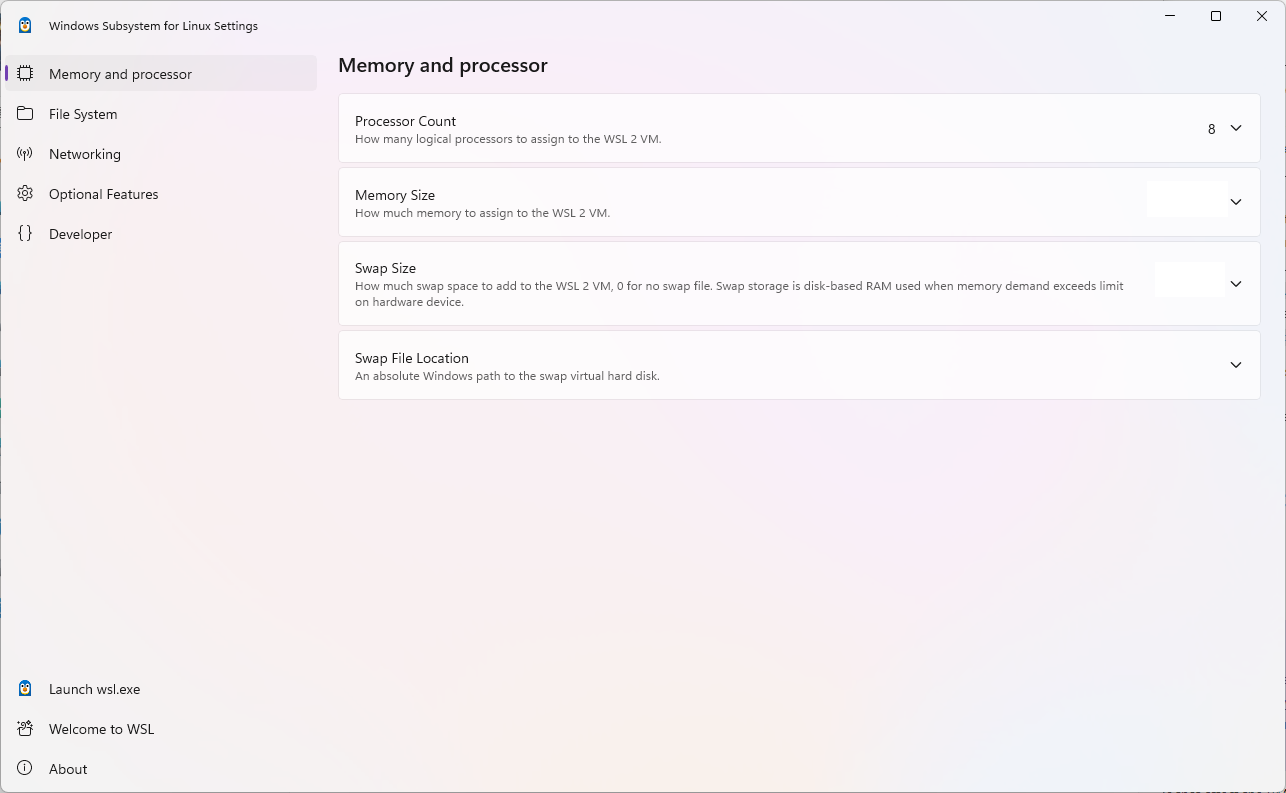
Create the file at C:\Users\<YourName>\.wslconfig. Start with conservative values, then raise them only if Linux tools or Docker builds become too slow.
[wsl2]
memory=4GB
processors=2
swap=2GB

[experimental]
autoMemoryReclaim=dropCache
Apply and undo: save the file as .wslconfig, not .wslconfig.txt. After saving your work and quitting Docker, run wsl --shutdown, then reopen the workload. To undo your edit, restore the previous file or remove only the limits you added, and restart WSL again.
On an 8 GB laptop, a 2-4 GB WSL limit is usually a sensible starting point. On a 16 GB or 32 GB development machine, 6-12 GB may be more realistic. If the limit is too low, package installs, local databases, containers, and builds may fail or crawl.
Microsoft currently documents dropCache as the default for autoMemoryReclaim; adding the same value may not change an up-to-date installation. The autoMemoryReclaim setting is especially relevant for WSL2 and Docker because Linux file cache can make Vmmem look high even after the visible workload finishes. Microsoft lists disabled, gradual, and dropCache as supported values in current WSL configuration documentation [1].
Docker Desktop and VmmemWSL
Docker Desktop on Windows commonly runs through the WSL2 backend. Docker notes that WSL2 uses dynamic resource allocation, but container builds and Linux cache can still leave the host seeing high Vmmem/VmmemWSL memory [2].
One important detail: Docker’s Resource Saver is useful, but on Windows with WSL it does not stop the shared WSL Linux VM, so it may reduce CPU use without reducing Docker’s memory footprint. Docker recommends WSL memory reclaim for that case [3]. In practical terms, use both: keep Resource Saver enabled for idle CPU savings, and use .wslconfig plus autoMemoryReclaim for RAM pressure.
What Not To Do
- Do not delete random files named after Vmmem. First confirm whether the file is real malware or just a misleading search result.
- Do not force-kill Vmmem as the first fix. You can lose unsaved VM, Linux, Docker, or emulator work. Shut down the workload instead.
- Do not set memory too low. A tiny WSL limit may make Docker builds fail with out-of-memory errors.
- Do not assume high RAM always means infection. A Linux page cache, a container build, or a suspended VM is much more common.
When To Scan for Malware
Scan the PC when Vmmem usage does not match your environment: no WSL, Docker, Sandbox, Hyper-V, emulator, or VM tool is installed; unknown virtualization software appears after a download; or Vmmem activity comes with browser redirects, fake update pages, suspicious PowerShell commands, new scheduled tasks, or files in user-writable folders such as AppData and Temp.
If you found a suspicious installer or script, check it before running it. You can use the Gridinsoft Online Virus Scanner for a file check, and use a full system scan after removing unwanted apps or startup entries.
If the process path is wrong, the name imitates a Windows component, or high CPU started after an unknown installer, scan for hidden miners, services, startup entries, and bundled components.
Check suspicious vmmem lookalikesIf your question is not high memory but whether the service process itself is legitimate, use our wslservice.exe safety checklist to verify the path, Microsoft signature, startup source, and network-alert context.
FAQ
Can I end Vmmem in Task Manager?
Usually no. Stop the workload instead: run wsl --shutdown, quit Docker Desktop, close Windows Sandbox, or shut down the VM/emulator that is using resources.
Why does Vmmem stay high after closing a terminal?
A WSL distro, Docker container, Linux service, database, or background build may still be running. Check with wsl --list --running, then use wsl --shutdown if you do not need the running workload.
Does Docker Resource Saver reduce Vmmem memory on Windows?
Not always. On Windows with WSL, Docker says Resource Saver pauses Docker Engine activity but does not stop the shared WSL VM. For memory pressure, use WSL memory limits and autoMemoryReclaim.
Does limiting WSL memory hurt performance?
It can if the limit is too low. The goal is to stop WSL/Docker from taking all host RAM while still giving Linux tools, databases, and containers enough memory to work.
Can malware hide behind Vmmem?
Vmmem itself is normally legitimate, but malware can run inside a VM-like environment or install a tool that causes virtualization activity. Scan if the source is unknown, recently installed, or tied to suspicious startup items.
References
- Microsoft Learn. “Advanced settings configuration in WSL.” Microsoft, updated April 15, 2026, accessed September 5, 2026; includes the WSL Settings screenshot. learn.microsoft.com
- Docker Docs. “Docker Desktop WSL 2 backend on Windows.” Docker, accessed June 1, 2026. docs.docker.com
- Docker Docs. “Docker Desktop’s Resource Saver mode.” Docker, accessed June 1, 2026. docs.docker.com