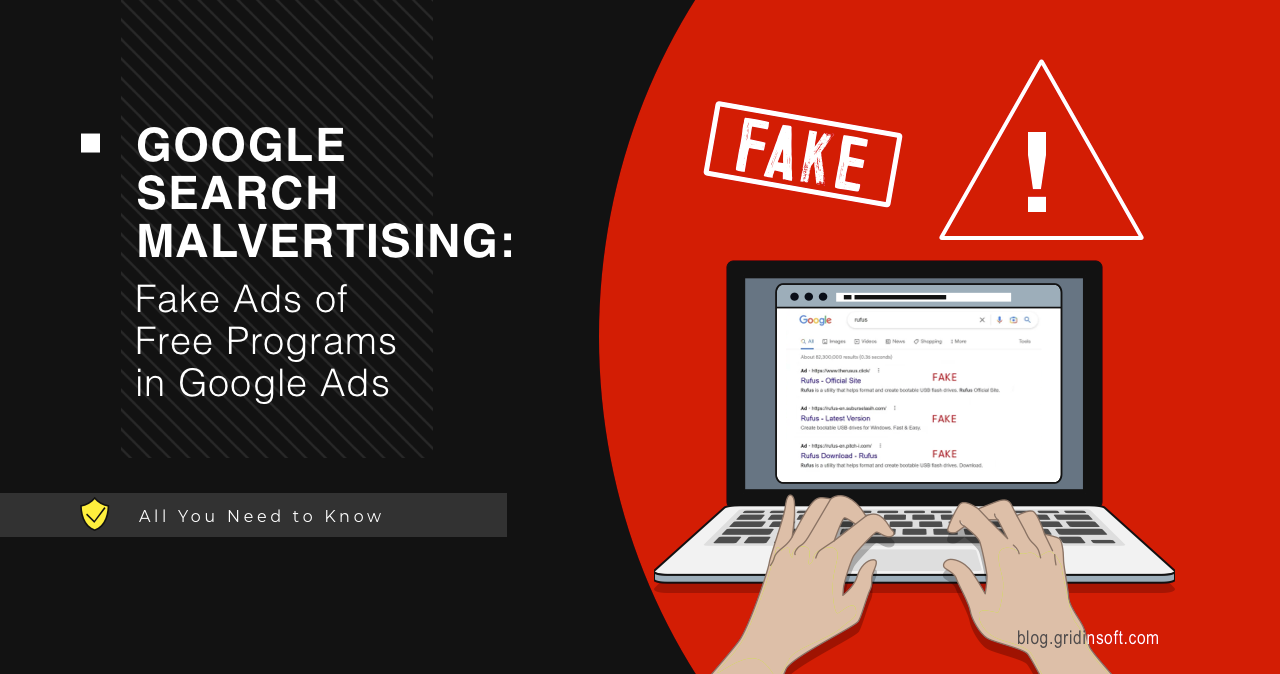
Google Search malvertising happens when a sponsored result imitates a real software, support, or account page and sends the click to a fake domain. If you only opened the page, close it and clear any suspicious browser permissions. If you downloaded or ran an installer, treat it as a malware cleanup case: check the file, remove browser and startup leftovers, scan the PC, and change passwords from a clean device if you typed credentials.
The risk is highest when the ad targets free tools, driver downloads, password managers, support portals, developer tools, or account sign-in pages. Attackers buy or hijack ads, copy a trusted brand’s landing page, then swap the real download or login flow for a stealer, loader, fake support prompt, or unwanted app bundle.
What Google Search malvertising looks like
Malvertising is short for malicious advertising. In search results, the trick is especially convincing because the fake page appears above or near the organic result and often uses the same product name in the headline. The visible display URL may look close to the real brand, while the final landing page uses a lookalike domain, a redirect, or a cloaked page that changes after the click.
Common sponsored-result lures include free utilities, browsers, media players, VPNs, password tools, PDF converters, driver updates, crypto wallets, remote support tools, and developer packages. Recent campaigns have also copied trusted command-line and developer downloads, then replaced the normal install command or EXE with an infostealer payload.
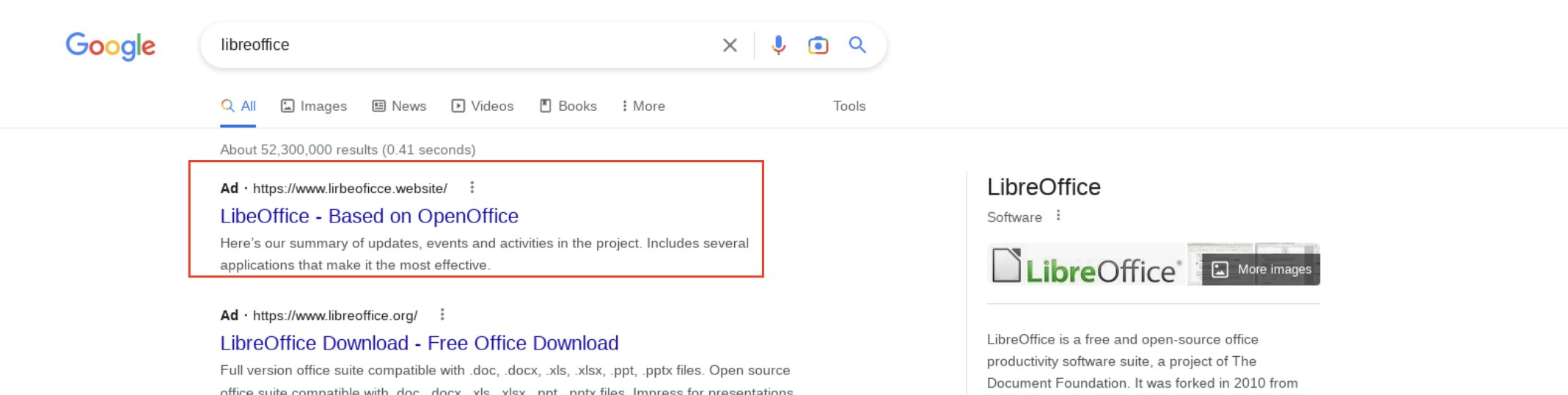
Do not trust a result only because it is marked as Sponsored, uses a familiar product name, or shows a clean-looking domain in the result card. Check the final address after the page loads, avoid shortened or redirected download links, and prefer bookmarks or the vendor’s known official domain for software you install.
If you clicked a sponsored result
Use what happened after the click to decide the response. A click alone is usually lower risk than running a downloaded file, but fake pages often ask for permissions, push a download, or steal credentials before the user realizes the page is not official.
| What happened | What to do next |
|---|---|
| You only opened the page | Close the tab, do not approve notifications, and clear site permissions for that domain if the page asked for pop-ups, notifications, clipboard access, or downloads. |
| You downloaded a file but did not run it | Delete the file, then check the filename, publisher, hash, and source if you still need the software. Our EXE safety guide explains what to inspect before running an installer. |
| You ran an installer or command | Disconnect risky sessions, uninstall the fake app, check Startup Apps, Task Scheduler, services, browser extensions, and scan for droppers, stealers, or bundled PUPs. |
| You entered a password, card, recovery code, or MFA code | Change passwords from a clean device, revoke active sessions, review MFA methods, and monitor the affected account. Use the infostealer recovery checklist if a file also ran. |
| The page showed a support number or urgent warning | Do not call the number or install remote support tools. Follow our fake virus alert cleanup guide if pop-ups or browser notifications continue. |
Check the download before you run it
Fake search ads usually work because the user is already trying to install something. Before opening an EXE, MSI, ZIP, DMG, script, or copied terminal command from a sponsored result, verify that the download came from the real vendor domain. Be cautious with extra words in the domain, cheap top-level domains, misleading subdomains, and pages that force a download before showing normal product information.
For Windows installers, inspect the file properties, digital signature, download path, and behavior after launch. Suspicious signs include an unsigned installer for a well-known product, a password-protected archive, a script that asks you to paste a command into PowerShell or Terminal, or a setup file that immediately drops another executable in %AppData%, %Temp%, or %ProgramData%.
Some campaigns imitate browser updates and make the user run a command instead of downloading a normal installer. If a fake update or verification page opened a terminal window, use the steps in our fake Chrome update terminal cleanup guide. If the lure was a fake online converter, read the online file converter scam warning before trusting any downloaded document or helper app.
Remove fake-ad malware leftovers
If the installer ran, assume the visible app may not be the only component. Fake sponsored downloads often install a loader first, then add browser extensions, notification permissions, startup entries, scheduled tasks, services, or credential-stealing modules.
- Uninstall the suspicious app from Windows Settings, then reboot.
- Open Startup Apps and Task Manager. Disable unknown entries added around the click time.
- Check Task Scheduler for new tasks that launch from
AppData,Temp,ProgramData, or a browser profile folder. - Review browser extensions, search engine, homepage, notifications, and site permissions. If an extension returns after removal, follow the recurring extension cleanup guide.
- Inspect recently downloaded files and temporary folders. Do not restore quarantined files just because the fake page claimed the alert was normal.
- Run a full malware scan, remove detections, reboot, and scan again if pop-ups, redirects, high CPU, or blocked outbound connections return.
Security tools may quarantine the visible file while a loader, scheduled task, browser change, or bundled module remains and recreates symptoms after reboot. Run Gridinsoft Anti-Malware after manual cleanup to check hidden files, startup entries, scheduled tasks, browser changes, and persistence left by the fake sponsored download.
If the page or email made you download an invoice, coupon, tracking app, browser extension, or support tool, scan the PC before opening it again or logging into sensitive accounts.
Scan for fake-ad leftoversWhy malicious ads still appear
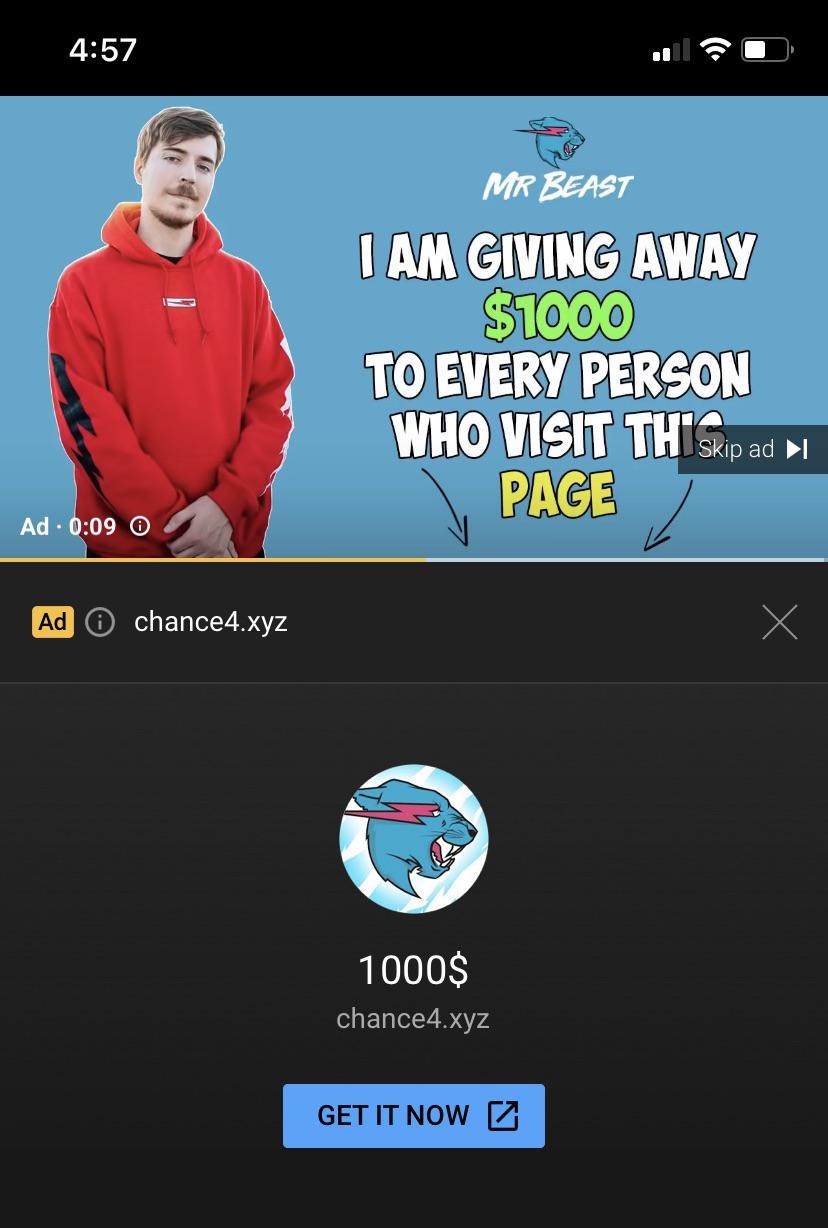
Google Ads policy forbids malicious software, deceptive destinations, and attempts to circumvent ad review, but attackers keep testing new accounts, compromised advertiser profiles, redirects, cloaking, and brand impersonation. That means the safer reader decision is not “all ads are malware”; it is to treat sponsored software downloads as untrusted until the final domain, file, and installer behavior match the real vendor.
Older search-ad campaigns pushed fake downloads for tools such as VLC, Notepad++, OBS Studio, LibreOffice, VirtualBox, WinRAR, Rufus, drivers, and Adobe-related utilities. Newer lures often target password managers, support portals, crypto tools, developer packages, and productivity apps. The pattern is the same: the ad borrows trust from the brand, then the landing page swaps in a download, login, support call, or script that benefits the attacker.
Prevention checklist
- Prefer the official vendor URL from your bookmarks or the vendor’s documentation, not the first sponsored result.
- Check the final domain after the page loads, especially before downloading software or entering credentials.
- Avoid installers that arrive as password-protected archives, scripts, or commands copied from an ad landing page.
- Keep browser Safe Browsing and operating-system reputation checks enabled, but do not rely on one warning layer to catch every new campaign.
- Use a standard user account for daily work and keep backups separate from the browser profile and Downloads folder.
- If you clicked a fake ad while signed in to work, banking, crypto, email, or administrator tools, rotate credentials from a clean device and review active sessions.
FAQ
Can a Google sponsored result install malware by itself?
Most fake sponsored-result cases need another action, such as approving a download, running an installer, pasting a command, allowing notifications, or entering credentials. Drive-by attacks are possible in the broader web threat model, but for this page the practical risk is the fake download or fake login flow after the click.
Is clicking the ad enough reason to reset Windows?
No. If you only opened the page and closed it, remove any site permissions and watch for browser symptoms. If you ran a file, allowed remote support, or entered credentials, scan the PC and secure accounts first. A clean reinstall is reserved for severe persistence, file-infector, rootkit, ransomware, or repeated compromise cases.
Should I use an ad blocker to avoid search malvertising?
An ad blocker can reduce exposure, but it is not a complete security plan. You still need to verify the final domain, download software from the real vendor, avoid copied terminal commands from ads, and scan the device if you ran a suspicious installer.
References
- Google Ads Help. “Malicious Software.” Google, accessed July 7, 2026. https://support.google.com/adspolicy/answer/15939580
- SANS Internet Storm Center. “Malicious Ad for Homebrew Leads to MacSync Stealer.” SANS ISC, May 2026, accessed July 7, 2026. https://isc.sans.edu/diary/32942
- Google Chrome Help. “Remove unwanted ads, pop-ups & malware.” Google, accessed July 7, 2026. https://support.google.com/chrome/answer/2765944
Related case: Paid-search abuse continues to target administrator workflows, including a GoDaddy ManageWP phishing campaign where one stolen dashboard login may expose multiple WordPress sites. See Gridinsoft’s newer coverage of ManageWP phishing ads.
Malvertising campaigns also push fake installers and poisoned archives for popular utilities. If the lure involves a code editor, check our Notepad++ arbitrary code execution vulnerability guide for the specific risk around tampered config.xml, shortcuts.xml, and malicious .lnk launch paths.