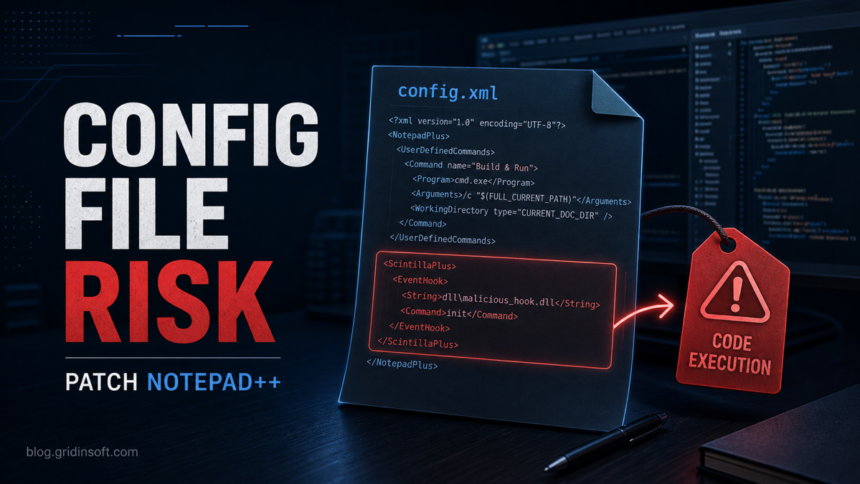
Notepad++ users should update to version 8.9.6.1 or newer if they use the editor on Windows for scripts, logs, project files, or downloaded archives. The May 2026 Notepad++ security release fixed two high-severity arbitrary code execution issues tied to config.xml and shortcuts.xml, plus a separate crash bug. The realistic risk is not a remote drive-by exploit: an attacker first needs a way to place or redirect Notepad++ to poisoned settings, then the victim has to trigger the affected command path. That still matters because the affected files live in normal user configuration locations and can blend into trusted editor behavior.
The safest response is simple: install the official Notepad++ update, distrust shortcuts or archives that launch Notepad++ with unusual settings, and inspect the user configuration folder if the editor recently behaved strangely. If a suspicious archive, shortcut, plugin bundle, or synced profile was involved, treat the machine as potentially exposed and run a malware scan before reusing saved credentials or scripts.
July 2026: LunchPoke Uses a Malicious Notepad++ Plugin Bundle
CERT-UA documented a UAC-0099 campaign in which attackers delivered a legitimate portable copy of Notepad++ 8.8.3 inside their own archive, then placed a malicious DLL named NppExport.dll in its plugin folder. The DLL is LUNCHPOKE. This evidence describes an attacker-built bundle; it does not show the official Notepad++ download site or Plugins Admin delivering the malware.[5]
The observed chain started with an email containing an image. Clicking it led through a shortened link to a file service and a ZIP archive. Inside was a VBS script disguised as a PDF by adding many spaces before the final .vbs extension. Running that script downloaded a decoy document and Evernote.zip, extracted Notepad++ to a random public folder, and launched notepad++.exe so it loaded the malicious plugin.
| What happened | What to check |
|---|---|
| You only use an official or managed Notepad++ install | Update through the official site or software portal. Notepad++ use alone is not evidence of this infection. |
| You downloaded the ZIP but did not run the VBS file | Do not open it. Quarantine or preserve it for your security team, then scan the download and extraction folder. Keep the download, extraction, and execution risk boundaries separate. |
| You ran the fake PDF/VBS file | Disconnect the computer from the network, stop using sensitive accounts on it, preserve the email/archive, and check the paths and scheduled task below before cleanup. |
LunchPoke, BurnyBear, and MatchBoil indicators
LUNCHPOKE created persistence for RemoteLibUpdater.exe, classified as BURNYBEAR, which loaded InitTest.dll, classified as MATCHBOIL.V2. CERT-UA observed a task named \W1n3r-U09oTy-Ap5\Updates running the loader every three minutes. Useful host checks include %PUBLIC%\Libs_{random}\Notepad\, %PUBLIC%\Libraries\W1n3r-U09oTy-Ap5\, and %PUBLIC%\Wallpapers\Background.exe. Random directory names can differ.
NppExport.dll SHA-256: c270432a3f16241c24d0b57838b17b2fa438a24eebf29dcbda08622de725fe21
RemoteLibUpdater.exe SHA-256: 838512a8a88f584a5d9a61cff17da0db7fa5886cccce2f84652ccb6e7808b090
InitTest.dll SHA-256: 78cb23c739d24513b25f477183566c9fce0b329696e05482065f1bf01629c606
These are selected high-confidence examples from the first observed set; the CERT-UA advisory contains additional variants, network indicators, and host artifacts. A filename match by itself is not enough because attackers can rename files, and a clean filename is not enough when the hash, path, parent process, or scheduled task is wrong.
What to do after the suspicious script ran
- Isolate the computer and record the suspicious email, download URL, archive name, file times, and any security alerts.
- Check Task Scheduler for the named task and other tasks created at the same time. Inspect the public-folder paths above without launching their files.
- Run a full endpoint scan. The malicious plugin is only the first visible stage; removing Notepad++ alone does not remove a scheduled loader or follow-on files.
- After evidence collection, remove confirmed malicious tasks and files, reboot, and scan again. In an organization, let the incident-response team decide whether reimaging is safer.
- Update Notepad++ from an official source. Version 8.9.7 is the current official release as of July 23, 2026.[6] Update archive tools through their official channels as well.
- CERT-UA did not name the final payload. If the script ran and the computer later handled sensitive accounts, follow your organization’s incident policy and change affected credentials from a clean device rather than assuming that deleting the archive ended the incident.
What Was Fixed In Notepad++ 8.9.6.1?
The official Notepad++ release note says version 8.9.6.1 fixes three vulnerabilities: a malformed-structure crash, arbitrary code execution through config.xml, and arbitrary code execution through shortcuts.xml.[1] The two code execution advisories are tracked as CVE-2026-48778 and CVE-2026-48800.
| Issue | Practical meaning |
|---|---|
| CVE-2026-48778 | A poisoned commandLineInterpreter value in config.xml can replace the command that Notepad++ runs when a user opens the containing folder in a command prompt.[2] |
| CVE-2026-48800 | A poisoned Run menu command in shortcuts.xml can appear as a normal user-defined command and launch an attacker-chosen executable when clicked.[3] |
| Affected versions | GitHub advisories list Notepad++ versions up to and including 8.9.6 as affected, with 8.9.6.1 as the patched version.[2] |
Both flaws are local-command execution paths. They are dangerous when combined with malware, a malicious .lnk file, a shared settings folder, a poisoned cloud-synced profile, or a social-engineered archive that changes which configuration directory Notepad++ uses. That makes the issue more relevant to developers, admins, support teams, and power users than to someone who only opens plain text files from trusted folders.
How The XML Files Become A Risk
Notepad++ stores many user preferences and commands in XML files. The user manual explains that normal installs use the %AppData%\Notepad++ hierarchy, while portable or redirected setups can use other configuration locations.[4] That flexibility is useful, but it also means a malicious settings directory can matter as much as a malicious executable.
In the config.xml case, the affected setting controls the command-line interpreter used by the “Open Containing Folder in cmd” action. In the shortcuts.xml case, the dangerous entry sits under user-defined Run menu commands. The user may see a harmless-looking menu item such as “System Update Check” or “Build Project” even though the command behind it points to an attacker-controlled binary or script.
Who Should Act First?
- Anyone running Notepad++ 8.9.6 or older on Windows.
- Users who open code, logs, scripts, or archives from Discord, GitHub issues, email attachments, forums, freelance handoffs, or shared drives.
- Admins who deploy Notepad++ as a standard support or developer tool.
- People who use portable Notepad++ builds, cloud settings, custom
-settingsDirshortcuts, or shared profile folders. - Users who recently saw new Run menu items, strange command prompts, unexpected child processes, or antivirus alerts after launching Notepad++.
How To Check Your Notepad++ Version
- Open Notepad++.
- Select ? or Help, then About Notepad++.
- If the version is 8.9.6 or older, update immediately. Use the current official release from the Notepad++ website or your managed software portal; version 8.9.7 is current as of July 23, 2026.[6]
- After updating, close all Notepad++ windows and reopen the editor so the patched executable is the one in use.
For managed fleets, do not rely only on the installed program list. Portable copies and manually extracted builds may sit in user folders, developer tool directories, or old project archives. Inventory common paths such as Downloads, Desktop, developer tool folders, and portable app directories when the user has admin or developer workflows.
What To Inspect If You Opened A Suspicious Archive Or Shortcut
If the only issue is an old Notepad++ version, updating is enough. If the warning came after opening an unknown archive, project handoff, plugin bundle, or shortcut, check for configuration tampering as well.
- Close every Notepad++ window.
- Inspect
%AppData%\Notepad++\config.xmlfor unusualcommandLineInterpretervalues. - Inspect
%AppData%\Notepad++\shortcuts.xmlfor unexpectedUserDefinedCommands, especially names that look like update checks, build steps, helper tools, or project launchers. - Check any shortcut that launches Notepad++. Be suspicious of
-settingsDir=pointing to a project, archive extraction folder, cloud-sync path, or unfamiliar directory. - Look in Task Manager, Startup Apps, Task Scheduler, and browser downloads for files created around the same time.
- If you find suspicious commands or executables, disconnect the machine from risky accounts, preserve the files for review, and scan the system before continuing work.
Gridinsoft Anti-Malware can help with the endpoint side of that response: scan the downloaded archive, the referenced executable, and the affected Windows profile for trojans, loaders, unwanted startup entries, and persistence left by the same incident. The vulnerability patch stops the Notepad++ execution path; it does not automatically remove a payload that already ran.
Updating the vulnerable app is the first step. If you already extracted and ran a file from an unknown archive, scan the PC for dropped payloads, startup entries, and persistence.
Scan the computer after running the archiveShould You Delete config.xml Or shortcuts.xml?
Do not delete configuration files as the first step on a production or developer workstation. Back them up first, update Notepad++, and compare suspicious entries with a clean profile or a known-good portable copy. The Notepad++ manual notes that some configuration files can be recreated when missing, but deleting them can also remove legitimate shortcuts, macros, and preferences.[4]
If you confirm tampering, save a copy for incident review, remove the suspicious command entries, restart Notepad++, and verify that the Run menu and “Open Containing Folder in cmd” behavior are normal. In a business environment, reimage or reset the profile if the same user account also shows malware, credential theft, or repeated unauthorized changes.
How To Reduce The Risk Going Forward
- Keep Notepad++ and other developer tools updated through a trusted source.
- Do not launch Notepad++ from random
.lnkfiles inside archives or project folders. - Treat shared editor settings as code when they come from contractors, community posts, or unknown repositories.
- Block or review user-writable software folders in business environments where attackers often hide tools.
- Monitor Notepad++ child processes if your EDR supports parent/child process rules for developer tools.
FAQ
Is this a remote Notepad++ exploit?
No. The public advisories describe local execution paths that need poisoned configuration data and user interaction. The risk increases when an attacker can write to the Notepad++ settings folder, redirect settings with a shortcut, or trick the user into opening a prepared archive or project.
Is Notepad++ safe after the update?
Version 8.9.6.1 patches the reported config.xml and shortcuts.xml code execution flaws. If a suspicious command already ran before the update, you still need to scan the system and check for persistence or stolen credentials.
Do I need to uninstall Notepad++?
Most users do not need to uninstall it. Update to the patched version, avoid untrusted settings directories and shortcuts, and inspect the configuration files if there are signs of tampering.
References
- Notepad++ Project. “Notepad++ v8.9.6.1 release.” Notepad++ official website, published May 26, 2026, accessed June 1, 2026. https://notepad-plus-plus.org/news/v8961-released/
- Notepad++ Project. “Arbitrary Code Execution via commandLineInterpreter of config.xml.” GitHub Security Advisory GHSA-7hm3-wp5q-ccv9, published May 26, 2026, accessed June 1, 2026. https://github.com/notepad-plus-plus/notepad-plus-plus/security/advisories/GHSA-7hm3-wp5q-ccv9
- Notepad++ Project. “Arbitrary Code Execution via shortcuts.xml UserCommand Injection.” GitHub Security Advisory GHSA-3x3f-3j39-pj3v, published May 27, 2026, accessed June 1, 2026. https://github.com/notepad-plus-plus/notepad-plus-plus/security/advisories/GHSA-3x3f-3j39-pj3v
- Notepad++ User Manual. “Configuration Files Details.” Notepad++ User Manual, accessed June 1, 2026. https://www.npp-user-manual.org/docs/config-files/
- CERT-UA. “UAC-0099: LUNCHPOKE, BURNYBEAR, updated MATCHBOIL.V2 and the use of Notepad++ 8.8.3.” State Service of Special Communications and Information Protection of Ukraine, published July 21, 2026, accessed July 23, 2026. https://cert.gov.ua/article/6318634
- Notepad++ Project. “Notepad++ release 8.9.7.” Official GitHub repository, released July 14, 2026, accessed July 23, 2026. https://github.com/notepad-plus-plus/notepad-plus-plus/releases/tag/v8.9.7