An unexpected Dropbox purchase order email is not safe just because it resembles a real file-share notification. The message may be a forged Dropbox alert, or it may point to a genuine Dropbox share created by an unknown or compromised sender. Do not use the email’s Open Document, View File, or Download button. Open Dropbox from your own bookmark, check whether the share appears there, identify the sender, and confirm the purchase order through a business contact you already trust.
The campaign described here uses subjects such as Purchase Order PO-2026-05389 has been shared via Dropbox and may name an XLSX, PDF, or invoice. Those details create urgency, but they do not prove that the file is expected, hosted on Dropbox, or safe to open.
How the Dropbox purchase order scam works
The lure exploits a normal business habit: vendors and finance teams often exchange purchase orders through cloud storage. Attackers copy that workflow and rely on the recipient to act before checking who initiated it.
| What you see | What it can mean and what to do |
|---|---|
| A Dropbox-looking email, but no share appears when you open Dropbox from a bookmark | The notification may be forged. Do not return to the email button. Report the message as phishing and verify the request with the supposed sender through a known channel. |
| A share appears in your real Dropbox account, but the sender or purchase order is unexpected | The share may be real while the sender account or hosted file is unsafe. Do not preview macros, download, or open it. Confirm the sender and order independently, then report the share to Dropbox if it is abusive. |
| The link opens a page asking for Microsoft, Google, email, or company credentials | A document viewer should not need your mailbox password. Close the page. If you entered credentials, start account recovery immediately. |
| The file downloads before you can verify the request | Do not open it. Delete or quarantine the file after preserving any evidence your security team needs. Follow the separate checks for a suspicious file that downloaded but was not opened. |
A genuine Dropbox notification is not the same as a trusted business request. Dropbox itself advises caution with files shared by people you do not know. Microsoft has also documented attackers misusing legitimate file-hosting services to start identity-phishing chains. The service can deliver the notification correctly while the person, file, or destination behind the share remains malicious.
Example
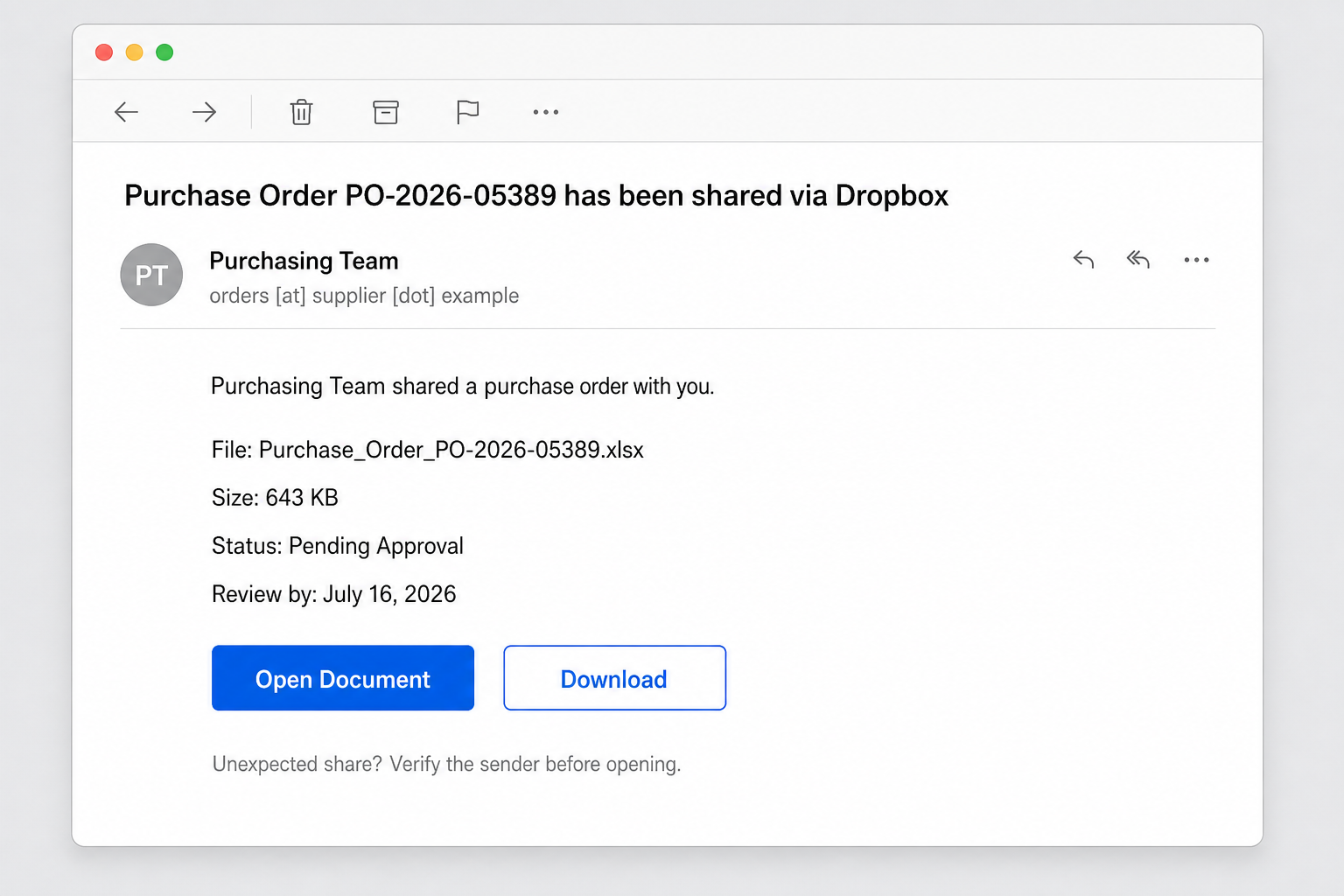
The names, address, and file below are fictional, but the structure shows what to inspect:
Subject: Purchase Order PO-2026-05389 has been shared via Dropbox
From: Purchasing Team <orders [at] supplier [dot] example>
File: Purchase_Order_PO-2026-05389.xlsx
Status: Pending Approval
Please review the attached purchase order before July 16. Open Document or Download.
A second version may use a subject such as Finance Department Invoice Shared With You and a filename like Invoice_Statement.pdf. It may replace Open Document with View File or mention a cPanelID. The same rule applies: invoice language, a familiar cloud brand, and a visible filename are claims, not authentication.
How to check the share without clicking the email
- Leave the message closed. Do not test its buttons or copy a destination into another browser.
- Open Dropbox independently. Use a saved bookmark or type dropbox.com yourself. Dropbox says only www.dropbox.com should ask for Dropbox credentials.
- Review the shared-item activity. Check whether the file or folder exists in your real account and whether the sender identity matches a known supplier.
- Verify the business event. Call the supplier using a number in your vendor record, or start a fresh message to an address you already know. Do not reply to the suspicious thread.
- Inspect the email separately. Compare the visible sender, reply-to address, and link host. Our guide to spotting a phishing email explains the header and domain checks.
- Report abuse. Dropbox accepts reports of suspicious links and files at [email protected]. Your mail provider or security team should receive the original message and headers.
Do not sign in through a page reached from the email merely to “see whether it works.” A fake page can accept any password, display an error, and forward you elsewhere after it has captured the credentials. Likewise, a preview that looks like Microsoft 365 is not proof that Microsoft or your company hosts it.
Warning signs in the purchase order message
- No matching order exists. Your purchasing system, sales contact, or vendor record has no PO with that number.
- The display name carries the trust. “Purchasing Team” or “Finance Department” is visible, while the actual sender or reply-to belongs to an unrelated address.
- The deadline is the reason to click. “Pending approval,” “today,” or “before shipment” is used to bypass normal verification.
- The viewer asks for unrelated credentials. A spreadsheet or PDF page requests an email, Microsoft, Google, or company password.
- The file type does not fit the request. An executable, disk image, archive, script, macro-enabled Office file, or password-protected archive arrives where a simple PDF was expected.
- The contact route changes. The message asks you to reply to a new address, call a new number, or update payment details inside the shared document.
These signs overlap with the WeTransfer purchase order email scam, but the verification step differs: check a Dropbox share only from your independently opened Dropbox account.
What to do based on what happened
You only read the email
Do not interact with it. Preserve the message if your organization needs evidence, report it as phishing, and verify the claimed order through your normal supplier channel. Reading ordinary email text alone does not mean your account was compromised.
You clicked but entered nothing
Close the page. Do not approve notifications, downloads, extensions, or sign-in prompts. Clear any site permissions granted during the visit and tell your security team the destination and time. A click is not proof of infection, but it is enough reason to review what the browser downloaded or allowed.
You entered credentials or approved a sign-in
- Change the exposed password from a clean, independently opened service page.
- Sign out other sessions and revoke unfamiliar connected apps or OAuth grants.
- Enable multi-factor authentication, or reset it if the attacker changed it.
- Check mailbox forwarding, inbox rules, sent mail, recovery details, and recent sign-ins.
- Notify your employer or service administrator quickly; business mail access can be reused for invoice fraud.
Cloud-account access can also fail without a phishing message. The Dropbox Lenovo ID breach involved an alternate sign-in route; its response guide separates account access, file access, connected apps, and sharing permissions. That incident is distinct from the purchase-order scam described here.
You downloaded but did not open the file
Do not double-click, preview macros, extract an archive, or enable editing. Record the filename and source if needed, then quarantine or remove it according to your organization’s process. See the malicious email attachment guide for file-type and handling checks.
You opened or ran the file
Disconnect the device from the network if it behaved unexpectedly, launched a script, requested macro permission, installed software, or opened a command window. Contact your security team, preserve the email and file details, and use a trusted anti-malware scan. This step matters because the risk has moved from a web lure to a local payload or persistence attempt; it is not a claim that every displayed XLSX or PDF in this campaign contained malware.
How teams can reduce purchase-order phishing
- Require a known-channel callback for new suppliers, unexpected purchase orders, and payment-detail changes.
- Keep approved vendor contacts outside the message being verified.
- Use dual approval for high-value orders and bank changes.
- Teach staff that a real cloud-share notification authenticates the service delivery, not the sender’s business purpose or the file.
- Alert on new mailbox forwarding rules, suspicious OAuth grants, impossible sign-ins, and unusual outbound mail.
A buyer can also impersonate a supplier portal without using Dropbox. In the fake Tesla purchase order email, even the greeting and the download button point to different outside sites.
FAQ
Is the Purchase Order PO-2026-05389 Dropbox email genuine?
Treat it as unverified unless the order exists in your business records and the sender confirms it through a known contact route. The PO number, filename, and Dropbox branding can all be copied into a forged message.
Can a real Dropbox notification still be dangerous?
Yes. An attacker can abuse a legitimate share or a compromised account. Open Dropbox independently and verify both the sender and business request before viewing or downloading the file.
Should a Dropbox document ask for my email password?
No. Do not enter a Microsoft, Google, company-mail, or Dropbox password into a document viewer reached from an unexpected email. Close it and open the relevant service from your own bookmark.
What if the purchase order came from a supplier I know?
The supplier’s account may be compromised, or the display name may be spoofed. Call a known number or start a fresh message to an address already in your vendor records before acting.
Where should I report a suspicious Dropbox share?
Send the suspicious link or file details to Dropbox at [email protected] and report the original message to your mail provider or security team. Avoid forwarding a live link to coworkers as though it were legitimate.
References
- Dropbox. “How to protect your account from phishing and viruses.” Dropbox Help, updated December 20, 2024, accessed July 22, 2026. https://help.dropbox.com/security/phishing-virus-protection
- Dropbox. “Official Dropbox domains.” Dropbox Help, updated July 21, 2025, accessed July 22, 2026. https://help.dropbox.com/security/official-domains
- Microsoft Threat Intelligence. “File hosting services misused for identity phishing.” Microsoft Security Blog, October 8, 2024, accessed July 22, 2026. https://www.microsoft.com/en-us/security/blog/2024/10/08/file-hosting-services-misused-for-identity-phishing/