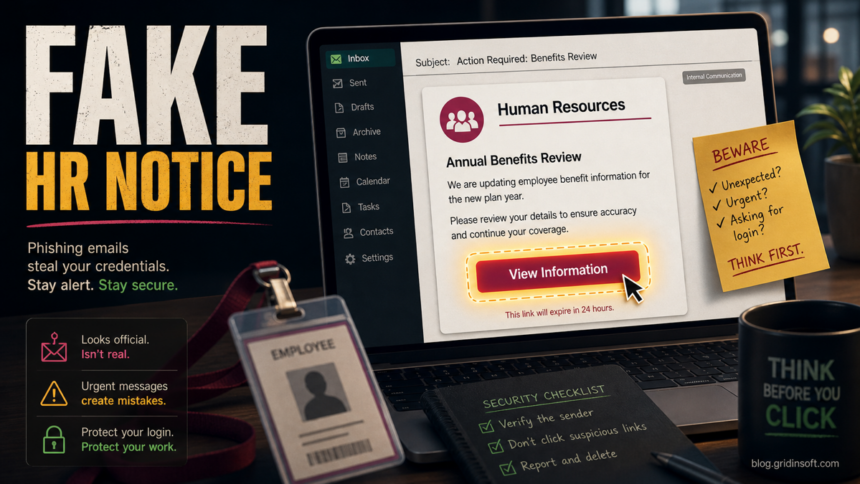
The Benefits Review Notice email scam is a phishing message that pretends to come from Human Resources about a compensation or benefits review. The goal is not to explain a real employee benefit. It pushes the recipient to click a View Information button and sign in on a fake mail or company login page, giving attackers access to a workplace mailbox and possibly other internal systems.
Treat the message as unsafe unless you can verify it through your normal HR or payroll portal without using the email link. If you already entered a password, change it from a trusted device, report the message to IT, revoke suspicious sessions, and check whether any mailbox rules, forwarding addresses, or MFA settings were changed.
What the Benefits Review Notice scam looks like
The observed lure is built to feel routine: an internal-looking Human Resources notice, a benefits or compensation review subject, and a call-to-action button that says something like View Information. That combination is effective because employees are used to real benefit-enrollment reminders, payroll notices, open-enrollment updates, and annual HR policy changes.
Common signs include:
- a vague HR sender name that does not match your company’s real HR mailbox;
- urgent wording about reviewing benefit details, coverage, compensation, or plan-year information;
- a button or link that opens a generic webmail login instead of the official HR, benefits, SSO, or payroll portal;
- grammar that sounds formal but slightly generic, as if it could fit any company;
- no personal HR context, no company intranet path, and no normal ticket or benefits-system reference.
The message may look less suspicious than a fake bank alert because it is not asking for money. That is the point. A work mailbox can expose reset links, invoices, vendor threads, HR files, contact lists, and internal conversations that help attackers launch more convincing phishing or business email compromise attempts.
Confidential HR Message and Purview variants
A newer variant may not say Benefits Review Notice at all. It can arrive as a protected document notice with a subject such as Confidential HR Message from your company, a display name like Human Resource, and a button labeled View secure message. Some versions copy Microsoft Purview or encrypted-message wording to make the link feel routine.
Microsoft Purview Message Encryption is a real Microsoft 365 feature for encrypted email, but that does not make every “secure message” notification safe. Treat the message as suspicious when the sender domain is unrelated to your company, the authentication results show DKIM or DMARC failure, or the button goes to a newly registered, unfamiliar, or country-code domain instead of your normal Microsoft, HR, SSO, or payroll route.[3]
An observed version used this pattern:
- Subject: Confidential HR Message from the company domain
- Sender display name: Human Resource
- Body hook: “You have a confidential HR message” and “This message is encrypted and requires verification”
- Button: View secure message
- Link warning: the button led to unrelated
.sudomains, not to the company’s HR portal or a known Microsoft sign-in path
Do not click the secure-message button to see what happens. Open your company mailbox, Microsoft 365 portal, HR portal, or helpdesk route from a trusted bookmark and ask IT or HR to verify whether a protected message was actually sent.
HR Policy/Allocation Update email variant
The HR POLICY/ALLOCATION UPDATE email is another credential-phishing variant aimed at employees. It claims to come from an HR / Finance Office, says a policy case has been reviewed, and presents a policy number, review date, recipient field, and a REVIEW DOCUMENTS button. Those polished fields can be filled from mail-merge data; they do not prove that the case exists in your employer’s HR system.
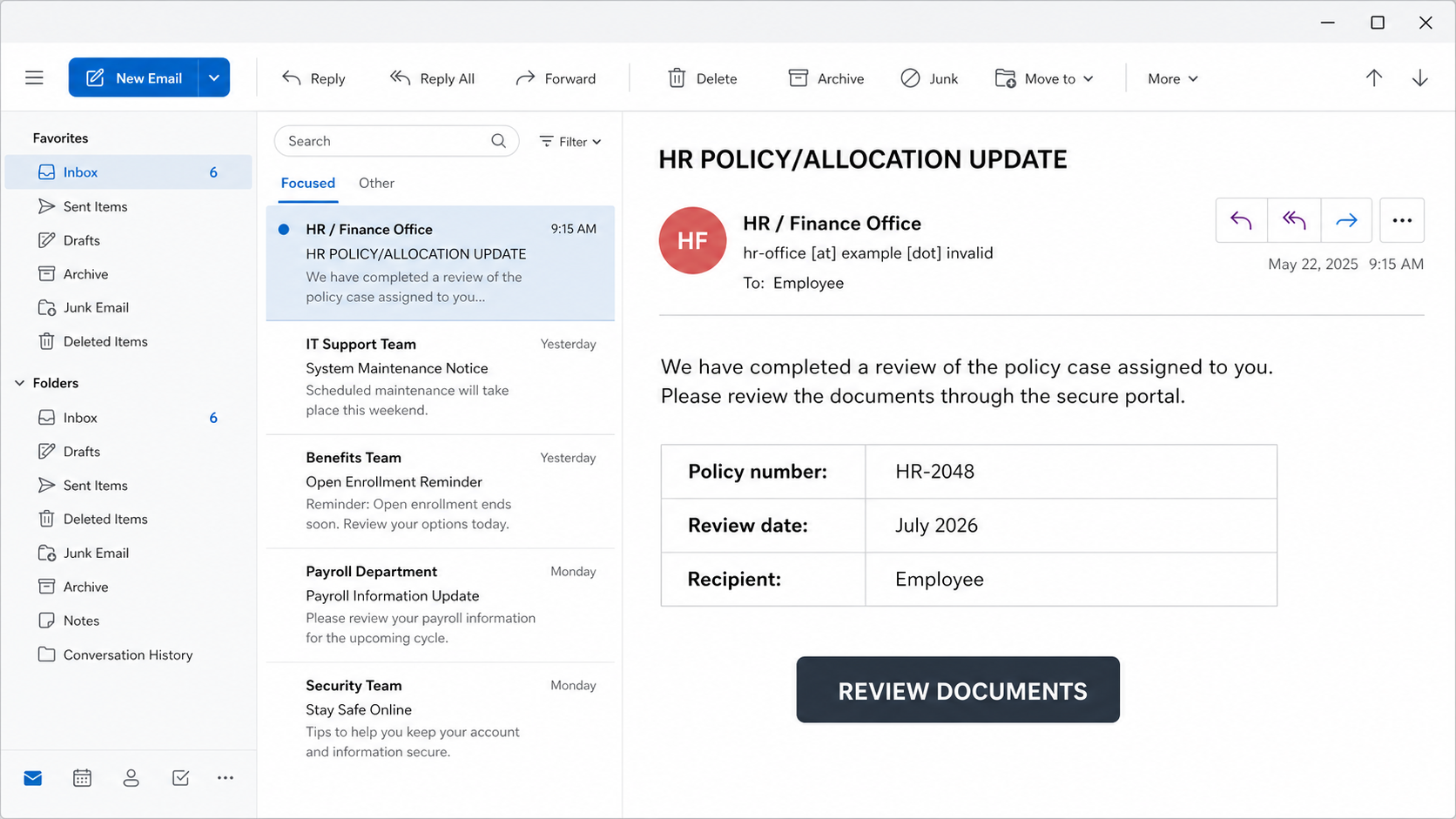
Example
Subject: HR POLICY/ALLOCATION UPDATE
From: HR / Finance Office
Policy number: HR-2048
Review date: July 2026
Recipient: Employee
We have completed a review of the policy case assigned to you. Please review the documents through the secure portal.
Button: REVIEW DOCUMENTS
In the reported campaign, the button used an unrelated motorspot[.]me address and led to a fake sign-in page that could imitate the recipient’s email provider, including Gmail-style branding. A page that changes its logo or form to match your address is not proof of a real SSO flow; it is a common way to make credential harvesting feel familiar.
Do not use the button to investigate the case. Open the known HR or payroll portal from your intranet or password manager, then ask HR through the internal directory. Similar workplace pressure appears in the Your Payslip Is Available email scam. If you entered a password, use the account-recovery and mailbox-rule checks below and report the incident to IT.
How to check it safely
Do not use the button in the message to test whether it is real. Check the notice through a separate path:
- Open your company’s HR, payroll, or benefits portal from a bookmark, intranet page, password manager, or typed address.
- Look for the same benefits review inside that portal. Real benefit actions usually appear there, not only in an email button.
- Ask HR or payroll through a known internal channel. Do not reply to the suspicious message.
- Hover over the link only if your email client makes that safe and readable. A domain that is not your company, your SSO provider, or your benefits provider is a strong warning sign.
- Forward or report the message through your organization’s phishing-report button if one exists.
If you are checking a copied URL or downloaded attachment outside a corporate environment, you can use the Gridinsoft Online Virus Scanner for files or the Gridinsoft URL scanner for suspicious links. Do not upload private HR documents or internal-only files to any public scanner without your organization’s approval.
If you entered your work password
Act quickly, but do it from a clean path. Use a trusted browser session or a device your organization manages, then take these steps:
- Change the affected password directly on the real company SSO or email portal.
- Sign out of all sessions if your account portal offers that option.
- Review recent sign-ins, especially unfamiliar countries, devices, browsers, or impossible travel events.
- Check mailbox rules, forwarding, connected apps, OAuth grants, recovery email, phone numbers, and MFA devices.
- Tell IT or security what happened, including the subject line, sender, time received, and whether you typed credentials.
- If you reused the same password elsewhere, change those accounts too.
For a company account, do not stop after changing the password. Attackers sometimes add forwarding rules or app permissions so they can keep reading mail after the password is reset. A fast report to IT also lets the security team search for the same lure in other mailboxes and block the phishing domain.
Why HR and benefits lures work
Benefits messages create pressure without sounding like a classic scam. Employees may worry about missing open enrollment, losing coverage, delaying a reimbursement, or ignoring a real compensation update. Phishing campaigns exploit that pressure by mixing official-sounding HR language with a single action button.
This is different from a mailbox-quota scam or a fake invoice. A benefits notice can make the victim believe the request belongs to an internal workplace process. That is why the safest response is to leave the email and verify through the known HR system, not to judge the message only by layout.
What attackers can do with the mailbox
A stolen work mailbox can be useful even if the attacker never sees payroll records. They can search for invoices, password resets, customer conversations, internal file links, vendor names, shared calendars, and executive contact patterns. That information can support account takeover, payroll diversion, fake payment requests, or more targeted phishing against coworkers.
For more background on how workplace email compromise works, see Gridinsoft’s guide to Business Email Compromise. If you are not sure whether a message is phishing, compare it with the examples in How to Spot a Phishing Email or use the Gridinsoft Email Scam Checker workflow.
How to avoid this HR phishing trap
- Use bookmarks or your company intranet for HR and payroll actions.
- Do not trust a benefits notice only because it has a familiar display name or workplace tone.
- Use phishing-resistant MFA where your organization supports it.
- Report suspicious HR-themed messages instead of deleting them silently.
- Keep personal and work passwords separate so a work phishing incident does not expose private accounts.
For personal accounts, the FTC recommends reporting phishing attempts and avoiding links in suspicious messages.[1] For organizations, CISA’s phishing guidance emphasizes employee reporting, verification habits, and reducing the damage from social-engineering attacks.[2]
FAQ
Is the Benefits Review Notice email real?
Assume it is fake until you verify it through your company’s official HR, payroll, benefits, or SSO portal. A real notice should be confirmable without using the email button.
What does the View Information button do?
In the phishing version, the button leads to a fake login page that tries to steal email or workplace account credentials. Do not test it from your normal browser session.
Is a Microsoft Purview or encrypted HR message always legitimate?
No. Real encrypted mail exists, but a phishing email can copy the wording. Verify the message through your known Microsoft 365, HR, SSO, or IT channel instead of using the button in the email.
Should I reply to ask HR if it is legitimate?
No. Use a known HR channel, internal chat, phone number, or portal ticket instead. Replying confirms your mailbox is active and may send your response to the attacker.
What if I clicked but did not enter a password?
Close the page, report the email, and avoid entering information. If a file downloaded, do not open it; scan it and ask IT before taking further action.
What if I entered my password?
Change the password from the real company portal, sign out other sessions, review MFA and mailbox rules, and report the incident to IT immediately. Workplace accounts need an administrator-side check after credential exposure.
References
- Federal Trade Commission. “How To Recognize and Avoid Phishing Scams.” FTC Consumer Advice, accessed June 15, 2026. https://consumer.ftc.gov/articles/how-recognize-avoid-phishing-scams
- Cybersecurity and Infrastructure Security Agency. “Avoiding Social Engineering and Phishing Attacks.” CISA, accessed June 15, 2026. https://www.cisa.gov/news-events/news/avoiding-social-engineering-and-phishing-attacks
- Microsoft Support. “Open encrypted and protected messages.” Microsoft Support, accessed June 25, 2026. https://support.microsoft.com/en-us/outlook/mail/open-encrypted-and-protected-messages