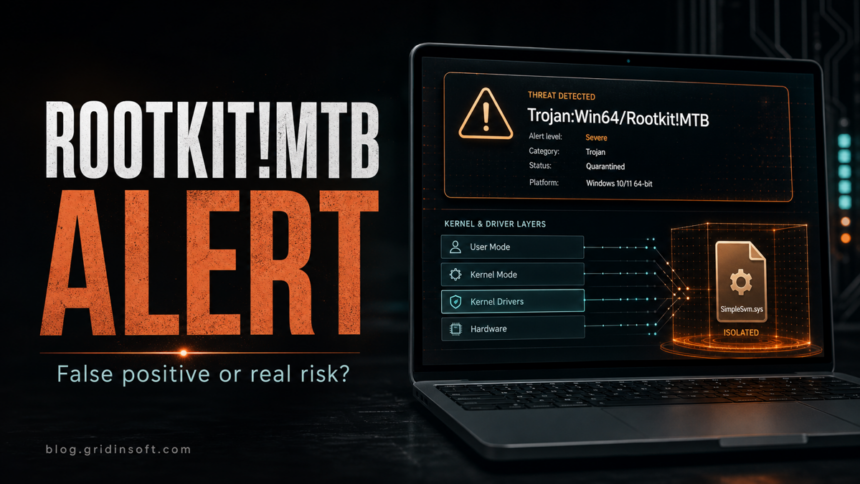
Trojan:Win64/Rootkit!MTB is a severe Microsoft Defender detection that often appears when a suspicious 64-bit driver, temporary driver drop, or game-bypass component behaves like a rootkit. Do not restore it or add an exclusion while you are unsure. Keep the item quarantined, copy the affected path from Protection history, check whether it came from a trusted signed driver or a risky cracked-game/hypervisor package, and run a full cleanup scan before using the PC for accounts or payments.
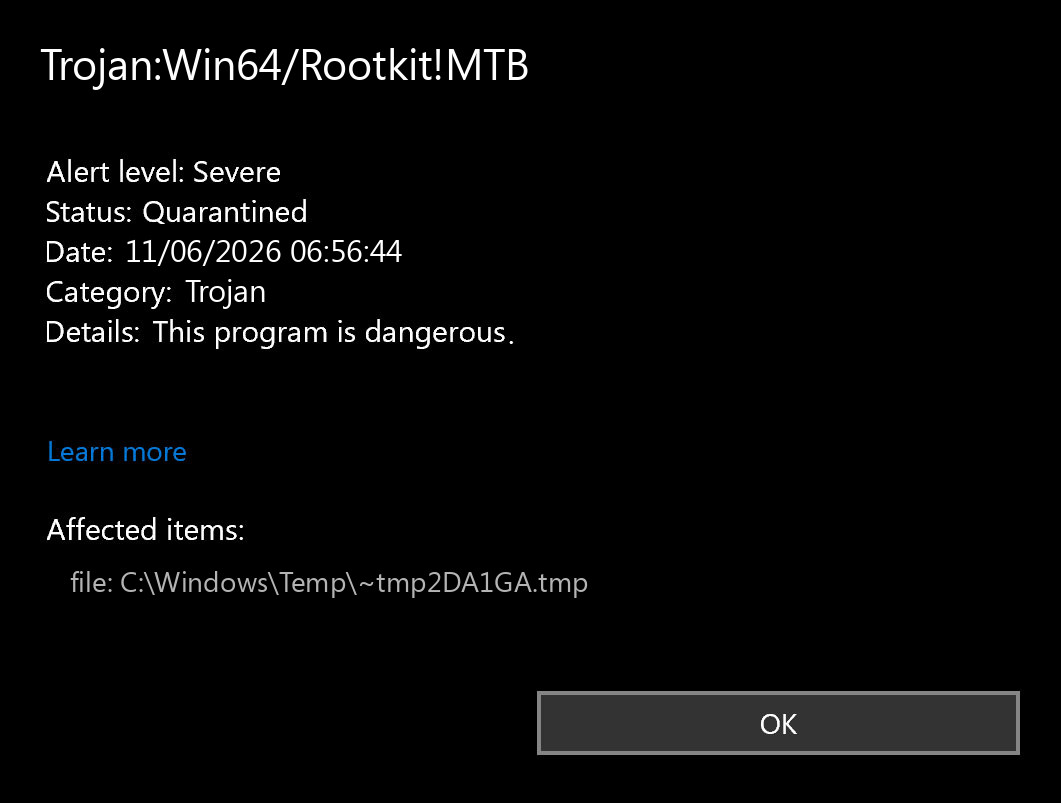
The most important detail is the affected item. A one-time alert in C:\Windows\Temp, C:\Windows\SystemTemp, or a named driver such as SimpleSvm.sys after a game bypass is different from a random unsigned driver that loads at boot. Both deserve caution, but the second case needs deeper rootkit-style cleanup.
What Trojan:Win64/Rootkit!MTB Means
Microsoft Security Intelligence lists detections in the Trojan:Win64/Rootkit family as severe, but exact !MTB labels often have limited public behavior notes. The name itself still tells you useful things: Win64 points to 64-bit Windows code, Rootkit suggests low-level hiding, driver, or system-control behavior, and !MTB is a Microsoft machine-learning or cloud-classification suffix.
That does not prove every case is a live rootkit. Current search results show real users seeing this detection around cracked game updates, hypervisor bypass tools, VBS/DSE changes, temporary driver files, and SimpleSvm.sys. Those contexts can create false-positive discussions because legitimate-looking driver or virtualization code may resemble rootkit behavior. They are still risky contexts because the files are often unsigned, redistributed, modified, or installed outside a normal vendor driver flow.
If you are comparing Defender labels, our Microsoft Defender detection names guide explains how platform, family, and suffix labels shape the cleanup decision.
First Check: Where Was It Detected?
Open Windows Security, go to Protection history, expand the Trojan:Win64/Rootkit!MTB entry, and copy the affected item path before clearing history. Use the path to decide how urgent the response should be.
| Affected item | Risk and what to do |
|---|---|
C:\Windows\SystemTemp or C:\Windows\Temp after an installer |
Common in game-bypass and temporary-driver cases. Keep quarantine, remove the installer/source, reboot, and run a full scan. |
SimpleSvm.sys or a similar .sys driver |
Check the source, signature, and whether you intentionally installed a hypervisor/VBS/DSE tool. Do not load it manually. |
Driver store path such as FileRepository or oem#.inf |
Potentially installed driver package. Confirm publisher and remove with proper driver tools if suspicious. |
| Startup, service, scheduled task, or unknown program folder | Higher risk. Treat it as persistence until proven clean. |
| Repeated detections after reboot | Something may be reinstalling or loading the driver. Investigate services, startup entries, and recently installed packages. |
Could It Be A False Positive?
It can be a false positive, but only after the evidence fits. A lower-risk explanation is more believable when the file came from a known vendor driver, has a valid publisher signature, matches the expected install path, and does not return after quarantine and reboot. A cracked-game update, repack, bypass package, or modified hypervisor component is not the same level of trust, even if other users claim it is safe.
Do not use forum comments as the deciding factor. For this detection, many search results are piracy-forum threads where replies tell users to disable Defender or add exclusions. That advice may make the game run, but it also hides the next detection. A safer approach is to preserve the alert details, scan the file/source, and remove the bypass package if you cannot verify it.
How To Check A Suspicious Driver
- Do not restore the file. If Defender quarantined it, leave it there while you gather details.
- Copy the path and filename. Note whether the item was a
.sys,.tmp, installer, archive, or driver package. - Check the digital signature. If the file is still available from a safe copy, right-click it, open Properties, and review Digital Signatures. In PowerShell, use
Get-AuthenticodeSignature "C:\path\file.sys". - Check the install context. Ask what changed before the alert: a game update, driver updater, cracked installer, anti-cheat, hypervisor tool, VPN, emulator, or unknown setup file.
- Inspect driver packages only if needed. Microsoft documents
pnputil /enum-drivers /filesandpnputil /delete-driver <oem#.inf> /uninstallfor driver package management. Use it only when you can identify the correct package. - Scan the original source. Scan the folder, installer, archive, and extracted files. If the source came from a repack or bypass site, do not assume the rest of the package is clean.
For general driver trust checks, see our guide on whether PnP Windows drivers are safe. For broader rootkit behavior, our rootkit attack guide explains why low-level persistence is harder to verify than a normal unwanted app.
Safe Cleanup Steps
- Keep
Trojan:Win64/Rootkit!MTBquarantined in Microsoft Defender. - Delete the original installer, archive, or update package that dropped the alert.
- Reboot once and check whether the detection returns without opening the same installer again.
- Update Microsoft Defender security intelligence and run a full scan.
- If the alert mentioned a driver package, check installed third-party drivers with
pnputil /enum-drivers /filesand remove only the suspicious package you can identify. - Check Startup Apps, Task Scheduler, Services, and recently installed programs for entries created around the alert time.
- Run Gridinsoft Anti-Malware as a second-opinion scan, especially if the warning came from a cracked installer, driver bypass, or unknown
.sysfile. - If the system behaves strangely after reboot, run Microsoft Defender Offline because it scans from a trusted environment outside the normal Windows kernel.
After uninstalling the suspicious app or deleting the visible threat, use Gridinsoft Anti-Malware to check hidden files, startup entries, scheduled tasks, bundled apps, browser changes, and other persistence points that can restore malware.
Download Anti-MalwareDo not disable Core Isolation, Driver Signature Enforcement, or Defender just to make the source program run. If a tool requires weakening Windows security and then triggers a rootkit-family alert, the safer decision is to remove the tool and use a clean source.
When To Treat It As A Real Rootkit Risk
Escalate the response if any of these are true:
- the same detection returns after reboot without reopening the original installer;
- a new unknown driver, service, or scheduled task appears around the alert time;
- the system disables security settings, blocks scans, or refuses to delete suspicious files;
- the file has no valid signature or claims a publisher that does not match the source;
- the alert followed a cracked game, bypass, keygen, loader, fake update, or unknown driver updater;
- accounts show suspicious sign-ins after the incident.
If you see those signs, avoid entering passwords on the affected PC until scans are clean. Change important passwords from another device, revoke suspicious sessions, and keep the quarantined event as evidence.
What Not To Do
- Do not restore the quarantined item to test it.
- Do not add a Defender exclusion for the whole folder, game directory, or driver path.
- Do not follow instructions that require disabling security features without explaining the exact driver and publisher.
- Do not install another copy of the same bypass package after Defender blocks the first one.
- Do not assume a
.sysfile is safe because other users call it a false positive.
FAQ
Is Trojan:Win64/Rootkit!MTB always a real rootkit?
No. The exact alert can appear in false-positive discussions around drivers, hypervisor tools, and game bypasses. Still, a rootkit-family detection on a .sys driver should be treated as risky until the file source, signature, path, and follow-up scans are clean.
Why did Defender flag SimpleSvm.sys?
SimpleSvm.sys is commonly discussed in hypervisor or game-bypass contexts. If Defender flags it as Trojan:Win64/Rootkit!MTB, do not load it manually. Verify the source and signature, remove the bypass package if you cannot trust it, and scan the system.
Should I allow or exclude Trojan:Win64/Rootkit!MTB?
No. An exclusion suppresses future alerts and can hide a real driver-level threat. Use quarantine, cleanup, source verification, and scanning instead.
Do I need Microsoft Defender Offline?
Use it when the alert repeats after reboot, security tools behave strangely, or you suspect a low-level driver/rootkit. Microsoft Defender Offline is designed to scan from outside the normal Windows kernel.
Should I reinstall Windows?
Not for a single quarantined temp-file alert that does not return. Consider a clean reinstall only if scans cannot remove the issue, rootkit-like symptoms persist, or you knowingly ran an untrusted driver/bypass with administrator rights.
References
- Microsoft Security Intelligence. “Threat search results for Trojan:Win64/Rootkit!MTB.” Microsoft, accessed June 11, 2026. https://www.microsoft.com/en-us/wdsi/threats/threat-search?query=Trojan%3AWin64%2FRootkit%21MTB
- Microsoft Learn. “Microsoft Defender Offline scan in Windows.” Microsoft Defender for Endpoint documentation, accessed June 11, 2026. https://learn.microsoft.com/en-us/defender-endpoint/microsoft-defender-offline
- Microsoft Learn. “PnPUtil Command Syntax.” Windows Drivers documentation, accessed June 11, 2026. https://learn.microsoft.com/en-us/windows-hardware/drivers/devtest/pnputil-command-syntax