GPU-Z is safe when it is a current copy downloaded from the official TechPowerUp site, but the name alone does not make every GPUZ-v2.sys file safe. Old GPU-Z versions used a vulnerable kernel driver, and an unexpected copy in a temporary or unrelated folder may belong to an outdated utility, a fake download, or malware using a legitimate driver for privileged access.
Do not restore or exclude the file on sight. Check the GPU-Z version, download source, digital signature, path, and whether the driver disappears after you close or update the parent app.
| Current official GPU-Z | Generally legitimate. As of July 9, 2026, TechPowerUp lists version 2.70.0 and notes improved kernel-driver security. |
| GPU-Z before 2.23.0 | Update or remove it. These versions are affected by CVE-2019-7245. |
GPUZ-v2.sys in Temp |
Not automatic proof of malware. Match its timing, version, signature, and parent app; scan if it remains or returns without a trusted utility. |
| Unsigned or wrong-publisher copy | Keep it blocked, remove the source package, and run a full malware check. |
| Security alert | Update or uninstall the parent app first. Do not create a blanket exclusion for a vulnerable driver. |
Is GPU-Z safe?
The official GPU-Z utility is legitimate software from TechPowerUp. It reads graphics-card identity, clocks, temperatures, memory information, BIOS details, and other low-level hardware data. That work requires deeper access than an ordinary desktop app, so GPU-Z loads a kernel-mode driver while it runs.
That driver explains why a security product may call the file riskware or a vulnerable driver rather than a conventional virus. A legitimate signed driver can still contain a flaw or be useful to malware. The practical question is not only “is this file signed?” but “which version is it, why is it here, and what launched it?”
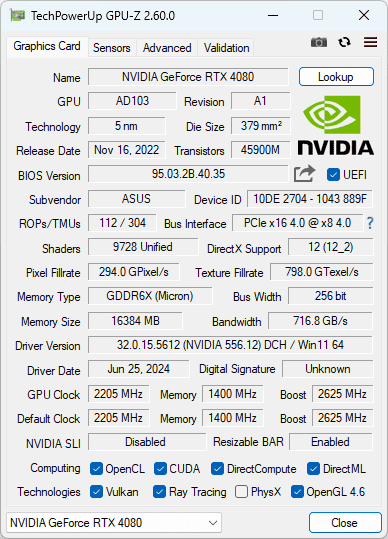
The title bar is the fastest place to find the running GPU-Z version. The official interface image above shows an older 2.60.0 build; compare yours with the current version on the TechPowerUp download page before deciding to keep it.
What is GPUZ-v2.sys?
GPUZ-v2.sys is a low-level Windows driver used by GPU-Z to access hardware information that a normal user-mode process cannot read directly. Kernel drivers run with high privilege, which makes version and source verification important even when the file belongs to a real tool.
Some security tools use labels such as RiskWare.GpuZ.VulnDriver. “Riskware” does not mean the official GPU-Z application is automatically malware. It means the component has capabilities or a vulnerability profile that deserves a decision instead of an automatic allow.
This is similar to a WinRing0x64.sys vulnerable-driver alert: the parent utility may be real, while an old or misplaced driver copy is still unsafe to keep.
Does a TRIXX.sys KillAV alert mean a virus?
A Kaspersky label such as not-a-virus:HEUR:RiskTool.Win64.KillAV.gen does not by itself mean that TRIXX.sys is ransomware. Kaspersky uses not-a-virus for adware and riskware: software that may be legitimate but has capabilities that can be unwanted or abused [4]. The KillAV wording is a warning about security-tool interference capability, not proof of which installer or attack chain placed the driver on the PC.
The context changes if the file’s MD5 is 6bc8e3505d9f51368ddf323acb6abc49. Cisco Talos lists that exact hash for rwdrv.sys, a renamed, signed ThrottleStop driver that Talos observed inside a Qilin EDR-killer chain [5]. If a scanner reports the same binary under the name TRIXX.sys, treat the filename as an alias rather than proof that it came from Sapphire TRIXX or GPU-Z. The exact hash is a strong reason to investigate, but the driver alone does not prove that the Qilin loader, helper driver, or ransomware stage is present.
Before deciding to allow or remove the file, compare:
- Hash: whether the MD5 or SHA256 matches a documented binary, not merely a similar filename.
- Source and signer: which utility installed it, whether that utility came from its official publisher, and whether the signature is valid.
- Path and parent: why it appeared in
%LOCALAPPDATA%\Temp, which process created or loaded it, and whether that timing matches a utility you intentionally ran. - Service and recurrence: whether a driver service loads it at startup or recreates it after quarantine or reboot.
- Adjacent evidence: unexpected
msimg32.dllorhlpdrv.sysfiles, stopped security services, new exclusions, or alerts that disappear only while the driver is loaded.
Keep an unexplained copy blocked or quarantined. Update or remove the parent hardware utility, inspect driver services and security-tool changes, and scan for the surrounding chain. Deleting one .sys file is not enough when another process or service can recreate it. If a known Sapphire or TechPowerUp utility explains a different, verified vendor-signed copy, update the utility and confirm that the driver unloads and does not return on its own.
Why old GPU-Z drivers are risky
The National Vulnerability Database says CVE-2019-7245 affects TechPowerUp GPU-Z versions before 2.23.0. The affected GPU-Z.sys driver exposed an operation that could allow arbitrary model-specific register writes, leading to Ring-0 code execution and privilege escalation [2].
That does not mean every modern GPU-Z build carries the same flaw. It does mean an old installer, archived portable copy, recovery drive, repack, or forgotten utility folder should not be trusted just because GPU-Z is a familiar name. TechPowerUp’s current version history lists 2.70.0, released June 16, 2026, with “Improved kernel driver security” as the first change [1].
GPUZ-v2.sys: safe copy or suspicious copy?
| What you find | Risk and what to do |
|---|---|
GPU-Z came from techpowerup.com, is current, and the driver appears only while the tool runs. |
Likely legitimate. Keep the current build and remove older duplicate installers. |
| The GPU-Z version is earlier than 2.23.0. | Vulnerable. Close it, remove the old copy, reboot, and install the current official release only if you still need it. |
The file is in %TEMP% or %LOCALAPPDATA%\Temp while an official GPU-Z copy is open. |
A temporary path alone is inconclusive. Verify the parent process, version, publisher, and whether the driver unloads after GPU-Z closes. |
| The file remains after GPU-Z is closed, returns after reboot, or no trusted hardware tool explains it. | Suspicious. Keep it blocked, check services and startup entries, and run a full malware scan. |
| The file came with a crack, cheat, repack, “driver updater,” search ad, or unofficial mirror. | High risk. Delete the source package, do not run another copy from that source, and inspect the system for additional payloads. |
| The signature is missing, invalid, or belongs to an unexpected publisher. | Do not allow it. Quarantine the file and investigate the installer or parent process that created it. |
How to check whether GPU-Z is legitimate
- Capture the exact alert and path. Open Windows Security or your antivirus history and copy the detection name, full path, and time.
- Check the running version. Open GPU-Z and read the version in the title bar. If it is old, close it before taking any other action.
- Verify where you downloaded it. The official publisher page is TechPowerUp. Avoid lookalike domains, download portals, search ads, repacks, Discord attachments, and password-protected archives.
- Check the signature. Right-click the executable or driver, choose Properties, and inspect Digital Signatures. A valid expected signature helps, but does not override an obsolete vulnerable version.
- Match the path to the parent app. A temporary helper created while official GPU-Z is running is different from a driver that appears at startup with no GPU-Z window or installed utility.
- Close GPU-Z and reboot. Recheck the path. A driver that remains loaded or is recreated without a known parent deserves deeper investigation.
For any downloaded Windows utility, the broader EXE safety checklist covers source, signature, hash, privacy, and post-run behavior. If you are comparing an official tool with a wrong-path copy, the Rainmeter false-positive guide uses the same source-and-path logic.
Optional PowerShell checks
Advanced users can inspect a saved copy without running it. Replace the example path with the exact path from the alert:
Get-AuthenticodeSignature "$env:LOCALAPPDATA\Temp\GPUZ-v2.sys" | Format-List
Get-FileHash "$env:LOCALAPPDATA\Temp\GPUZ-v2.sys" -Algorithm SHA256
A valid signature is one signal, not a final verdict. Compare the hash only with a trustworthy record for the same version. Individual hash verdicts belong in file-analysis databases; the Blog decision should stay focused on source, version, path, and behavior.
What to do after a GPUZ-v2.sys alert
If GPU-Z is official but old
- Close GPU-Z.
- Delete the old portable folder or uninstall the old installed copy.
- Reboot so the driver is no longer loaded.
- Download the current version from TechPowerUp if you still need the utility.
- Run the new copy once, then confirm that the alert does not return.
If the source is unknown
- Keep the file quarantined or blocked.
- Remove the installer, archive, crack, cheat, repack, or “driver updater” that delivered it.
- Check recently installed apps, Startup Apps, Services, and Task Scheduler for entries created at the same time.
- Run a full security scan, reboot, and scan again if the file or alert returns.
If the alert looks like a false positive
Do not jump straight to an exclusion. First confirm the official source, current version, expected signature, and parent process. A detection can identify a legitimate-but-risky driver correctly even when the surrounding application is not malware. Updating the utility is safer than teaching antivirus software to ignore every future file in the folder.
When GPUZ-v2.sys needs a malware scan
Run a full scan when the driver appears without a trusted GPU-Z copy, returns after reboot, starts with Windows, or arrived with a crack, cheat, fake update, repack, or unknown installer. Also scan when you see related symptoms such as disabled security settings, a new service, an unknown scheduled task, blocked outbound traffic, browser changes, or unexplained CPU/GPU activity.
Removing the visible driver is not enough if another process keeps recreating it. Gridinsoft Anti-Malware can check the surrounding chain for dropped files, services, startup entries, scheduled tasks, bundled apps, and persistence. It cannot prove that a machine was never exposed, so use the results together with the source and timeline checks above.
If the process path is wrong, the name imitates a Windows component, or high CPU started after an unknown installer, scan for hidden miners, services, startup entries, and bundled components.
Scan the unexplained driver copyIf several unknown files ran or security settings changed, continue with the Windows security audit after malware rather than treating one deleted driver as proof that cleanup is complete.
Should you disable the vulnerable driver blocklist?
No, not as a normal GPU-Z fix. Microsoft says the vulnerable driver blocklist is designed to stop non-Microsoft drivers with known vulnerabilities or behavior that undermines the Windows security model. Microsoft also warns that no blocklist can catch every vulnerable driver [3].
If Windows blocks an old GPU-Z driver, update or remove the utility. Turning off Memory Integrity or the driver blocklist to preserve an obsolete tool weakens protection for every other vulnerable driver, not only GPU-Z.
FAQ
Is GPUZ-v2.sys a virus?
Not automatically. It can be the legitimate low-level driver used by GPU-Z. Treat it as risky when it is old, unsigned, from an unofficial source, unrelated to a running GPU-Z copy, or repeatedly recreated.
Is the current GPU-Z version safe?
The current official TechPowerUp build is the right version to use. As of July 9, 2026, the official page lists GPU-Z 2.70.0. Continue to verify the download domain and signature because fake copies can reuse the GPU-Z name.
Why is GPUZ-v2.sys in a Temp folder?
A portable hardware utility may create a temporary helper driver while it runs, so Temp is not proof of malware by itself. The copy becomes more suspicious when no trusted GPU-Z process explains it, the signature or version is wrong, or the file returns after GPU-Z is closed and the PC is rebooted.
Can I delete GPUZ-v2.sys?
Close or uninstall the parent GPU-Z copy first, then reboot. Deleting only the loaded driver may fail or solve nothing if another process recreates it. If the source is unknown, quarantine the file and scan the system.
Should I add an antivirus exclusion for GPU-Z?
Usually no. Verify and update the application first. A folder exclusion can hide a future fake copy or vulnerable driver that uses the same name or location.
Does a KillAV risk-tool alert mean Qilin ransomware?
No. A not-a-virus risk-tool label describes potentially dangerous capability, not a complete attribution. Even when the driver hash matches one observed in a Qilin EDR-killer chain, confirm the parent process, service, recurrence, security-tool changes, and adjacent files before attributing the incident.
References
- TechPowerUp. “TechPowerUp GPU-Z v2.70.0 Download” and version history. TechPowerUp, updated June 16, 2026; accessed July 9, 2026. https://www.techpowerup.com/download/techpowerup-gpu-z/
- National Institute of Standards and Technology. “CVE-2019-7245 Detail.” National Vulnerability Database, published March 25, 2020; modified June 16, 2026; accessed July 9, 2026. https://nvd.nist.gov/vuln/detail/CVE-2019-7245
- Microsoft. “Microsoft recommended driver block rules.” Microsoft Learn, accessed July 9, 2026. https://learn.microsoft.com/en-us/windows/security/application-security/application-control/app-control-for-business/design/microsoft-recommended-driver-block-rules
- Alex Perekalin. “Not-a-Virus: What is it?” Kaspersky official blog, August 21, 2017; accessed August 2, 2026. https://www.kaspersky.com/blog/not-a-virus/18015/
- Takahiro Takeda and Holger Unterbrink. “Qilin EDR killer infection chain.” Cisco Talos, April 2, 2026; accessed August 2, 2026. https://blog.talosintelligence.com/qilin-edr-killer/