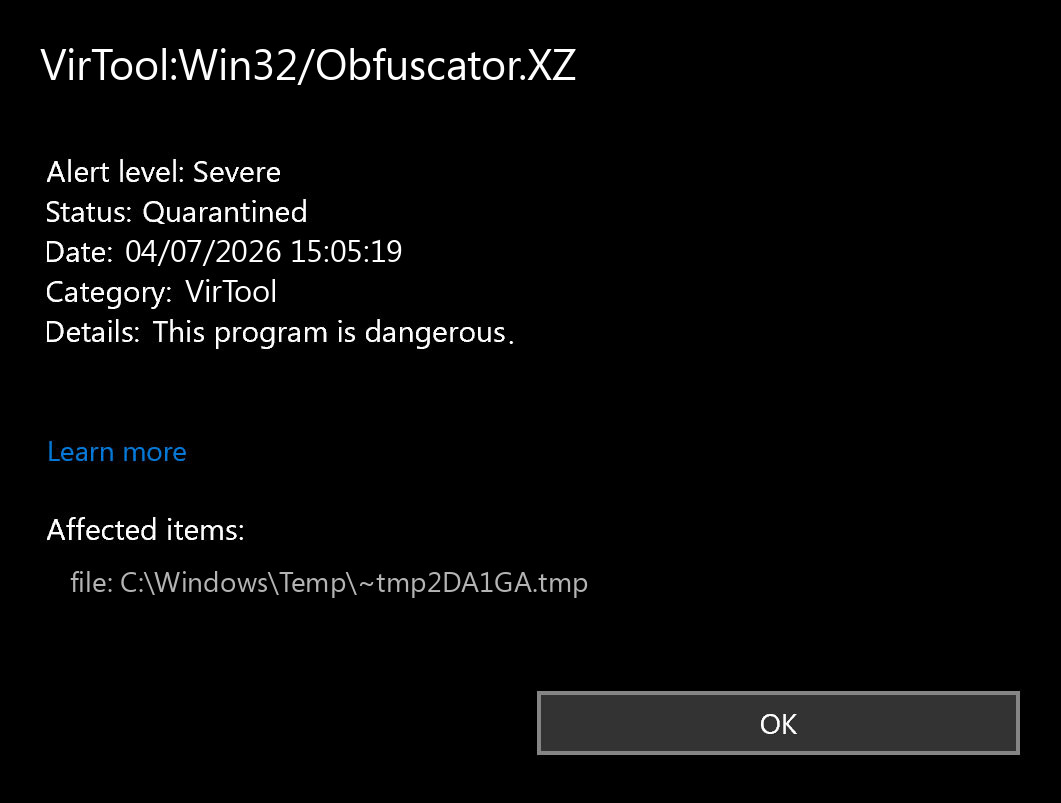
VirTool:Win32/Obfuscator.XZ is a Microsoft Defender detection for a file that uses obfuscation, packing, or other code-hiding behavior. Treat it as risky until you identify the file source: keep the item quarantined, check the affected path, and do not restore or allow it just because another scanner is quiet or the file came with a crack, repack, loader, or protected installer.
The important decision is not whether the word Obfuscator sounds generic. It is whether the detected file was expected, signed by a trusted publisher, downloaded from a legitimate vendor, and stopped once Defender quarantined it. If the alert returns after reboot, appears from %TEMP%, %USERPROFILE%\Downloads, C:\Windows\Temp, or a cracked-software folder, scan for the loader or task that keeps recreating it.
What Is VirTool:Win32/Obfuscator.XZ?
Microsoft uses VirTool labels for tools or files that can help malware hide, avoid analysis, or run suspicious code. Obfuscator.XZ is not a normal app name or a single malware brand. It points to a packed or obfuscated file that Defender considers dangerous enough to block.
That distinction matters. Some legitimate commercial software uses packing or copy-protection, but the same techniques are common in loaders, cracks, fake installers, password stealers, and trojans. A safe decision depends on context: where the file came from, what folder Defender reported, whether the publisher signature is valid, and whether new alerts appear after the original file is removed.
When This Alert Is Usually Risky
Use the affected item path in Protection History as your first clue. A VirTool alert deserves extra caution when it matches one of these situations:
- the file came from a crack, keygen, repack, cheat loader, unofficial patch, or fake download button;
- Defender shows the affected item under
%TEMP%,%LOCALAPPDATA%\Temp,%USERPROFILE%\Downloads, browser cache, or an extracted archive folder; - the alert returns after reboot or after you delete the visible file;
- the same download also triggered names such as
Wacatac,HackTool,Loader, orTrojanin another product; - you already ran the file before Defender quarantined it.
If the file was a corporate installer, developer tool, or packed internal utility, do not whitelist it casually. Verify the publisher signature, hash, source URL, and vendor support channel first. When the source cannot be verified, leave it quarantined.
What To Do First
- Leave the detection quarantined. Do not choose Allow or Restore while you are still checking the source.
- Open Protection History. In Windows Security, go to Virus & threat protection and review the affected item path, time, and action.
- Delete the original download or archive. Remove the ZIP/RAR/ISO/installer that produced the alert, especially if it came from piracy, mod, fake update, or mirror sites.
- Update Defender intelligence and run a full scan. Reboot and check whether the same alert appears again from the same folder.
- Check startup locations if it returns. Look for unexpected entries in Startup apps, Task Scheduler, Services, browser extensions, and registry locations such as
HKCU\Software\Microsoft\Windows\CurrentVersion\Run. - Use a second cleanup scan when the file ran or the alert repeats. A packed file may be only the visible payload while a downloader, scheduled task, or exclusion remains behind.
Before You Restore Or Allow It
Only consider restoring the file when you can prove all of these points: the file came from the official vendor, the digital signature is valid, the hash matches a known release, the vendor acknowledges the false positive, and the alert does not return from a temporary or startup folder. If one of those checks is missing, keep the file blocked.
If you need to verify a packed file before restoring it, scan the original download and the extracted folder with Gridinsoft Anti-Malware. Focus on detections, hidden files, startup entries, scheduled tasks, browser changes, and Defender exclusions rather than only the quarantined object. If the scan finds related items, remove them, reboot, and rescan before using the software again.
A false positive is possible, but restore only after checking that the system has no companion detections, startup entries, scheduled tasks, or hidden files tied to the same source.
Scan before restoring this fileIf VirTool:Win32/Obfuscator.XZ Keeps Coming Back
A repeated alert usually means one of three things: the original archive is still being extracted, a downloader or scheduled task is recreating the file, or Protection History is showing an old event while the current scan is clean. Separate those cases before changing settings.
- Same path, same file after reboot: remove the source folder, check Task Scheduler, Startup apps, and browser download helpers.
- New random names in Temp: look for a loader, cracked installer, script, or browser extension that is creating temporary payloads.
- Only old history remains: run a current full scan. If no current threat appears and the file no longer exists, the visible history card may simply be the retained event.
Do not disable real-time protection to make the alert disappear. That only hides the symptom and gives any loader another chance to run.
Passwords And Accounts
Change passwords from a clean device if you ran the detected file, saw browser session warnings, installed a crack or loader, or noticed new browser extensions, redirects, or login prompts after the alert. Start with email, password manager, banking, Steam/Discord/gaming accounts, and any account that was open in the browser at the time.
If Defender blocked the file before it opened and follow-up scans are clean, password changes may not be necessary. The stronger trigger is execution: double-clicking the installer, running a patcher, approving an elevation prompt, or letting a cracked app finish setup.
How To Avoid This Alert Again
- Download installers only from the vendor or a trusted store.
- Avoid cracks, activators, fake codecs, cheat loaders, and repacks when the account or PC matters.
- Keep SmartScreen, real-time protection, and reputation-based protection enabled.
- Scan archives before extracting them and delete the archive if Defender blocks a payload inside it.
- Do not add broad exclusions for Downloads, Temp, game folders, or entire drives.
For more context on Defender naming, see our guide to Microsoft Defender detection names. If the alert came from a crack or patcher, also review why HackTool and crack detections are risky. If you accidentally allowed the threat already, follow the steps to undo an allowed Defender threat.
FAQ
Is VirTool:Win32/Obfuscator.XZ always malware?
Not every packed file is malware, but Defender is warning that the file uses hiding behavior often seen in malicious tools. Treat it as unsafe until the publisher, source, path, and follow-up scan are clean.
Can I allow it if I downloaded a game crack or repack?
No. Cracks and repacks are one of the riskiest contexts for this detection because packed loaders can install stealers, exclusions, scheduled tasks, or bundled modules before the visible app opens.
Why does the alert show after I deleted the file?
Protection History can retain old events, but a current alert from the same or a new temporary path means something is recreating the file. Reboot, run a fresh scan, and check startup locations before assuming it is only history.
Should I submit the file to Microsoft?
Submit it only if you have a legitimate file from an official vendor and need a false-positive review. Do not submit or restore unknown cracks, patchers, or files from fake download sites just to keep using them.
References
- Microsoft Security Intelligence. “VirTool:Win32/Obfuscator.XZ threat description.” Microsoft, accessed July 4, 2026. https://www.microsoft.com/en-us/wdsi/threats/malware-encyclopedia-description?name=VirTool%3AWin32%2FObfuscator.XZ&threatid=2147625929
- Microsoft Q&A. “How do I remove VirTool:Win32/Obfuscator.XZ.” Microsoft Learn, accessed July 4, 2026. https://learn.microsoft.com/en-us/answers/questions/4379417/how-do-i-remove-virtool-win32-obfuscator-xz
- Microsoft Support. “Protection History in the Windows Security App.” Microsoft Support, accessed July 4, 2026. https://support.microsoft.com/en-us/windows/security/windows-security/protection-history-in-the-windows-security-app