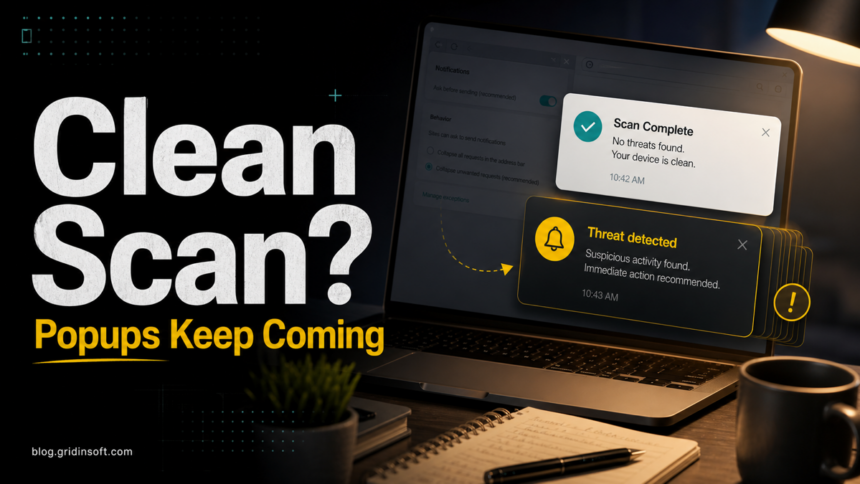
If your search is Windows Defender no threats found but keeps popping up, do not start by turning notifications off. First separate three different cases: a real Microsoft Defender event still waiting in Protection History, a stale notification for a file that was already quarantined or removed, or a browser/site notification pretending to be a Defender alert. The fix depends on which source is actually creating the popup.
What the repeated popup usually means
This symptom is confusing because the words look similar. A clean scan result only means the last scan did not find an active threat in the scanned scope. It does not automatically explain an old Protection History card, an external drive detection, a browser notification, or a recurring loader that recreates the same file after reboot.
- Real Defender notification: Windows Security opens to Virus & threat protection or Protection History, and the event has a detection name, affected item, severity, and action status.
- Stale Defender history: the same old card keeps surfacing, but the affected file is gone and recent scans stay clean.
- Browser fake alert: the message appears in Chrome, Edge, or a web page tab, often with scary text, a support phone number, or a request to allow notifications.
- Recurring malware or PUA: the warning returns after reboot, after opening a browser, after plugging in a USB drive, or after launching the same app, archive, crack, mod, or installer.
Find the source before changing settings
| What you see | What to check next |
|---|---|
| The toast opens Windows Security and shows a detection name. | Open Protection History, expand the newest card, and read the affected item path and status before removing, allowing, or restoring anything. |
| Windows Security says no current threats, but a past item is listed. | Confirm whether the item is quarantined, blocked, removed, or remediation incomplete. A clean current scan does not always mean the old card has disappeared. |
| The popup comes from Edge, Chrome, or a site name near the notification. | Block that site’s notification permission and close the page. Treat support-phone warnings and countdowns as fake-alert behavior. |
The same detection returns after reboot or from AppData, Temp, Startup, Task Scheduler, browser profile folders, or a removable drive. |
Assume something is recreating or reintroducing the file until you check startup entries, scheduled tasks, browser extensions, and the original download/source. |
Check Windows before continuing
Check the newest Protection History timestamp and affected path first. An old quarantined item or a routine clean-scan summary does not call for another scanner. If a new detection keeps appearing after removal, check what is recreating the file.
Quarantine may contain one file while its source remains. Use Gridinsoft Anti-Malware to scan Windows for bundled apps, malicious files, and unwanted startup components behind recurring detections.
Download Anti-Malware for WindowsAfter downloading: install Gridinsoft Anti-Malware, activate the trial if eligible, update its database, and run a Full Scan. Review detections, clean the items you confirm, then restart Windows. If the same symptom returns, use the source and persistence checks below.
Check Protection History carefully
Open Windows Security > Virus & threat protection > Protection history. Microsoft documents different statuses there, including threat found, quarantined, blocked, and remediation incomplete.1 Expand the newest relevant item and write down the detection name, affected file or folder, action status, and date.
If the card says Threat quarantined or Threat blocked, the visible item may already be contained. Use Remove when Windows Security offers it and you do not need the file. Do not restore or allow the item unless you have a strong false-positive reason and know exactly where the file came from.
If the card says Remediation incomplete, or if the alert immediately returns, treat it as an unfinished cleanup. Update security intelligence, run a full scan, and use Microsoft Defender Offline scan when you suspect malware is hiding while Windows is running.2
If it is a browser fake alert
Fake Defender warnings often arrive through browser notifications or full-screen scare pages. They may use Microsoft-like wording, but they do not open a real Windows Security detection card with an affected item path. Close the tab or browser window, never call the phone number, and remove the site’s notification permission.
In Microsoft Edge, open the site information icon near the address bar and set Notifications to Block, or manage website notifications in Edge settings.3 In Chrome, go to Settings > Privacy and security > Site settings > Notifications, then remove or block unknown allowed sites. If the message matches a tech-support scare page, use our Windows Defender Security Center scam cleanup guide for the browser-lock and phone-call recovery path.
If Defender really keeps detecting something
- Update Defender first. Open Virus & threat protection updates and check for the latest security intelligence.
- Run a full scan. A quick scan can miss files outside common startup and system locations.
- Scan the affected source. If Protection History points to a USB drive, archive, backup folder, email attachment, game mod, crack, or installer cache, scan that source directly or disconnect it while testing.
- Check recurrence triggers. Reboot once, then watch whether the alert returns only after opening a browser, launching a specific app, plugging in a drive, or extracting an archive.
- Review persistence locations. Check Startup apps, Task Scheduler, suspicious browser extensions, and recently installed apps. Recurring detections from
AppData,Temp, or browser profile folders deserve extra attention. - Use offline or second-opinion scanning when needed. If the alert returns after removal, an offline scan and an independent malware scan are more useful than simply hiding notifications.
If Defender quarantines the visible file but the warning returns after reboot, a loader, scheduled task, browser change, bundled app, or exclusion may still be present. Gridinsoft Anti-Malware can check for hidden files, startup entries, scheduled tasks, bundled apps, browser changes, and persistence that keep recreating the alert.
When it is probably stale history
A stale notification is more likely when Protection History points to an old item, the file path no longer exists, the source drive is disconnected, offline/full scans stay clean, and no suspicious startup or browser behavior remains. In that case, monitor for a day or two before changing notification settings. Avoid deleting Defender history folders as the first step; it can hide useful evidence if the detection returns.
If the only message is the normal Windows summary that no threats were found since the last scan, manage Windows notification preferences instead of treating it as a malware symptom. But if the message says Threat found, Action needed, Remediation incomplete, or names a detection, investigate the event first.
What not to do
- Do not disable real-time protection just to stop banners.
- Do not allow or restore a detected file because a scan later says clean.
- Do not call numbers shown in web popups that imitate Microsoft Defender.
- Do not clear Protection History until you have saved the detection name and affected path.
- Do not keep plugging in the same external drive or opening the same archive if it triggers the alert.
FAQ
Why does Windows Defender say no threats found after a threat popup?
The popup may refer to a past Protection History event, a file that was already quarantined, a browser notification scam, or a threat that appears only when a specific file, drive, browser, or startup item is active.
Is it safe to ignore the popup if the latest scan is clean?
Not immediately. Check Protection History first. If there is a recent detection, affected path, or remediation-incomplete status, resolve that item before treating the popup as stale.
Can browser notifications pretend to be Microsoft Defender?
Yes. Websites can send notification-style messages through Edge or Chrome after notification permission is allowed. These messages may imitate security alerts, but they will not create a real Windows Security detection card.
Should I clear Windows Defender Protection History?
Only after you have verified the affected file is gone, scans remain clean, and you no longer need the detection details. Clearing history too early can remove the evidence you need to find the source.
What should I scan if the same warning returns?
Scan the affected path, the original download or archive, removable drives, recent installers, browser extensions, Startup apps, and scheduled tasks. If the alert comes back after reboot, use offline and second-opinion scanning.
References
- Microsoft Support. “Protection History.” Microsoft, accessed June 17, 2026. https://support.microsoft.com/en-us/windows/protection-history-f1e5fd95-09b4-46d1-b8c7-1059a1e09708
- Microsoft Support. “Virus and Threat Protection in the Windows Security App.” Microsoft, accessed June 17, 2026. https://support.microsoft.com/en-us/windows/virus-and-threat-protection-in-the-windows-security-app-1362f4cd-d71a-b52a-0b66-c2820032b65e
- Microsoft Support. “Manage Website Notifications in Microsoft Edge.” Microsoft, accessed June 17, 2026. https://support.microsoft.com/en-us/edge/manage-website-notifications-in-microsoft-edge