A Widgets.exe system error usually means the Windows 11 Widgets package, one of its web components, or a related Windows file failed to initialize. Do not download a replacement EXE or delete the copy inside WindowsApps. Restart the process first, update the Windows Web Experience Pack, and use the error state to decide whether the next step is account repair, an app reset, or Windows component repair.
The same component can fail in several ways: a system-error or unknown-hard-error dialog, a blank board, a missing taskbar entry, or a background process that restarts after you end it. Those symptoms share a name, but they do not all need the same fix.
What is Widgets.exe?
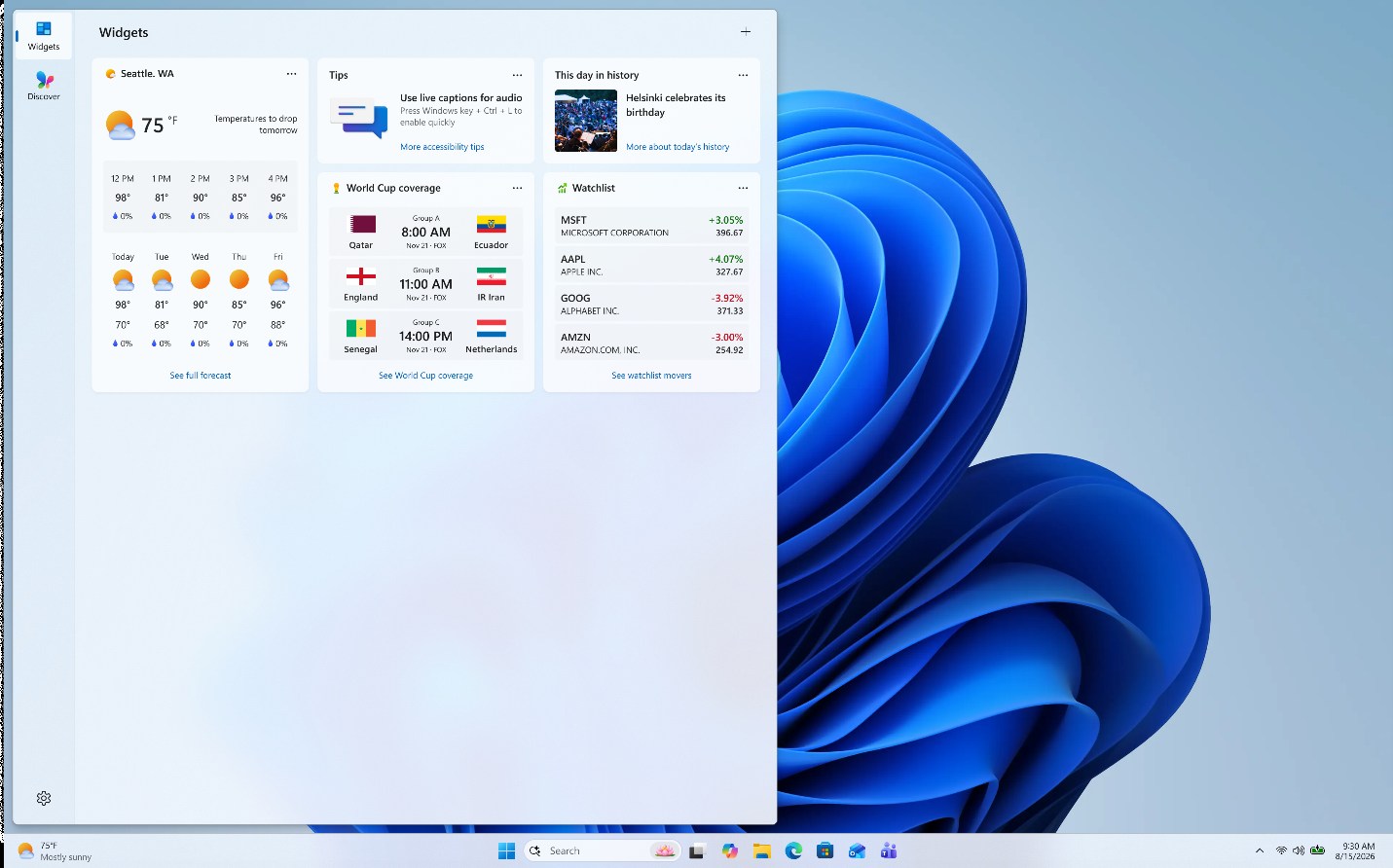
Widgets.exe is a Microsoft process used by the Windows 11 Widgets board. The board opens with Windows key + W and can show weather, news, stocks, photos, and widgets supplied by installed apps. Microsoft delivers important parts of this experience through the Windows Web Experience Pack and the newer Start Experiences App.
A legitimate copy normally sits inside a versioned Microsoft package below a protected path similar to:
C:\Program Files\WindowsApps\MicrosoftWindows.Client.WebExperience_{version}_x64__cw5n1h2txyewy\Dashboard\Widgets.exe
The exact version folder can change after Store or Windows updates. That is expected. Do not take ownership of WindowsApps, change its permissions, or copy an EXE from another PC just to make the path look familiar.
Widgets also uses web-rendering components. If Task Manager shows msedgewebview2.exe beside it, that is not automatically suspicious. Use the WebView2 high-CPU and parent-app guide when the runtime itself stays busy across several applications.
Match the fix to what you see
- System error or missing DLL: update the Widgets package, then repair Windows components if several packaged apps fail.
- Unknown hard error or repeated crash: note when it happens, check Reliability Monitor, and test recent game optimizers, overlays, or shell tools.
- Blank, grey, or endlessly loading board: update the Windows Web Experience Pack and Start Experiences App, then test the account and web-rendering state.
- Missing taskbar icon: check Taskbar settings before repairing the package.
- Process returns after End task: this can be normal because Windows relaunches the host when the board or a related surface needs it.
Fix Widgets.exe system errors and a blank Widgets board
1. Restart the Widgets host once
- Press Ctrl + Shift + Esc to open Task Manager.
- Open Processes or Details and find Widgets.exe or Windows Widgets.
- Select End task.
- Wait a few seconds, then press Windows key + W.
Ending the process is a reversible test. The board may close, and Windows can start the process again. If the same dialog immediately returns, stop repeating End task and continue with the package checks.
2. Install Windows and Store updates
Open Settings → Windows Update, install pending updates, and restart. Then open Microsoft Store → Library, search for Windows Web Experience Pack, and select Update when that button is available. Keep automatic Store app updates enabled.
Microsoft also says the Widgets and Discover dashboards need current Windows Web Experience Pack and Start Experiences App updates. A blank board after an otherwise successful Windows update can therefore be a Store-serviced package problem rather than damaged Windows itself.
3. Check the account and board state
If the flyout opens but stays blank, grey, or stuck on a spinner, open the board settings and check the signed-in account, language, and region. Sign out of the Discover dashboard and sign in again if the profile button is available. Also test a normal network without a filtering VPN, DNS blocker, or firewall rule that blocks the content provider.
Do not treat a personalized feed problem as proof that Widgets.exe is corrupt. If installed widgets render but only Discover content is empty, the package is running; focus on account, region, network, and provider state.
4. Repair or reset the package only when Windows exposes the option
Open Settings → Apps → Installed apps or Settings → System → System components, depending on the Windows build. Look for Windows Web Experience Pack or the Widgets component. If Advanced options is available, try Repair first. Use Reset only if Repair does not help, because Reset can clear local package data and personalization.
If the component does not expose Repair or Reset on your build, do not force the operation with an unofficial package or copied files. Return to Microsoft Store, update the package, restart, and continue with the system-file check only when the error affects more than the feed.
5. Update WebView2 through Microsoft servicing
Widgets renders web content through Microsoft components. Windows 11 normally keeps the Edge WebView2 Runtime updated. Update Microsoft Edge, restart Windows, and test the board again. Do not delete msedgewebview2.exe or install a random DLL pack; other Windows and desktop apps may depend on the same runtime.
6. Use DISM and SFC for missing runtime files or wider Windows failures
Use this step when the dialog names missing app-runtime DLLs, Widgets.exe fails alongside Settings or other packaged Windows features, or package repair reports component errors. Open Windows Terminal or Command Prompt as administrator and run DISM before System File Checker:
DISM.exe /Online /Cleanup-Image /RestoreHealth
sfc /scannow
Let both commands finish, restart, and test Windows key + W once. If Settings also crashes or closes immediately, use the SystemSettings.exe repair guide rather than repeatedly resetting Widgets in isolation.
7. Test game optimizers, overlays, and shell tools
Some Widgets.exe error reports occur when a game closes and a “boost” utility restores background apps that it suspended. If the popup reliably appears after exiting a game, disable the optimizer’s background-app management, overlay, or auto-restore feature for one test. Update or remove the confirmed conflict instead of reinstalling Windows.
If the Widgets failure appears together with taskbar, notification, wallpaper, or other flyout problems, compare the timing with the ShellExperienceHost.exe troubleshooting steps. A third-party shell modification can affect several surfaces while Widgets.exe is only the visible process that reports the failure.
What does “unknown hard error” mean here?
An Unknown Hard Error is a broad Windows failure label, not a diagnosis and not a malware verdict. For Widgets.exe, the useful evidence is the timing and the fault record:
- Open Reliability Monitor with
perfmon /rel. - Select the failure recorded at the popup time.
- Note the failing application, faulting module, and exception code.
- Check whether the event follows a Windows/Store update, a game optimizer restoring apps, a shell customization, or a wider packaged-app failure.
A Microsoft app-runtime DLL or Windows component points toward package and system repair. A third-party module points toward the app that installed it. Do not download the named DLL from a file library; restore it through the package, Windows Update, DISM, or the responsible vendor’s installer.
Is Widgets.exe safe or malware?
The name alone is not enough. A versioned WindowsApps path and a valid Microsoft signature support the legitimate-process decision. In Task Manager, right-click the process and choose Open file location, then open Properties → Digital Signatures. You can also follow the full EXE signature and hash checklist.
Investigate further when a same-name file runs from Downloads, Temp, a random AppData folder, or an unknown program directory; lacks a Microsoft signature; appeared after an unofficial installer; or returns with redirects, unknown startup entries, security warnings, or blocked outbound traffic.
In that suspicious branch, the visible file may not be the only change. An installer can also leave startup entries, scheduled tasks, bundled apps, browser changes, or other persistence. Keep the copy closed, scan the system, remove confirmed detections, and reboot before deciding the problem is gone.
If the process path is wrong, the name imitates a Windows component, or high CPU started after an unknown installer, scan for hidden miners, services, startup entries, and bundled components.
Scan a suspicious Widgets.exe copyHow to disable Widgets safely
If you simply do not use Widgets, start with the supported reversible controls:
- Right-click the taskbar and open Taskbar settings.
- Under Taskbar items, turn Widgets off.
- If you keep the icon, open the Widgets board settings and turn off opening on hover, notification badges, or dashboard notifications you do not want.
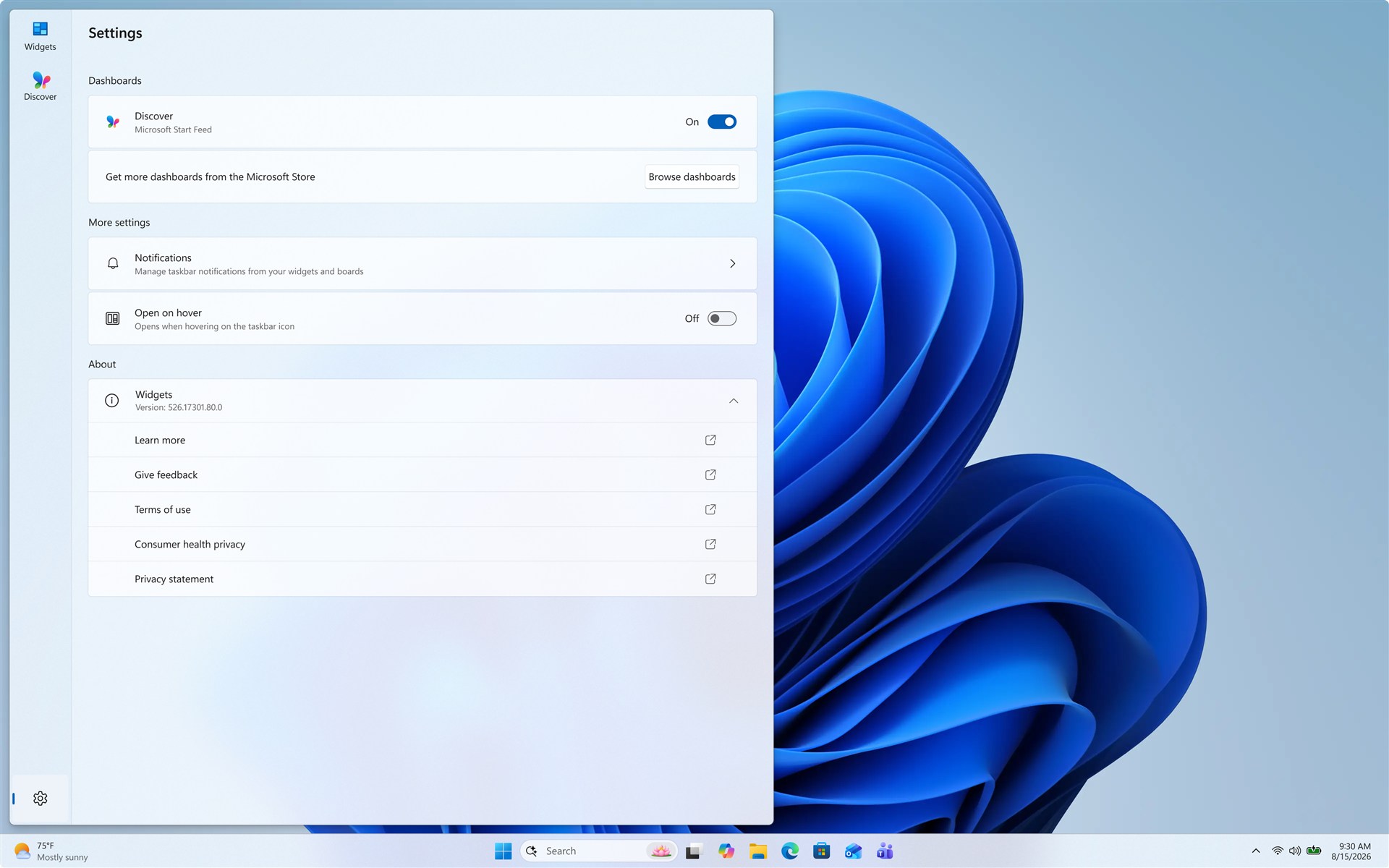
Turning off the taskbar item hides that entry, but Microsoft notes that Windows key + W can still open the board. That is why Widgets.exe may return even after the icon is hidden. Hiding is not uninstalling.
On managed Pro, Enterprise, or Education devices, administrators can disable the whole Widgets experience with the supported Allow widgets policy under Windows Components. If the PC belongs to an employer or school, ask the administrator rather than changing policy or registry values yourself.
Do not delete Widgets.exe, remove WebView2, change WindowsApps permissions, or use a “debloat” script solely to stop the process. Those actions can break servicing and make the next update harder to repair.
FAQ
Can I end Widgets.exe in Task Manager?
Yes, as a temporary restart test. The Widgets board will close and Windows may relaunch the process when you press Windows key + W or another Widgets surface needs it.
Why does Widgets.exe keep coming back?
Windows services the process as part of the Widgets experience. Turning off the taskbar icon does not uninstall the board, and another dashboard action can start the host again.
Should I delete Widgets.exe to fix the error?
No. Delete neither the protected package executable nor WebView2. Update or repair the Windows Web Experience Pack, then use DISM and SFC only when the evidence points to wider component damage.
Is a blank Widgets board caused by malware?
Usually not. Package updates, account state, region, network filtering, and WebView2 initialization are more common explanations. Treat the process as suspicious when its path, signature, installer history, or surrounding activity is wrong.
References
- Microsoft. “Stay up to date with Widgets in Windows.” Microsoft Support, accessed September 1, 2026. support.microsoft.com
- Microsoft. “How To Update the Windows Web Experience Pack.” Microsoft Support, accessed September 1, 2026. support.microsoft.com
- Microsoft. “Using System File Checker in Windows.” Microsoft Support, accessed September 1, 2026. support.microsoft.com