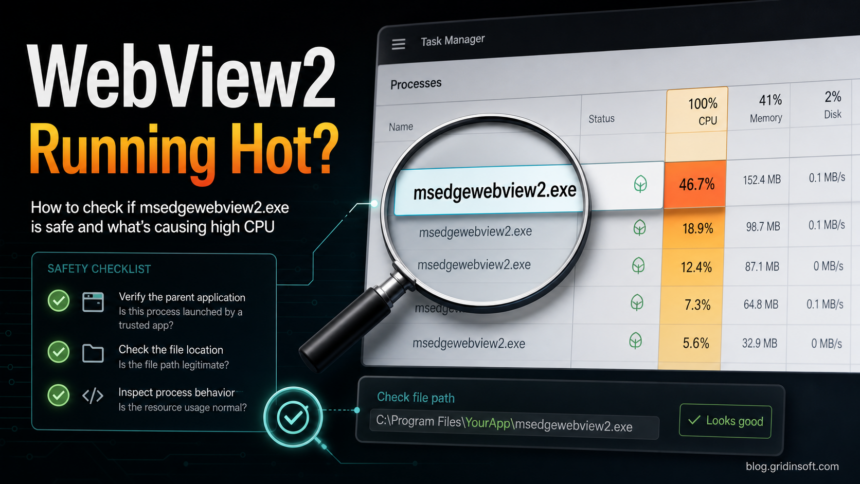
msedgewebview2.exe is usually a legitimate Microsoft Edge WebView2 Runtime process, not malware by itself. It appears when Teams, Widgets, Office, Outlook, Search, Weather, Clipchamp, or another app embeds web content inside a Windows program. High CPU or memory use normally means the parent app or the web content inside it is stuck. Treat it as suspicious only when the file is unsigned, runs from a user folder, keeps launching strange websites, or appears after an unknown installer, browser extension, crack, or phishing download.
What is msedgewebview2.exe?
- Normal role: WebView2 lets Windows and desktop apps show web pages, sign-in screens, dashboards, ads, widgets, and help panels inside the app.
- Normal process name:
msedgewebview2.exe, often shown in Task Manager under the app that opened it. - Normal verification: identify the parent app, open the executable location, and confirm a valid Microsoft signature before deciding it is safe.
- Common high-CPU owners: Microsoft Teams, Windows Widgets, Outlook, Office, Search, Weather, Clipchamp, Visual Studio, and third-party apps that embed a browser view.
- First check: expand the process group in Task Manager, identify the parent app, then open the file location.
- Do not do this first: do not delete WebView2 Runtime to “remove a virus.” Repair the runtime or the parent app unless the path, signature, or behavior is clearly suspicious.
| Process | msedgewebview2.exe |
| Component | Microsoft Edge WebView2 Runtime |
| Typical cause of high CPU | A parent app is rendering heavy or stuck web content |
| Likely normal | Microsoft-signed file, grouped under a known app, settles after the app closes |
| Needs investigation | Wrong path, unsigned file, recurring security alerts, unknown parent app, strange outbound domains |
Why msedgewebview2.exe uses high CPU or memory
WebView2 is not a single visible app. It is a runtime that other apps call when they need a Chromium-based web view. Microsoft explains that the executable is updated automatically and that many apps can use it, including Widgets, Teams, Office, Outlook, and Weather [1]. That is why users often see several WebView2 rows in Task Manager even when Microsoft Edge is closed.
When CPU or memory spikes, the problem is usually the app using WebView2, not the runtime file alone. A Teams panel, a Widgets feed, a sign-in page, an embedded ad view, a dashboard, or a third-party app can make WebView2 busy. The useful question is: which app owns this WebView2 process, and is the file where a Microsoft runtime should be?
Check the parent app first
- Open Task Manager and choose the Processes tab.
- Sort by Name, not by CPU, so Windows keeps process groups together.
- Expand the app group that contains
WebView2ormsedgewebview2.exe. - Close or restart the parent app, such as Teams, Widgets, Outlook, Weather, Clipchamp, or the third-party program that owns the row.
- If CPU drops immediately, update or repair that parent app before changing WebView2 itself.
If the spike appears while you use Windows Search or the Start menu, compare it with the SearchHost.exe high CPU guide. If Task Manager points to Desktop Window Manager instead, use the dwm.exe safety and high-memory checklist. These symptoms can look similar in Task Manager, but they have different causes.
Verify the file path, signature, and parent app
- In Task Manager, sort by Name, expand the app group, right-click its WebView2 process, and choose Open file location.
- A common Microsoft Evergreen Runtime location is
C:\Program Files (x86)\Microsoft\EdgeWebView\Application\{version}\msedgewebview2.exe. Windows components can also load Microsoft-serviced WebView2 runtime files fromC:\Windows\System32. Do not delete or replace either location just because several processes are running [3]. - Open the executable’s Properties, check the Digital Signatures tab, and confirm a valid Microsoft signature. Then return to Task Manager and confirm the parent is an app you recognize.
- Do not confuse the runtime executable with a folder whose name ends in
.WebView2. A host app can use that folder for cookies, cache, and other embedded-browser data. The executable path, signer, and parent process are the important checks.
An unsigned lookalike in AppData, Temp, or Downloads needs investigation, especially after an unknown installer or when it launches redirects. Location alone is not a verdict, however: enterprise or third-party apps can ship a fixed or custom WebView2 Runtime. Verify the signer and the app that started it before removing anything.
Is msedgewebview2.exe safe or suspicious?
| Likely normal | Needs investigation |
|---|---|
| Task Manager groups it under a known app you opened. | The parent app is unknown, recently installed, or starts from a random user folder. |
| The file is Microsoft-signed and belongs to the Edge WebView2 Runtime installation. | The file is unsigned, has a strange publisher, or uses a lookalike name. |
| CPU settles when you close Teams, Widgets, Outlook, Search, Weather, or another owner app. | CPU returns after reboot with browser redirects, pop-ups, new extensions, or security-tool alerts. |
| You see several processes because Chromium-style web views use multiple helper processes. | You see outbound blocks to suspicious domains through msedgewebview2.exe. |
Malware can abuse WebView2 technology, and attackers have used WebView2-style apps for phishing and cookie theft. That is a different case from the legitimate Microsoft runtime consuming CPU. If you received a suspicious login window, fake support prompt, or unknown WebView2 app, read the older Gridinsoft analysis of WebView2 phishing and MFA bypass abuse and treat the account as exposed.
How to fix msedgewebview2.exe high CPU
- Restart the parent app. End Teams, Widgets, Outlook, Weather, Clipchamp, or the third-party app that owns the WebView2 group, then reopen it.
- Update the parent app and Windows. A stale embedded page, extension, or app update can keep the runtime busy.
- Disable unnecessary startup owners. If Teams or Widgets starts with Windows and immediately triggers high CPU, disable that app in Task Manager Startup settings and test again.
- Clear only the affected app cache. Do this for the app that owns the WebView2 process. Avoid deleting random WebView2 folders across Windows.
- Repair installation or update failures. If WebView2 is missing, stuck on an old version, or repeatedly fails to start, restart Windows, install pending updates, and repair the parent app. If Windows Widgets is the only affected owner, follow the Widgets.exe system-error and blank-panel repair sequence before reinstalling WebView2. If the runtime itself still fails to install or update, use Microsoft’s current Edge and WebView2 troubleshooting path rather than a third-party DLL fixer [2].
- Run Windows system repair only for error pop-ups. If you see “Bad Image” or application error messages, run
sfc /scannowand thenDISM /Online /Cleanup-Image /RestoreHealthfrom an elevated Command Prompt. - Scan when the behavior is not normal. Scan if the file path is wrong, the signature is missing, a security alert names WebView2 as the network process, or the issue began after a crack, fake update, browser extension, or phishing download.
When a WebView2 alert should trigger a malware scan
A normal WebView2 runtime can still be the process that carries traffic for a malicious page, compromised extension, fake app, or bundled adware. That does not prove the Microsoft file is infected, but it does mean you should inspect the owner app and surrounding persistence.
Run a full scan when WebView2 activity comes with any of these signs: browser redirects, push-notification spam, unknown extensions, a new app you did not intend to install, repeated outbound blocks, Defender or another antivirus alert, a file running from AppData or Temp, or scheduled tasks that recreate the same activity after reboot.
If the parent app is unknown or the activity returns after you close it, use Gridinsoft Anti-Malware to check for hidden files, startup entries, scheduled tasks, browser changes, bundled apps, and other persistence around the WebView2 event. Keep the suspected app closed while the scan runs, remove detections, reboot, and scan again only if the symptoms return.
If the process path is wrong, the name imitates a Windows component, or high CPU started after an unknown installer, scan for hidden miners, services, startup entries, and bundled components.
Scan the suspicious WebView2 activityWhat not to do
- Do not delete
msedgewebview2.exefrom Program Files or Windows folders. Apps that depend on WebView2 may break. - Do not whitelist a suspicious WebView2-related alert just because the process name contains “Microsoft Edge”. Check the parent app and destination domain first.
- Do not install random “WebView2 remover” or “DLL fixer” downloads. They often create more risk than the original CPU spike.
- Do not assume Microsoft Edge must be open. WebView2 can run for apps even when the browser window is closed.
FAQ
Is msedgewebview2.exe a virus?
The real Microsoft Edge WebView2 Runtime process is not a virus. It becomes suspicious when the file is unsigned, located in a user-writable folder, launched by an unknown app, or tied to redirects, pop-ups, outbound blocks, or malware alerts.
Why are there multiple msedgewebview2.exe processes?
WebView2 uses the Chromium process model. One app can create separate processes for rendering, network work, GPU acceleration, extensions, and utility tasks. Multiple rows are normal when they belong to a known parent app.
Can I end msedgewebview2.exe in Task Manager?
Yes, ending the WebView2 process is a temporary and generally reversible test, but the parent app may close an embedded panel, lose unsaved form data, or start the process again. Close or restart the parent app first. Do not rename or delete the runtime executable to stop it permanently.
Can I uninstall Microsoft Edge WebView2 Runtime?
Removing WebView2 is usually the wrong fix. Many Windows and desktop apps use it for sign-in pages, embedded dashboards, widgets, and help panels. Repair or update the parent app and WebView2 Runtime instead of deleting the runtime.
Why does msedgewebview2.exe run when Edge is closed?
WebView2 is used by apps, not only by the Edge browser window. Teams, Widgets, Office, Outlook, Weather, Search, Clipchamp, Visual Studio, and third-party apps can start WebView2 without opening Edge.
What should I check first if CPU is high?
Expand the process group in Task Manager and identify the parent app. If closing that app stops the CPU spike, repair or update that app. If the parent is unknown or the file path/signature looks wrong, scan before trusting it.
References
- Microsoft. “WebView2 end-user FAQ.” Microsoft Edge Developer documentation, accessed July 22, 2026. https://learn.microsoft.com/en-us/microsoft-edge/webview2/concepts/end-user-faq
- Microsoft. “Troubleshoot Edge Update, installation, and rollback failures.” Microsoft Edge documentation, accessed July 22, 2026. https://learn.microsoft.com/en-us/troubleshoot/microsoft-edge/manageability/update-install-rollback-failures
- Microsoft. “Prevent security tools from blocking WebView2-hosted apps.” Microsoft Edge Developer documentation, accessed July 22, 2026. https://learn.microsoft.com/en-us/microsoft-edge/webview2/concepts/measures