SearchFilterHost.exe is a legitimate Windows Search process that loads file-content filters and property handlers in an isolated host. A short CPU spike while Windows indexes new or changed files is normal. CPU that stays high, a process that is terminated and immediately returns, or repeated Search/Gatherer Event ID 10024 entries usually means a file type, folder, or third-party filter is making the host stall. Find that trigger before rebuilding the entire index or disabling Windows Search.
What is SearchFilterHost.exe?
Windows Search does more than record file names. For supported formats, it extracts searchable text and metadata such as title, author, and date. Microsoft calls the components that extract file contents filter handlers, or IFilters; property handlers supply metadata. SearchFilterHost.exe runs those components outside the main indexer so a bad document parser does not have to run inside SearchIndexer.exe itself.
The normal executable is stored in C:\Windows\System32\SearchFilterHost.exe. A 32-bit filter can also cause Windows to start the signed copy in C:\Windows\SysWOW64\SearchFilterHost.exe. The process starts on demand, can disappear when there is no extraction work, and may return after you end it because the Windows Search service still has items to index.
Do not confuse it with SearchProtocolHost.exe application errors. The protocol host gathers items from a store such as a file system or mailbox; the filter host extracts text and properties from an item that has already been handed to the indexing pipeline. SearchIndexer.exe coordinates the catalog and database.
Match the symptom before changing the index
- CPU rises briefly after sign-in, an update, or a large file copy: this is usually normal catch-up indexing. Check the indexing status and let it finish while the PC is plugged in.
- CPU stays high while the indexed-item count barely changes: a folder may be churning or a particular file type may be expensive to parse. Narrow the indexed scope and recently changed file types.
- SearchFilterHost.exe keeps crashing or Event 10024 repeats: a filter host is not responding. Correlate the event times with PDFs, Office files, archives, email stores, or software that installed a search filter.
- The file runs from Downloads, AppData, Temp, or another program folder: that is not the expected Windows location. Verify the signature and scan the copy before allowing or deleting it.
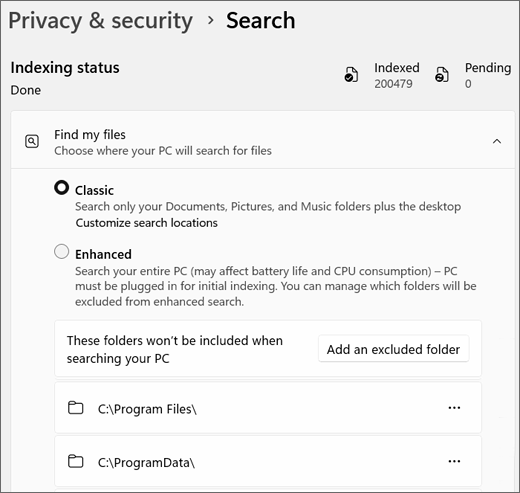
The current Windows Search page shows both the indexing status and the difference between Classic and Enhanced scope. Enhanced search can legitimately do more work because it covers more user folders. A status that keeps returning to the same pending count is more useful evidence of a loop than one brief Task Manager spike.
Confirm Event ID 10024
- Right-click Start, open Event Viewer, and go to Windows Logs → Application.
- Select Filter Current Log and enter
10024in the Event IDs box. - Open the recent events whose source or message refers to Search/Gatherer. The key wording is that the filter host process did not respond and was forcibly terminated.
- Compare each timestamp with the file operations, application installs, cloud sync, or document batches that occurred at the same time.
Event 10024 confirms that a filter host stopped responding; it does not, by itself, name the guilty extension or prove that Windows is corrupted. Microsoft has documented one concrete case in which a PDF IFilter stalled Windows Desktop Search and caused frequent reindexing. Treat PDF software as one possible branch, not a universal answer for every Event 10024.
If you prefer a compact read-only view of the latest events, run this in an elevated PowerShell window:
Get-WinEvent `
  -LogName Application `
  -MaxEvents 100 |
  Where-Object Id -eq 10024 |
  Select-Object -First 10 |
  Format-List `
    TimeCreated, ProviderName, Message
The command only reads the Application log. Do not paste registry deletion scripts or service-ownership commands from a generic fix page merely because the same event number appears.
Find the bad file type or folder before rebuilding
1. Check what changed
Start with the smallest plausible trigger: a large download, a new PDF or Office application, an archive utility, a codec pack, an Outlook data file, a cloud-sync folder, or thousands of files copied into an indexed location. If the CPU spike began immediately after one of those events, pause that transfer or close the parent application and watch Task Manager for two to five minutes.
2. Narrow the indexed location
Open Settings → Privacy & security → Search. Under Find my files, note whether Classic or Enhanced indexing is selected and inspect excluded folders. With Classic mode, open Customize search locations. Temporarily remove one suspect folder from the indexed set, then let Windows settle. If CPU and Event 10024 stop, add smaller subfolders back until the trigger becomes clear.
Do not exclude the whole user profile permanently just to make Task Manager quiet. The goal is to identify a bad location or file batch and restore useful search coverage afterward.
3. Test a suspect extension
In Indexing Options → Advanced → File Types, Windows lists the extensions it knows how to index. If events consistently follow a particular format, temporarily change that extension from Index Properties and File Contents to Index Properties Only. This is a diagnostic test: file names and properties can still be indexed, while the content parser is bypassed.
If the loop stops, update or repair the application that supplied the filter. PDF software, office suites, mail clients, archive tools, and document-management packages can register their own handlers. Do not download a random IFilter DLL or copy one from another computer. If the problem started after an application update, use that application’s supported repair, rollback, or uninstall route.
4. Restore one change at a time
Return the folder or content-indexing option after the responsible application or document batch is fixed. Make one change, wait for indexing to stabilize, and check Event Viewer again. Changing five extensions and rebuilding the catalog at once may hide the trigger without proving which action helped.
Repair SearchFilterHost.exe crashes in the right order
- Finish pending Windows and application updates. Restart afterward; a registered filter or property handler can trigger reindexing when it changes.
- Repair or update the document application tied to the event times. If PDF files are the trigger, update the PDF application before touching the index. Apply the same logic to Office, mail, archive, or document-management software.
- Remove the single damaged file from the indexed location. If one document repeatedly triggers the crash, move it to a non-indexed folder and verify that the loop stops. Keep a copy if the file matters; a parser failure does not automatically mean the file is malicious.
- Use the Windows Search troubleshooter when it is available on your build. Open Advanced indexing options and select the search/indexing troubleshooting route. Apply only the branch that matches slow indexing, missing results, or a non-running service.
- Rebuild the index only after isolation. In Indexing Options, choose Advanced → Rebuild. Expect temporary CPU and disk activity while Windows recreates the catalog. A rebuild that meets the same bad filter can reproduce the loop, which is why it is not the first step.
- Repair Windows files only when other Windows components also fail. If Search settings, services, or built-in filters are damaged beyond one third-party extension, follow the supported DISM and SFC repair order.
If Explorer itself is consuming CPU at the same time, diagnose that separately. Shell extensions and thumbnail handlers belong to a related but different path; use the Explorer.exe high-CPU isolation guide instead of assuming SearchFilterHost.exe is responsible for every file-processing spike.
Can you disable SearchFilterHost.exe?
You can end SearchFilterHost.exe in Task Manager as a short measurement step. Windows may launch it again when SearchIndexer has more items for a filter. Stopping the Windows Search service temporarily can confirm that the load belongs to indexing, but leaving the service disabled removes or degrades Start, File Explorer, Outlook, and app search features.
Do not delete the executable, change ownership of System32, or permanently block the service through registry and scheduled-task hacks. A clean test is reversible: stop indexing, confirm that CPU falls, start the service again, and then isolate the file type or folder that causes the work to return.
Is SearchFilterHost.exe safe or malware?
The signed Microsoft copies in C:\Windows\System32 and C:\Windows\SysWOW64 are normal Windows components. In Task Manager, open the file location and check Properties → Digital Signatures. A valid Microsoft Windows signature, the expected path, and a parent indexing workflow are strong legitimacy signals. File size varies by Windows build, so do not use one website’s exact byte count or hash as the deciding test.
A same-name file in %USERPROFILE%\Downloads, %LOCALAPPDATA%, %TEMP%, a random application folder, or a Startup location deserves investigation—especially after an unknown installer, a recurring security warning, redirects, or blocked outbound traffic. Keep the file from running, check its signature and origin, and scan the system for hidden files, startup entries, scheduled tasks, bundled apps, and other persistence. A scan can find related components, but it cannot prove that an account or machine was never exposed.
If the process path is wrong, the name imitates a Windows component, or high CPU started after an unknown installer, scan for hidden miners, services, startup entries, and bundled components.
Scan a suspicious SearchFilterHost.exe copyNever download a replacement SearchFilterHost.exe from a DLL or process-library site. If the genuine Windows file is missing or damaged, use Windows Update and supported system-file repair rather than importing an executable from another machine.
FAQ
Can I end SearchFilterHost.exe in Task Manager?
Yes, as a temporary test. Windows can start it again when the indexer needs to extract text or properties. Repeated restarts point to pending indexing work or a filter loop, not proof that the process is malware.
What does SearchFilterHost Event ID 10024 mean?
It means the Search/Gatherer pipeline found that a filter host was not responding and terminated it. The event confirms a hang but usually does not identify the extension. Correlate its timestamp with indexed files and software that registered a PDF, Office, mail, archive, or other document filter.
Why is CPU high after rebuilding the index?
A rebuild makes Windows recatalog indexed locations, so temporary CPU and disk use is expected. If the same Event 10024 pattern returns or progress stalls, the rebuild probably encountered the same bad file or filter and further rebuilds will not isolate it.
Should I disable Windows Search permanently?
Usually no. Permanent disablement can break or slow Start, File Explorer, Outlook, and app searches. Use a temporary stop only to confirm ownership of the CPU load, then repair the triggering filter, file type, folder, or application.
References
- Microsoft. “Search indexing in Windows.” Microsoft Support, accessed September 2, 2026. Open source ↗
- Microsoft. “Filter handlers that ship with Windows.” Microsoft Learn, updated August 20, 2021; accessed September 2, 2026. Open source ↗
- Microsoft. “Incomplete search results may occur in Outlook when a PDF iFilter is installed.” Microsoft Learn, updated June 25, 2025; accessed September 2, 2026. Open source ↗