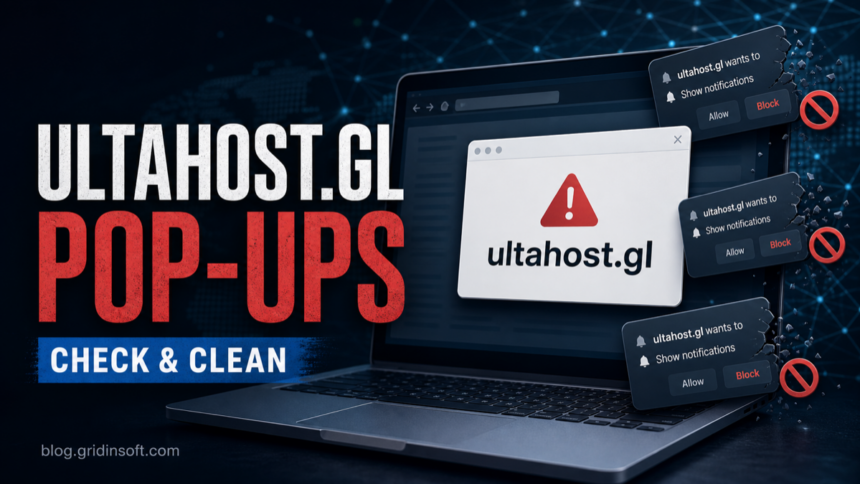
Ultahost.gl is a browser-notification and pop-up risk, not a domain you should treat as a normal hosting page. Gridinsoft URL Scanner currently gives ultahost.gl a 1/100 trust score, classifies it as browser notification spam, and shows multiple vendor warnings. Start by blocking the site, removing its notification permission, checking browser extensions, and scanning Windows for adware or loader-style persistence if anything was downloaded.
The important distinction is whether you only allowed a browser notification or whether a file, script, scheduled task, or unknown extension keeps reopening the domain. Notification spam can often be fixed in the browser. A recurring launch, a command prompt flash, a security-tool alert, or a detection that names a loader should be handled as a full malware cleanup case.
| What you see | Likely source | First action |
|---|---|---|
| Fake virus, prize, VPN, or system-warning notifications mention ultahost.gl | Allowed site notifications | Remove the site from browser notification permissions |
| The browser opens ultahost.gl by itself | Extension, startup item, or scheduled task | Check extensions, startup apps, Task Scheduler, and policies |
| A security tool blocks ultahost.gl after a download | Adware, PUA, or possible loader chain | Delete the download source and run a full scan |
| An alert mentions CountLoader or another loader name | Higher-risk malware context | Disconnect from risky accounts, scan, and rotate sessions from a clean device |
What Is Ultahost.gl?
ultahost.gl is a newly observed web domain connected with unwanted pop-ups and browser notification abuse. The Gridinsoft report shows a very young domain, vendor warnings, and a redirect to another destination, which is enough reason to block it and avoid entering passwords, payment details, or account recovery codes on pages opened through it.
Do not confuse it with legitimate companies that use similar names on different domains. The cleanup target here is the exact .gl domain and whatever local setting or program caused it to appear. If your issue is a different browser redirect, compare the behavior with our Pop-broker.com redirect cleanup and WebWebWeb redirect removal guides.
Step 1: Remove Ultahost.gl Notification Permission
If the problem appears as desktop notifications or browser corner alerts, start with site permissions. In Chrome, open chrome://settings/content/notifications. In Edge, open edge://settings/content/notifications. In Firefox, open Settings, then Privacy & Security, then Permissions, then Notifications. Remove or block ultahost.gl and any other unfamiliar sender.
If a website keeps showing unwanted pop-ups, you likely granted it permission to send notifications. To stop them, you need to revoke that permission in your browser settings.
- Copy and paste this into the address bar:
chrome://settings/content/notifications - Scroll down to the Allowed to send notifications list.
- Find the suspicious site.
- Click the three dots (...) next to it and select Remove (or Block).
- Open Safari and go to Settings (or Preferences).
- Click the Websites tab and select Notifications on the left.
- Find the suspicious site in the list on the right.
- Select it and click Remove (or change "Allow" to "Deny").
- Copy and paste this into the address bar:
about:preferences#privacy - Scroll down to Permissions and click Settings... next to Notifications.
- Type the suspicious site in the search bar or find it in the list.
- Select the site and click Remove Website.
- Copy and paste this into the address bar:
edge://settings/content/notifications - Look under the Allow section.
- Find the suspicious site.
- Click the three dots (...) next to it and select Remove (or Block).
- Copy and paste this into the address bar:
brave://settings/content/notifications - Scroll to the Allowed to send notifications list.
- Find the suspicious site.
- Click the three dots (...) and select Remove (or Block).
- Copy and paste this into the address bar:
opera://settings/content/notifications - Check the Allowed to send notifications list.
- Find the suspicious site.
- Click the three dots next to it and select Remove.
Also block pop-ups and redirects for sites you do not recognize. Close the browser completely, reopen it, and confirm that the notifications stop. If the site returns to the allowed list, something else is restoring the permission, so continue with the extension and persistence checks.
Step 2: Check Extensions, Search, and Browser Policies
- Open the extensions page in every installed browser, not only your default browser.
- Remove extensions you did not intentionally install, especially coupon tools, download helpers, video helpers, fake VPNs, search assistants, or extensions with random names.
- Check homepage, startup pages, and default search engine settings.
- Review
chrome://policyoredge://policy. Unknown forced extensions or URL rules can make a redirect come back after manual cleanup. - If browser sync is enabled, remove the suspicious extension on every signed-in device before turning sync back on.
- Launch Chrome.
- Click the three dots (...) in the top right corner.
- Select Extensions > Manage Extensions.
- Click Remove next to the extension you want to delete.
Quick Access: Type chrome://extensions/ in the address bar.
- Open Safari.
- In the menu bar, click Safari and select Settings (or Preferences).
- Click on the Extensions tab.
- Select the extension and click Uninstall.
- Click the menu button, select Add-ons and themes.
- Go to the Extensions tab.
- Click the three dots (...) next to the extension and select Remove.
Quick Access: Type about:addons in the address bar.
- Launch Microsoft Edge.
- Click the three dots (...) in the top right corner.
- Select Extensions.
- Find the extension and click Remove.
Quick Access: Type edge://extensions/ in the address bar.
- Launch Brave browser.
- Click the menu icon > Extensions.
- Find the extension and click Remove.
Quick Access: Type brave://extensions/ in the address bar.
- Launch Opera.
- Click the Opera logo in the top left corner.
- Select Extensions > Extensions.
- Click the X or Remove button next to the extension.
Quick Access: Type opera://extensions/ in the address bar.
If extensions keep reinstalling after removal, use the persistence checklist in our browser extension keeps returning guide. The root cause is often a companion app, browser policy, or synced extension state rather than the visible notification alone.
Step 3: Inspect Windows Startup and Scheduled Tasks
When a browser opens ultahost.gl without a click, look beyond browser settings. Open Task Scheduler and inspect recently created or modified tasks. Check the Actions tab for commands that launch cmd.exe, powershell.exe, wscript.exe, mshta.exe, a browser executable, or a direct http/https URL.
Then check Startup apps, the Startup folders, and recently installed apps. Microsoft Sysinternals Autoruns can help advanced users review third-party auto-start entries, especially when you hide signed Microsoft entries and focus on unknown publishers, random AppData paths, scripts, and browser launch commands.
cmd.exe /c start https://ultahost.gl/...Do not delete every updater task or startup item blindly. The suspicious part is the action and path, not the name alone. A legitimate updater should point to a known vendor executable, while an adware or loader trigger often points to a script, a user-writable folder, or a browser URL.
Step 4: Scan for Adware, PUA, or Loader Activity
After browser cleanup, run a full scan with Gridinsoft Anti-Malware. Focus on adware, browser hijacker, PUA, script, scheduled-task, and startup detections. If the alert began after a cracked app, game mod, fake update, downloader, or email attachment, remove the original download and scan the folder where it was saved.
After uninstalling the suspicious app or deleting the visible threat, use Gridinsoft Anti-Malware to check hidden files, startup entries, scheduled tasks, bundled apps, browser changes, and other persistence points that can restore malware.
Download Anti-MalwareIf the scan finds only browser notification artifacts and no persistence, the risk is usually lower. If it finds a loader, unknown startup item, script runner, or suspicious executable, treat the incident as broader compromise cleanup rather than a simple pop-up fix.
What About CountLoader?
Some search results frame ultahost.gl as a CountLoader case, but you should not assume every visitor has a loader infection. The safer rule is symptom-based: if your security tool specifically names CountLoader, if you ran a downloaded file, or if the domain opens through mshta.exe, PowerShell, a scheduled task, or an unknown process, escalate the cleanup.
In that higher-risk path, disconnect from sensitive accounts on the affected PC, finish malware cleanup first, then change passwords and revoke sessions from a clean device. Start with email, Microsoft/Google, password manager, banking, crypto, gaming, Discord, and social accounts. If you only clicked a notification prompt and did not download or run anything, start with browser permissions and scan before assuming credentials were stolen.
How to Confirm Ultahost.gl Is Removed
ultahost.glis no longer in any browser’s allowed notifications list.- No unknown extension returns after restart and browser sync review.
- No scheduled task or startup entry launches a browser, script, or
ultahost.glURL. - Gridinsoft scan results no longer show adware, PUA, script, or startup persistence connected with the incident.
- The browser stays closed through the time interval when the pop-up usually appeared.
What Not to Do
- Do not click Allow, Download, Update, or Remove Virus buttons on pages opened by ultahost.gl.
- Do not install random removal tools from search results just because they mention the domain.
- Do not restore quarantined files or add exclusions for this domain.
- Do not change passwords on the same PC before cleanup if you ran a suspicious file.
- Do not assume a browser reset is enough when a scheduled task or startup entry reopens the site.
If your alert names another notification-spam host in the same update-themed lane, use the same browser-first logic and compare it with our Microservice-updatehub.cc alert cleanup guide.
FAQ
Is ultahost.gl a virus?
The domain is a web address, but the behavior around it can be malicious or unwanted. Gridinsoft classifies it as browser notification spam with a very low trust score, and recurring openings may point to adware, a hijacker, or a loader-related trigger.
Can I fix ultahost.gl by blocking notifications?
Yes, if the only symptom is fake browser notifications. If the browser opens by itself, settings are locked, or a security tool reports a downloaded file, continue with extension, startup, scheduled-task, and malware scan checks.
Does ultahost.gl always mean CountLoader?
No. Treat CountLoader as a higher-risk possibility only when a security tool names it, a suspicious file was run, or Windows persistence launches the domain. Do not assume credential theft from a notification permission alone.
Should I reset Chrome or Edge?
Resetting can help after you remove suspicious extensions and notification permissions. It will not remove a Windows scheduled task, startup item, or companion app that keeps relaunching the browser.
Should I change passwords?
Change passwords from a clean device if you downloaded or ran a file, saw loader detections, or noticed account activity you did not perform. For notification-only cases, clean the browser and scan first.
References
- Gridinsoft. “Ultahost.gl Scam Check: Pop-up Ads and Notifications.” Gridinsoft URL Scanner, checked May 29, 2026, accessed June 4, 2026. https://gridinsoft.com/online-virus-scanner/url/ultahost-gl
- Microsoft Support. “Manage website notifications in Microsoft Edge.” Microsoft, accessed June 4, 2026. https://support.microsoft.com/en-us/microsoft-edge/manage-website-notifications-in-microsoft-edge-0c555609-5bf2-479d-a59d-fb30a0b80b2b
- Mozilla Support. “Web Push notifications in Firefox.” Mozilla, accessed June 4, 2026. https://support.mozilla.org/en-US/kb/push-notifications-firefox
- Microsoft Learn. “Autoruns for Windows.” Microsoft Sysinternals, updated February 6, 2024, accessed June 4, 2026. https://learn.microsoft.com/en-us/sysinternals/downloads/autoruns