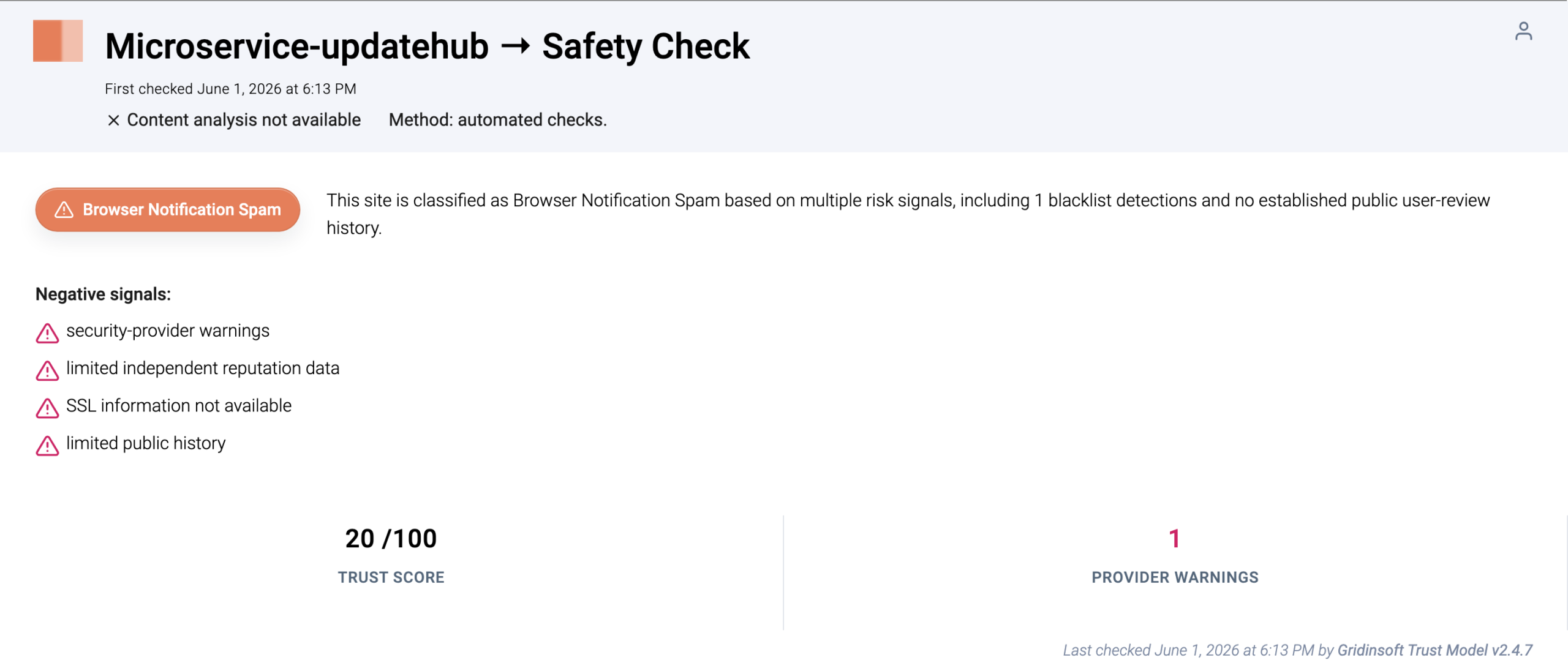
Microservice-updatehub.cc is a browser-notification spam domain, not a normal Windows update service. Gridinsoft Website Reputation Checker currently classifies microservice-updatehub.cc as Browser Notification Spam with a low trust score. Start by closing the page, removing its notification permission, checking browser extensions and policies, and scanning Windows if the alert followed a download, fake update, or copied command.
The key question is what happened before the alert. If you only clicked Allow on a web prompt, cleanup may stay inside the browser. If you downloaded a file, pasted a command, saw PowerShell or mshta.exe, or noticed account sign-in alerts, treat it as possible stealer-risk triage and secure accounts after the PC is clean.
What is microservice-updatehub.cc?
microservice-updatehub.cc is a suspicious web domain used in unwanted browser notification and pop-up flows. The name is designed to sound like a technical update component, but the page is not part of Microsoft, Chrome, Edge, or a legitimate updater. You may also see numeric host variants in the same family, such as s1-, s2-, or s3- prefixes, depending on the redirect chain or alert that led you there.
Notification-spam pages usually ask for browser permission with misleading prompts such as “click allow to continue,” “allow to verify,” or “allow to watch.” Once permission is granted, the browser can show recurring desktop alerts even when the original tab is closed. Some pages then push fake updates, scareware, scam offers, or download lures.
Quick decision: browser cleanup or deeper malware check?
| What happened | What to do first |
|---|---|
| You clicked Allow and now see corner notifications | Remove the site from notification permissions and block future prompts. |
| The browser opens microservice-updatehub.cc by itself | Check extensions, startup pages, policies, startup apps, and scheduled tasks. |
| A page told you to paste a command or run a verification step | Do not paste or rerun it. Scan Windows and review account exposure after cleanup. |
| You downloaded or ran a file after the alert | Delete the source download, scan the PC, and treat passwords/session cookies as possibly exposed. |
Step 1: remove the notification permission
In Chrome, open chrome://settings/content/notifications. In Edge, open edge://settings/content/notifications. In Firefox, open Settings, then Privacy & Security, then Permissions, then Notifications. Remove or block microservice-updatehub.cc and any unfamiliar sender you did not intentionally allow.
If a website keeps showing unwanted pop-ups, you likely granted it permission to send notifications. To stop them, you need to revoke that permission in your browser settings.
- Copy and paste this into the address bar:
chrome://settings/content/notifications - Scroll down to the Allowed to send notifications list.
- Find the suspicious site.
- Click the three dots (...) next to it and select Remove (or Block).
- Open Safari and go to Settings (or Preferences).
- Click the Websites tab and select Notifications on the left.
- Find the suspicious site in the list on the right.
- Select it and click Remove (or change "Allow" to "Deny").
- Copy and paste this into the address bar:
about:preferences#privacy - Scroll down to Permissions and click Settings... next to Notifications.
- Type the suspicious site in the search bar or find it in the list.
- Select the site and click Remove Website.
- Copy and paste this into the address bar:
edge://settings/content/notifications - Look under the Allow section.
- Find the suspicious site.
- Click the three dots (...) next to it and select Remove (or Block).
- Copy and paste this into the address bar:
brave://settings/content/notifications - Scroll to the Allowed to send notifications list.
- Find the suspicious site.
- Click the three dots (...) and select Remove (or Block).
- Copy and paste this into the address bar:
opera://settings/content/notifications - Check the Allowed to send notifications list.
- Find the suspicious site.
- Click the three dots next to it and select Remove.
Also block pop-ups and redirects for unfamiliar sites. Close every browser window, reopen the browser, and confirm that notifications stop. If the domain returns to the allowed list, a browser extension, policy, synced profile, or Windows startup item may be restoring it.
Step 2: check extensions and managed browser policy
- Open the extensions page in every browser you use, not only your default browser.
- Remove unfamiliar coupon tools, download helpers, video helpers, fake VPNs, search assistants, or extensions installed near the first alert.
- Check the default search engine, homepage, startup pages, and new tab settings.
- Open
chrome://policyoredge://policy. Unknown forced extensions or URL rules can make a redirect come back. - If browser sync is enabled, remove the suspicious extension and notification permission on every signed-in device before turning sync back on.
- Launch Chrome.
- Click the three dots (...) in the top right corner.
- Select Extensions > Manage Extensions.
- Click Remove next to the extension you want to delete.
Quick Access: Type chrome://extensions/ in the address bar.
- Open Safari.
- In the menu bar, click Safari and select Settings (or Preferences).
- Click on the Extensions tab.
- Select the extension and click Uninstall.
- Click the menu button, select Add-ons and themes.
- Go to the Extensions tab.
- Click the three dots (...) next to the extension and select Remove.
Quick Access: Type about:addons in the address bar.
- Launch Microsoft Edge.
- Click the three dots (...) in the top right corner.
- Select Extensions.
- Find the extension and click Remove.
Quick Access: Type edge://extensions/ in the address bar.
- Launch Brave browser.
- Click the menu icon > Extensions.
- Find the extension and click Remove.
Quick Access: Type brave://extensions/ in the address bar.
- Launch Opera.
- Click the Opera logo in the top left corner.
- Select Extensions > Extensions.
- Click the X or Remove button next to the extension.
Quick Access: Type opera://extensions/ in the address bar.
If the extension keeps reinstalling, use the same cleanup logic as in our browser extension keeps returning guide: stop the source that restores it before deleting the visible extension again.
Step 3: inspect Windows triggers if the browser opens by itself
When the alert appears without you clicking a page, check Windows persistence points. Open Task Scheduler and inspect recently created or modified tasks. In the Actions tab, look for commands that launch a browser URL, cmd.exe, powershell.exe, wscript.exe, or mshta.exe.
cmd.exe /c start https://microservice-updatehub.cc/...
powershell.exe -WindowStyle Hidden ...
mshta.exe https://...
Then check Startup Apps, the Startup folders, Services, and recently installed apps. Do not delete every updater blindly. A legitimate updater points to a known signed vendor executable; a suspicious trigger often points to a user-writable folder, a script, a browser URL, or a random AppData path.
Step 4: scan Windows and remove the source
Run a full scan with Gridinsoft Anti-Malware when microservice-updatehub.cc appears after a download, fake update, cracked installer, game mod, copied command, or recurring browser launch. Focus on adware, browser hijacker, PUA, script, scheduled-task, and startup detections. Delete the original download or script that started the problem before restoring anything from quarantine.
After uninstalling the suspicious app or deleting the visible threat, use Gridinsoft Anti-Malware to check hidden files, startup entries, scheduled tasks, bundled apps, browser changes, and other persistence points that can restore malware.
Download Anti-MalwareIf the scan finds only browser notification artifacts and no persistence, the risk is usually lower. If it finds a loader, unknown startup item, script runner, or suspicious executable, continue with account-safety steps after cleanup.
When to treat it as stealer risk
Do not assume every notification permission stole passwords. Escalate only when the behavior crosses from browser spam into execution or persistence: a file was run, a fake verification command was pasted, a terminal window appeared, the alert names a loader or stealer, or suspicious startup/network activity remains after browser cleanup.
Microsoft’s Lumma Stealer research describes modern infostealer delivery through phishing, malvertising, trojanized apps, ClickFix-style fake verification, and other malware loaders. The practical lesson for this case is simple: if you executed something after the microservice-updatehub.cc alert, clean the PC first, then rotate credentials from a clean device.
- Change email, Microsoft, Google, password-manager, banking, crypto, gaming, Discord, and social passwords from a clean device.
- Revoke active sessions and suspicious OAuth/app access where the account provider allows it.
- Check browser-saved passwords, wallet extensions, and recent account sign-in history.
- Do not change sensitive passwords on the affected PC until scans are clean.
How to confirm microservice-updatehub.cc is gone
microservice-updatehub.ccand its variants are no longer in any browser’s allowed notifications list.- No unknown extension, search setting, startup page, or managed policy returns after restart.
- No scheduled task or startup entry launches a browser, script, PowerShell, or
mshta.execommand. - Gridinsoft scan results no longer show adware, PUA, scripts, or startup persistence connected with the incident.
- The browser stays closed during the time interval when the pop-ups or alerts usually appeared.
What not to do
- Do not click Allow, Download, Update, Verify, or Remove Virus buttons on pages opened by microservice-updatehub.cc.
- Do not paste commands into Run, PowerShell, Terminal, or Command Prompt because a page says it is required for verification.
- Do not install random removal tools from search results just because they mention this exact domain.
- Do not add exclusions for the domain or restore quarantined files from the same incident.
- Do not assume a browser reset is enough when a scheduled task or startup item reopens the site.
FAQ
Is microservice-updatehub.cc a virus?
The domain itself is a web address, but Gridinsoft classifies it as browser notification spam. A notification-only case may be fixed in the browser, while recurring launches or executed files need a broader malware scan.
Why do I see s1, s2, or s3 before microservice-updatehub.cc?
Those prefixes usually indicate host variants in a redirect or notification-spam chain. Clean the exact host you saw, then check for broader browser permissions, extensions, and startup triggers.
Can blocking notifications fix the problem?
Yes, when the only symptom is fake browser notifications. If the browser opens by itself, settings are locked, or a security tool reports a downloaded file, continue with extension, policy, startup, scheduled-task, and malware scan checks.
Does this always mean Lumma Stealer?
No. Treat Lumma or other stealer risk as an escalation path only if a file or command was executed, a security tool names a stealer or loader, or account/session symptoms appear after the alert.
Should I change passwords?
Change passwords from a clean device if you downloaded or ran something, pasted a command, saw loader/stealer detections, or noticed account activity you did not perform. For notification-only cases, clean the browser and scan first.
For a newer exact-domain example of the same notification-permission trap, see our Google-cloudflare.cc ads removal guide.
References
- Gridinsoft. “Microservice-updatehub.cc Scam Check: Pop-up Ads and Notifications.” Gridinsoft Website Reputation Checker, checked June 1, 2026, accessed June 5, 2026. https://gridinsoft.com/online-virus-scanner/url/microservice_updatehub-cc
- Google Chrome Help. “Use notifications to get alerts.” Google, accessed June 5, 2026. https://support.google.com/chrome/answer/3220216
- Microsoft Threat Intelligence, Microsoft Digital Crimes Unit, and Microsoft Defender Experts. “Lumma Stealer: Breaking down the delivery techniques and capabilities of a prolific infostealer.” Microsoft Security Blog, published May 21, 2025, updated May 20, 2026, accessed June 5, 2026. https://www.microsoft.com/en-us/security/blog/2025/05/21/lumma-stealer-breaking-down-the-delivery-techniques-and-capabilities-of-a-prolific-infostealer/