
WebWebWeb.com redirect is usually a browser-hijacker symptom, not a normal browser update. If Chrome, Edge, or Firefox keeps opening WebWebWeb.com, search.webwebweb.com, or a WebWebWeb search page after you change your homepage back, remove the extension or helper app that is restoring it, then reset the affected browser settings.
The important part is the order. If you only change the search engine, the redirect may return at the next browser launch. Check extensions, site permissions, managed-browser policies, Windows apps, scheduled startup entries, proxy/DNS settings, and then run a malware scan before signing back into the browser profile.
For notification-first cases, such as ultahost.gl pop-ups, follow the Ultahost.gl cleanup guide before changing deeper Windows settings; many cases begin with an allowed notification sender rather than a search hijacker.
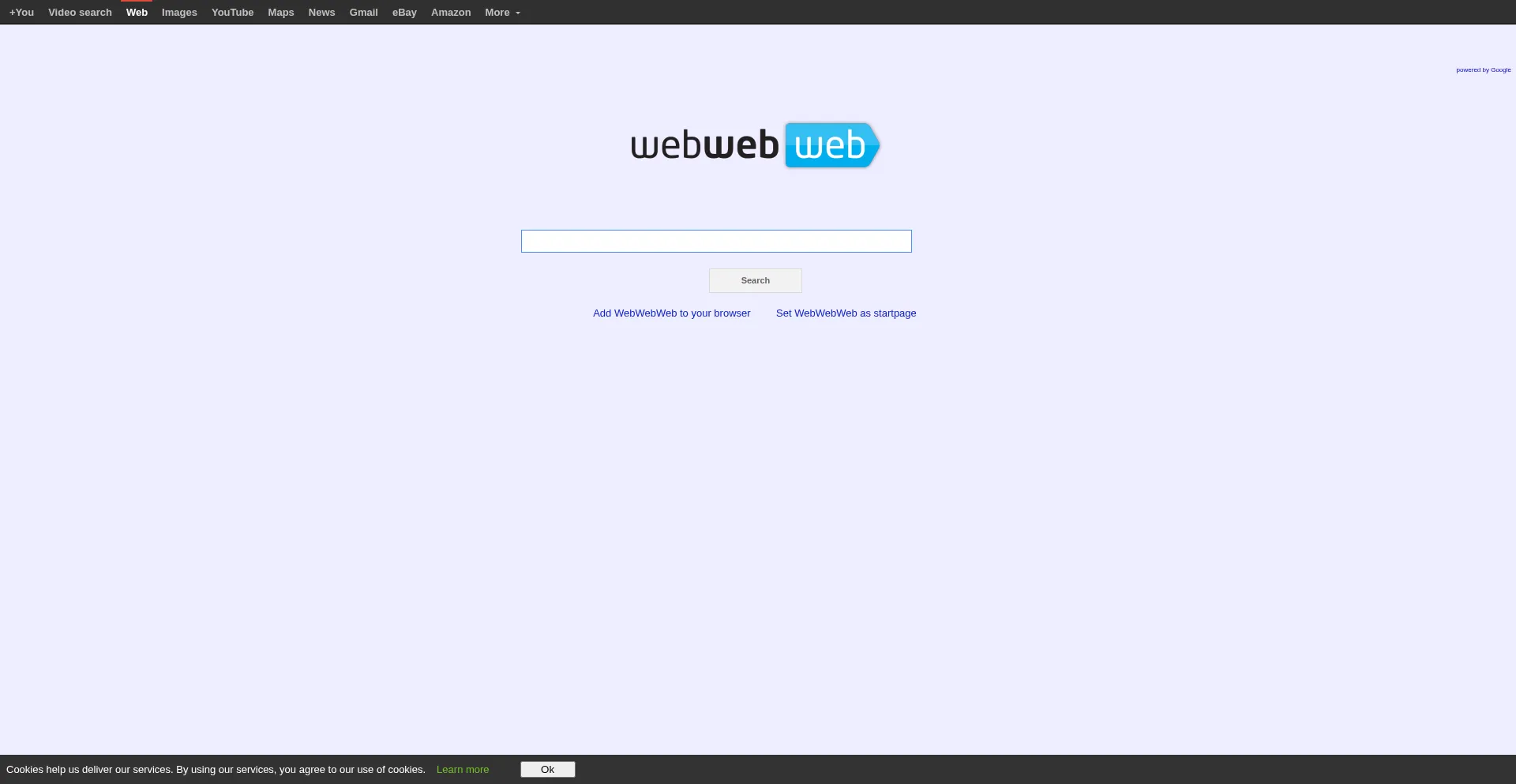
What Is WebWebWeb.com?
WebWebWeb.com is a search page that has been associated with browser redirect complaints for years. On a clean browser, simply visiting a search page is not the same as having malware installed. The problem starts when a browser opens it automatically as the homepage, new tab, default search engine, or intermediate redirect.
Gridinsoft’s Website Reputation check currently marks Webwebweb.com as a suspicious website with a 35/100 trust score and provider warnings. Treat that as a reason to avoid entering personal data there and to inspect the browser settings that sent you there, rather than as proof that every computer that loads the page is infected.
Common Symptoms
- Searches from the address bar pass through WebWebWeb.com or search.webwebweb.com.
- The homepage, new tab page, or default search engine changes back after you edit it.
- An unfamiliar extension appears in Chrome, Edge, or Firefox.
- The browser says it is managed by an organization on a personal PC.
- Notification popups, injected ads, or redirects appear after installing a free downloader or browser add-on.
- A scan reports adware, a PUA, or browser-hijacker leftovers.
Remove WebWebWeb.com Redirect
- Disconnect from sync first. If Chrome, Edge, or Firefox sync is active, pause it before deleting extensions. Otherwise a bad extension or setting can sync back from another device.
- Remove suspicious extensions. Open the browser extension manager and remove anything you did not intentionally install, especially video downloaders, search helpers, coupon tools, PDF converters, or extensions with broad “read and change all data” permissions.
- Restore search and startup settings. Set your preferred search engine, homepage, and new tab page. Remove WebWebWeb.com from any startup URL list.
- Check notification permissions. Remove notification access for unknown domains. Hijackers often combine redirects with push-notification spam.
- Inspect managed policies. If the browser says “Managed by your organization” on a personal device, check for extension-install policies or search-provider policies. Browser policy leftovers can force a redirect even after the extension is gone.
- Uninstall recent Windows apps. Sort installed apps by date and remove unknown download assistants, browser helpers, toolbars, or search apps installed around the first redirect.
- Check shortcuts, proxy, and DNS. Make sure browser shortcuts do not launch with a WebWebWeb URL. Check Windows proxy and DNS settings if all browsers redirect, not just one profile.
- Scan the system. Use Gridinsoft Anti-Malware or another trusted security tool to find adware, PUA, scheduled tasks, startup entries, and browser-policy leftovers.
- Reset the browser if the redirect remains. A reset is useful after removing the source, because it clears modified search, startup, tab, and extension settings without requiring a full Windows reinstall.
After uninstalling the suspicious app or deleting the visible threat, use Gridinsoft Anti-Malware to check hidden files, startup entries, scheduled tasks, bundled apps, browser changes, and other persistence points that can restore malware.
Download Anti-MalwareChrome, Edge, And Firefox Checks
Google Chrome
Open chrome://extensions, remove suspicious extensions, then check chrome://settings/search and chrome://settings/onStartup. If WebWebWeb.com returns, open chrome://policy. A personal computer should not normally have unknown policies forcing search or extension settings. Google’s own Chrome guidance also recommends removing unwanted programs and resetting Chrome settings when unwanted popups, redirects, or changed search settings persist.
Microsoft Edge
Open edge://extensions, remove suspicious extensions, and review each extension’s site access. Edge can use many Chrome Web Store extensions, so a Chrome-style search helper can affect Edge too. Then check edge://settings/search, edge://settings/startHomeNTP, and edge://policy.
Mozilla Firefox
Open about:addons, remove suspicious extensions, then check Home and Search settings. If the redirect survives, use Firefox Refresh after exporting bookmarks or confirming sync state. Refresh removes add-ons and customizations while keeping important profile data such as bookmarks and passwords.
Why It Keeps Coming Back
The usual cause is not the WebWebWeb.com page itself. A separate component is restoring the setting. Look for these persistence points:
- a browser extension that controls search or startup pages;
- a Windows app installed with a free downloader bundle;
- a browser policy under Chrome or Edge;
- a scheduled task or startup entry that opens a URL;
- sync restoring the bad setting from another browser profile;
- proxy, DNS, or shortcut changes affecting more than one browser.
For a broader cleanup checklist, see Gridinsoft’s PUA browser hijacker removal guide. If your search keeps switching through other fake search pages as well, the cleanup steps are similar to the patterns covered in the Search-fine.com redirect guide and Nextgeeker.com redirect guide.
Is WebWebWeb.com Dangerous?
Do not treat the redirect as harmless just because it may show search results. A forced search page can expose search terms, route clicks through advertising partners, or send you to pages you did not choose. However, avoid panic: the practical fix is to remove the browser component and verify the computer, not to reinstall Windows immediately.
After cleanup, open the Gridinsoft WebWebWeb.com reputation report directly only if you need to review the current domain rating. Avoid typing passwords, payment information, or account recovery data into unfamiliar search pages reached through a redirect.
When a browser redirect is gone but DNS errors remain, follow the DNS server isn’t responding after malware checklist to remove DNS, proxy, and Winsock leftovers.
Another exact-domain redirect to compare is Easysearching.net, where cleanup centers on Easy Search extension removal and search-engine reset.
FAQ
Why does WebWebWeb.com open when I search?
A browser extension, unwanted app, or policy is likely forcing WebWebWeb.com as the search provider or startup page. Remove the source first, then restore search and startup settings.
Can I remove WebWebWeb.com by changing my homepage?
Sometimes, but not if a helper component keeps restoring the setting. If the page returns after restart, inspect extensions, browser policies, Windows apps, and sync.
Is a browser reset enough?
A reset helps after the unwanted extension or app is gone. If you reset first and leave the source installed, the redirect can return.
Should I delete my browser profile?
Only as a last step. First remove suspicious extensions, pause sync, check policies, and reset the browser. Deleting a profile can remove bookmarks and saved data if they are not backed up.
References
- Google. “Remove unwanted ads, pop-ups & malware.” Google Chrome Help, accessed May 29, 2026. https://support.google.com/chrome/answer/2765944
- Microsoft. “Add, turn off, or remove extensions in Microsoft Edge.” Microsoft Support, accessed May 29, 2026. https://support.microsoft.com/en-us/microsoft-edge/add-turn-off-or-remove-extensions-in-microsoft-edge-9c0ec68c-2fbc-2f2c-9ff0-bdc76f46b026
- Mozilla Support. “Refresh Firefox – reset add-ons and settings.” Mozilla Support, accessed May 29, 2026. https://support.mozilla.org/en-US/kb/refresh-firefox-reset-add-ons-and-settings